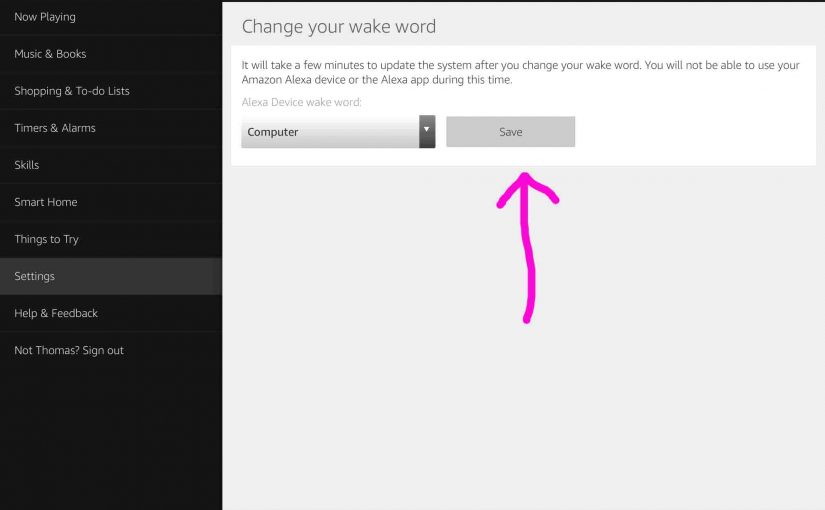
You can indeed change the wake word that the Amazon Alexa enabled speakers respond to. Current choices are, “Alexa…,” “Amazon…,” “Computer…,” and “Echo…” The wake word is the name you say to wake up the smart speaker. Alexa then starts listening for a follow-up command / question. The wake word is how you “get her attention,” so to speak. This setting is not customizable beyond these four choices as of yet. In this post, we show you how to change Amazon Echo Dot wake word via the Alexa app.
Do you might wish to change this word for a particular Echo speaker. Why? Because perhaps you have more than one in the same home. In that case, naming each Alexa speaker differently stops them all from answering at once. This wake word is speaker-specific. So if you have multiple echo speakers close to each other, you could assign each one a different trigger word.
Following are instructions on how to set this watch word for a specific Echo device connected to your Amazon account.
How to Change Amazon Echo Dot Wake Word
1. Locate the Alexa App
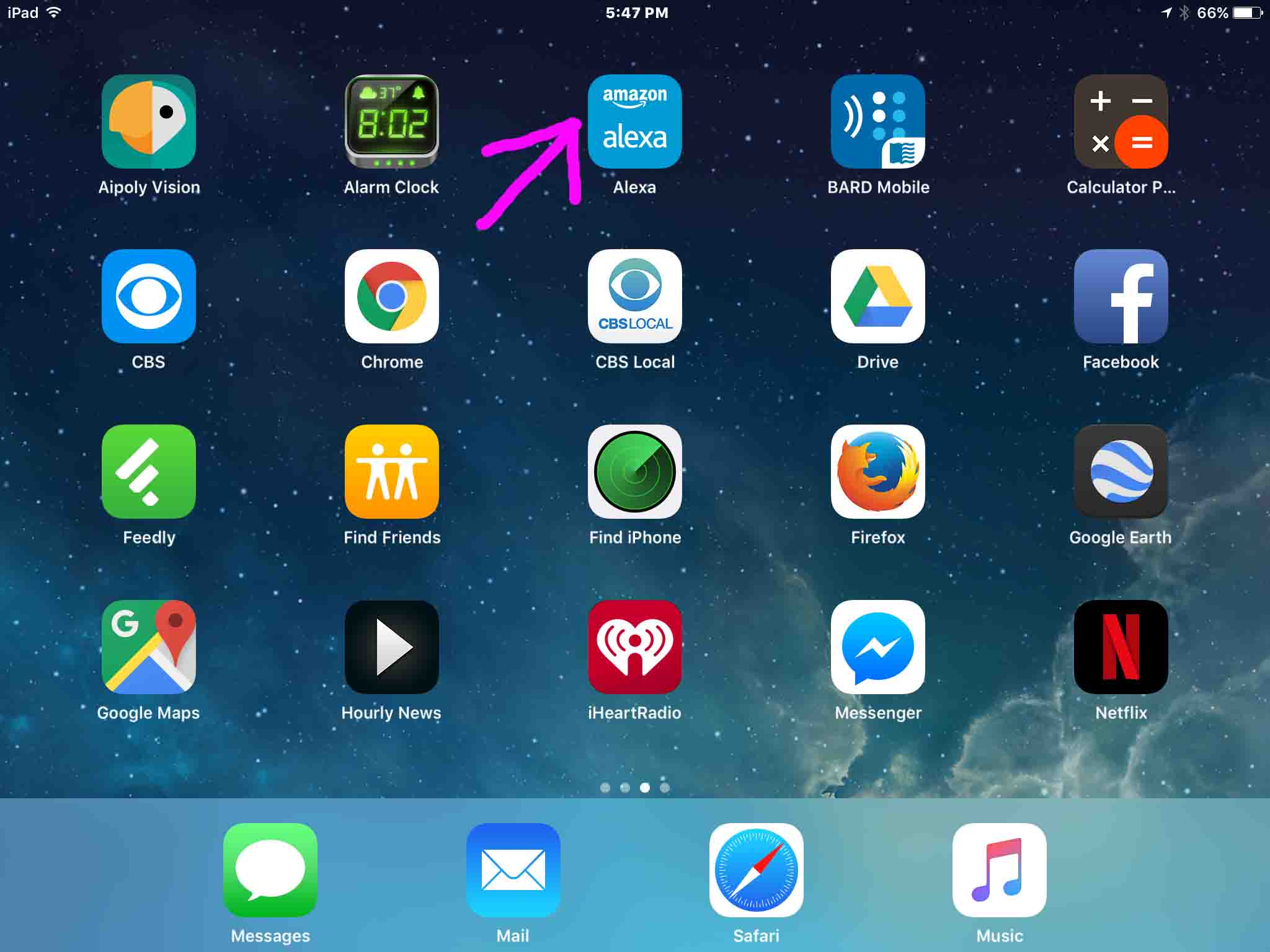
First, find the Alexa App on your tablet. We find our copy on the third page of the home screen on our iPad Air, as shown next.
2. Then, Run the Alexa App
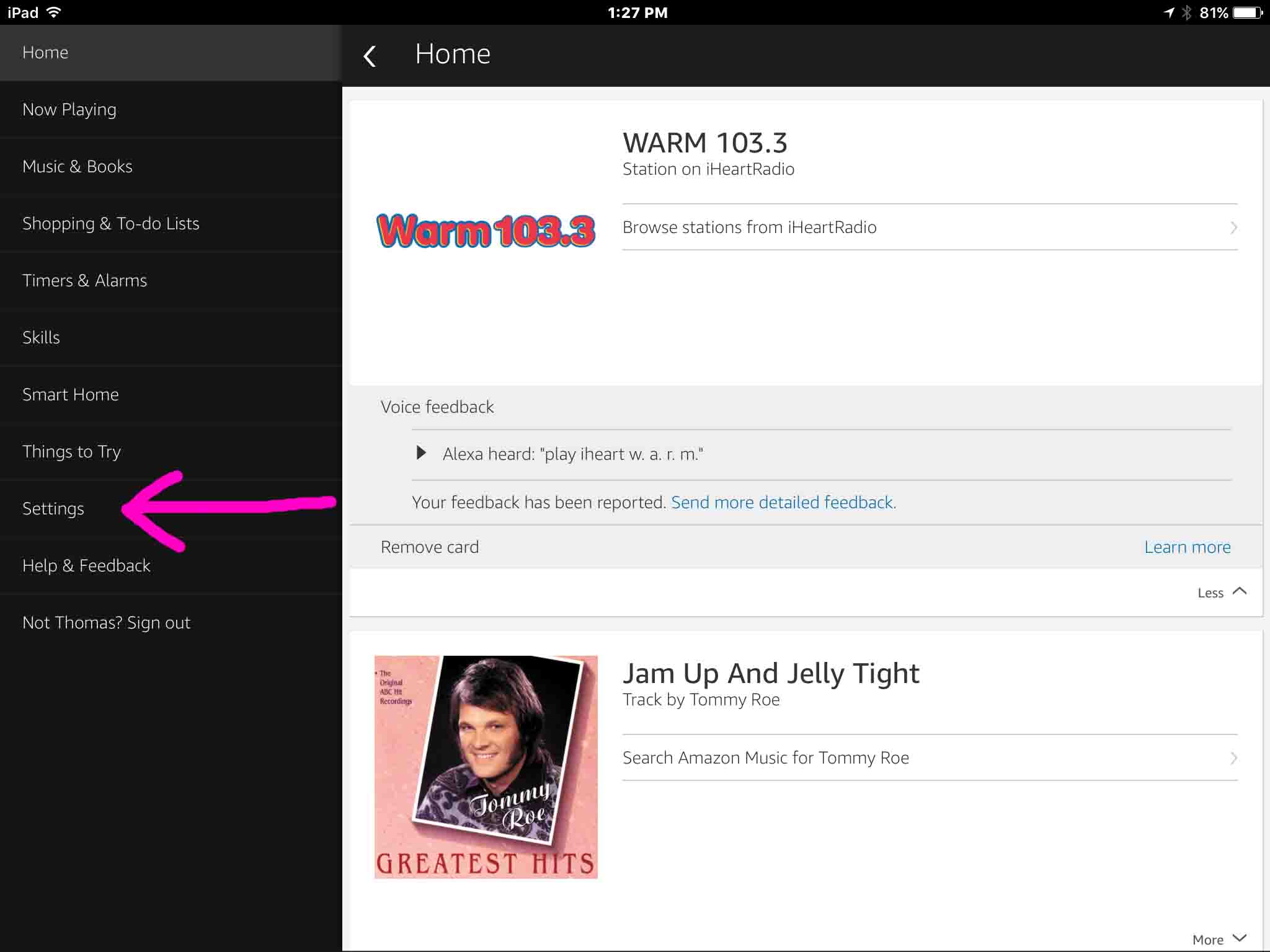
Next, You should then get the Alexa app Home screen, similar to the picture displayed next.
3. Tap the Settings Option to Continue with How to Change Echo Dot Wake Word
See the Settings item highlighted by the pink arrow in the previous picture. This brings up the Settings screen, as shown next.
4. Tap the Echo Speaker Device
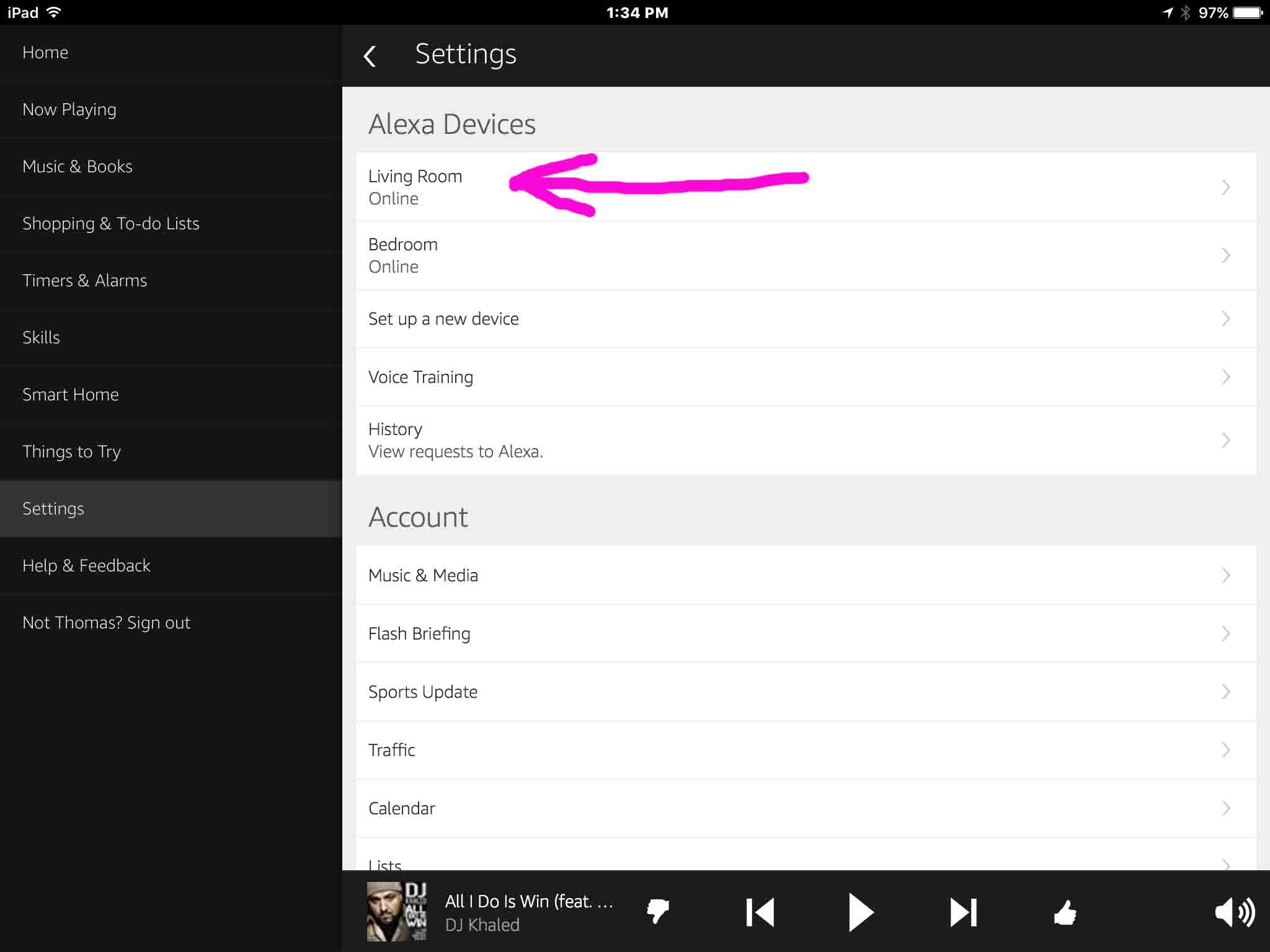
Tap the Echo Dot whose wake word you wish to change. We’re going to update our Living Room speaker’s trigger word in this example.
So, tapping that device on the screen above, displays the following screen.
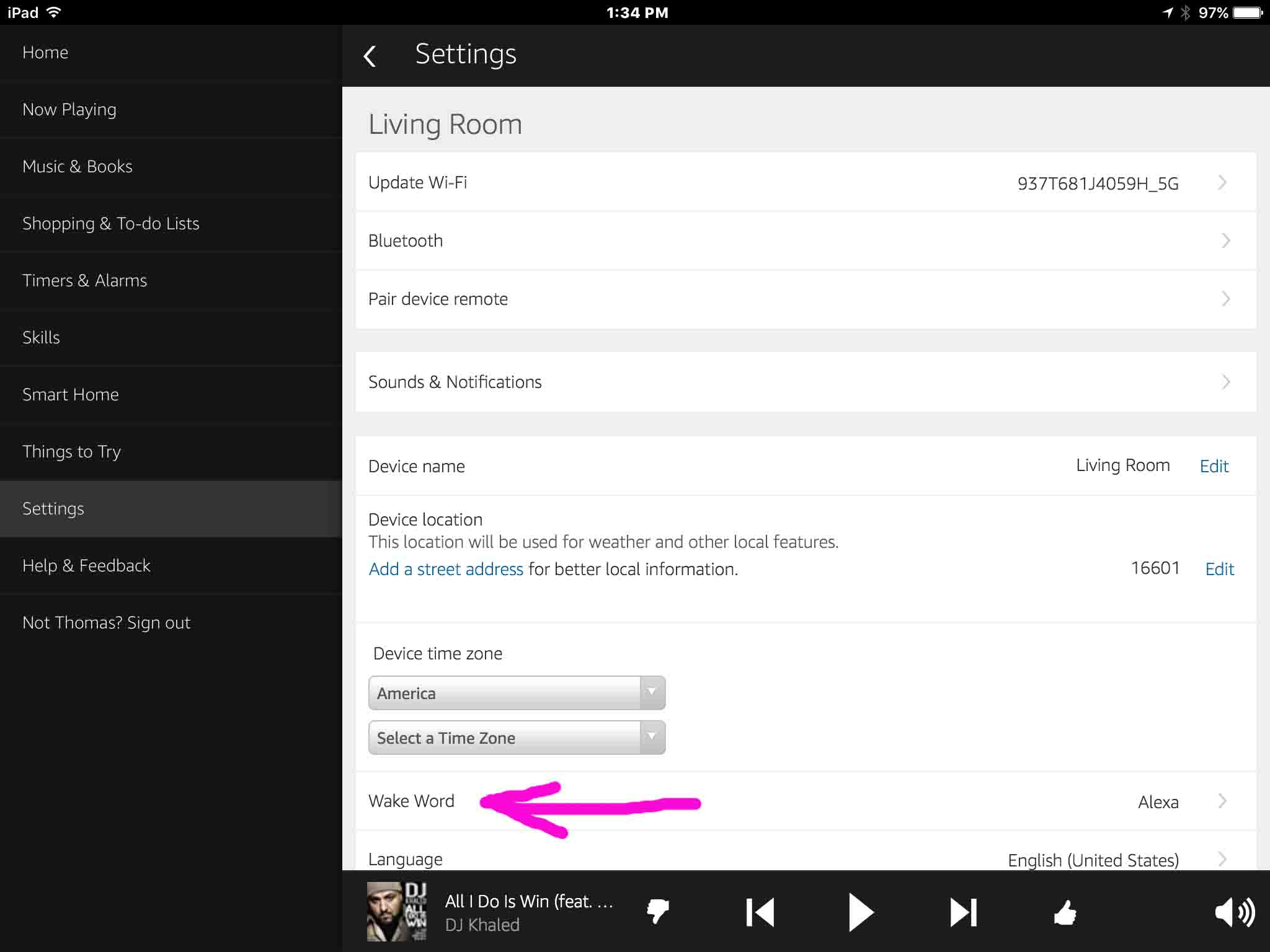
5. Tap the Wake Word Item
See this link, pointed at by the pink arrow in the last picture.
You should then see the Change your Wake Word screen, similar to the following.
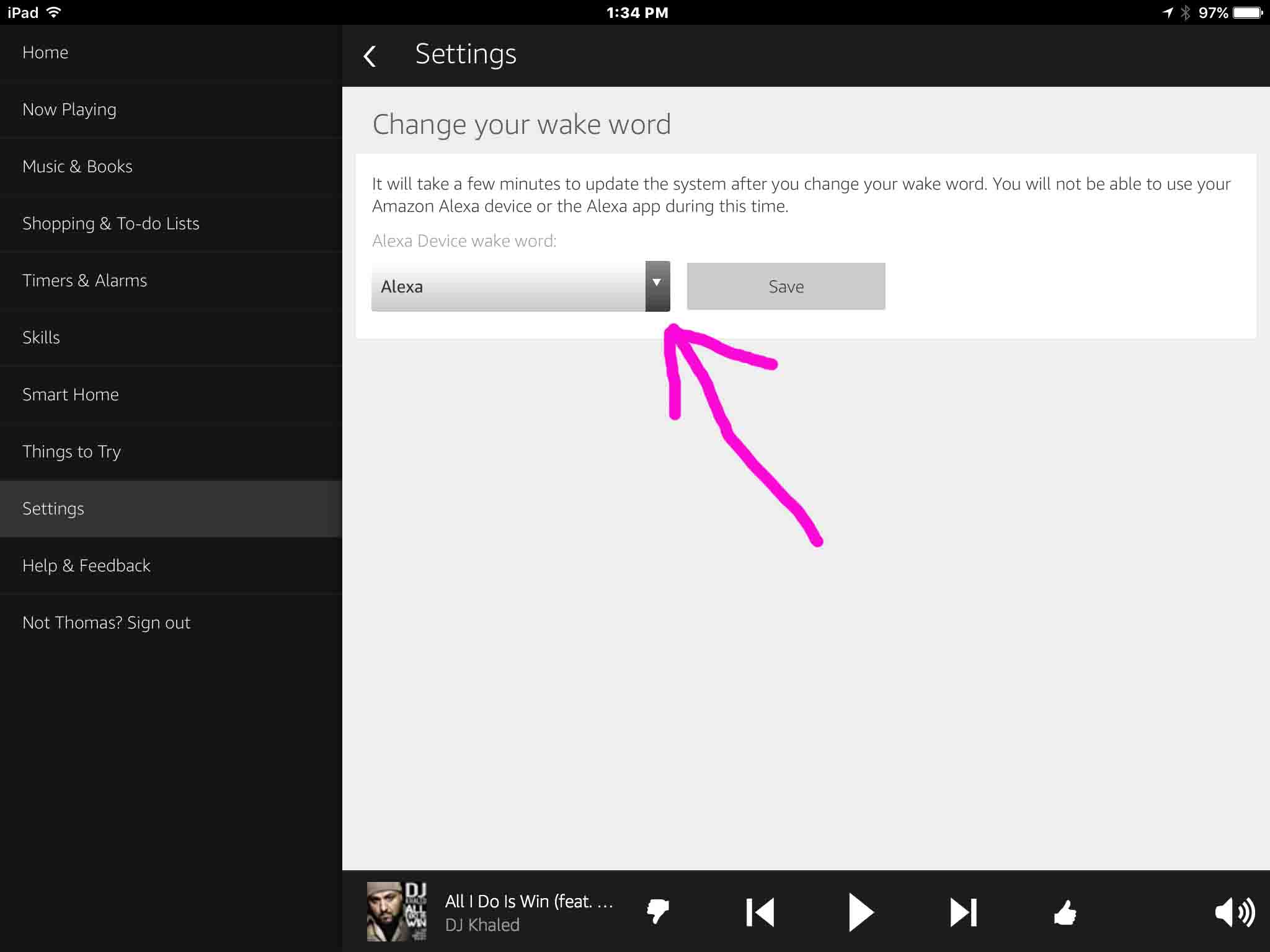
6. Tap the Wake Word Choices Pull Down Menu Item to Continue with How to Change Echo Dot Wake Word
Find the Wake Word Choices item, as pointed at by the pink arrow in the last picture.
Then, the Wake Word Choices menu then expands, and appears as follows.
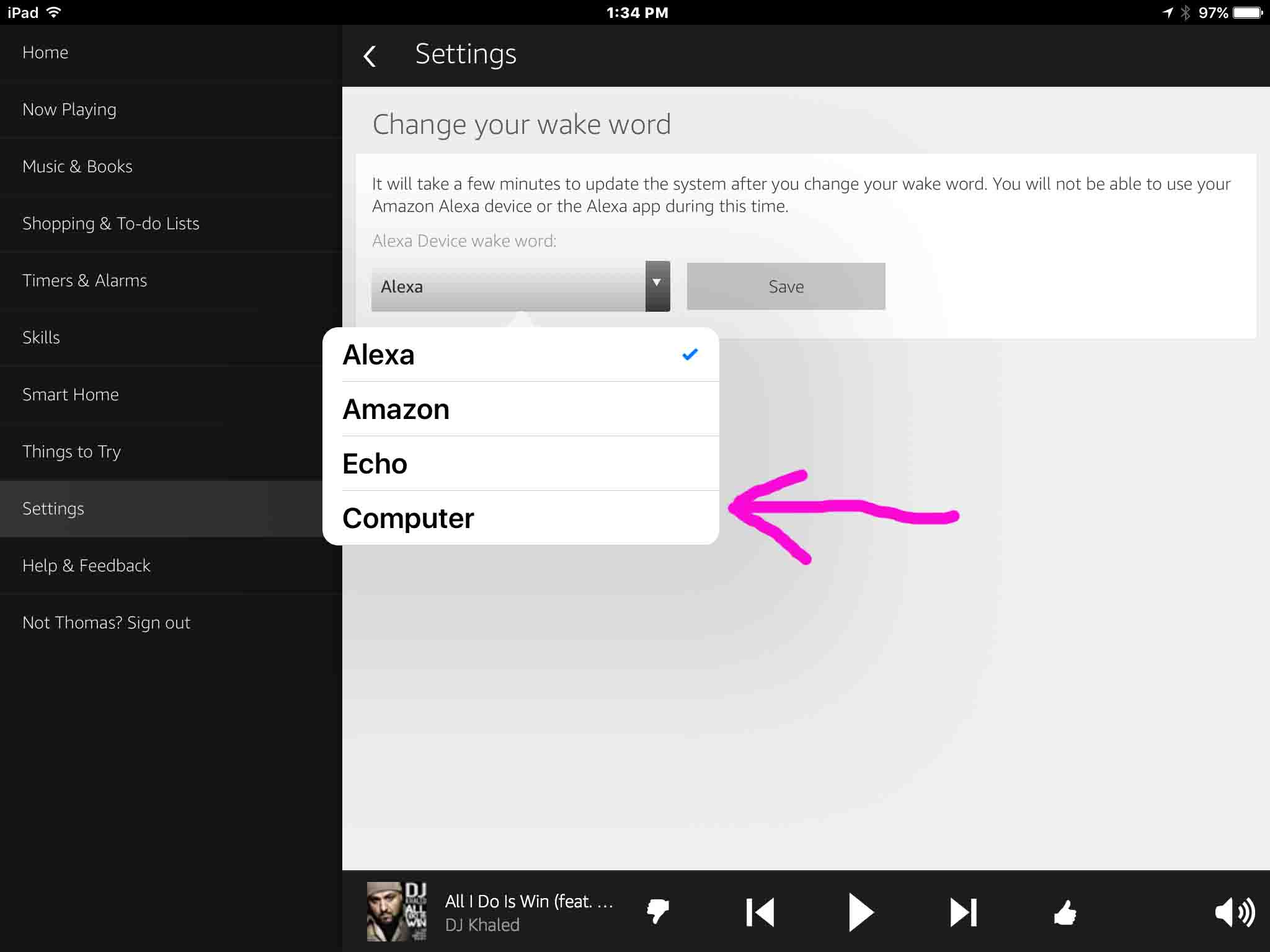
7. Tap the Wake Word Choice you Wish
In our case, we change our living room Echo Dot wake word to Computer. So, we tap the Computer item on that menu.
This then takes us to the Change Your Wake Word screen as follows. But now, the value in the Wake Word Choices pull down combo box is Computer, as shown.
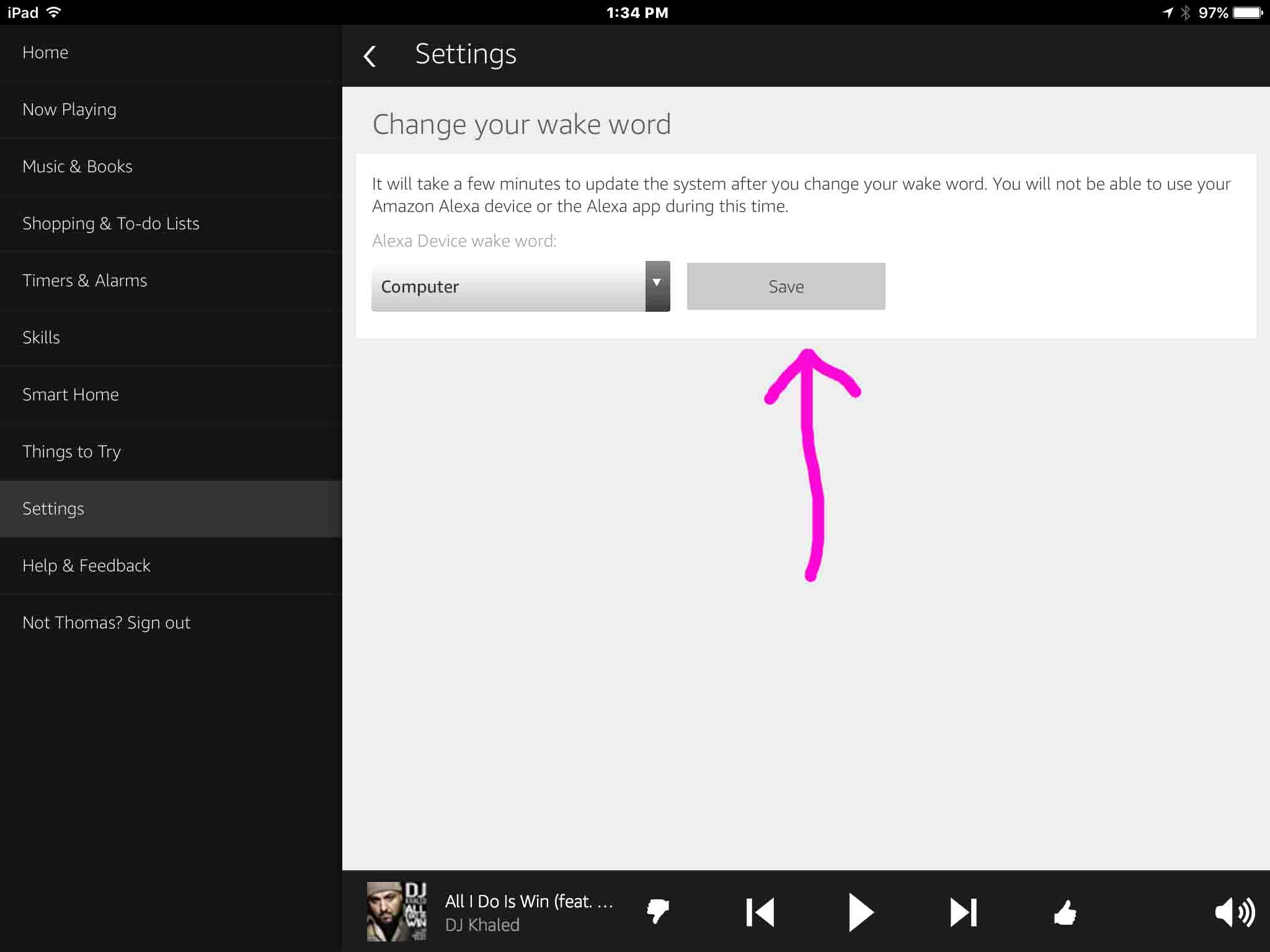
8. Tap the Save Button
The Save button is highlighted in the last picture.
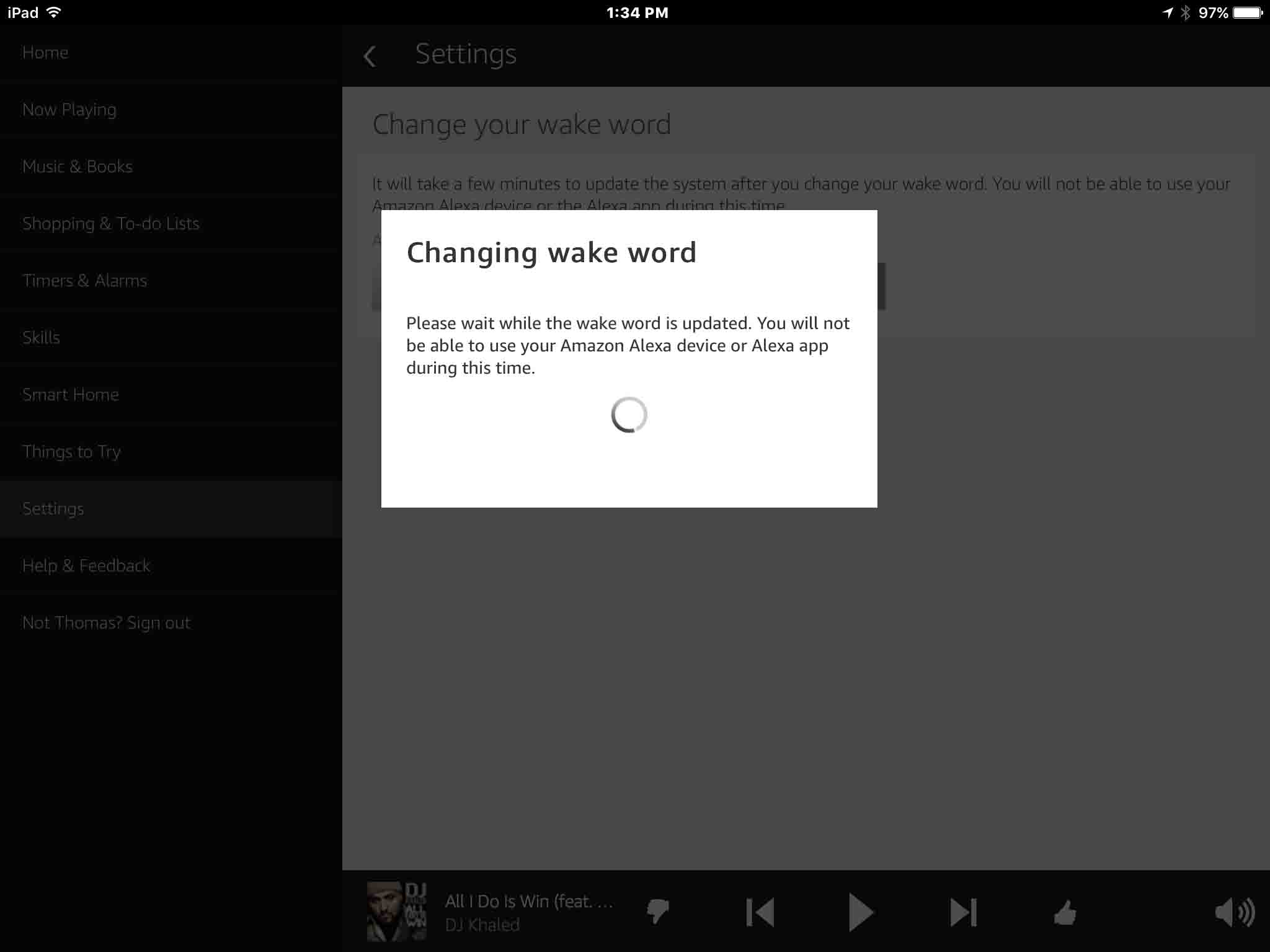
Then, the Changing Wake Word window pops up briefly, as shown following.
Next, the Wake Word Changed window appears.
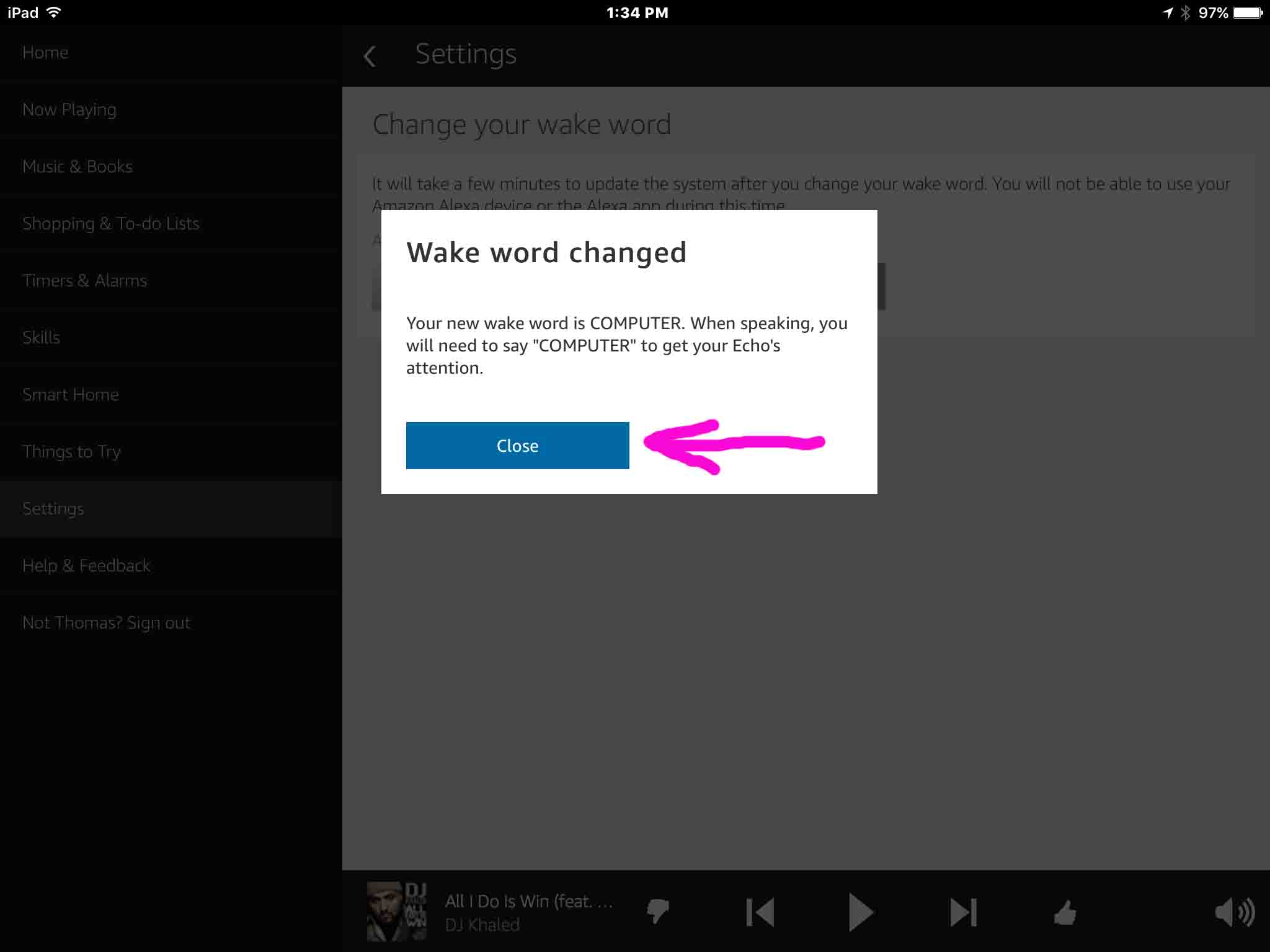
9. Press the Close Button
Finally, your Echo Dot speaker should now respond to the new wake word. Test it out.
10. Finished with How to Change Echo Dot Wake Word !
Other Posts About the Echo Dot Speaker
Related Posts to How to Change Echo Dot Wake Word
References for How to Change Echo Dot Wake Word
Revision History
-
- 2019-05-20: Tuned the targeting for ‘Change Echo Dot Wake Word’ and added tags.
- 2017-03-18: Originally published.