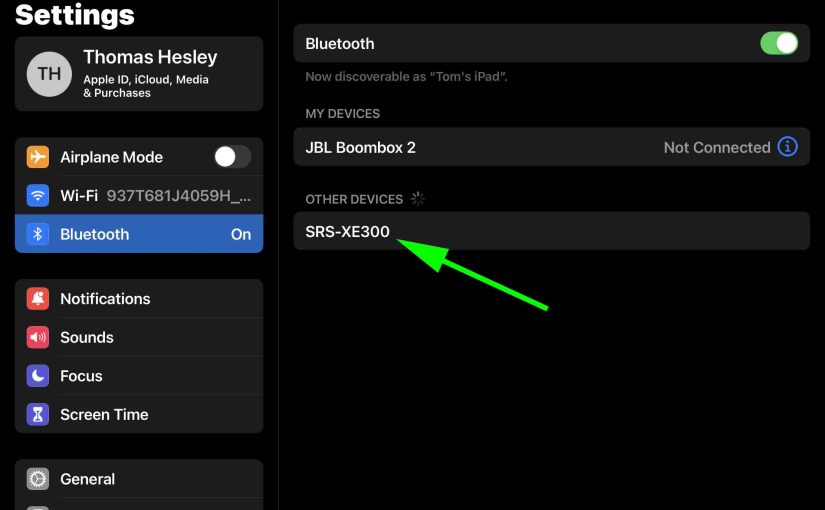
To pair your SRS XE300 Sony BT speaker with a BT source device for the first time, or to refresh old connection info in that device, you first have to know how to place this speaker into discovery mode. Now in this mode, this speaker broadcasts its name and currently valid connection handles over the wireless airwaves, so that nearby Bluetooth source devices can find and link to it. Thus in this post, we show you how to make the Sony XE300 discoverable, to let you pair it with phones, tablets, computers, and smart speakers. Then, you can play your favorite tunes from those devices, on this great sounding XE300 column speaker.
How to Make Sony XE300 Discoverable, Step by Step
1. Turn On the XE300
Firstly, turn on the speaker by briefly pressing its Power button.
E.g. See this button, pointed out by the hot pink arrow, in the next picture.
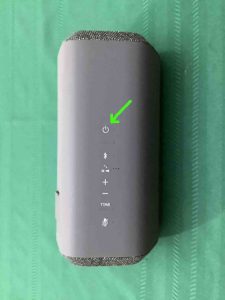
The speaker then comes on.

2. Press the Discovery / Pairing Button
Secondly, this lets you discover your XG 300 on your source BT device. So, place the speaker into discovery mode by pressing and releasing the Pairing / Discovery button. we point it out in the next picture.
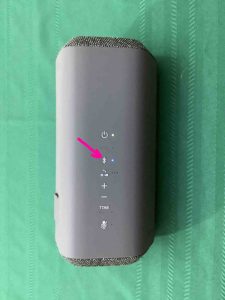
Additionally, when you press and release this button in a quarter second, the speaker talks to you in a female voice, and says, “Bluetooth pairing.”

Plus, the Pairing Status lamp begins flashing blue in a pulse-pulse-pause-pulse-pulse-pause pattern. We point out this light in the last picture.
3. Done with How to Make Sony XE300 Discoverable

Finally, while the Bluetooth Status lamp is blinking, you should see the XE300 on any in-range phone, computer, tablet, or smart speaker, that is within several feet of it, as we see in the last picture above. The speaker appears as “SRS-XE300” there. At this point, you can go ahead and connect to the speaker from your source device. You have now made your XE300 speaker discoverable.
Other Sony XE300 Posts
Related Posts to How to Make Sony XE300 Discoverable
References
Revision History
-
- 2023-03-29: First published.