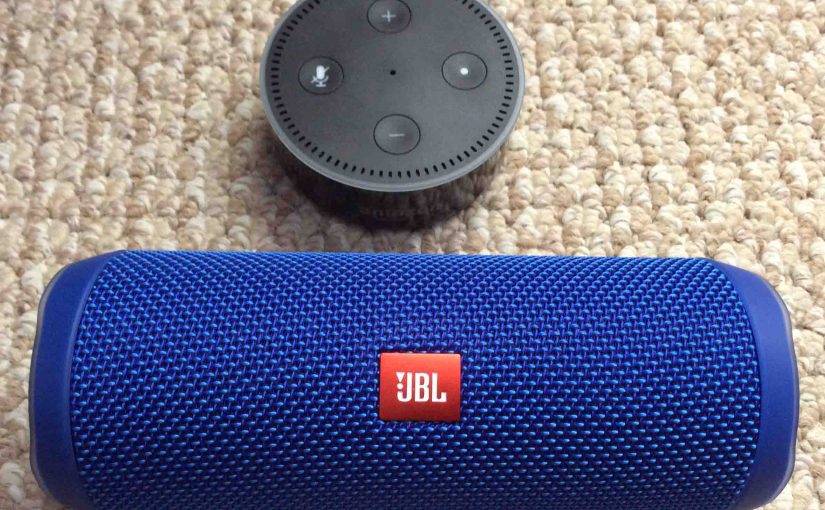
This post demos how to pair the JBL Flip 4 with Amazon Echo Dot speakers. These include the generation 1 and generation 2 Echo Dot Amazon speaker versions. Since this linking happens between the JBL Flip 4 and the Amazon Echo Dot speakers, you need not turn Bluetooth on in the mobile device you’re using to set up this pairing.
How to Pair JBL Flip 4 with Amazon Echo Dot Speakers
First, with your JBL Flip 4 powered off (power button is dark), run through this routine to pair it to your Amazon Echo Dot. We’re using an iPad Air tablet to create this pairing.
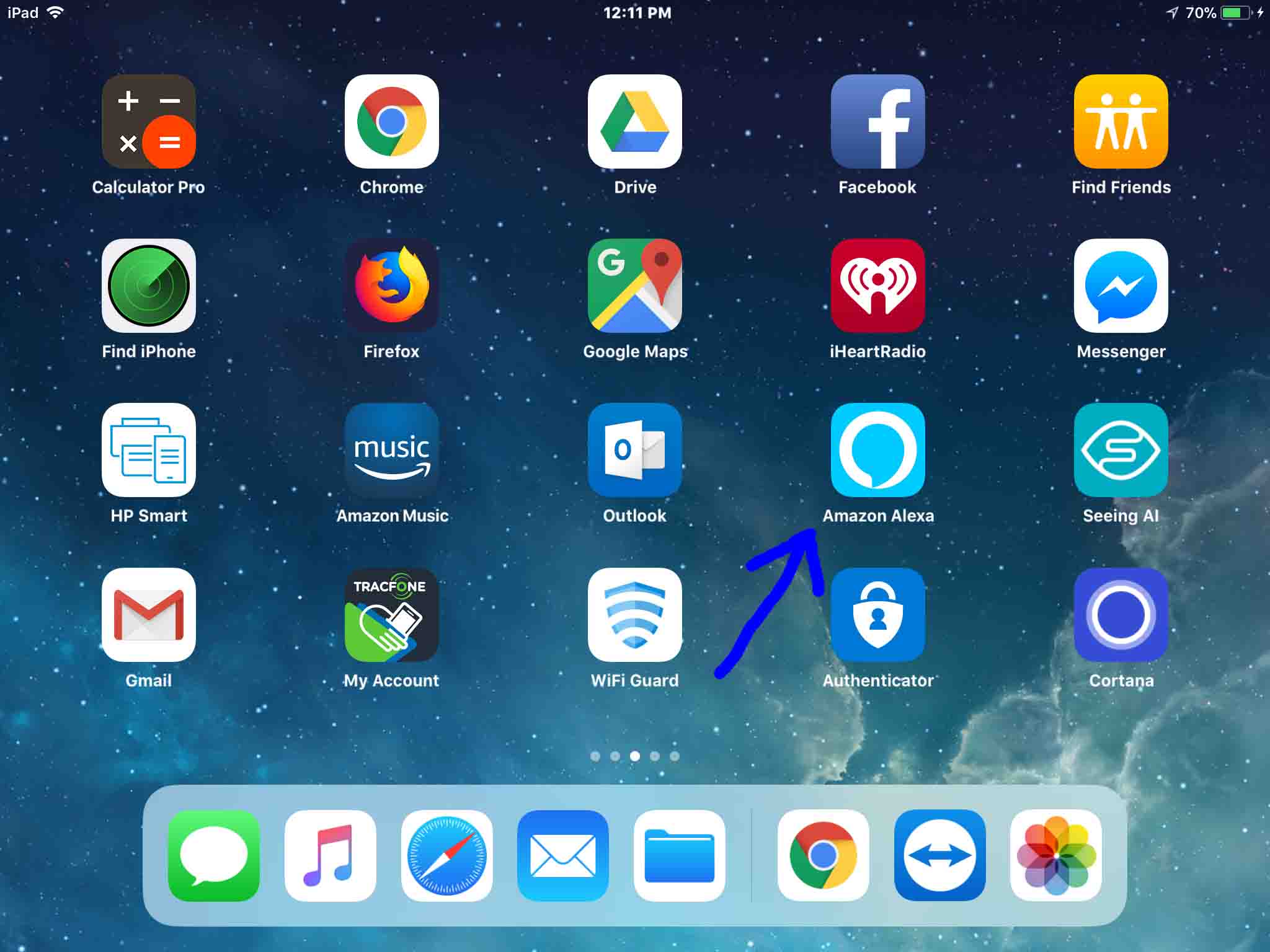
1. Find the Alexa App on your Mobile Device
We found the app on our iOS iPad Air as shown in the next screenshot. In our case, the Alexa app is on the third home screen page. It’s pointed at by the blue arrow.
2. Run the Alexa App
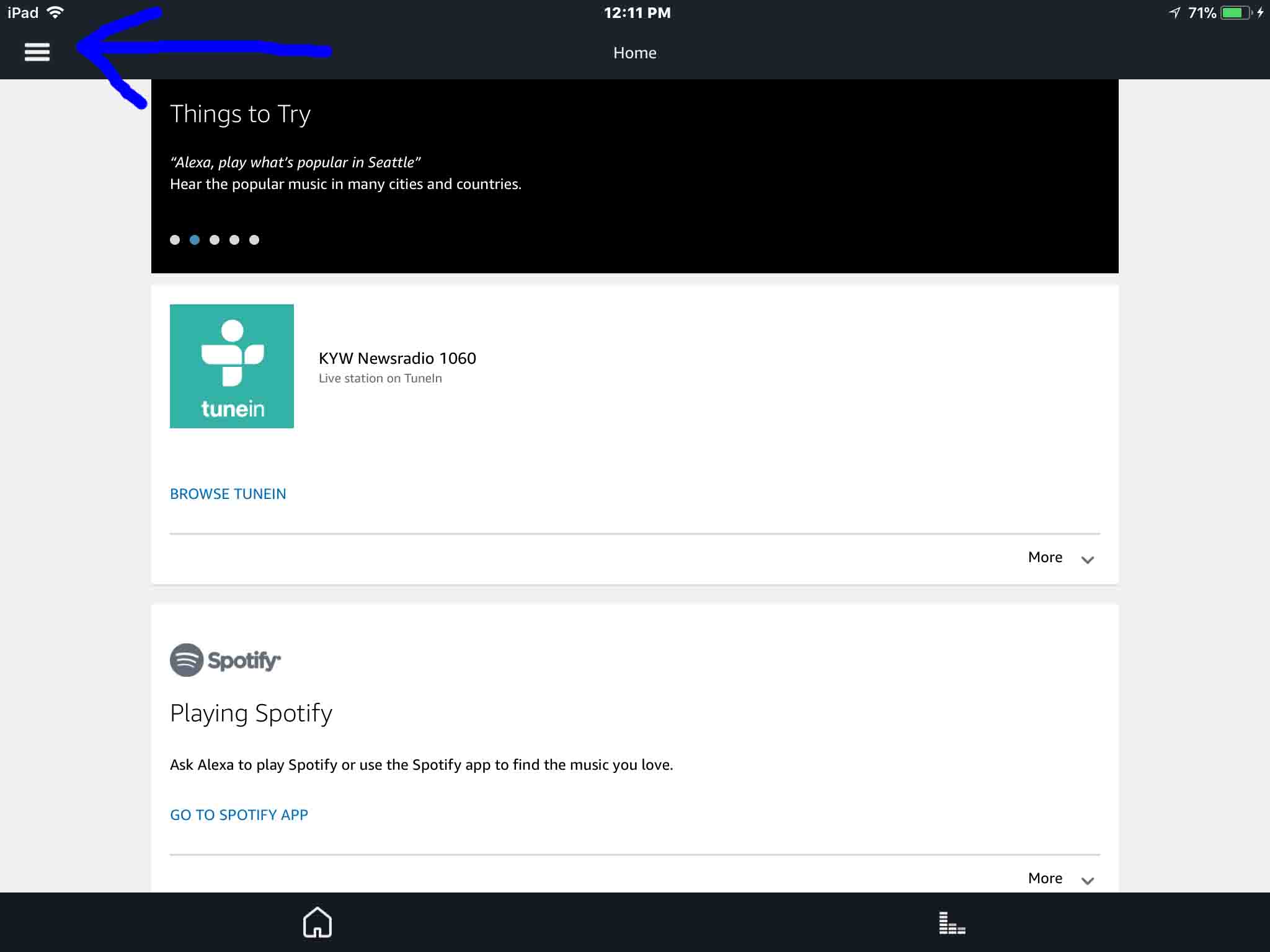
The app displays its Home screen as shown in the next screenshot.
3. Tap the Hamburger Control
Next, find the hamburger item in the top left corner of the screen. This is pointed at by the blue arrow in the last screenshot.
This then brings up the Alexa app’s main menu, as shown in the next screenshot.
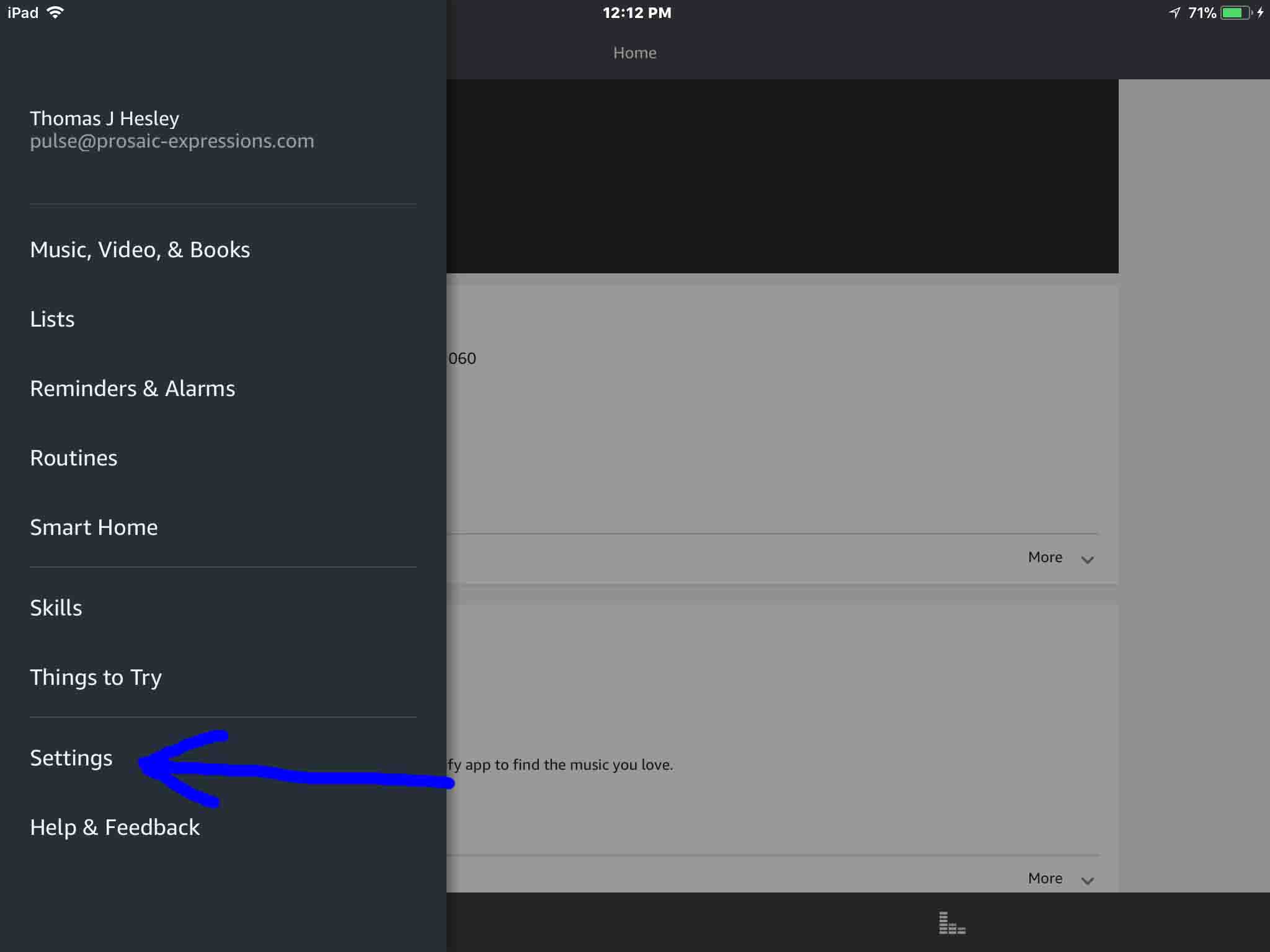
4. Tap the Settings Option on the Main Menu to Continue with How to Pair JBL Flip 4 with Amazon Echo
The Settings option is pointed at by the blue arrow in the last screenshot.
This brings up the Settings screen, as shown in the next screenshot. From here, choose which Echo device you wish to pair with your JBL Flip 4 Bluetooth speaker.
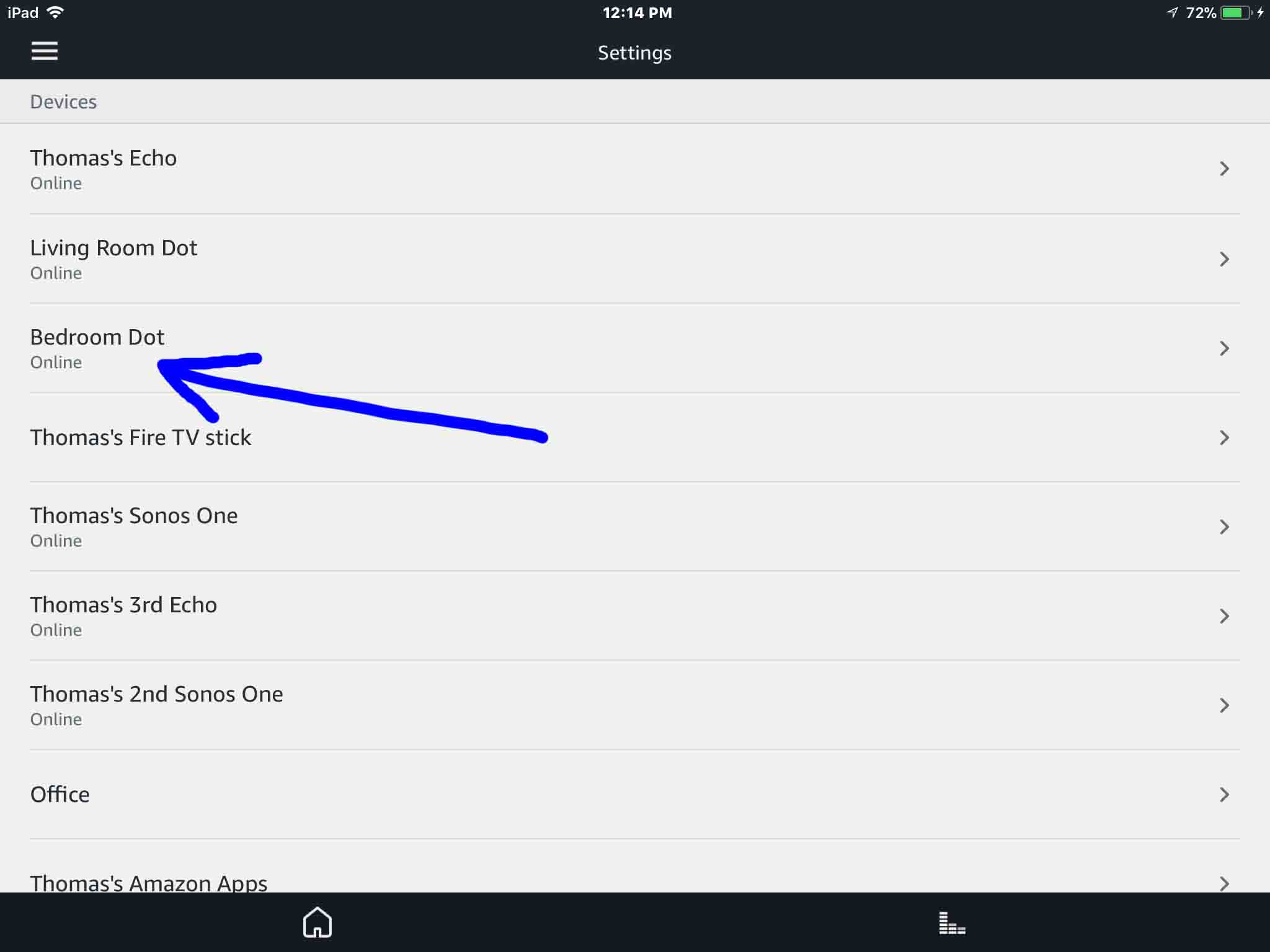
5. Tap the Echo Dot Device you Wish to Pair to your Bluetooth Speaker
This takes you to the device-specific settings screen for the Echo speaker you chose.
In this demo, we’re pairing from our Bedroom Dot Echo Dot speaker to our Flip 4 speaker.
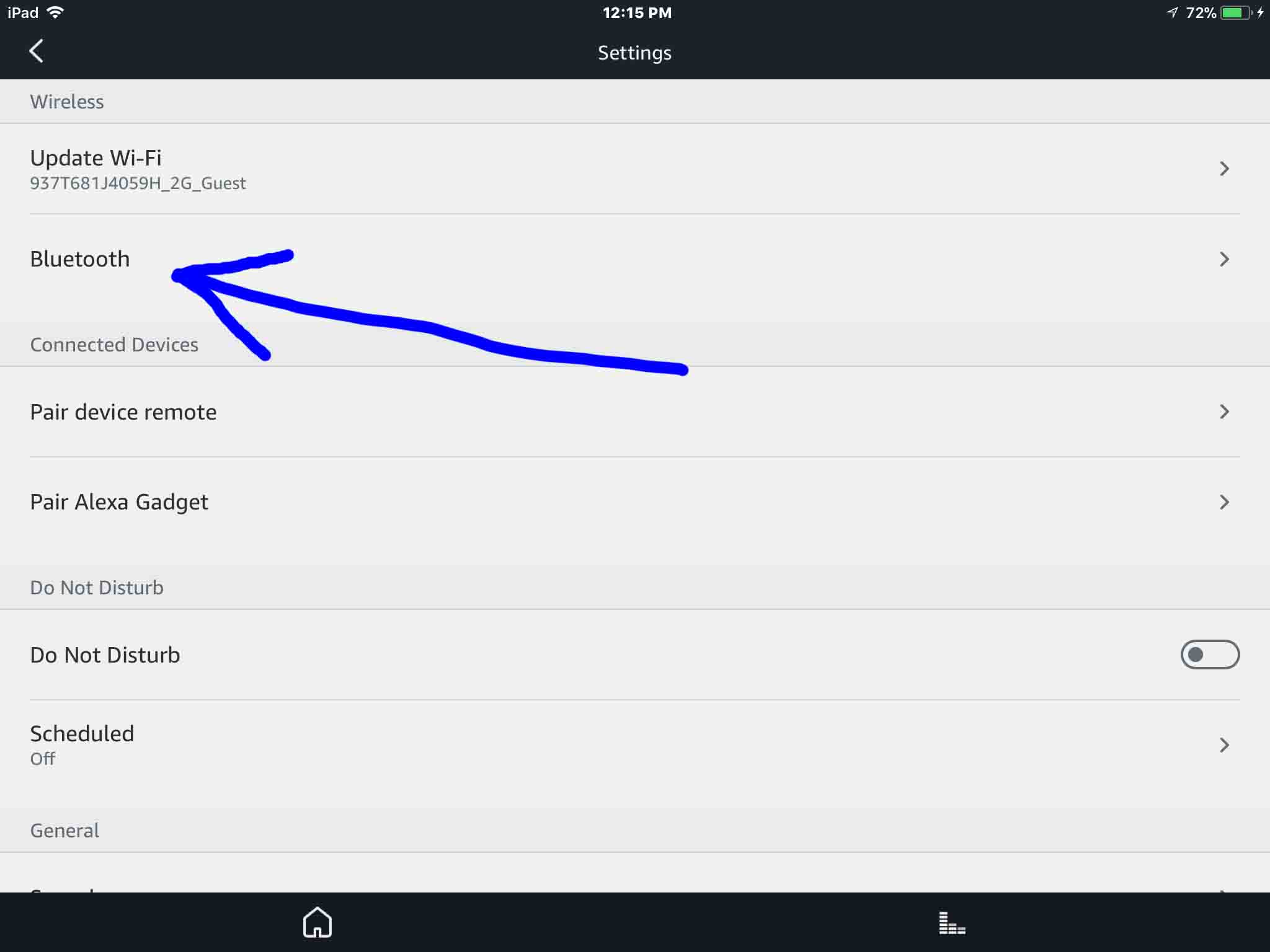
6. Tap the Bluetooth Item
Find the Bluetooth option pointed at by the blue arrow in the last screenshot.
This brings up the Bluetooth Devices screen, as shown next.
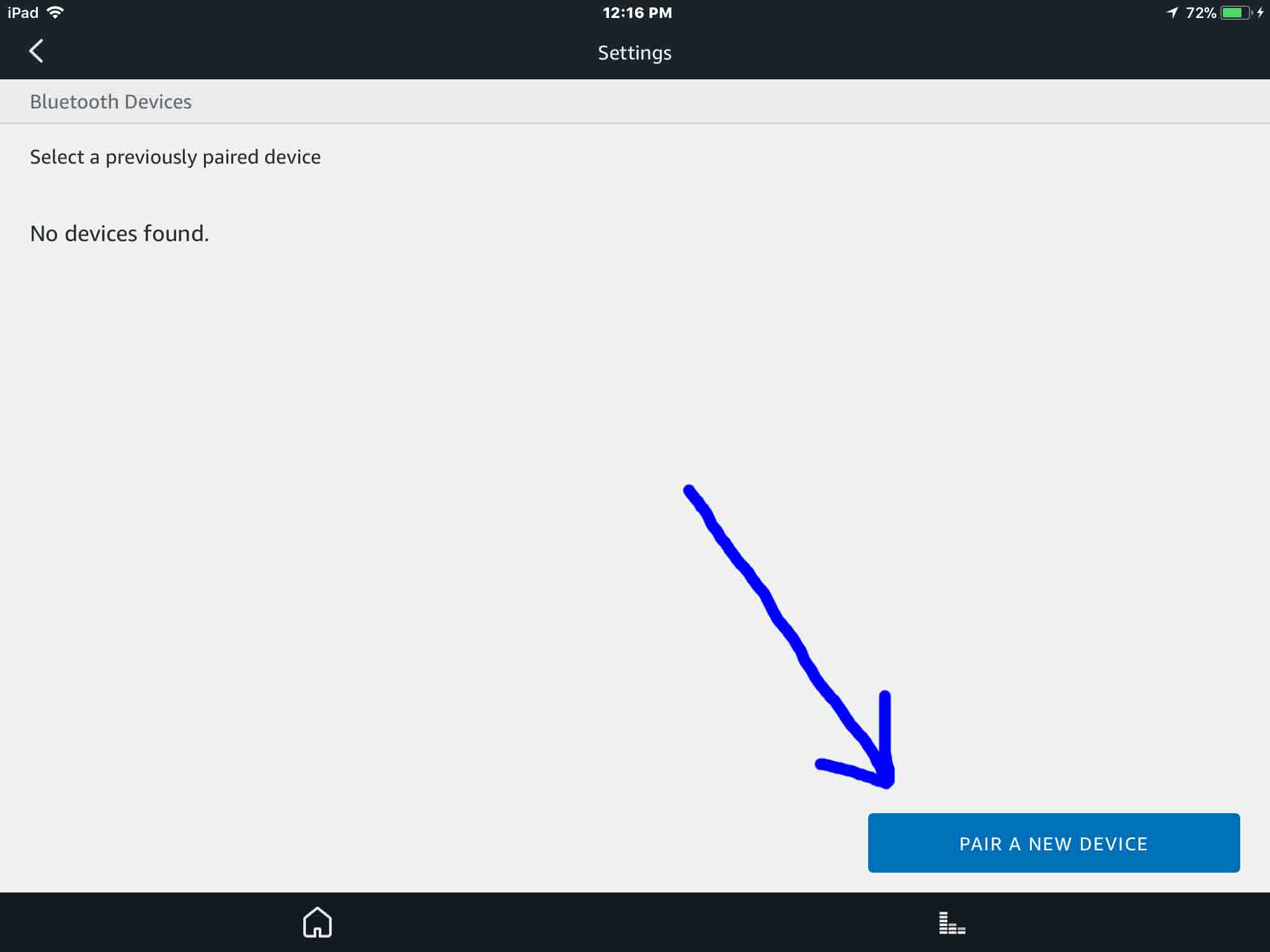
At this point, you’re ready to start a Bluetooth scan by your Echo Dot speaker. You’ve selected this Dot in the last step. So, that Dot will be the one that scans for Bluetooth devices.
But don’t press the Pair a New Device button just yet. We must first power up your JBL Flip 4 speaker and put it into pairing discovery mode.
7. Turn On your Speaker, to Continue with How to Pair JBL Flip 4 with Amazon Echo
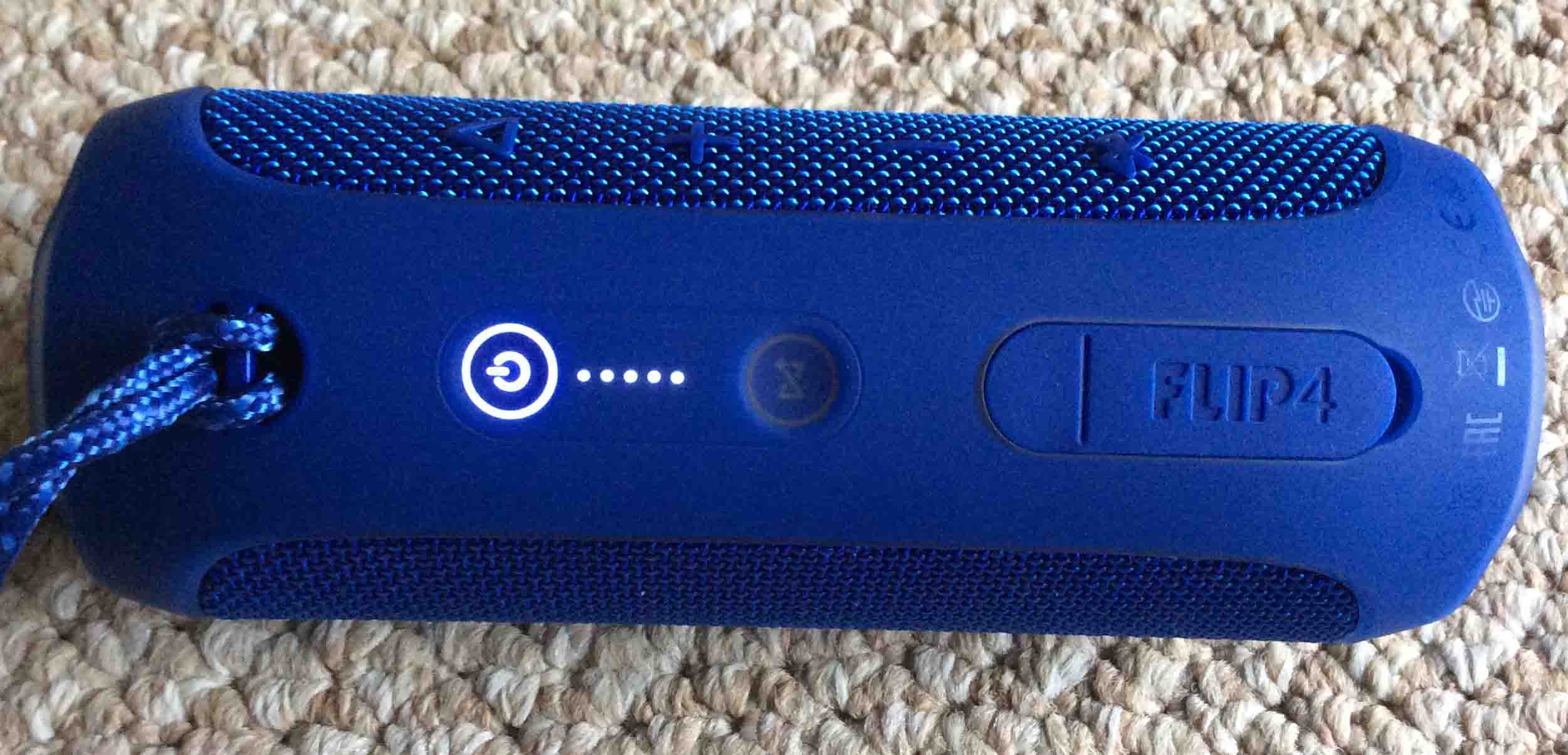
Put down your mobile device for a bit, and turn on the JBL Flip 4 by quickly pressing its Power button. See this circled in green, in the next picture.
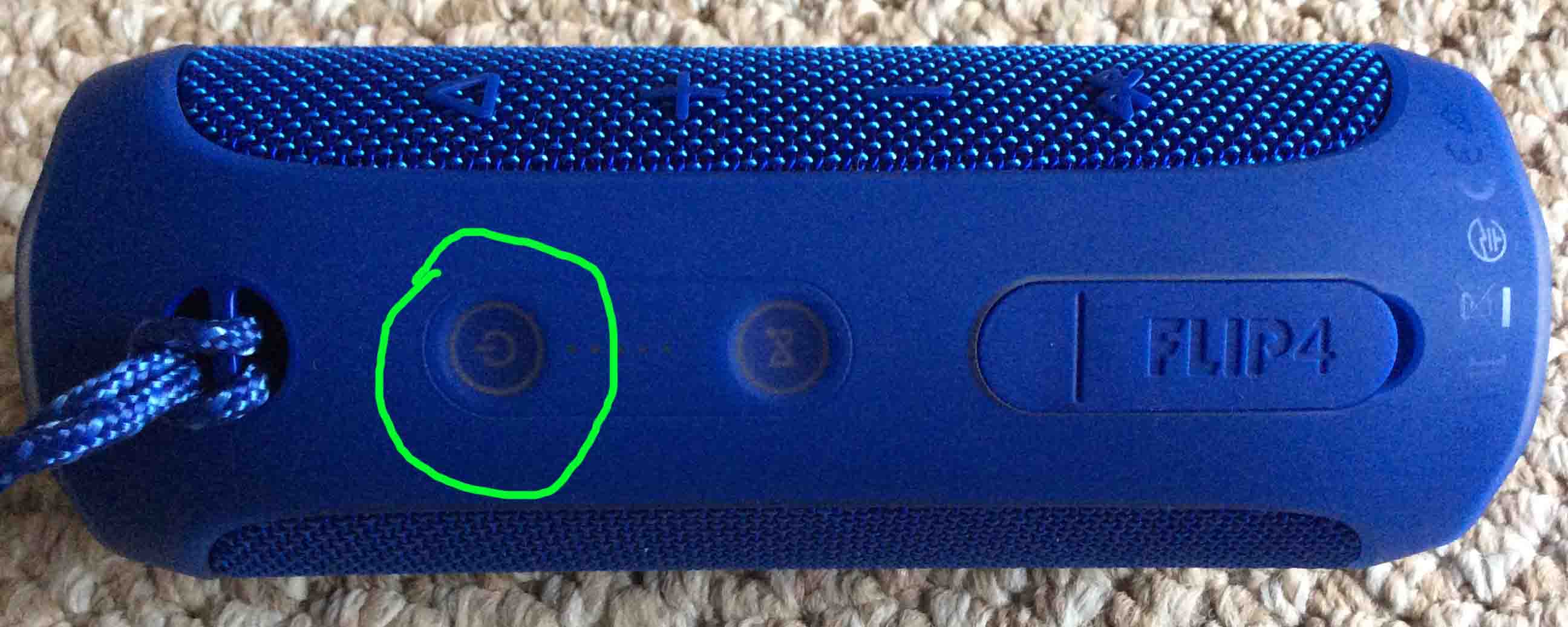
The speaker then powers up.
But since our Echo Dot does not know about this speaker, the Flip 4 will not pair with it automatically. Not yet anyhow. Thus, the light that comes on in the power switch denotes this not-paired state by glowing solid white, as shown next.
Note that your Flip 4 may be flashing blue, especially if you’ve never paired it with a device since the last factory reset. In that case, skip the next step (Step 8) and pick up with Step 9.
8. Put your JBL Bluetooth Speaker into Discovery Mode
Now, to allow the Echo Dot to find your JBL Flip 4 speaker, place the speaker into Bluetooth discovery mode. To do that, press and release the Bluetooth button, as shown in the next picture.
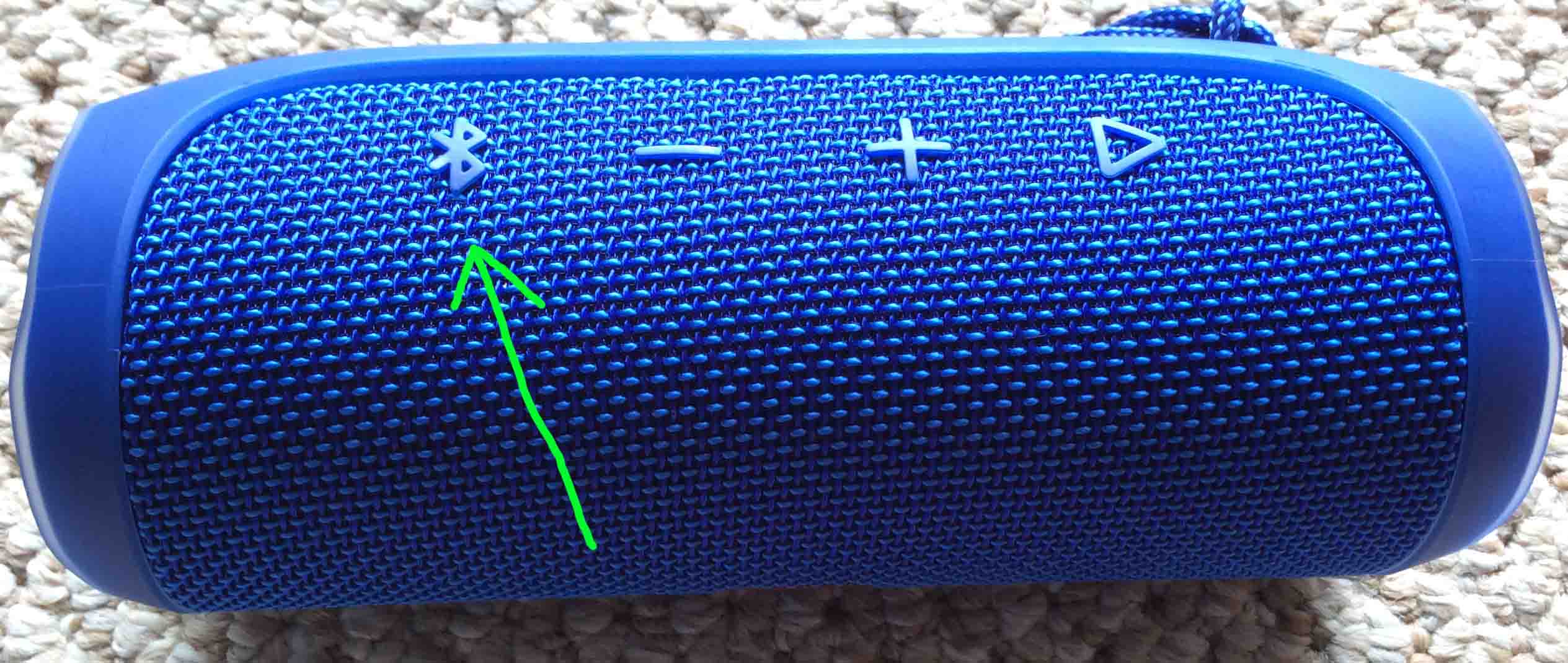
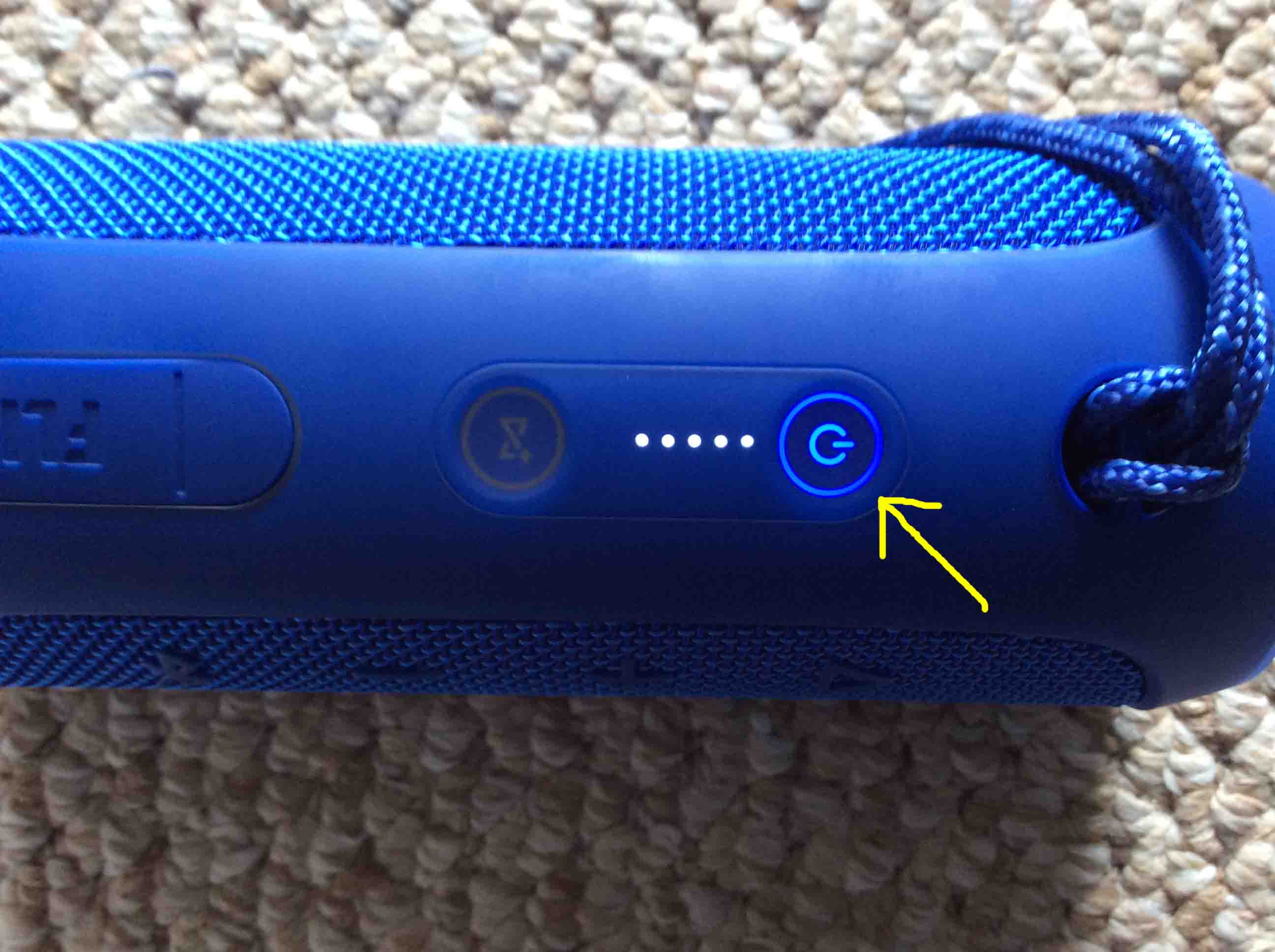
When you press the Bluetooth Discovery Mode button, the speaker makes a repeating single pluck guitar note sound several times. Also, the power button changes from a solid white glow to flashing blue. See this next.
9. Go Back to your Mobile Device
The screen with the blue Pair a New Device button should still be showing, as in the next screenshot.
10. Tap the Pair a New Device Button
This starts your Echo Dot scanning for any nearby Bluetooth devices that are themselves in Bluetooth discovery mode. Your Flip 4 is now in Bluetooth discovery mode. So your Dot should find it.
After a short pause, you should see something like the screen we got. Shown next.
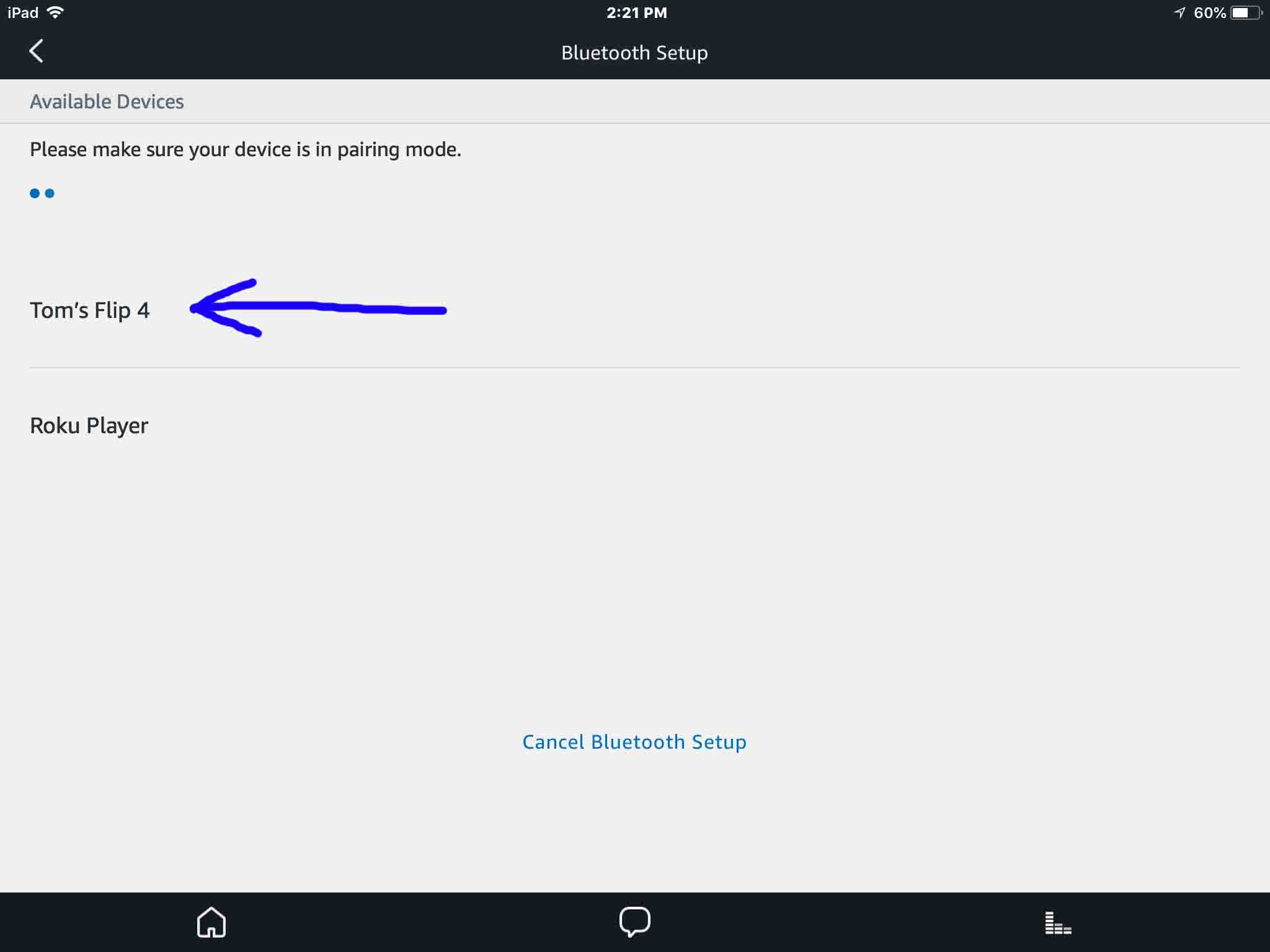
In our demo, the Alexa app found our JBL Flip 4 speaker, named Tom’s Flip 4.
11. Find your JBL Flip 4 on the Discovered Devices List to Continue with How to Pair JBL Flip 4 with Amazon Echo
See the screenshot above. Our scan found two devices. It found the JBL Flip 4 as well as our Roku player. So, we located our Flip 4 speaker in the list, as pointed at by the blue arrow in that picture.
12. Finally, Pair your Amazon Echo Dot with your JBL Flip 4 Portable Speaker
Pair to the JBL Flip 4 by tappng the listed speaker in the Bluetooth Setup screen, shown in the last screenshot above.
The Echo Dot then pairs with the Flip 4 (“Tom’s Flip 4” in this demo). The Alexa App’s Bluetooth Settings screen then changes to look something like the following.
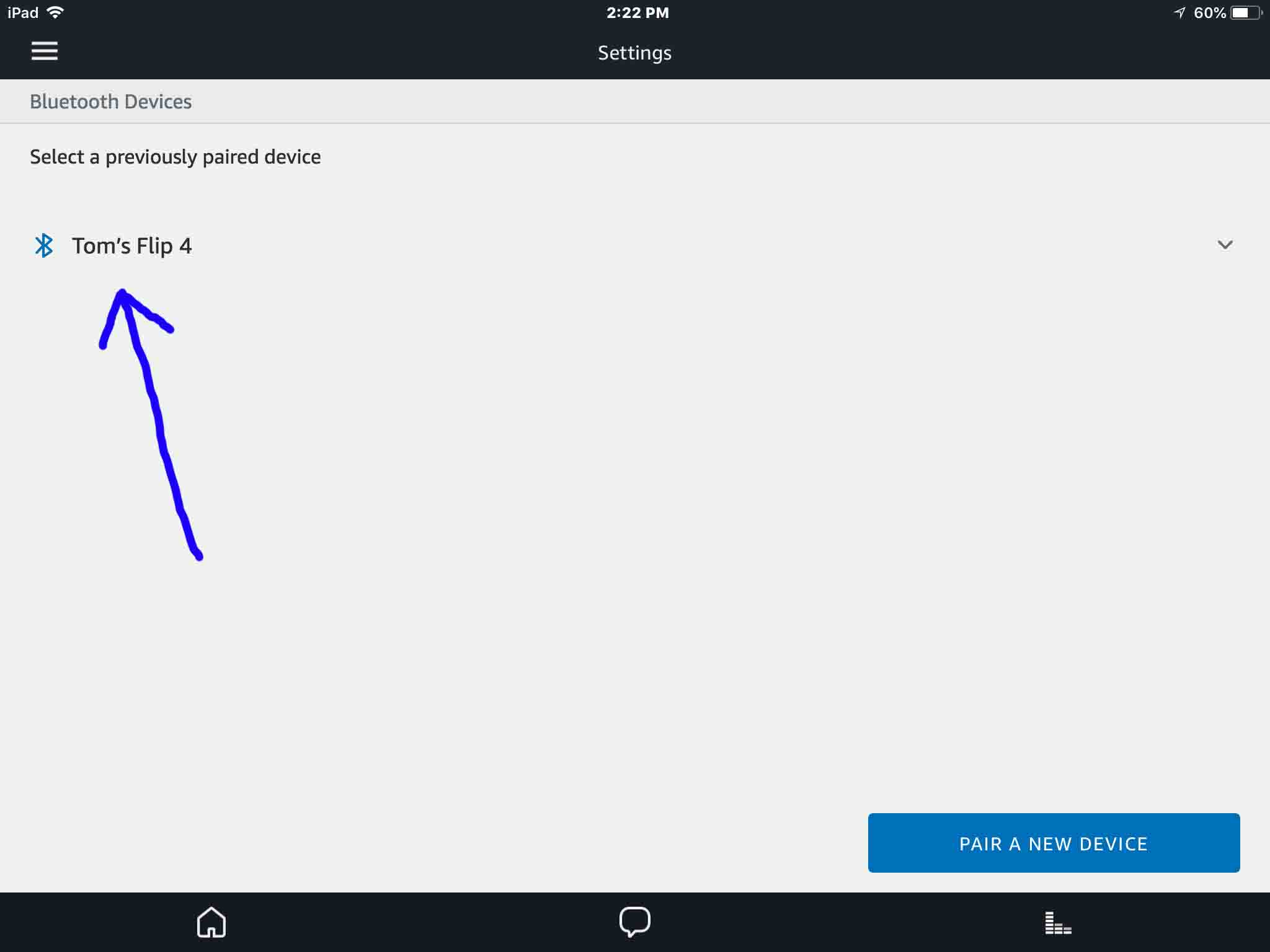
Also, the JBL Flip 4 makes the Speaker Paired sound (the three ascending guitar notes). Note that the Bluetooth symbol to the left of the listed speaker item turns blue in the last screenshot.
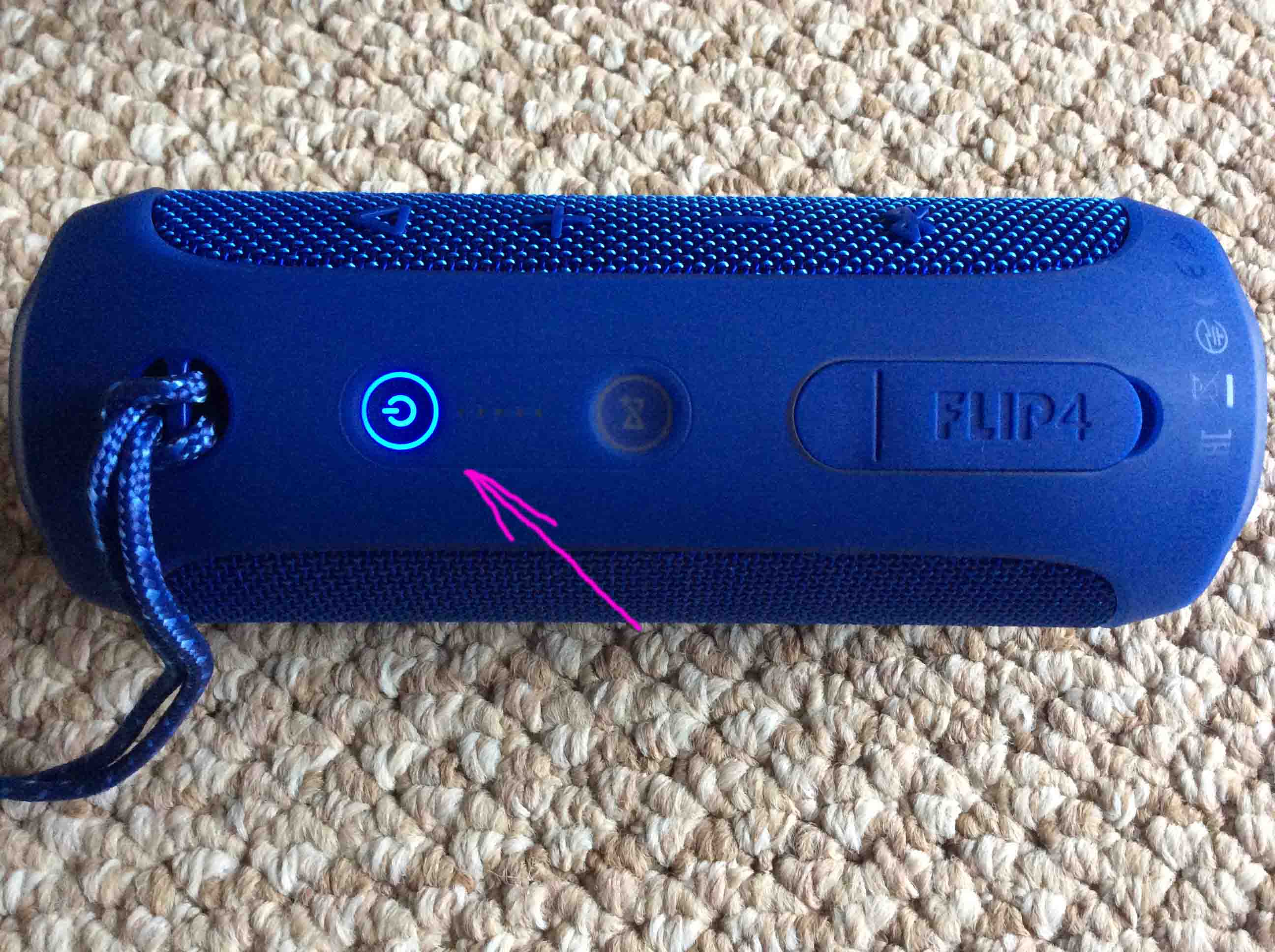
The speaker is now paired with your Echo Dot 2. It’s power button glows solid blue to indicate successful pairing, as shown next.
13. Done with How to Pair JBL Flip 4 with Amazon Echo !
We have now successfully paired our JBL Flip 4 portable speaker with our Amazon Echo Dot speaker device. We can now ask Alexa to play music on this Dot, and those tunes will play on the excellent sounding JBL Flip 4. Enjoy!
Related Posts to How to Pair JBL Flip 4 with Amazon Echo
- How to Pair Echo Dot with Bluetooth Speaker, Echo Dot 2
- How to Pair UE Wonderboom with Alexa Echo Speakers
Other Posts About Amazon Echo Dot
Other Posts About the JBL Flip 4 Portable Speaker
- JBL Flip 4 Reset Instructions
- Review of the JBL Flip 4 Portable Waterproof Speaker
- JBL Flip 4 Specs, Specifications for this Speaker
- Pairing Instructions for Flip 4 JBL Speaker
- JBL Flip 4 Low Frequency Mode, How to Turn On
References for How to Pair JBL Flip 4 with Amazon Echo
- How to Pair your Amazon Echo Dot with a Bluetooth Speaker, from CNet
- Connecting Amazon Echo Dot to an External Speaker, from PC Magazine
Revision History
- 2020-04-20: Added tags.
- 2019-03-31: Shortened post URL to better match targeted key phrase.
- 2018-05-25: First published.