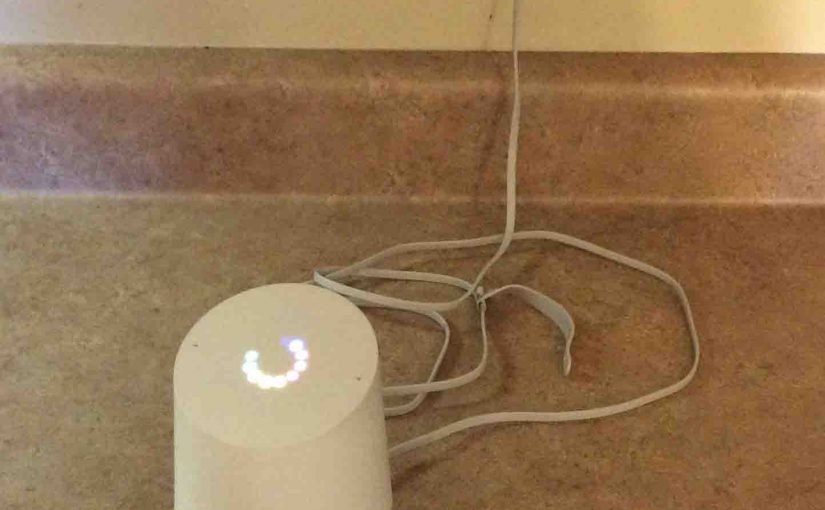
You may decide to sell or give your Google Home smart speaker to another person. or wish to link it to a different Google account, or connect it to a different Wi-Fi network. So to do these things, we show you how to reset the Google Home Speaker to factory settings.
To unlink this device from its current Google account, to assure that it forgets the Wi-Fi connection information stored within, and to restore it to factory default (fresh out of the box) values, perform the following procedure.
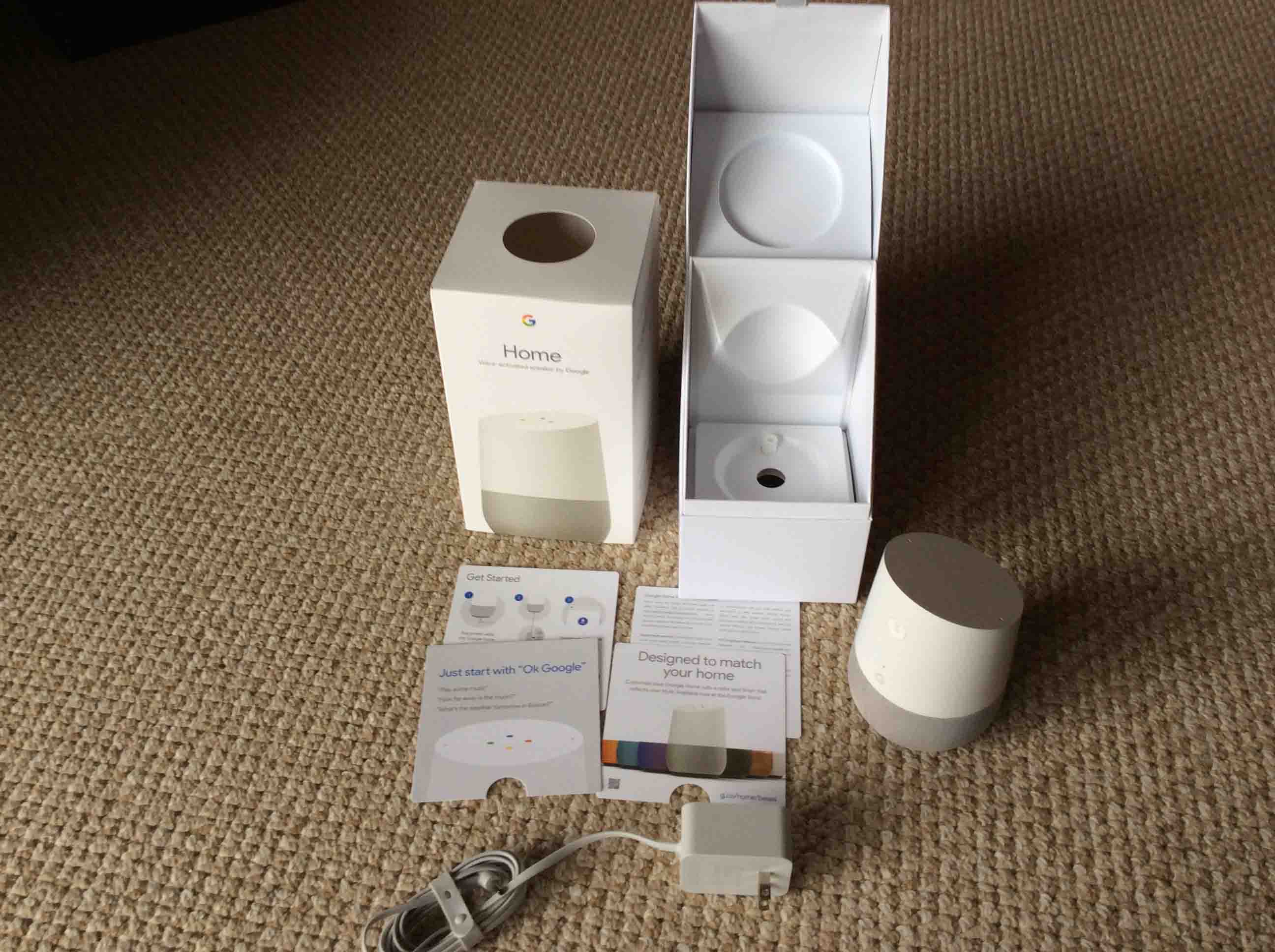
Caution
Reset may Not be Necessary
Note that if you’re just trying to correct erratic speaker behavior, you might not have to run a complete reset. So, before resetting, try powering off the Google Home for fifteen seconds. Do this by disconnecting its DC power cable either from the wall outlet, or from the speaker. Then, wait for a quarter minute. Finally, power it up again. This often restores normal operation. But if this power cycling does not solve your issues, then try a reset. Reset also if you wish to give the unit to someone else. Read on for details.
Warning!
Keep in mind that once reset, you’ll no longer have control of the speaker from the Google account where you controlled it before. So to get control of it again, run through the setup procedure again. There, re link the speaker to that account once more, via the Google Home app.
How to Reset Google Home Speaker, Step by Step
1. Connect the Speaker to AC Power
Once booting completes, go on to step 2.
2. Press and Hold the Mic Mute Button
Once the light ring finishes spinning and flashing in its multi-colored way, and goes completely dark after booting, press and hold the Microphone Mute button, found on the back near the top of the Google Home, for five seconds.
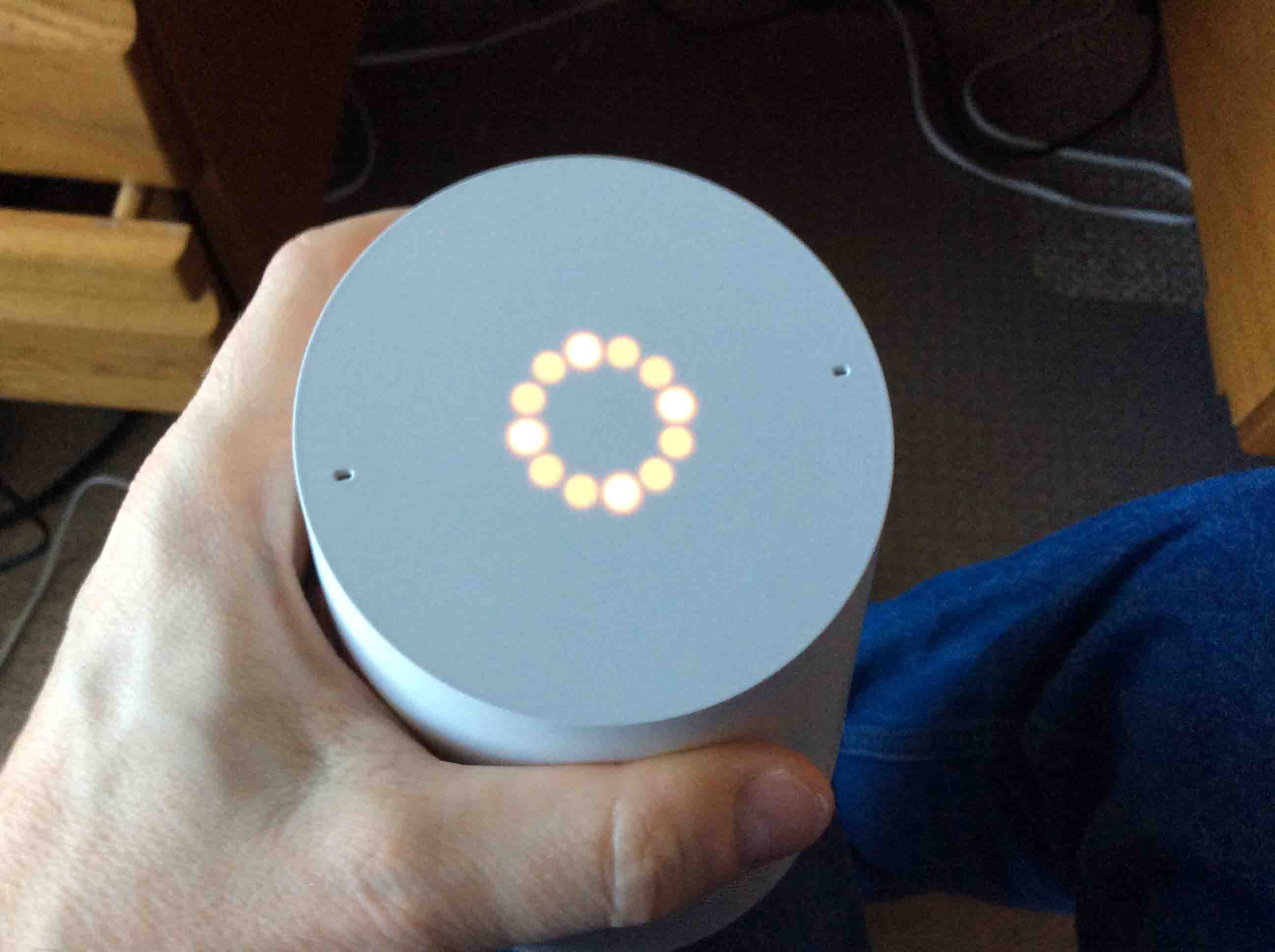
Notice that the ring of lights on the top begin glowing orange as you hold in the button. In varying brightness levels and patterns, these show a sort of countdown to reset that is in progress, as pictured next.
3. Confirm Reset by Continuing to Hold the Mic Mute Button In
After five seconds or so, the Google Home says in its female voice, “You’re about to completely reset Google Home. To cancel, release the button.” Now is the time to release the Mute button, if you no longer wish to erase all settings.
4. Keep the Mic Mute Button Depressed to Continue with How to Reset Google Home Speaker
Keep pressing to continue with the reset.
Next, the orange ring goes out. Then it turns white in a spinning pattern as reset begins, pictured next.
5. Reset Finishes, and Reboot Begins
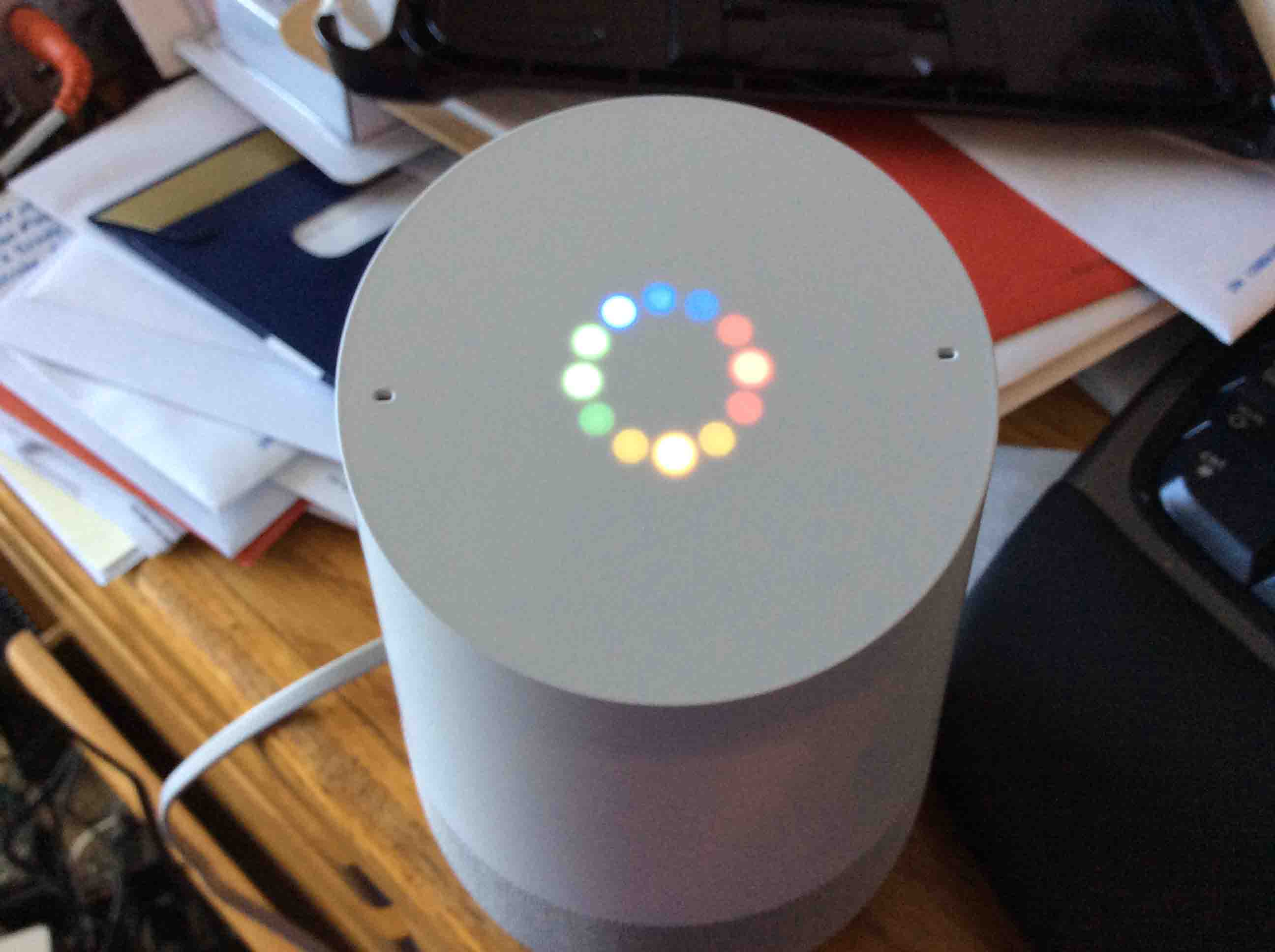
After about ten seconds, the top panel goes dark. Then a system reboot begins, with a multi-colored pattern emerging after the hard reset is complete, as shown next.
6. Reboot Finishes
Then, you hear the startup complete music and then the speaker speaks, “Welcome to Google Home. To get started, download the Google Home app on a phone or tablet.”
7. The Google Home Speaker Enters Setup Mode
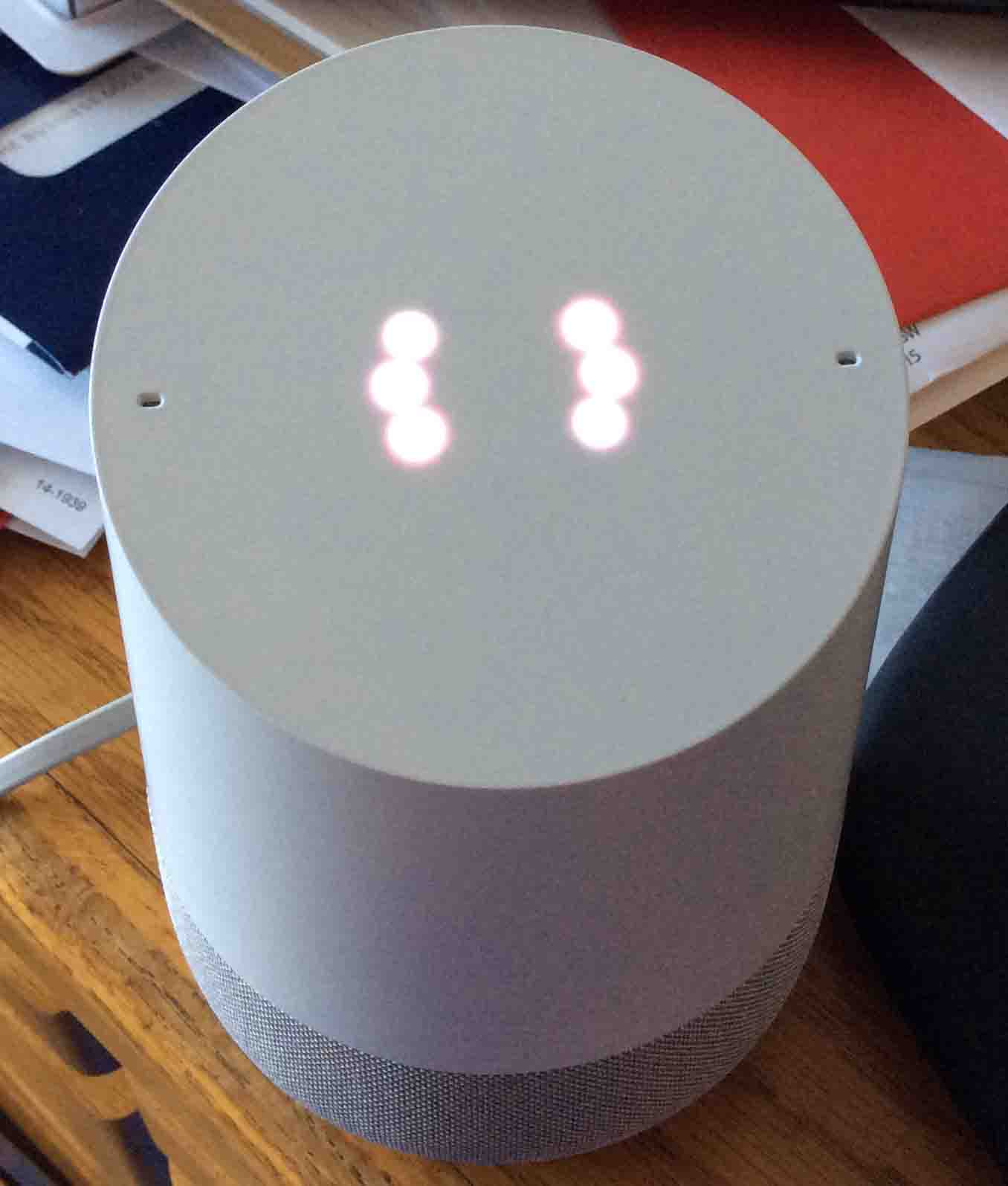
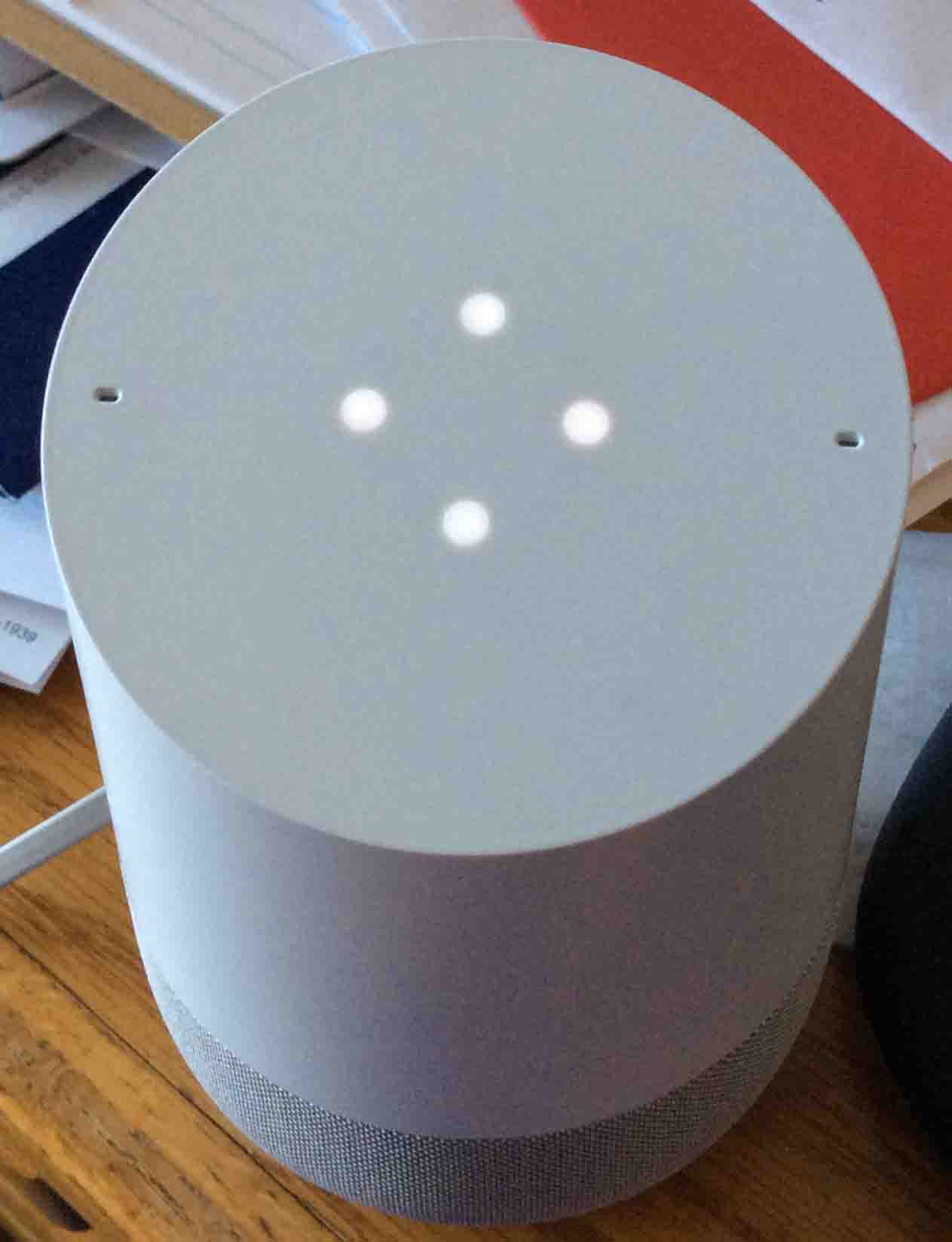
Then, the speaker goes into Setup mode. This means that the unit is now ready to accept setup directives from the Google Home App. The Home tells us this by displaying the four white blips in the light ring in a gradually dimming and then brightening pattern, as shown in the next picture.
8. How to Reset Google Home Speaker Done!
You may now feel free to give your Google Home to another without fear. They will not have access to the settings or other personal info in your Google account. Or, you can set up the Google again on your existing account, perhaps with a different WiFi network or device name.
Then, shortly later, the light ring turns white with the four dots glowing. The unit then remains in Setup mode until someone goes through the setup procedure. The speaker will not work fully until set up and linked to a Google account via the internet.
Related Posts to How to Reset Google Home Speaker
References for How to Reset Google Home Speaker
Revision History
-
- 2021-08-21: Revised the tags and internal links lists.
- 2020-05-16: Added more tags and optimizations.
- 2019-04-02: Added key phrase targeting, subheadings, and tags. Also removed ad code.
- 2017-01-27: Updated tags list.
- 2016-12-27: First published.