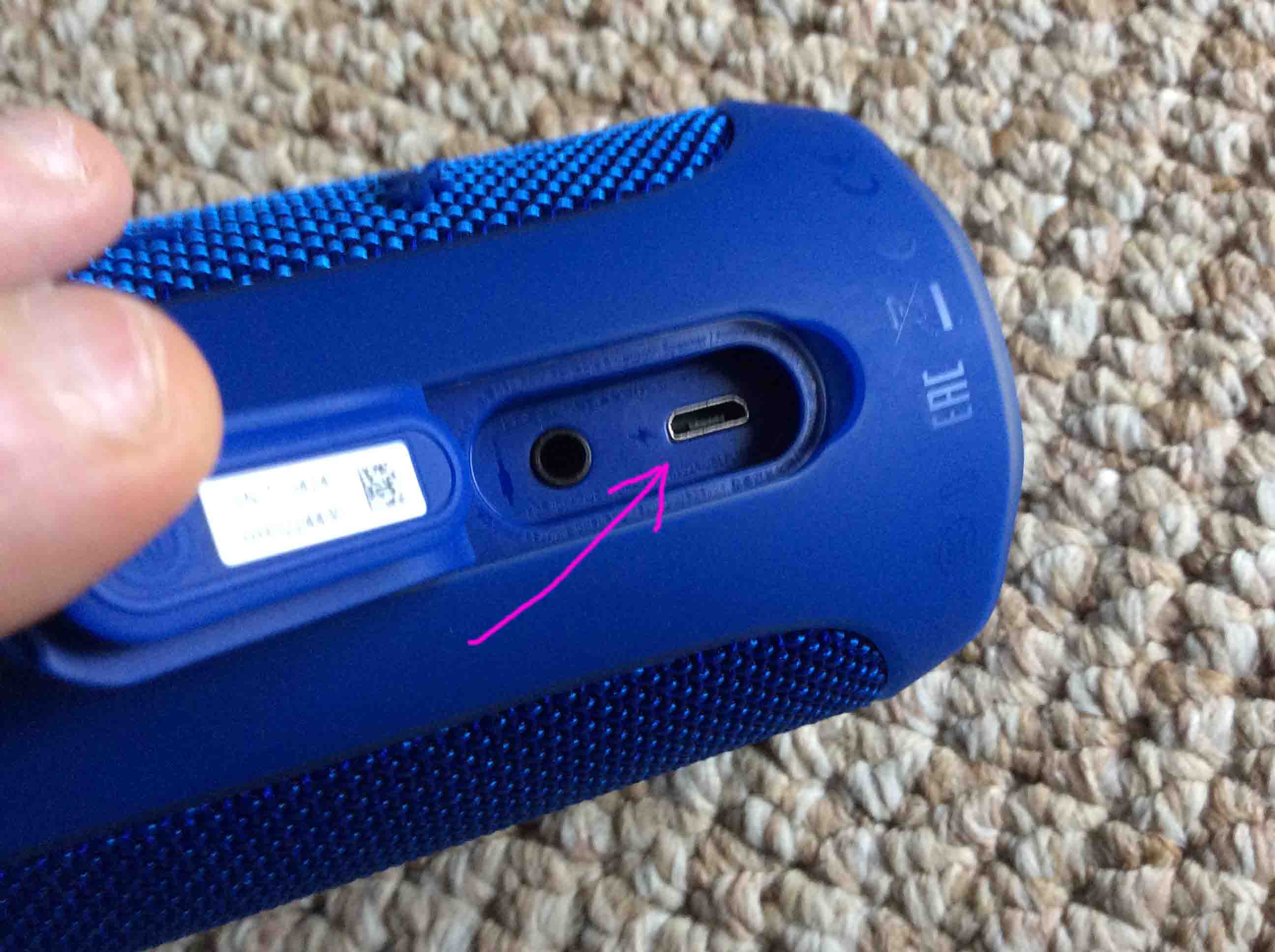
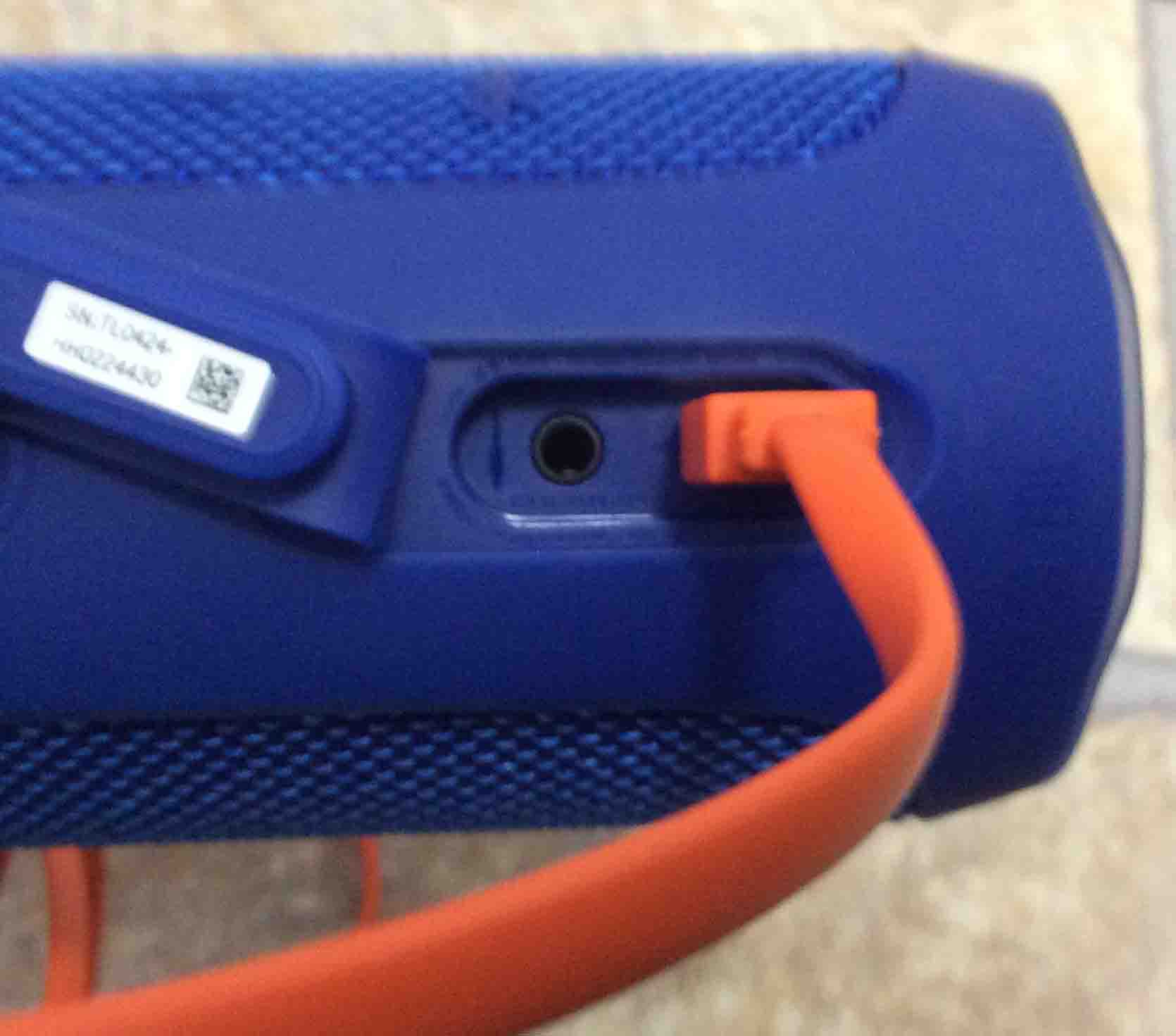
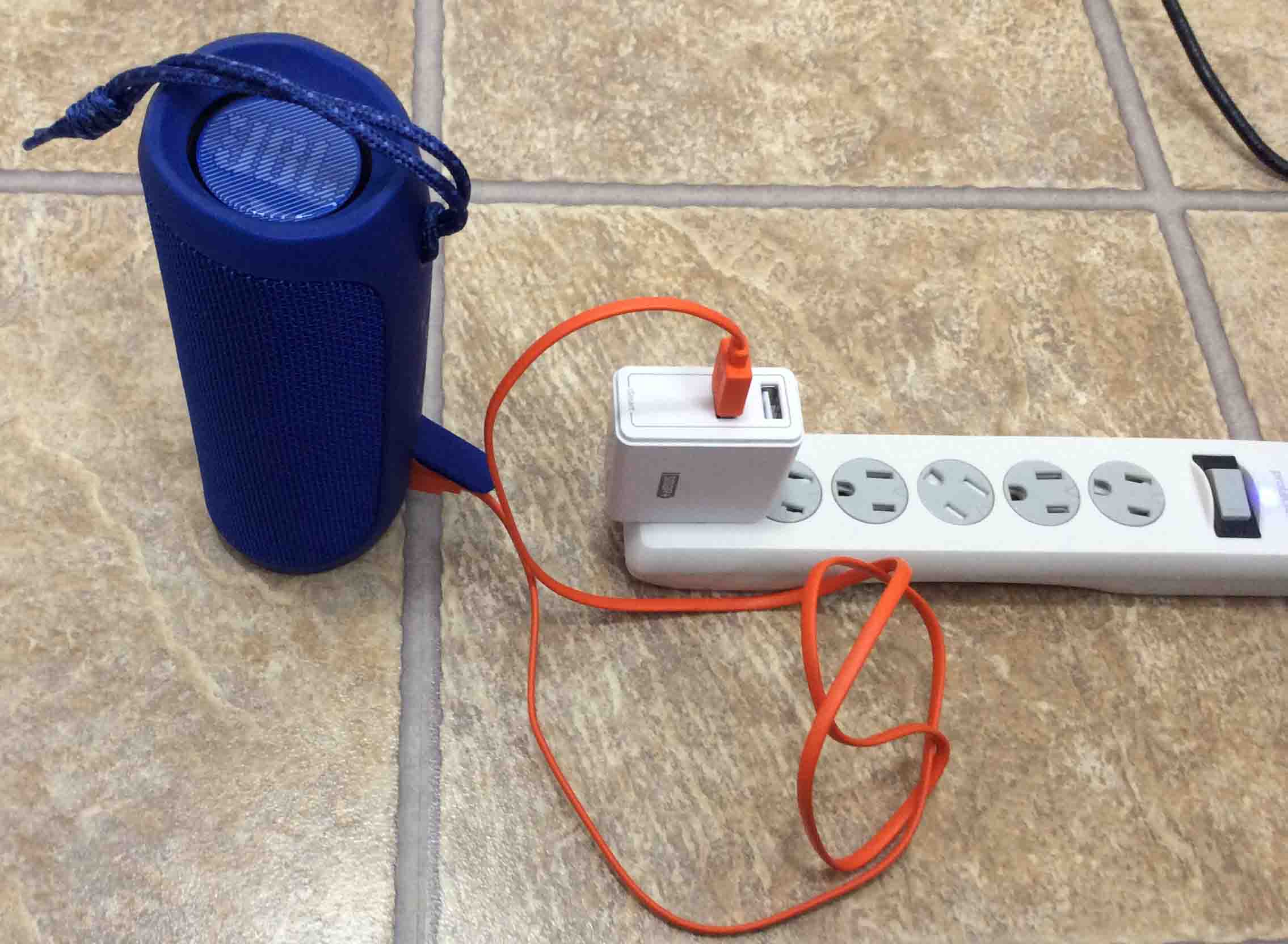
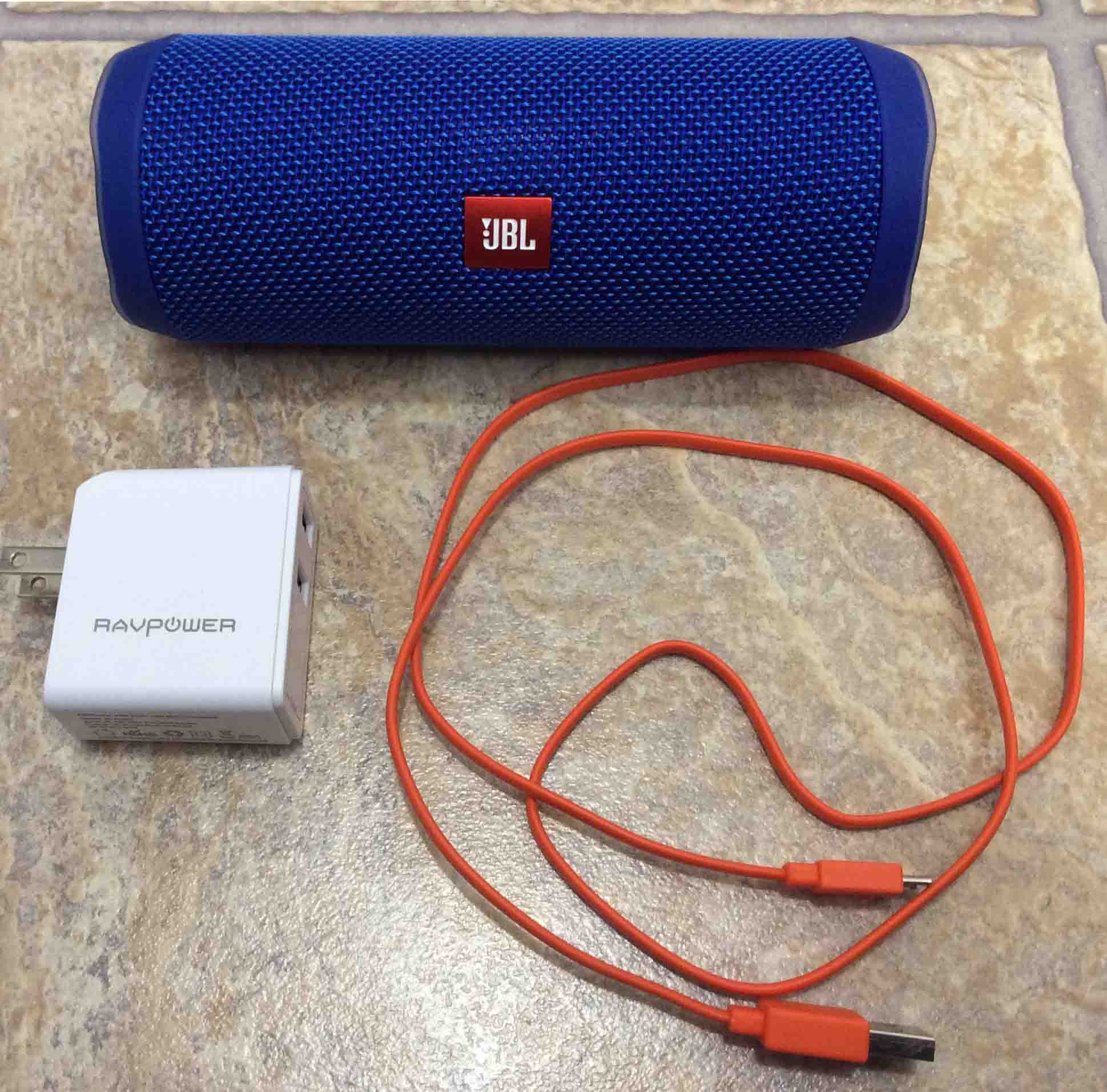
Here, we include our JBL Flip 4 portable speaker picture gallery. These are shots we took while unboxing, setting up, charging, and using this portable Bluetooth speaker.
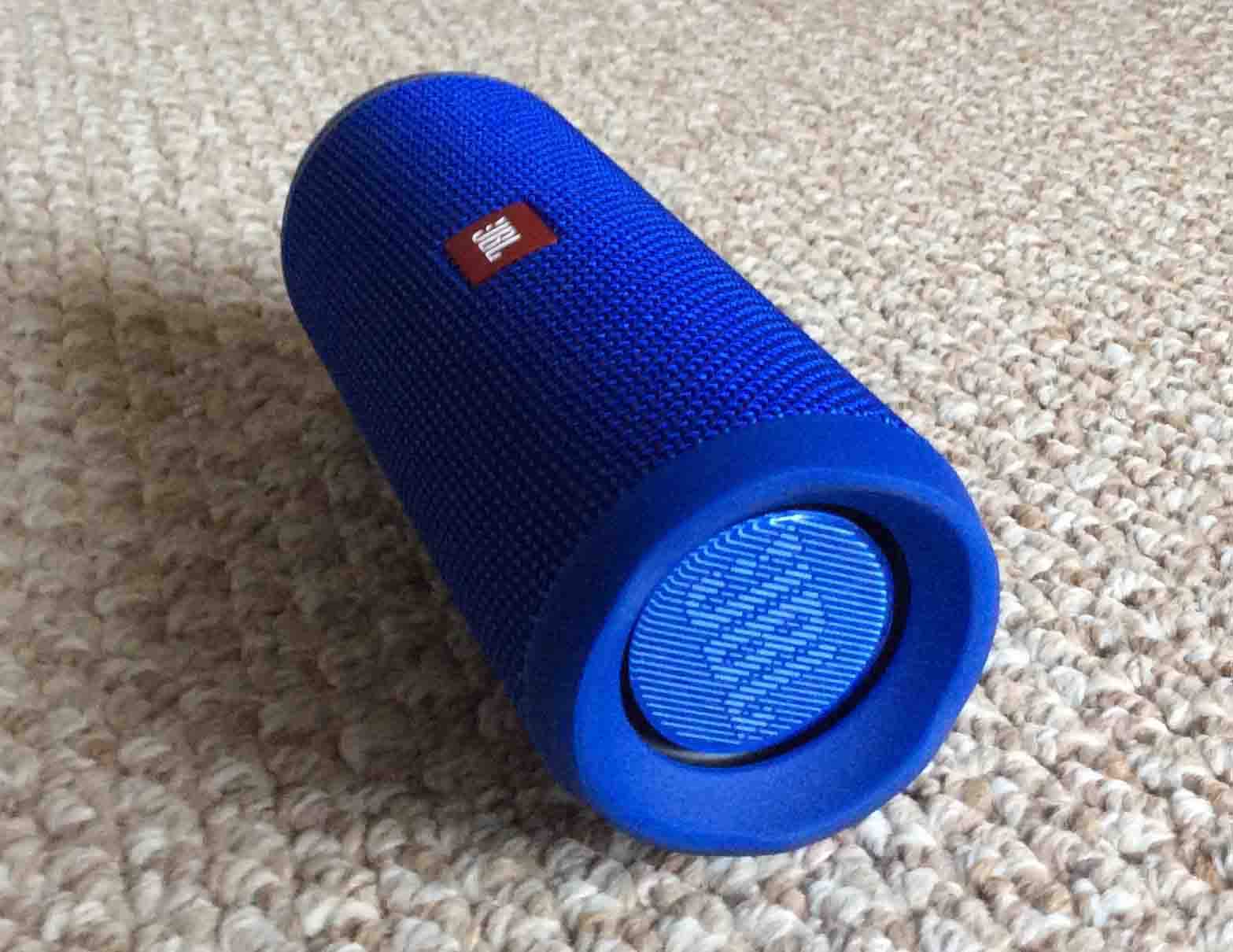
JBL Flip 4 Portable Speaker Picture Gallery: The Complete Collection
The Box Packaging
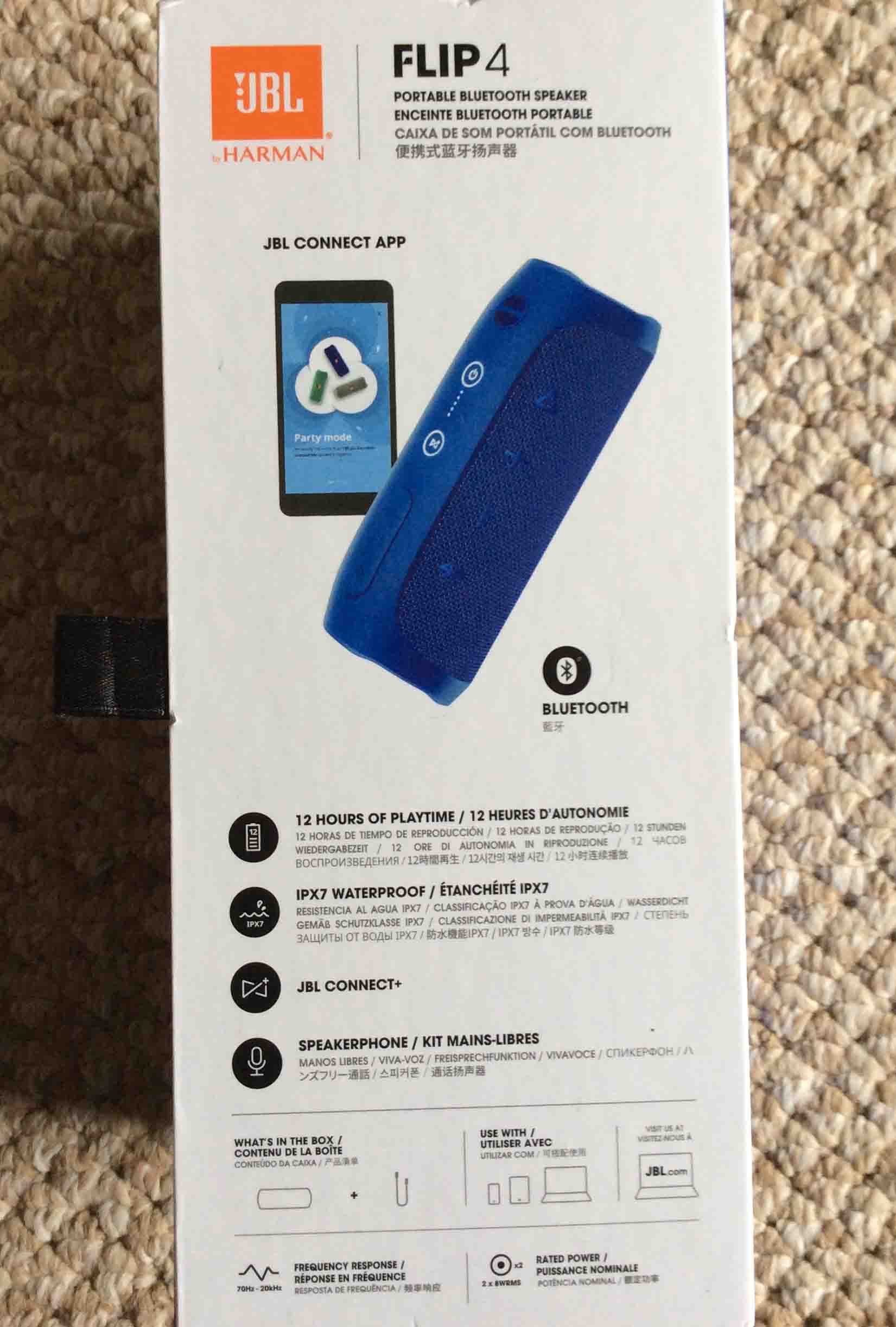
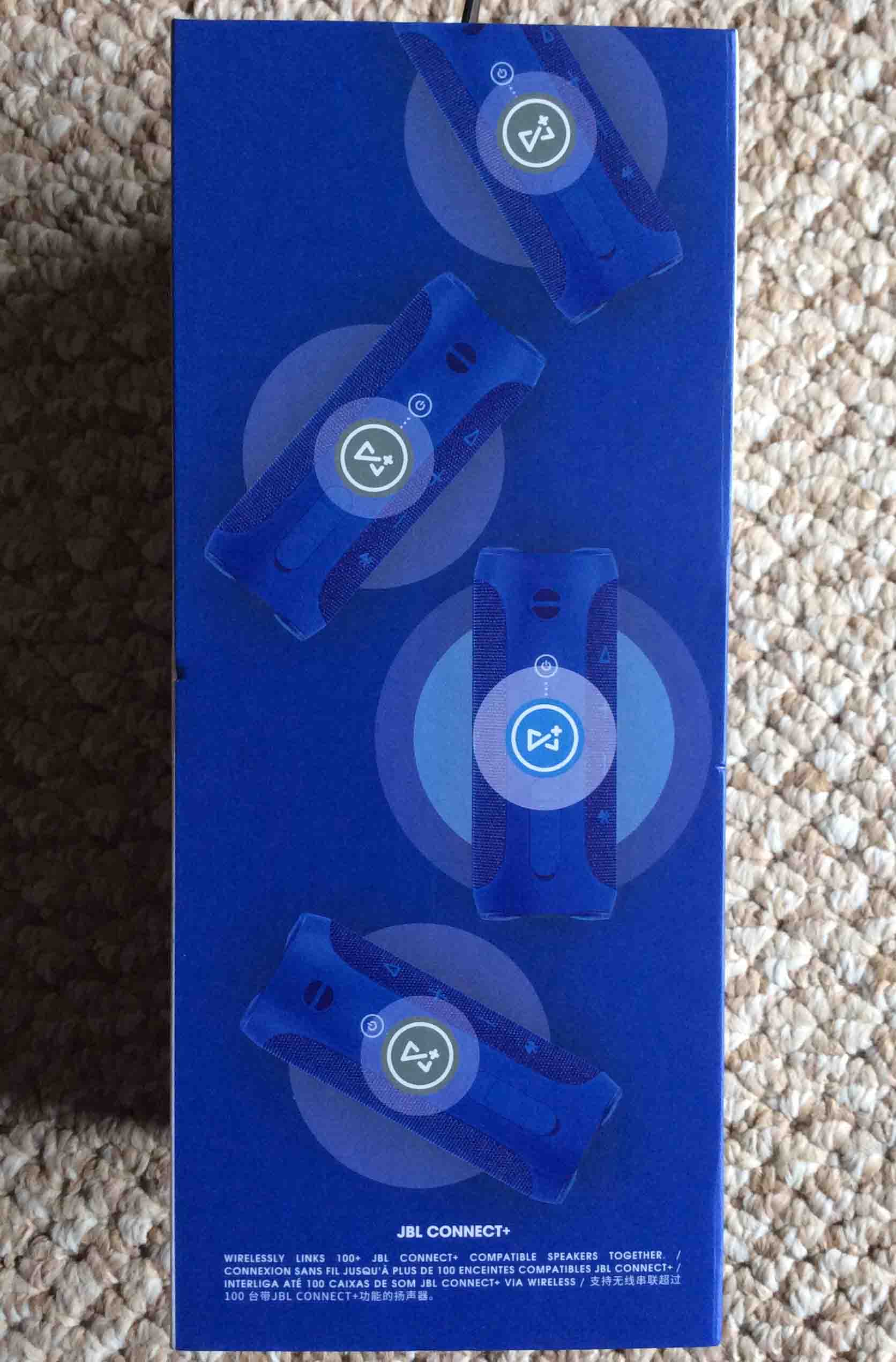
First of all, we show pictures of the box that the Flip 4 comes in originally.
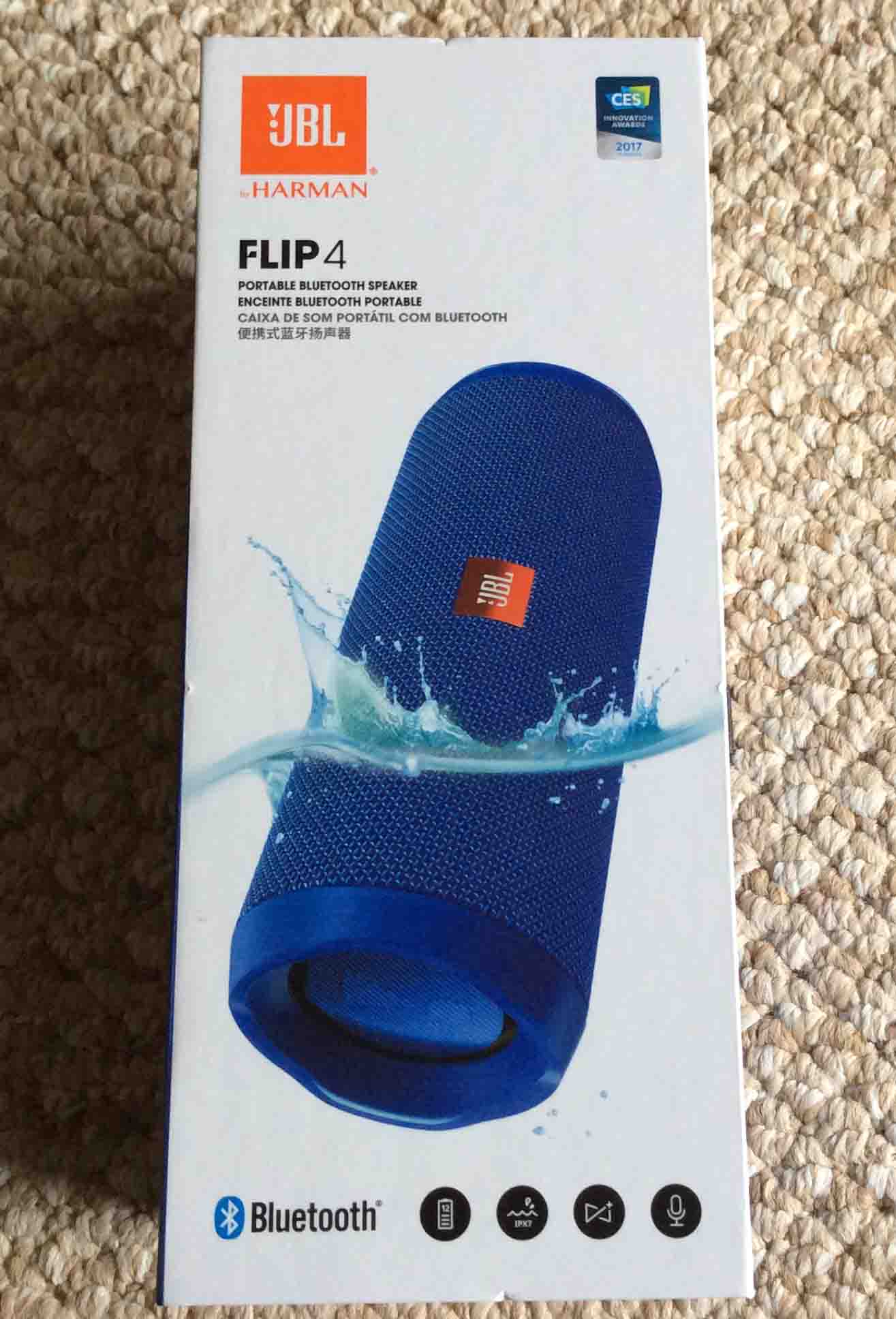
The JBL Flip 4 portable speaker carton front view, showing the speaker dipped in water.
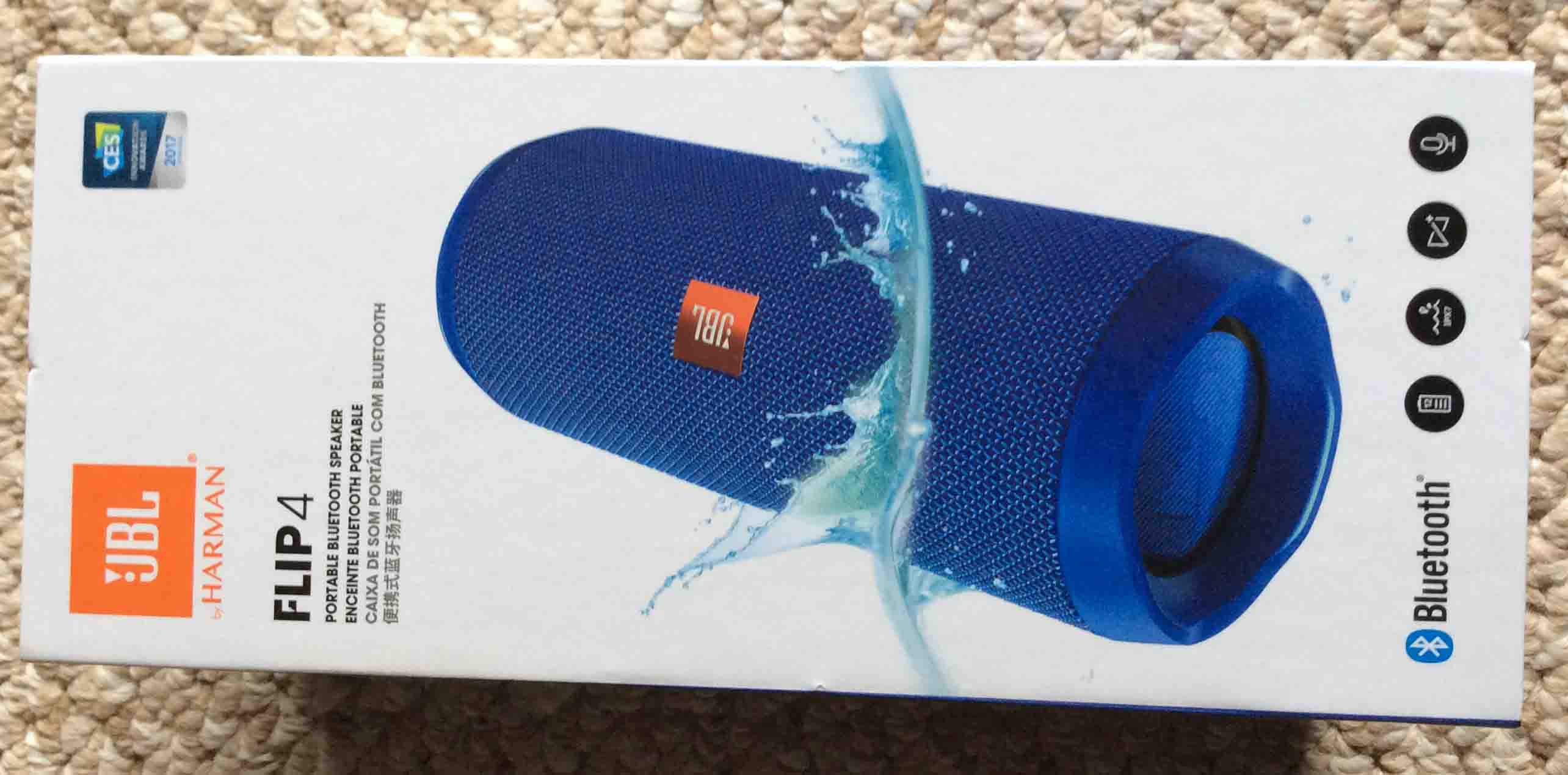
The JBL Flip 4 portable speaker box, front view, horizontal.
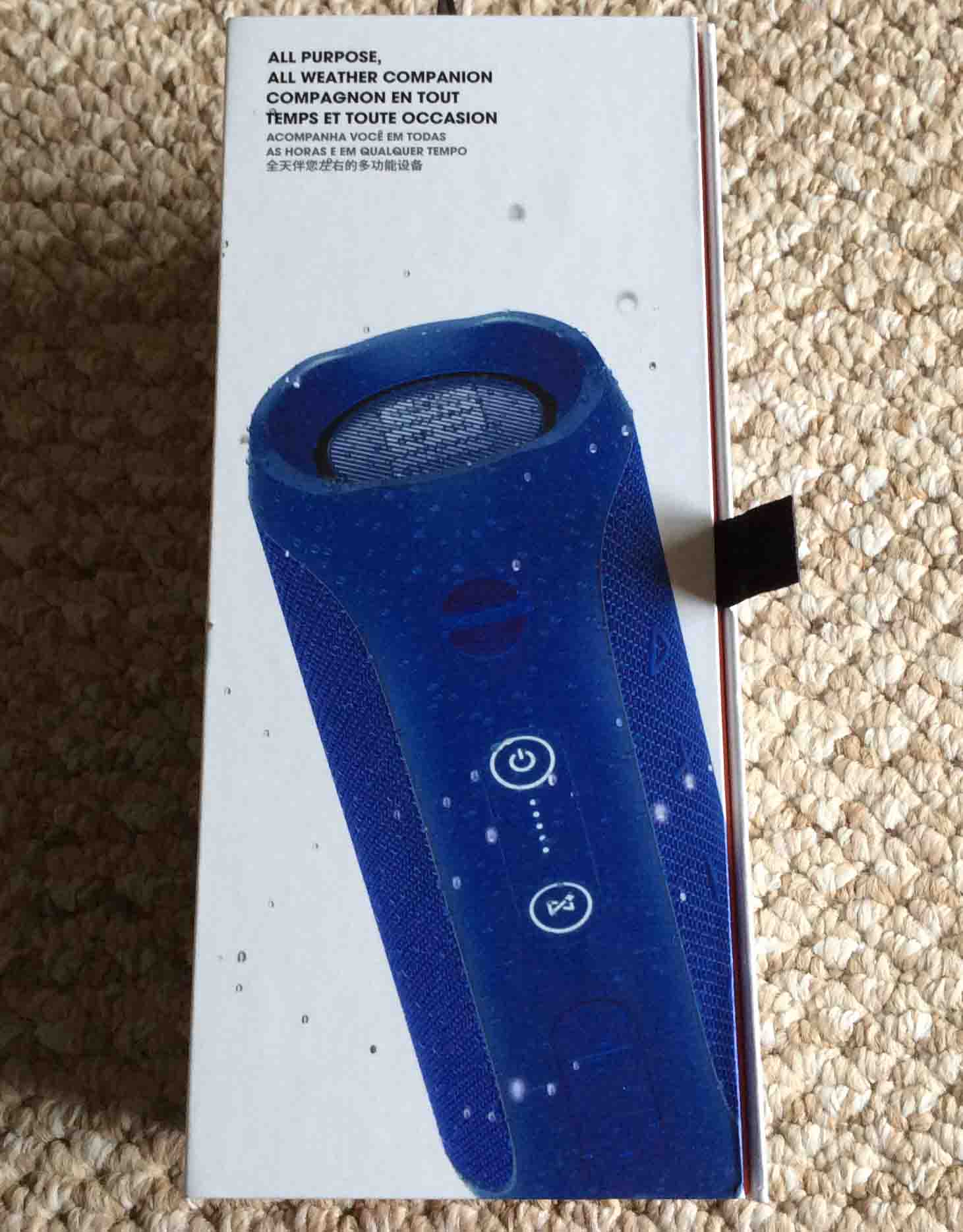
The box side 2 view.
The JBL Flip 4 portable speaker original box, side 3.
The original box, side 4 view.
Unpacking
Secondly, we show pictures taken while unpacking the Flip 4.
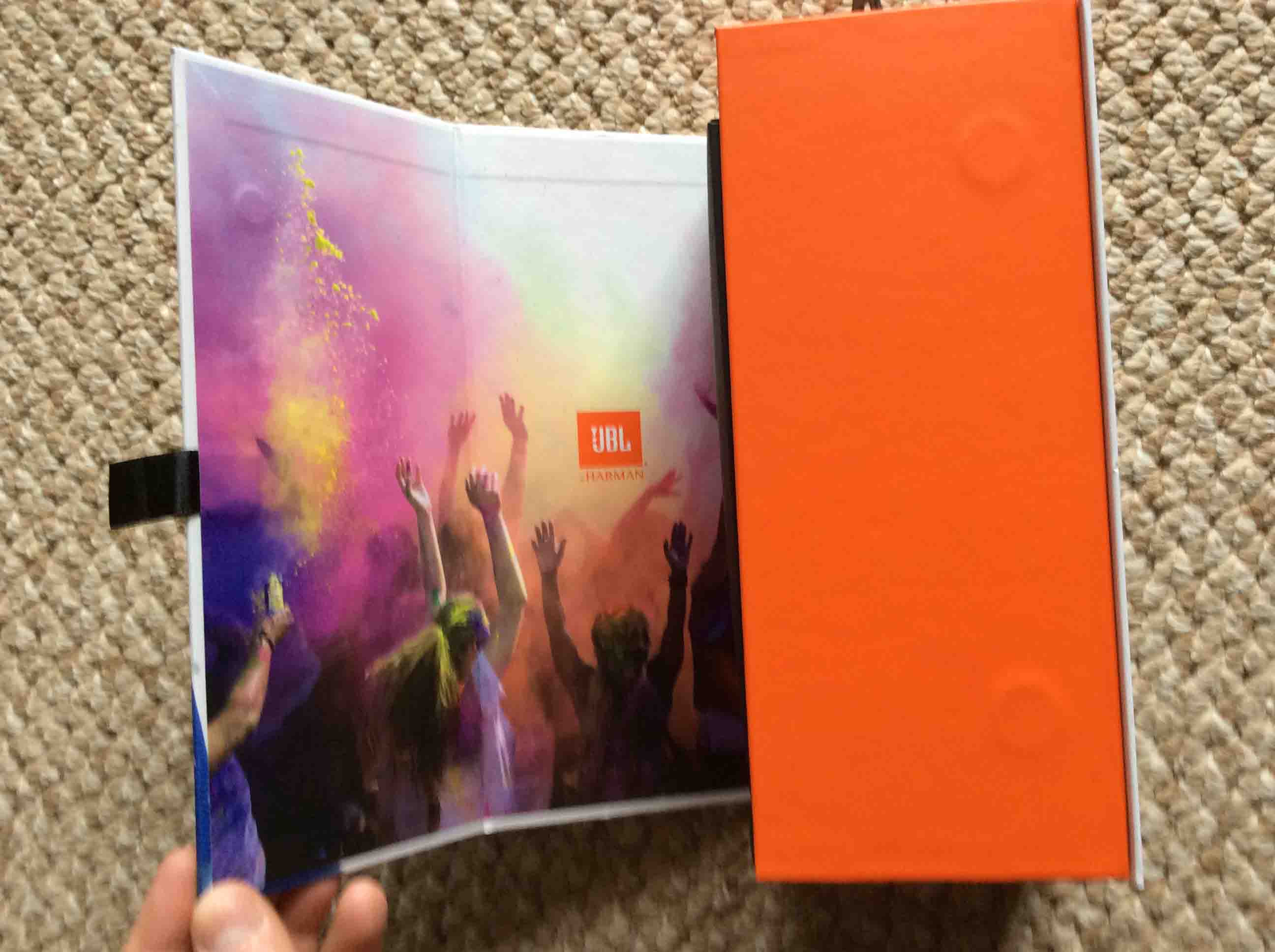
The original box with open outer flap.
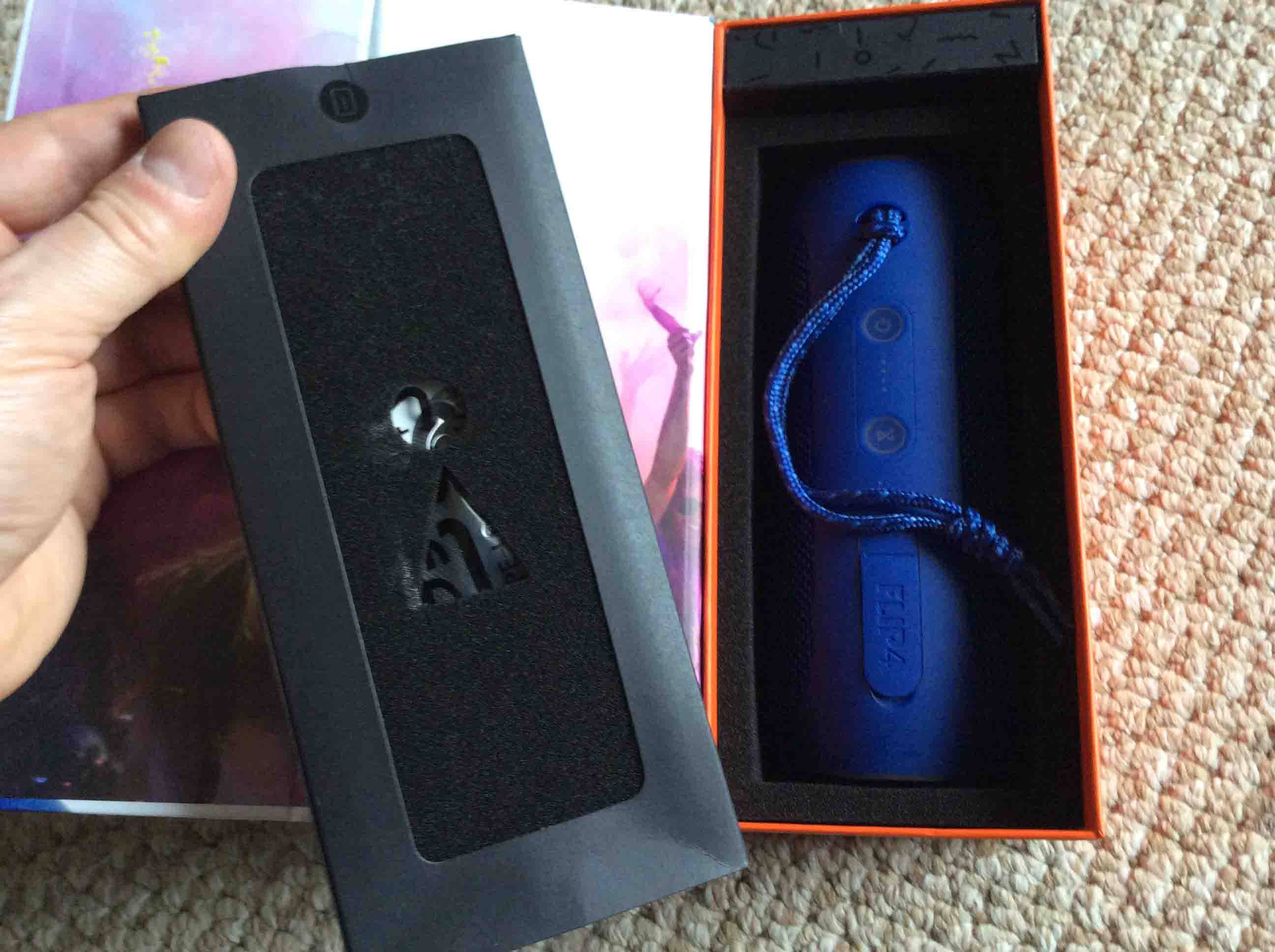
Then we open the box more and start removing its contents.
The original box open, taking out inner accessory box. Also shows the speaker inside, underneath.
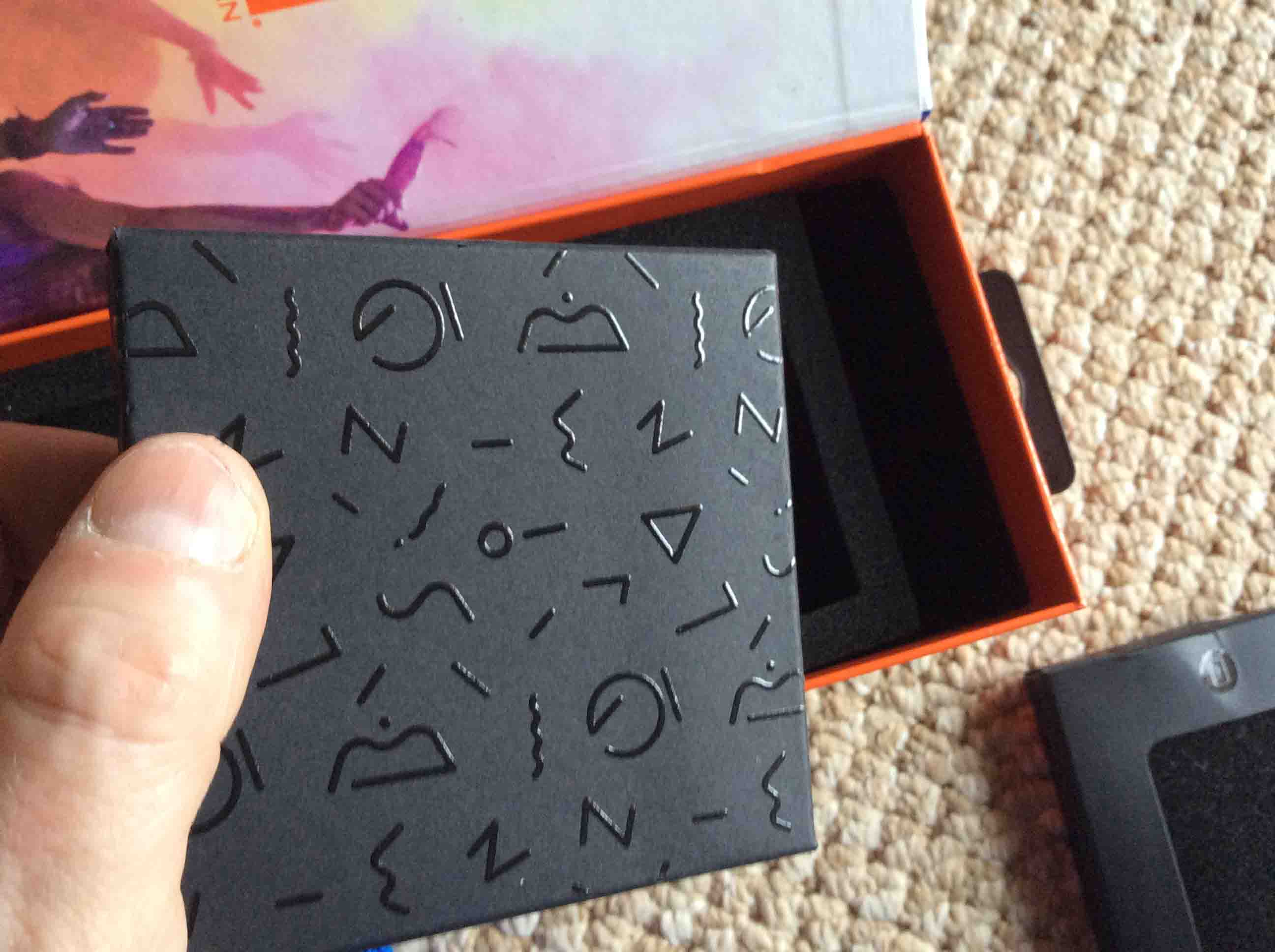
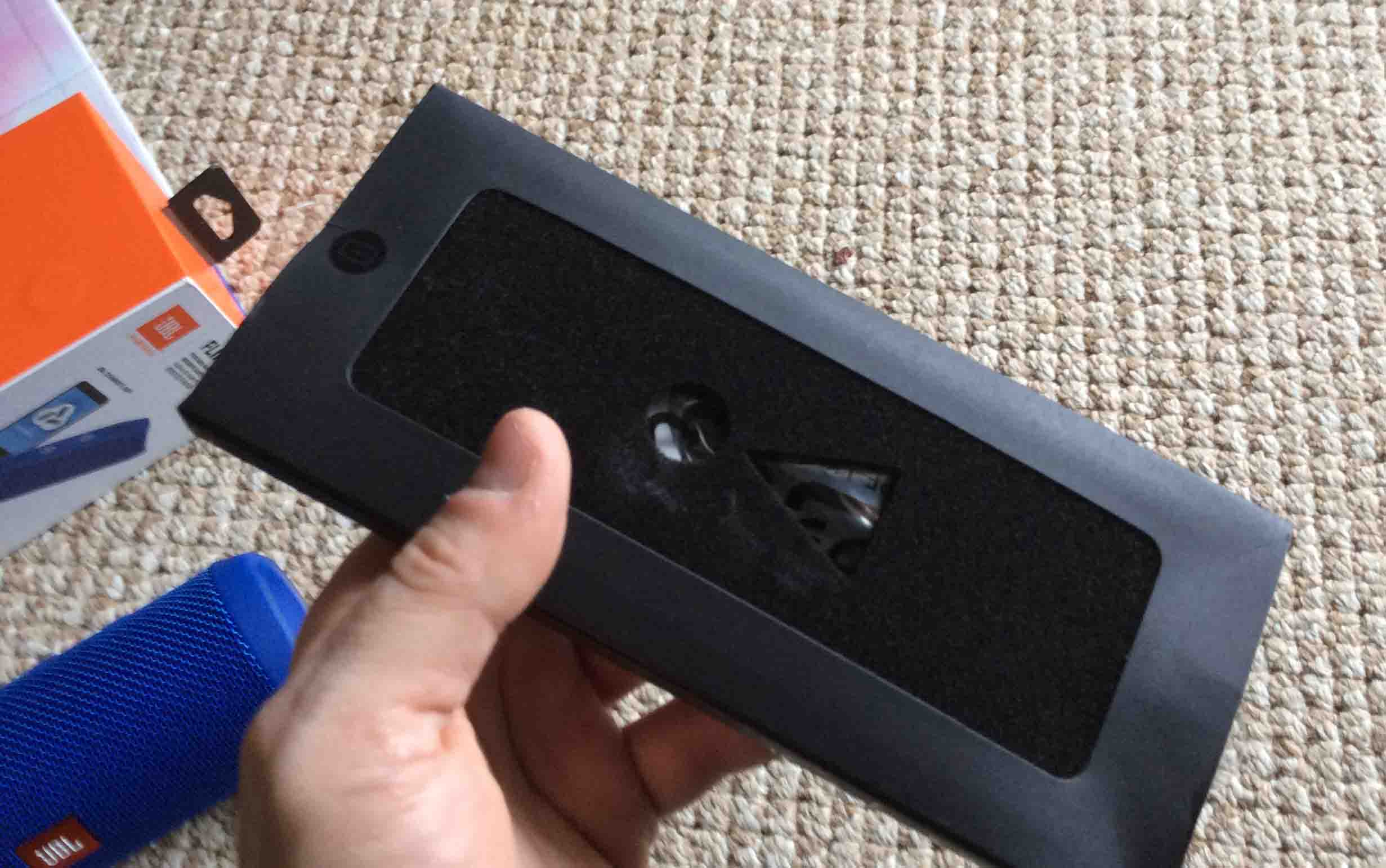
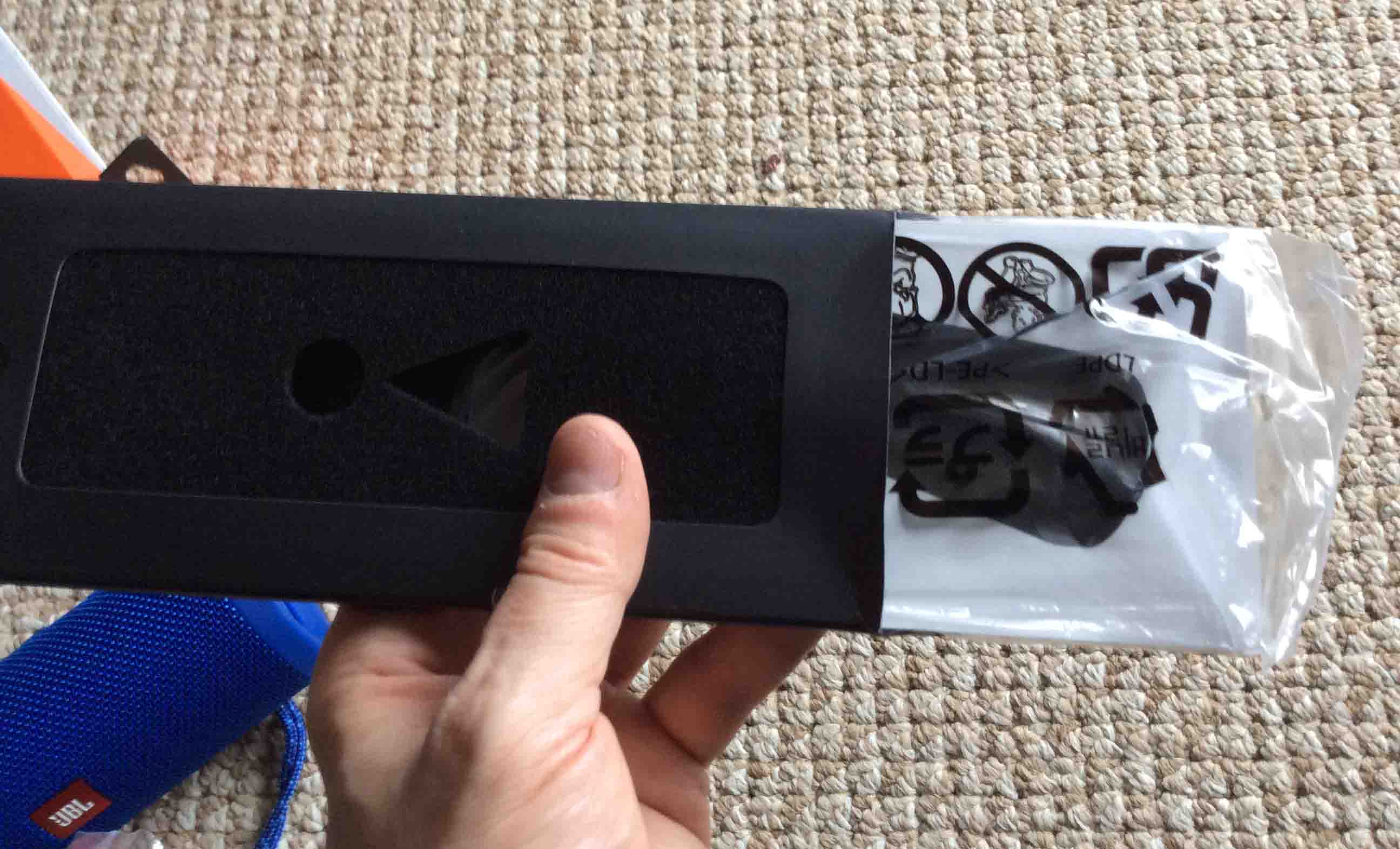
The USB charging cable accessory box.
Next, we have the manuals accessory box.
The JBL Flip 4 portable speaker manuals accessory box, open, with the manuals inside slid half out.
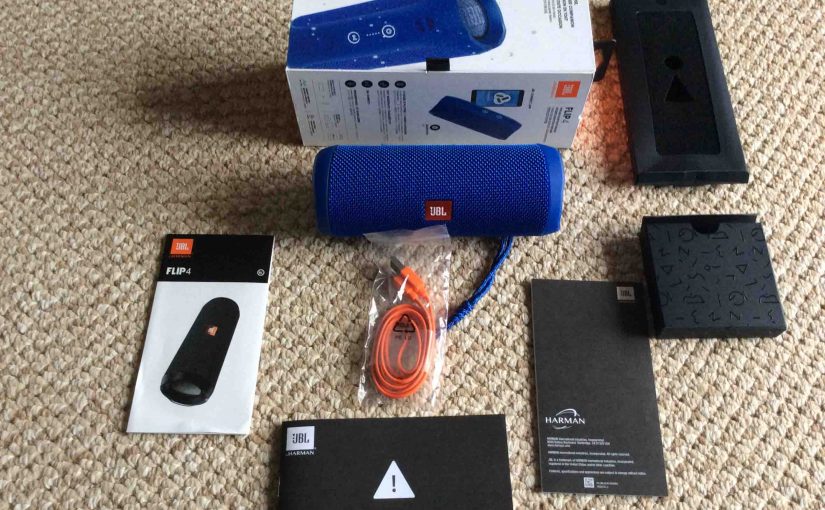
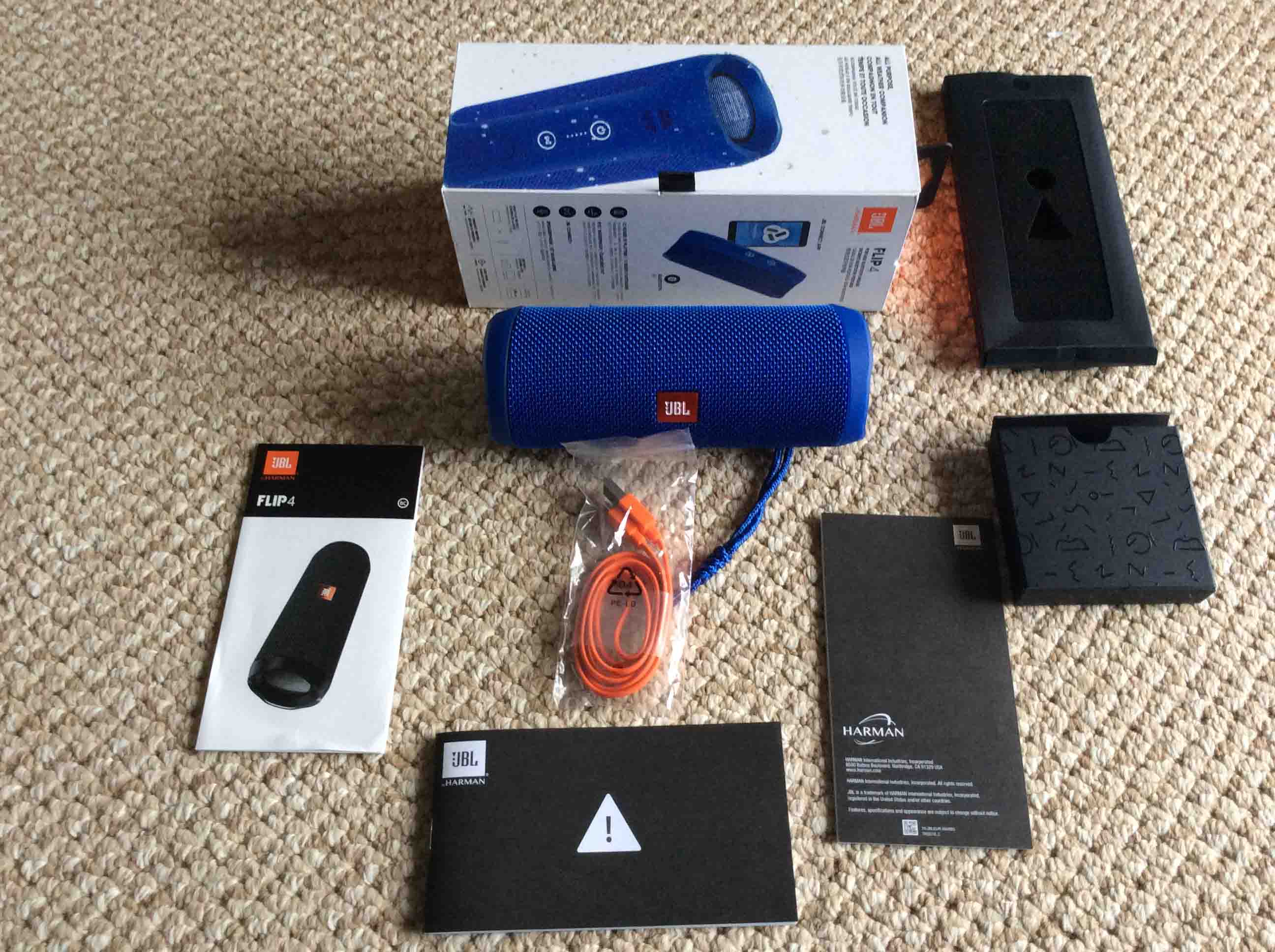
Then the speaker is now unboxed with its accessories laid out.
Out of Box
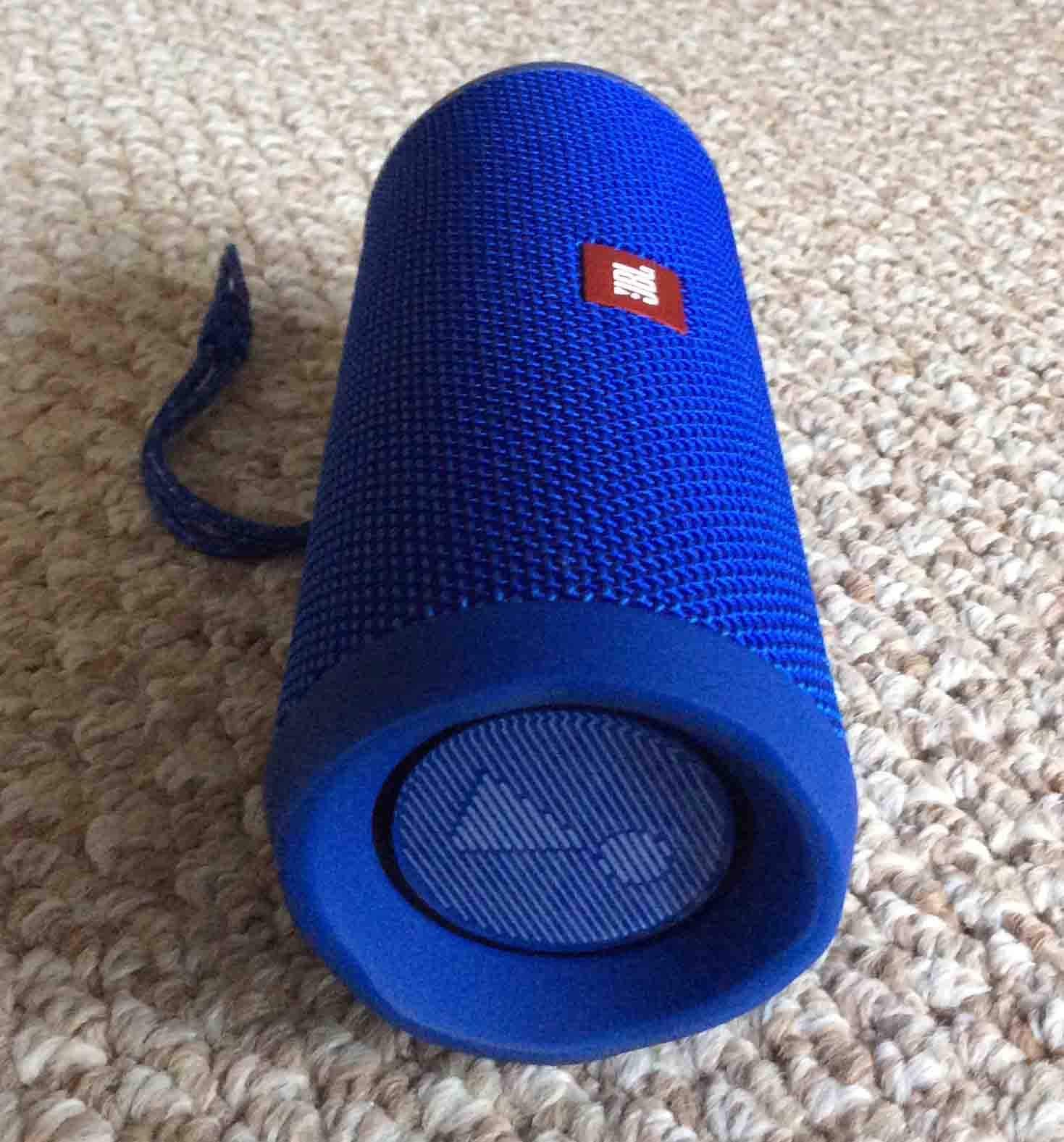
Thirdly, the following pictures show the Flip 4 completely removed from the original packaging, at various angles.
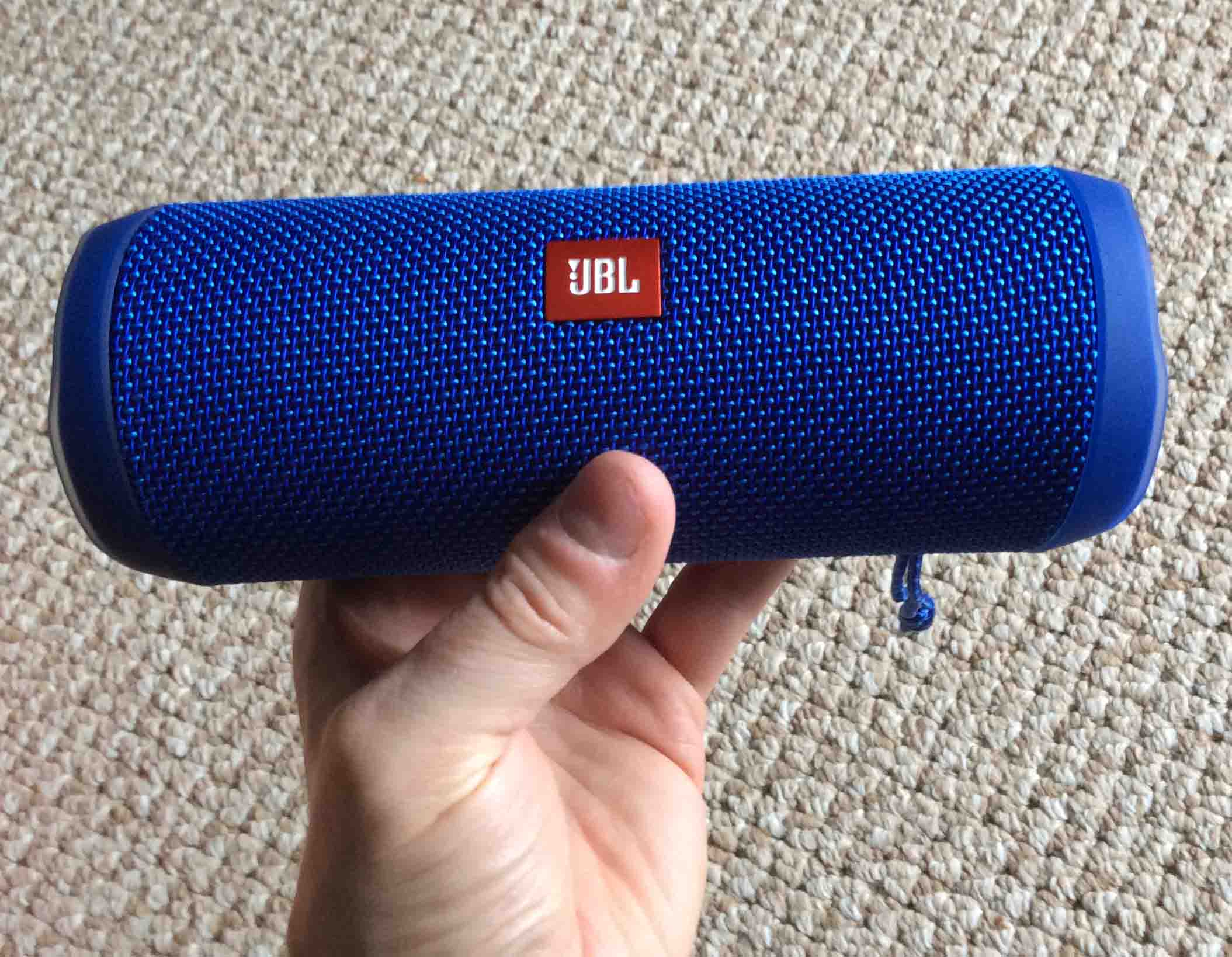
Front view of the JBL Flip 4 portable speaker itself, held in hand.
The JBL Flip 4 portable speaker left side horizontal view.
The right side horizontal view of the unit.
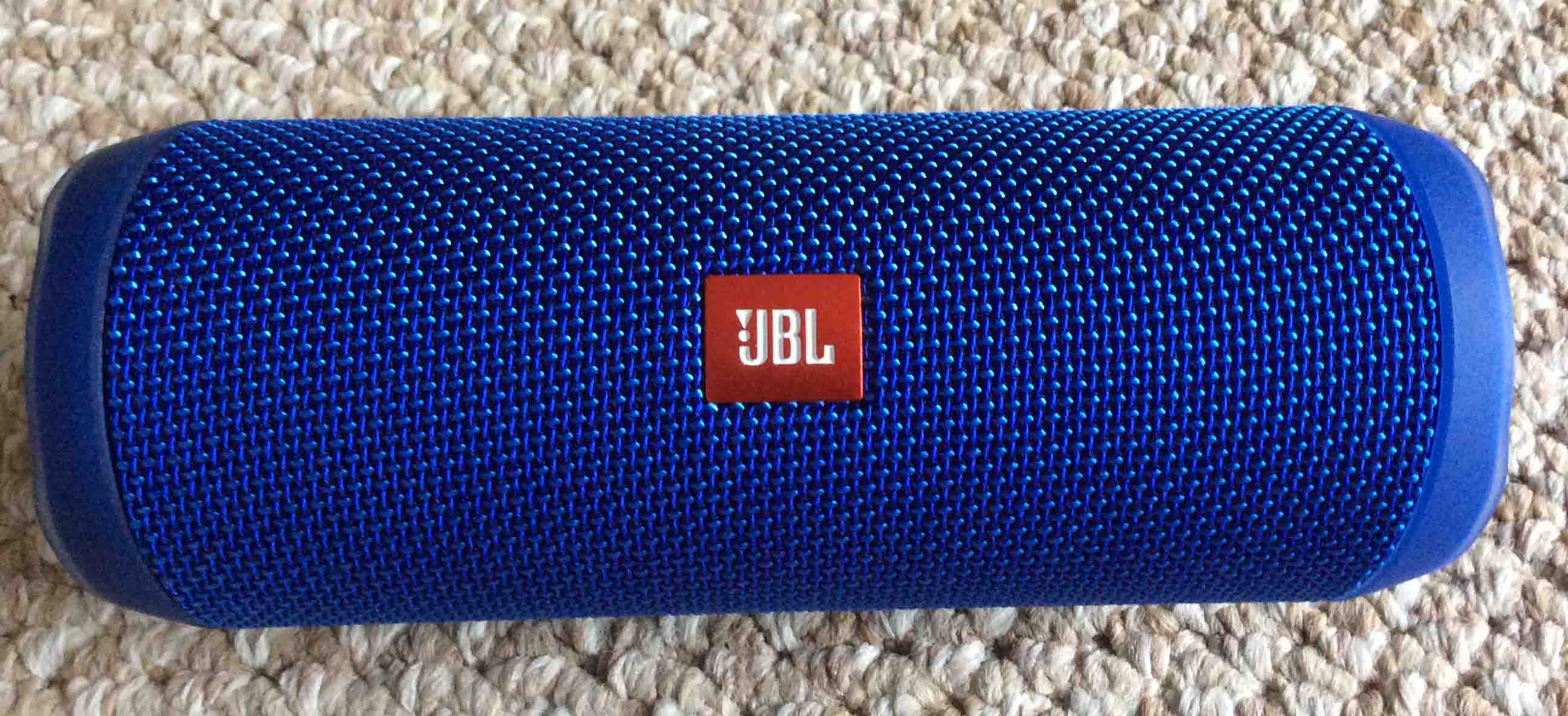
The logo side, front view.
JBL Flip 4 Portable Speaker Picture Gallery: The Flip 4 Alongside some Smart Speakers
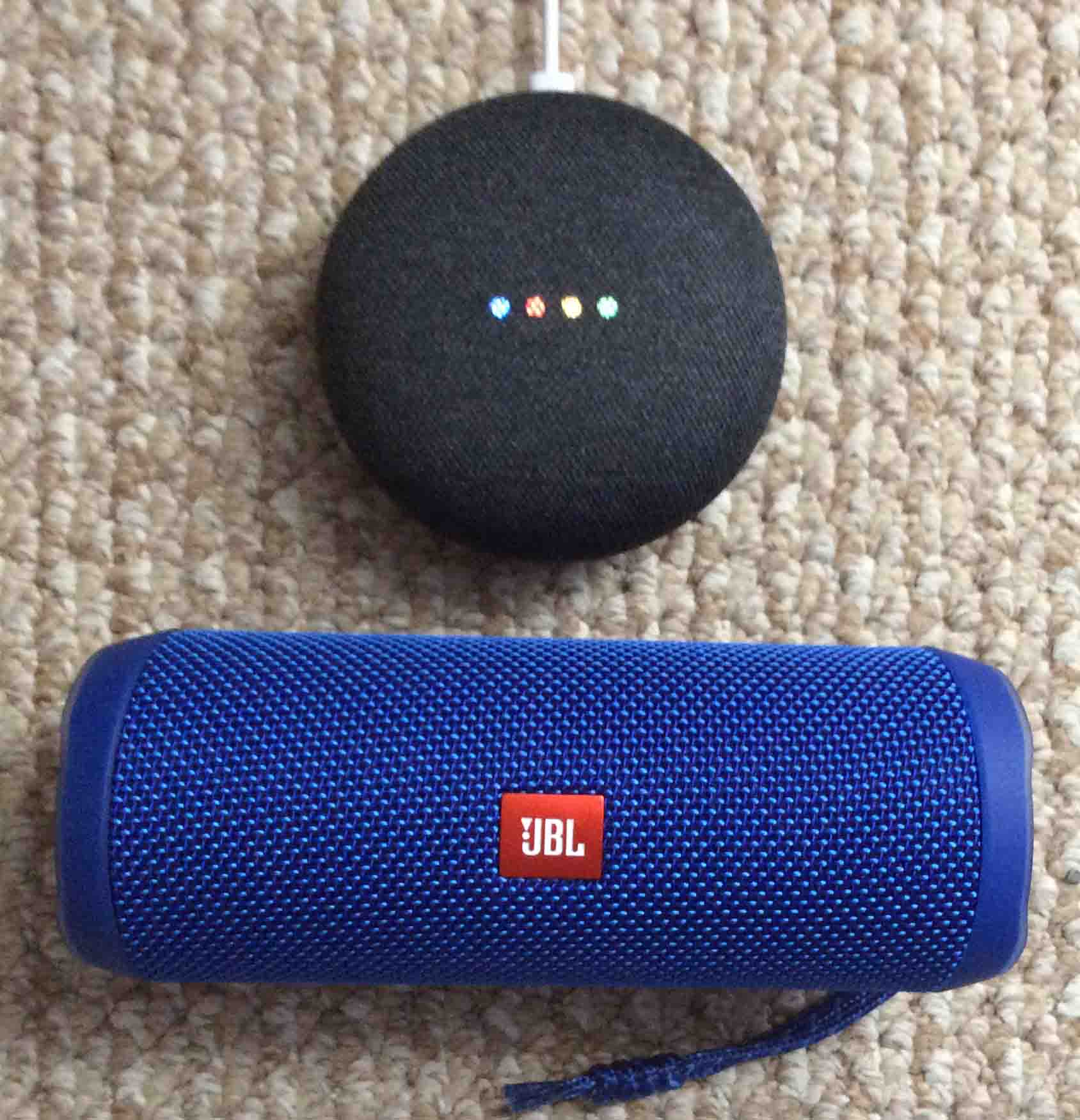
Next, we have the Flip 4 with some smart devices.
The JBL Flip 4 portable speaker with a Google Home Mini smart speaker.
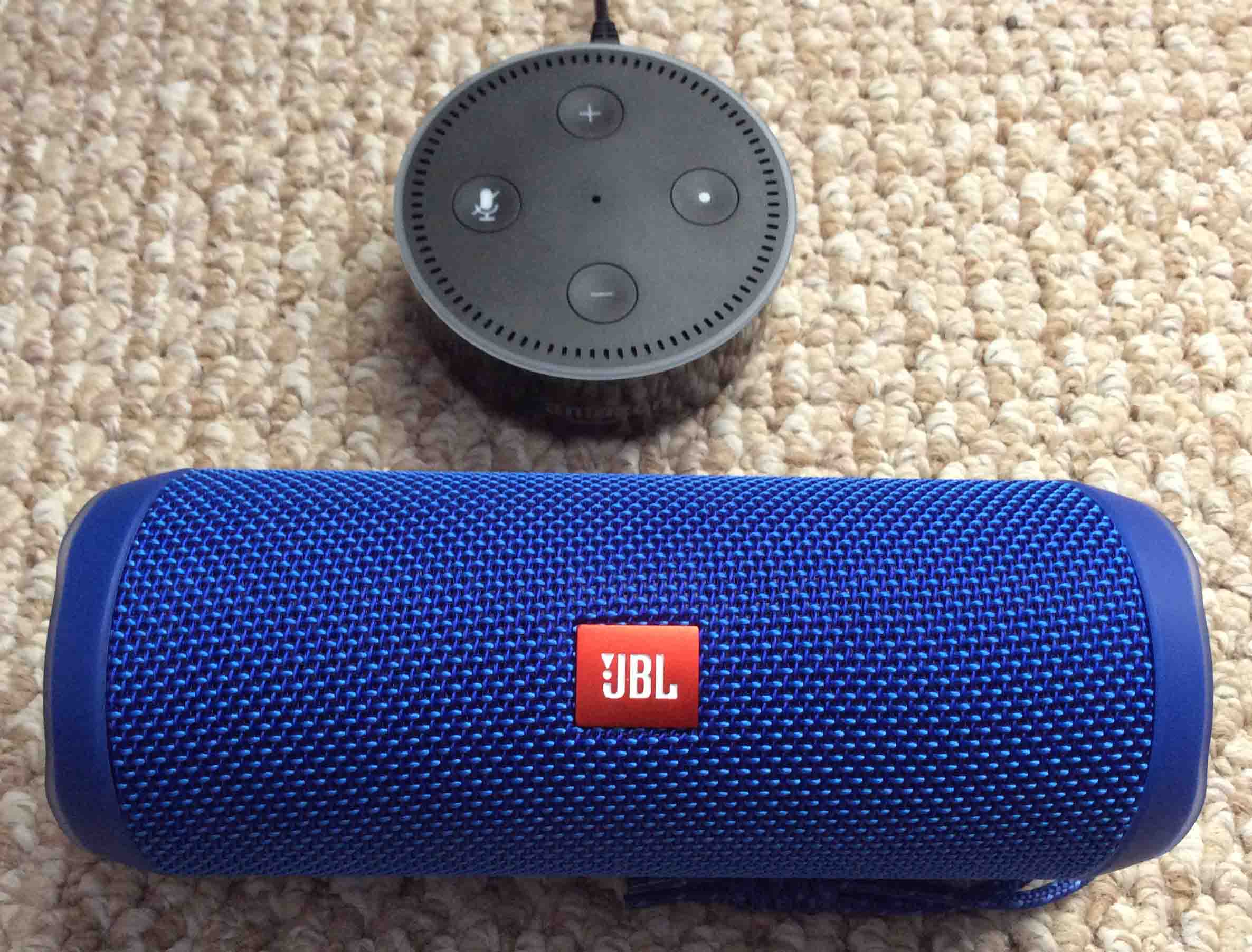
The Flip 4 alongside an Amazon Echo Dot 2 speaker.
JBL Flip 4 Buttons and Gauges
Then we show the buttons, lights, and status gauge.
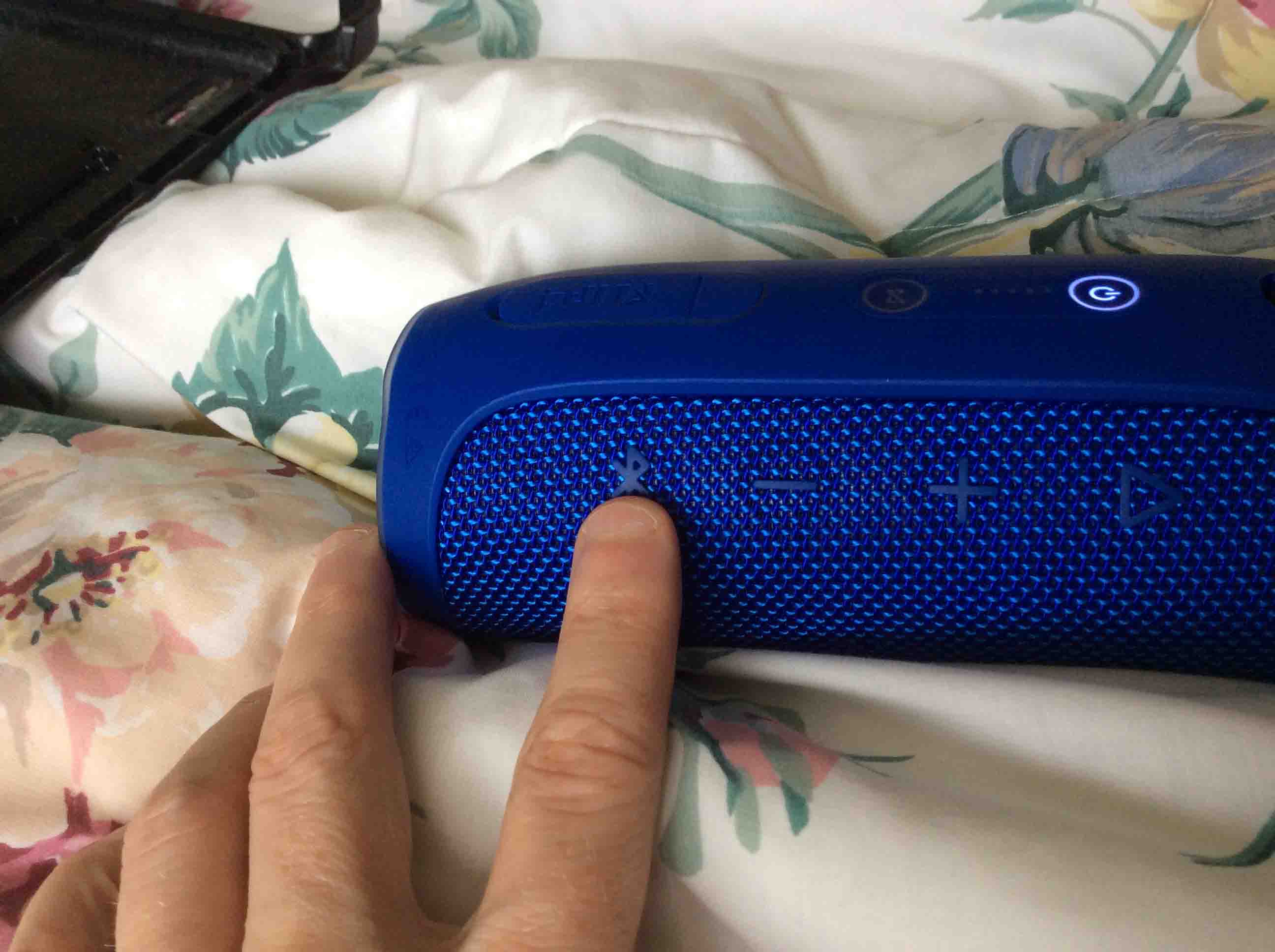
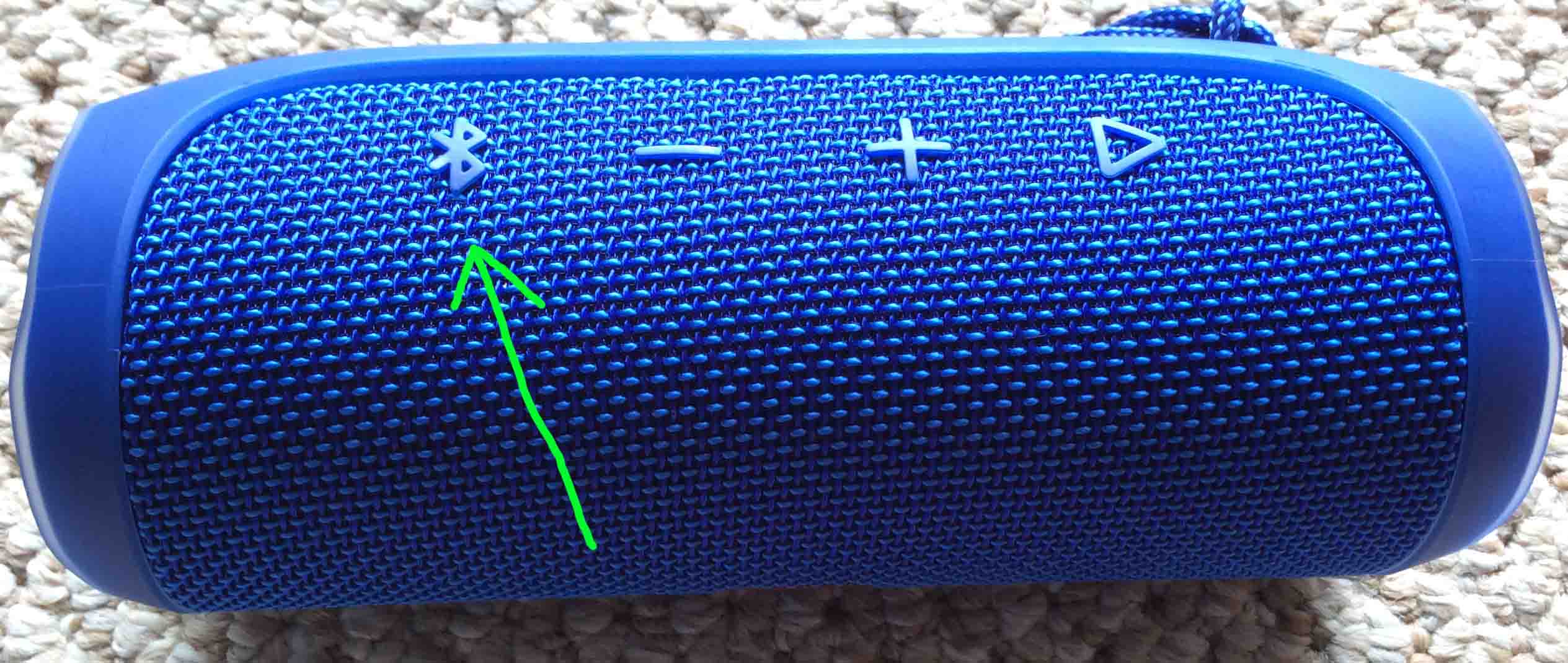
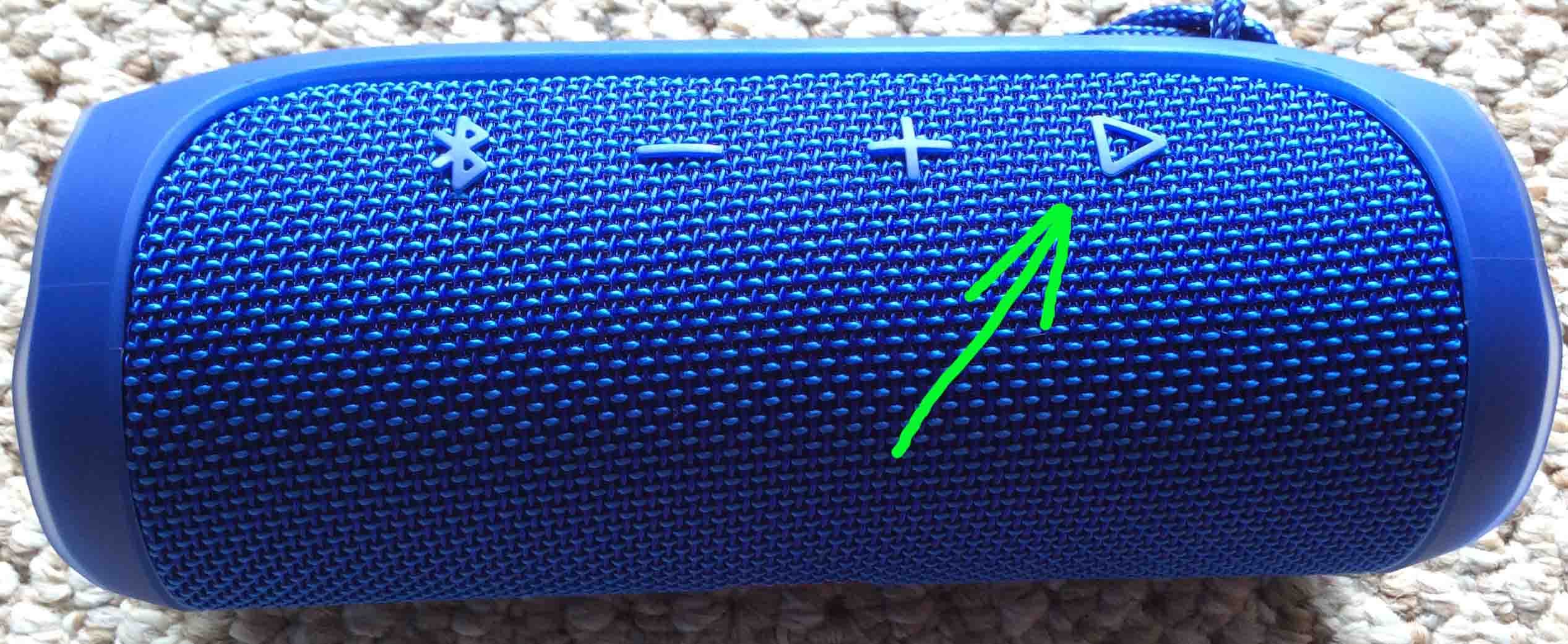
Firstly, we’re pressing the Bluetooth discovery mode button.
The Battery Strength Meter
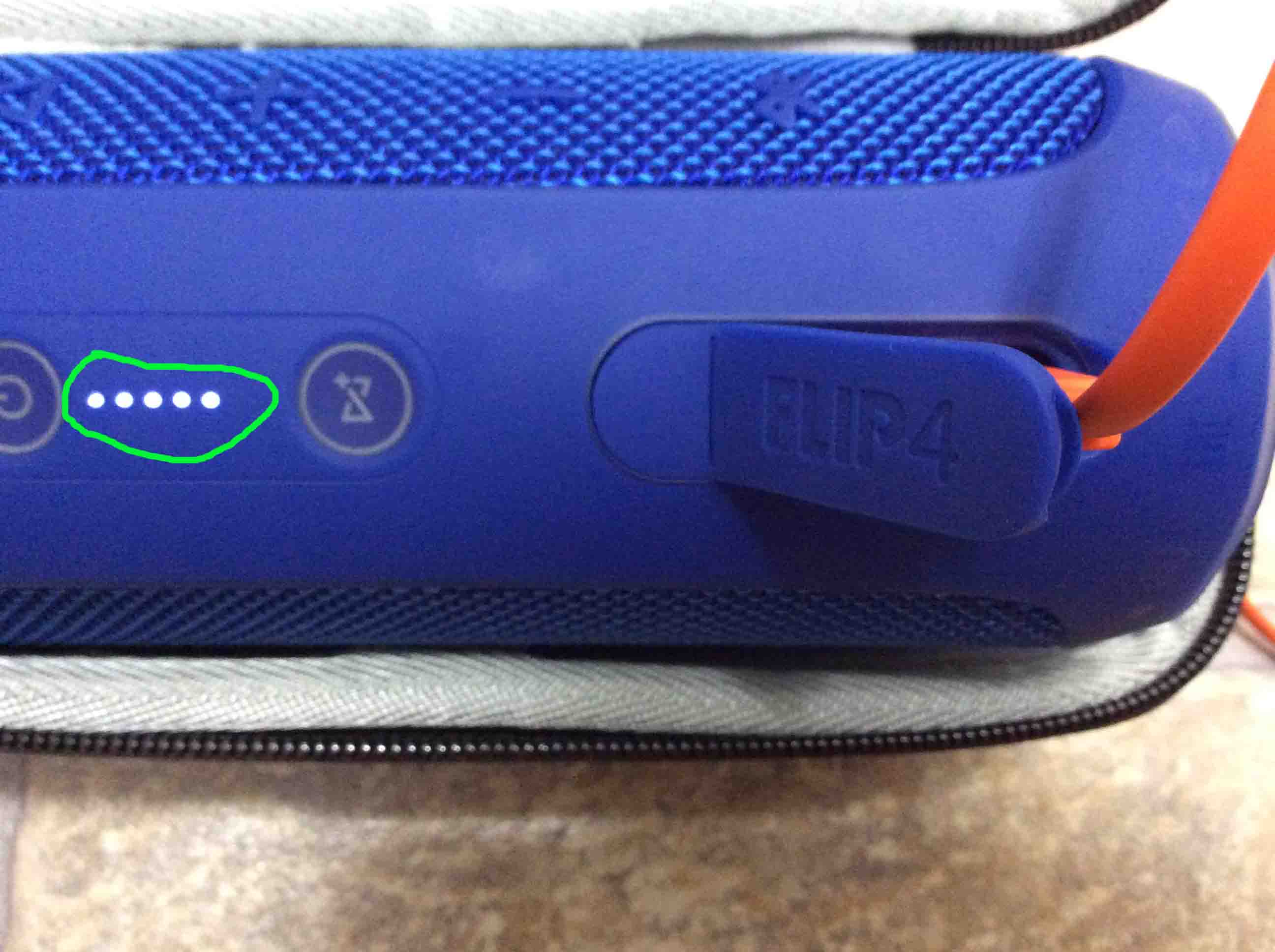
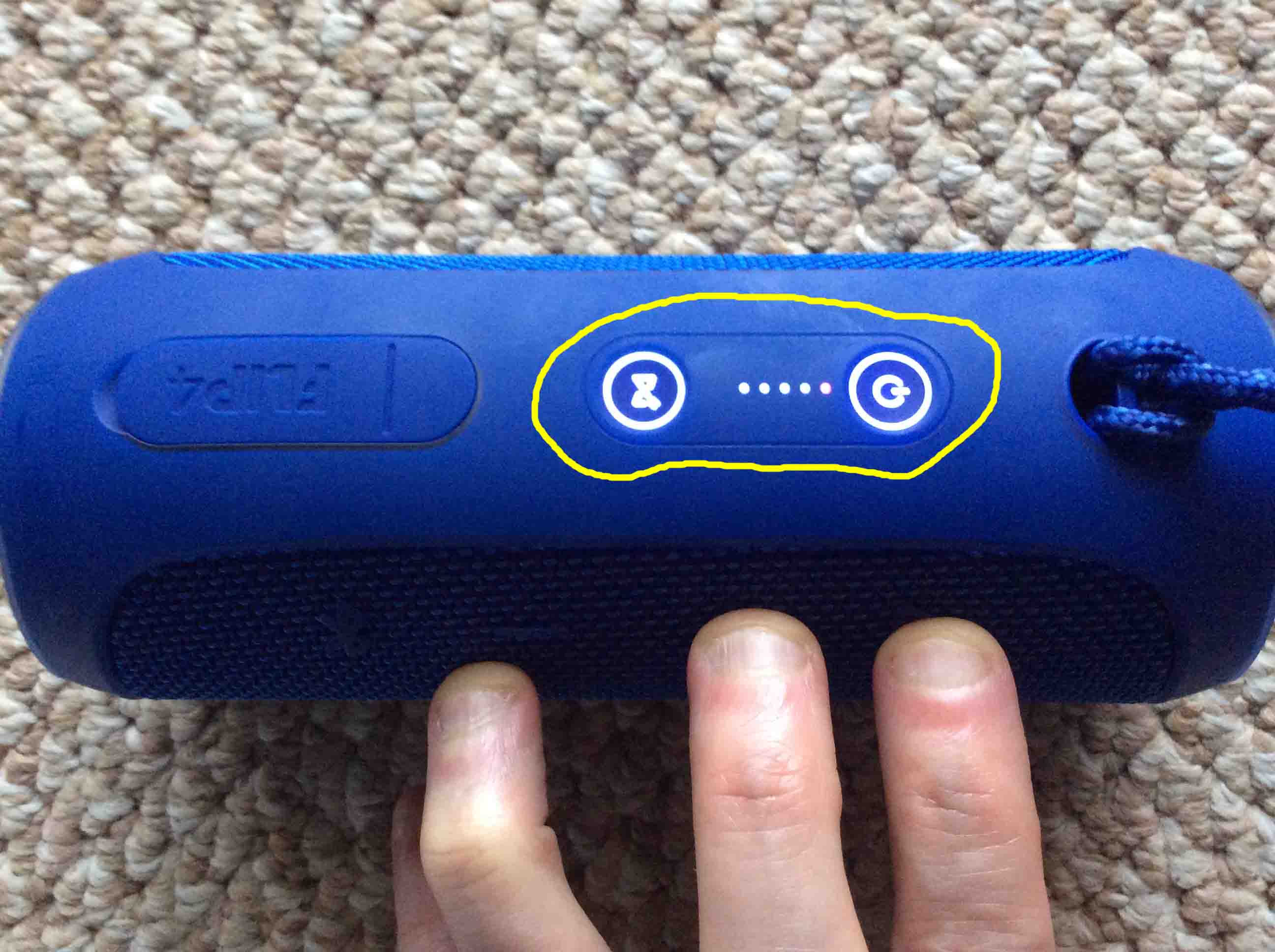
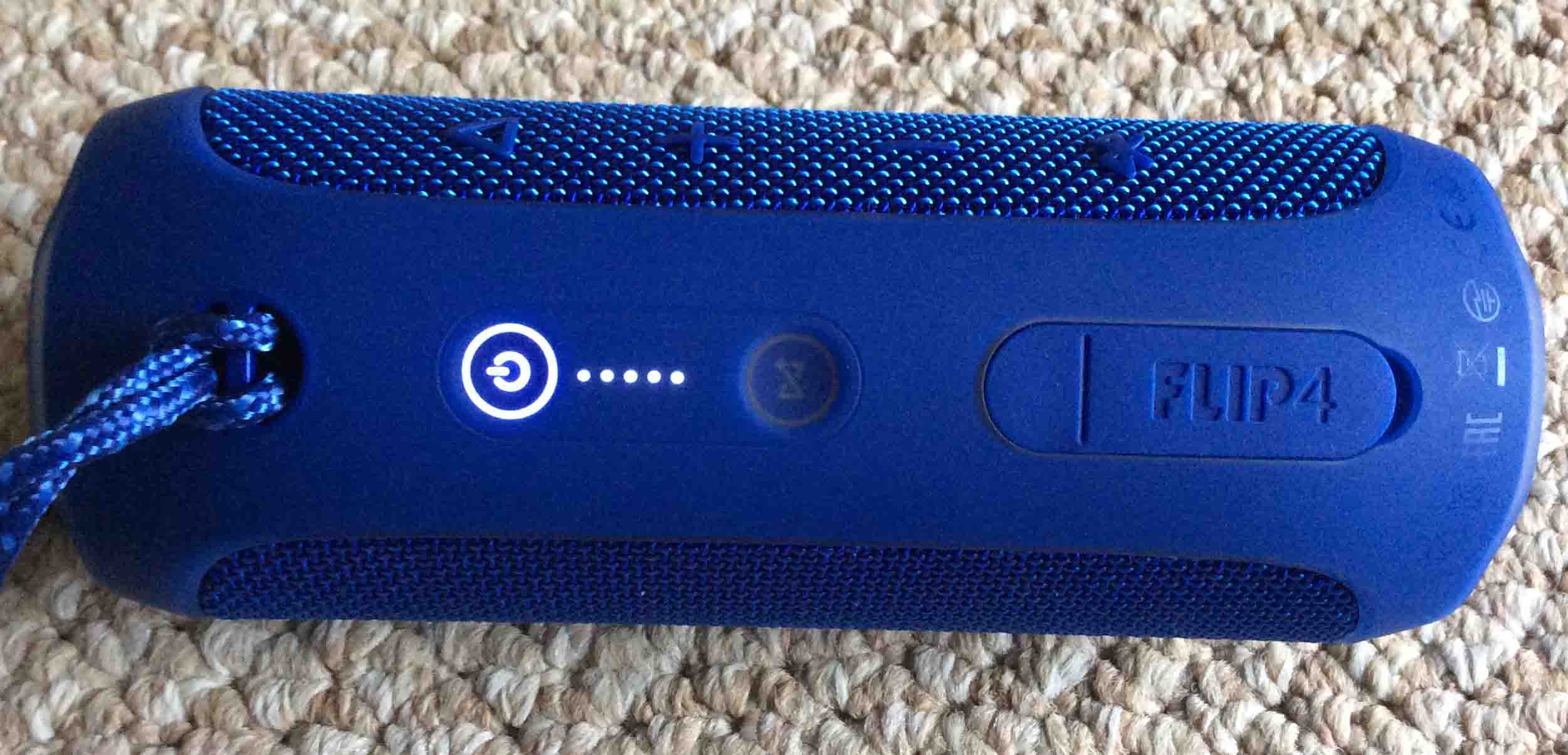
Then we have the battery charge status gauge, showing fully charged. All lights glowing.
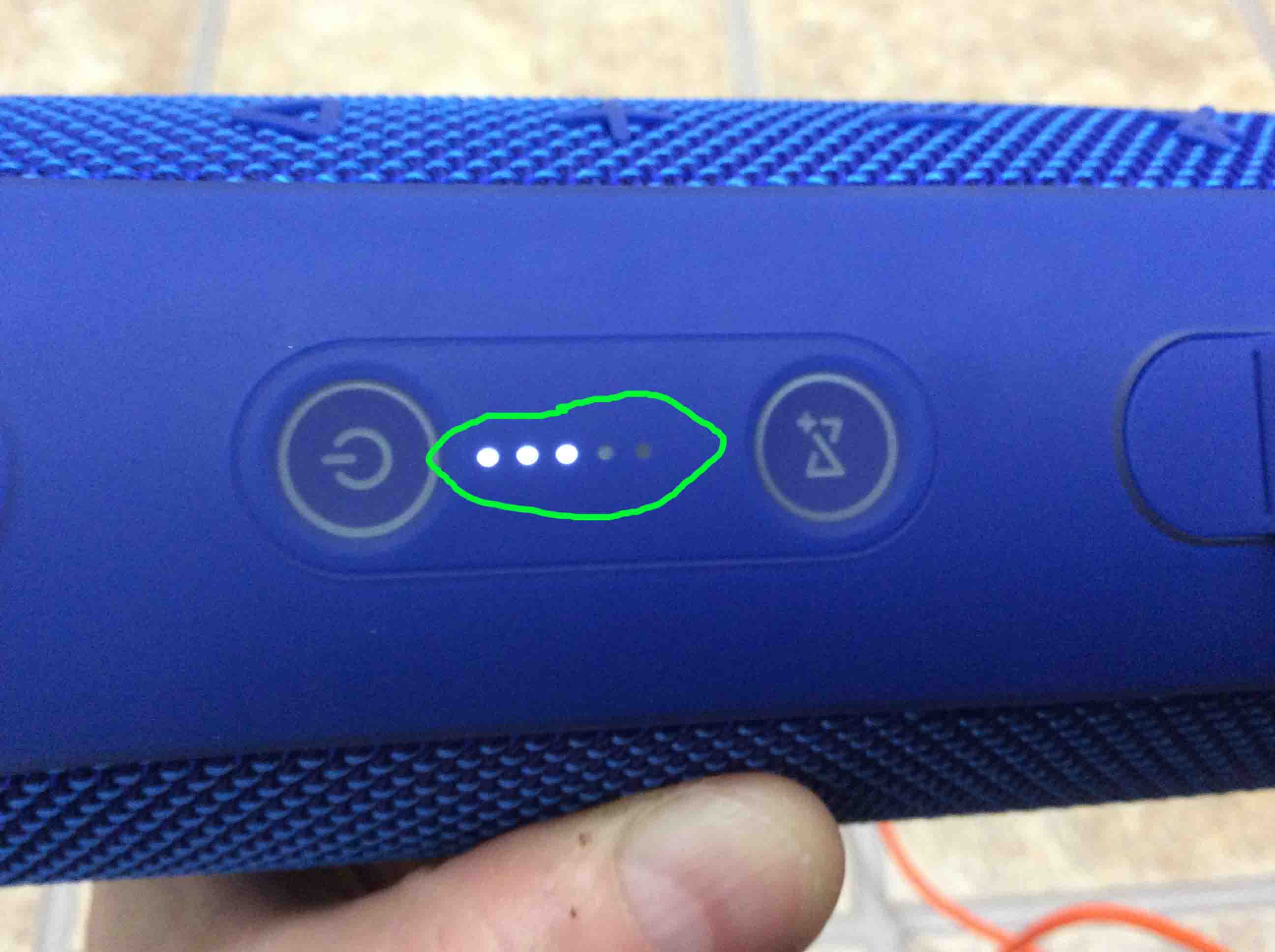
The battery status gauge, showing charging progress.
The Bluetooth Pairing / Discovery Mode Button
Then there are some pictures highlighting the various buttons on this unit.
Firstly, there’s the JBL Flip 4 portable speaker -Bluetooth- button.
Power Button
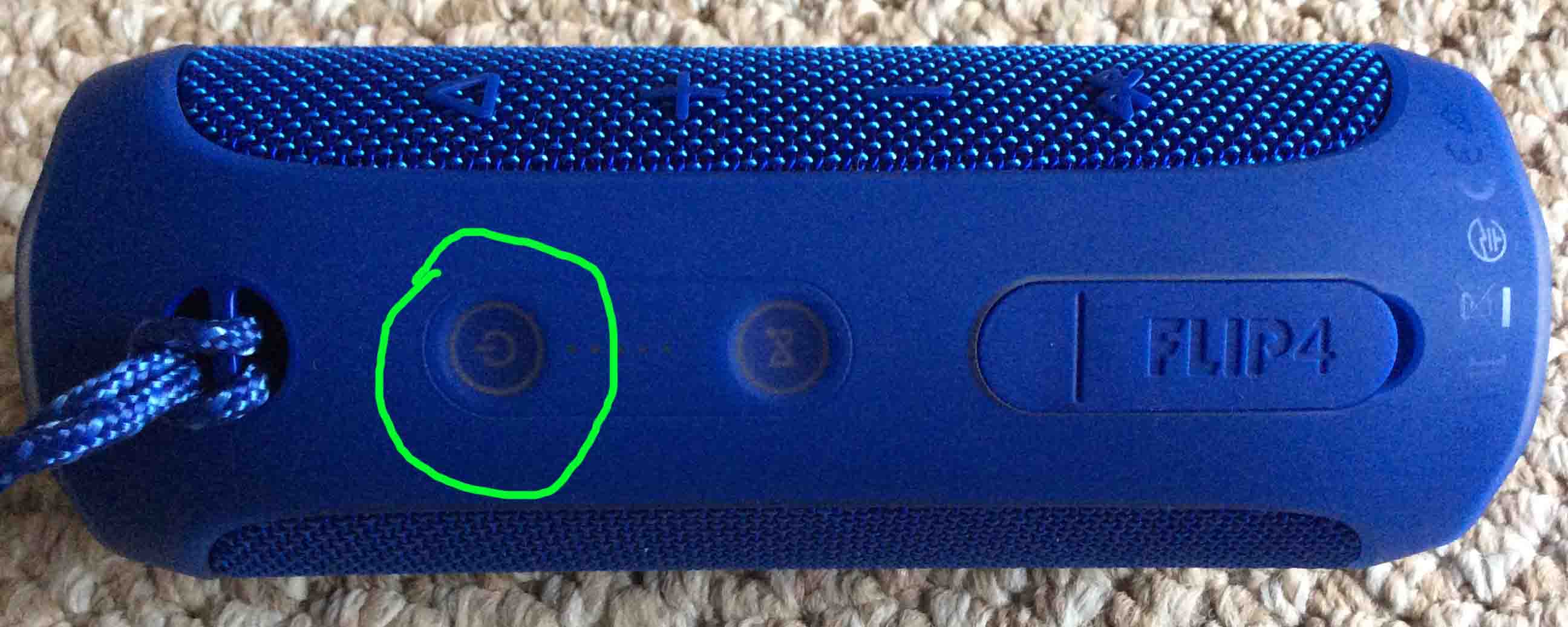
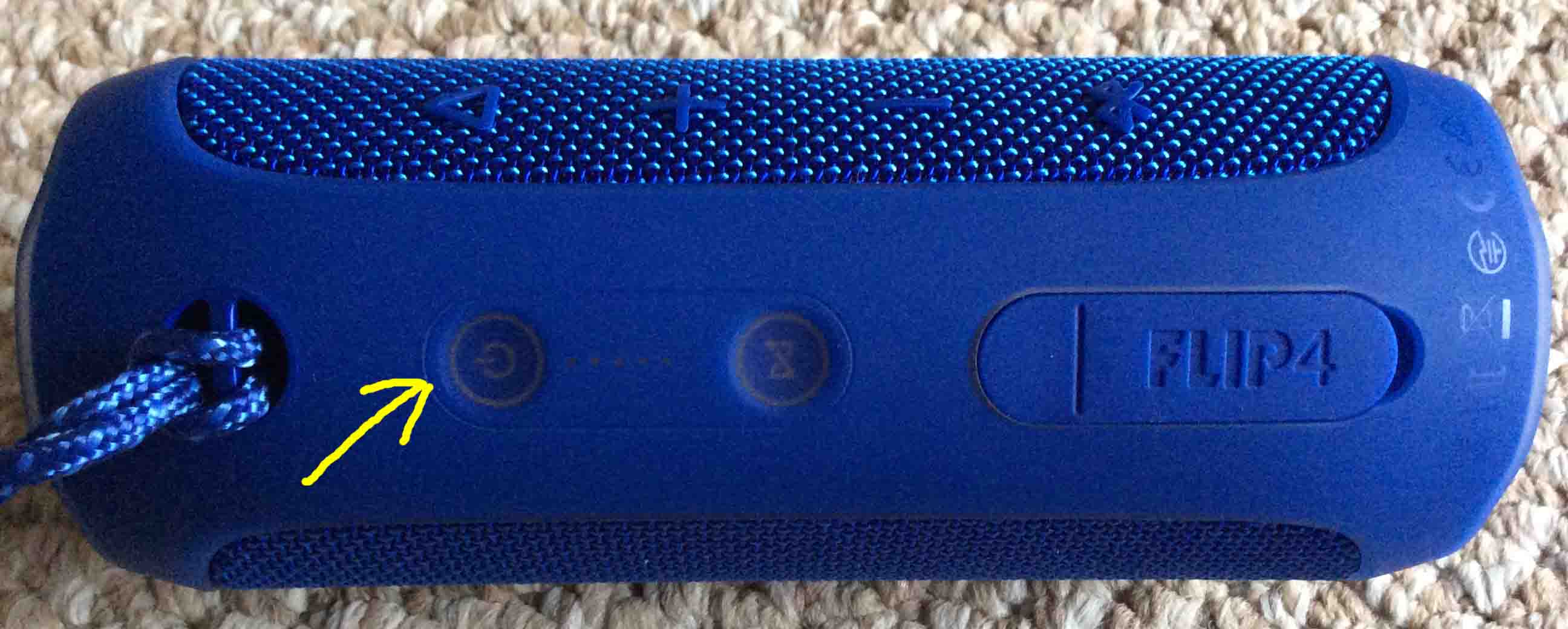
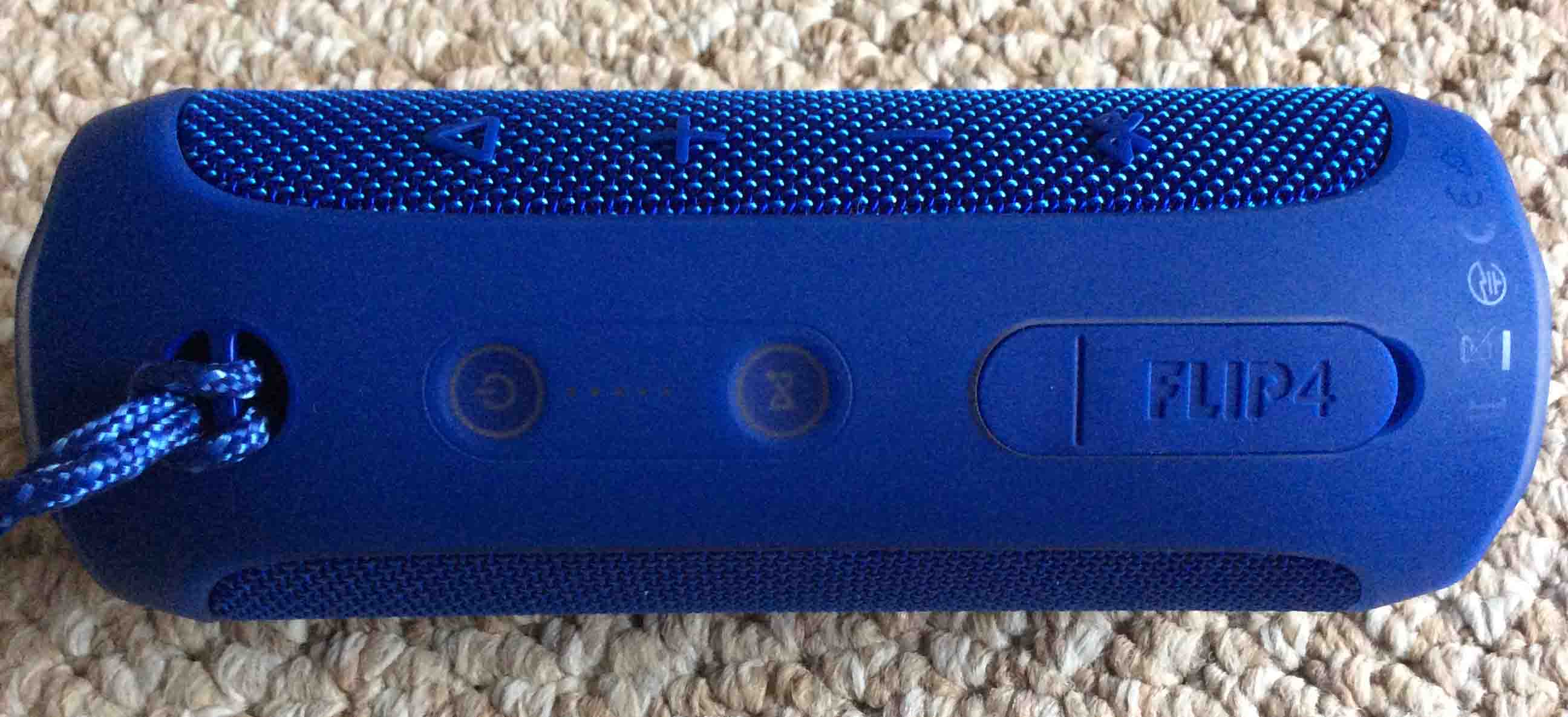
The unit turned OFF, showing its dark -Power- button.
Loudness Buttons
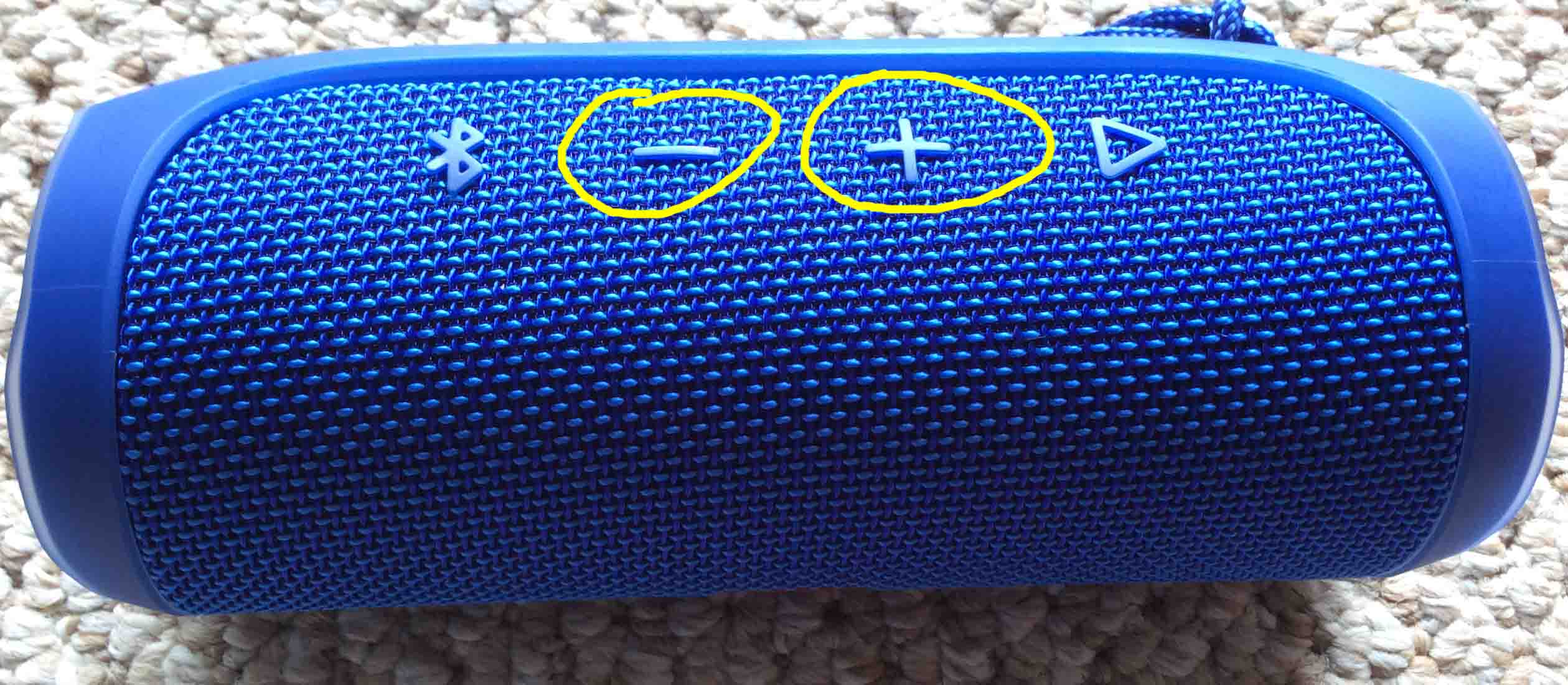
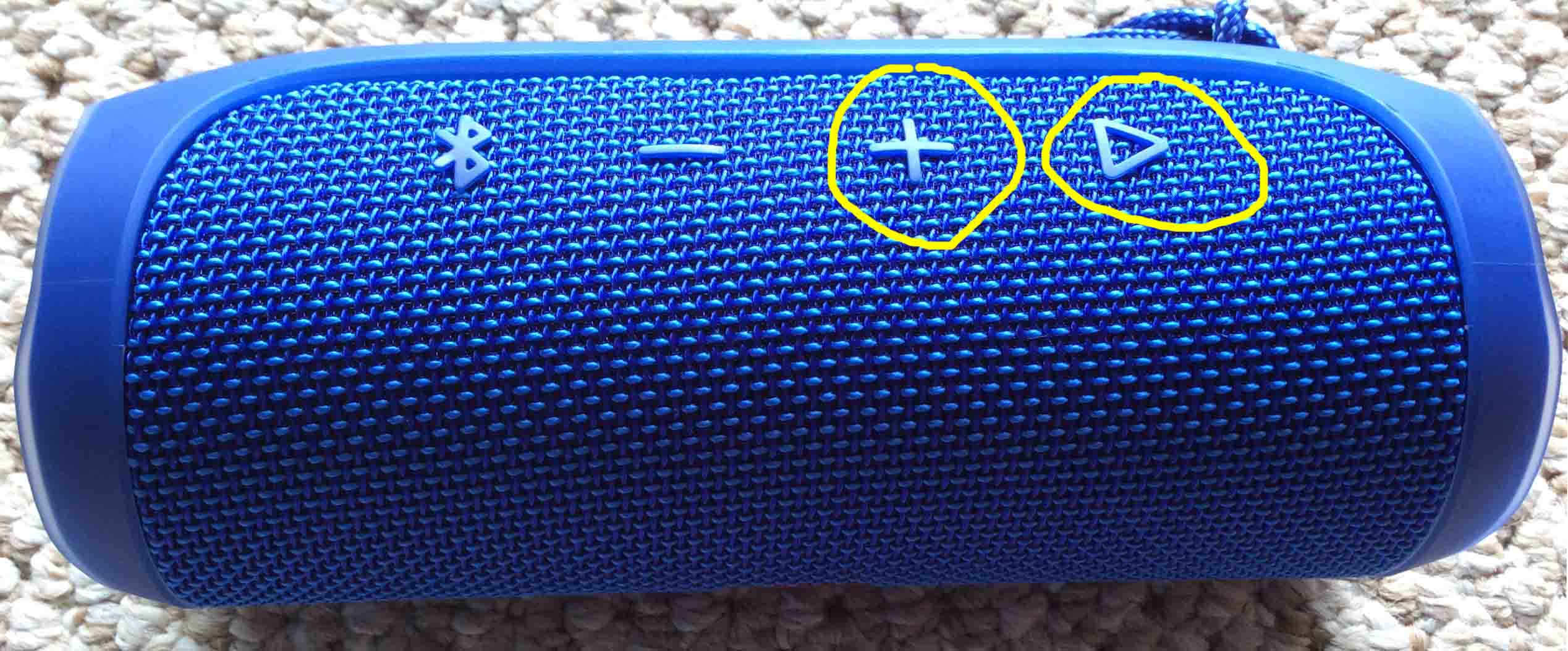
The -Volume UP- and -Volume DOWN buttons.
JBL Flip 4 Portable Speaker Picture Gallery: The Power Button Showing Bluetooth Pairing Mode in Effect
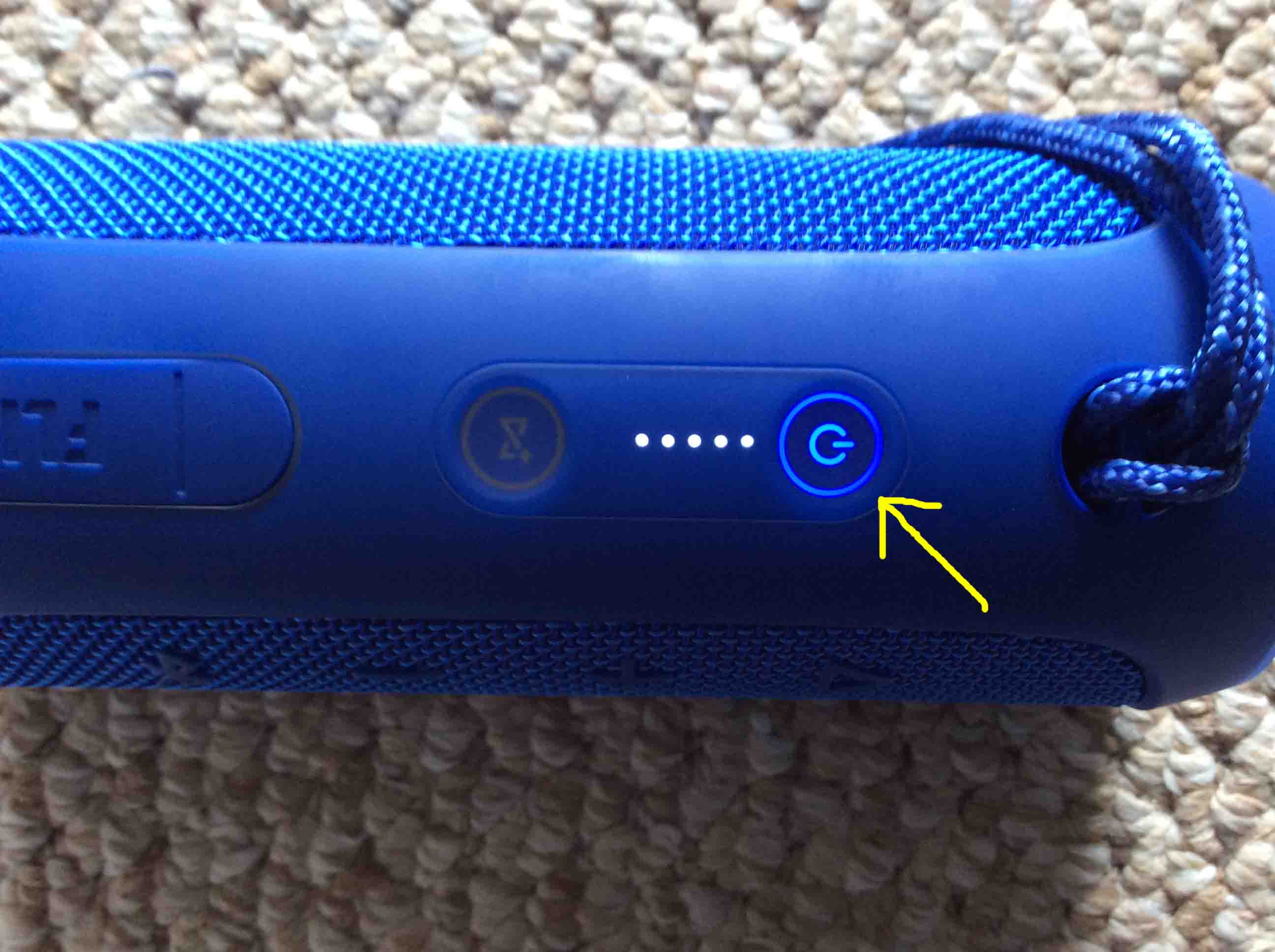
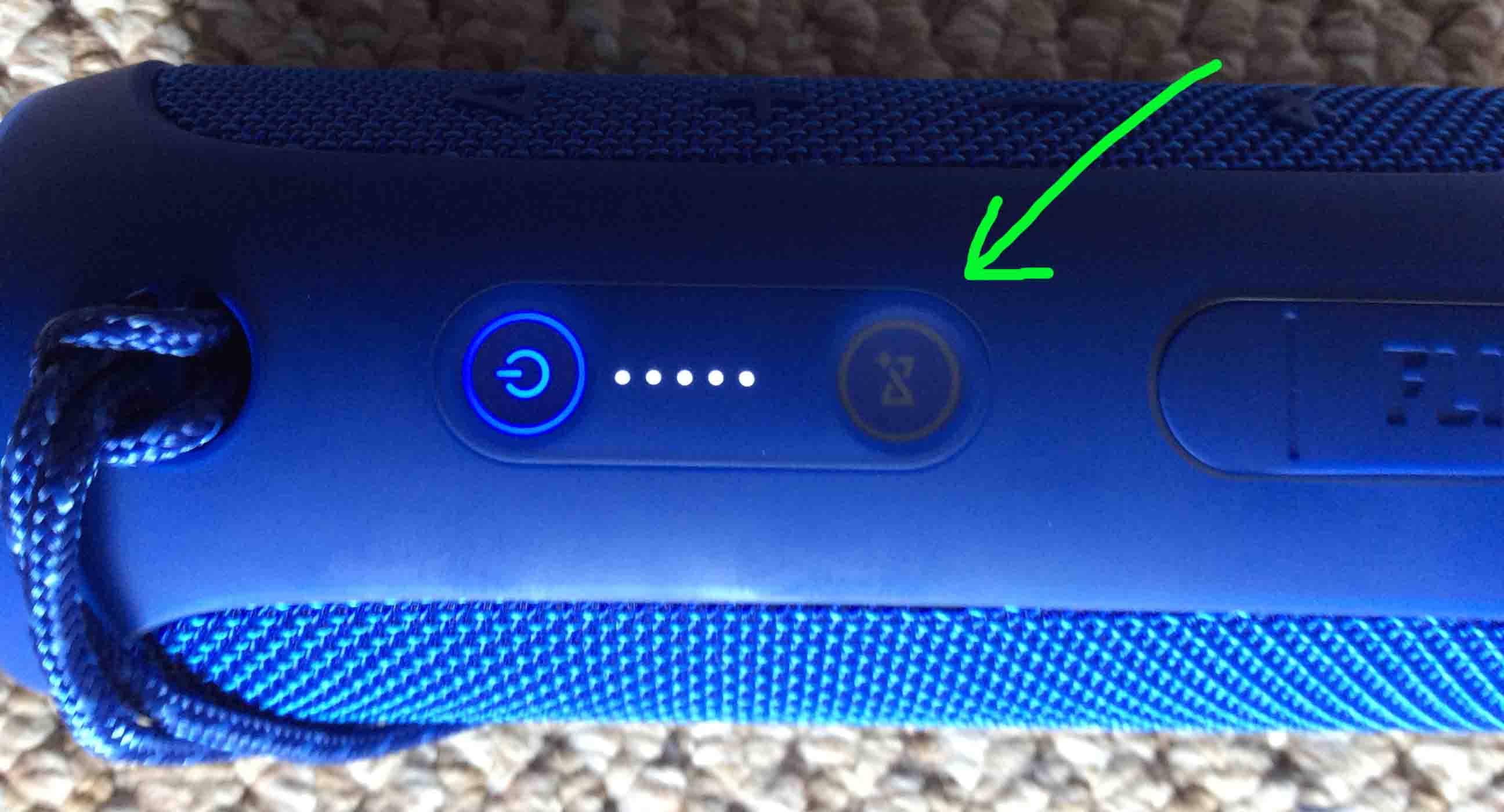
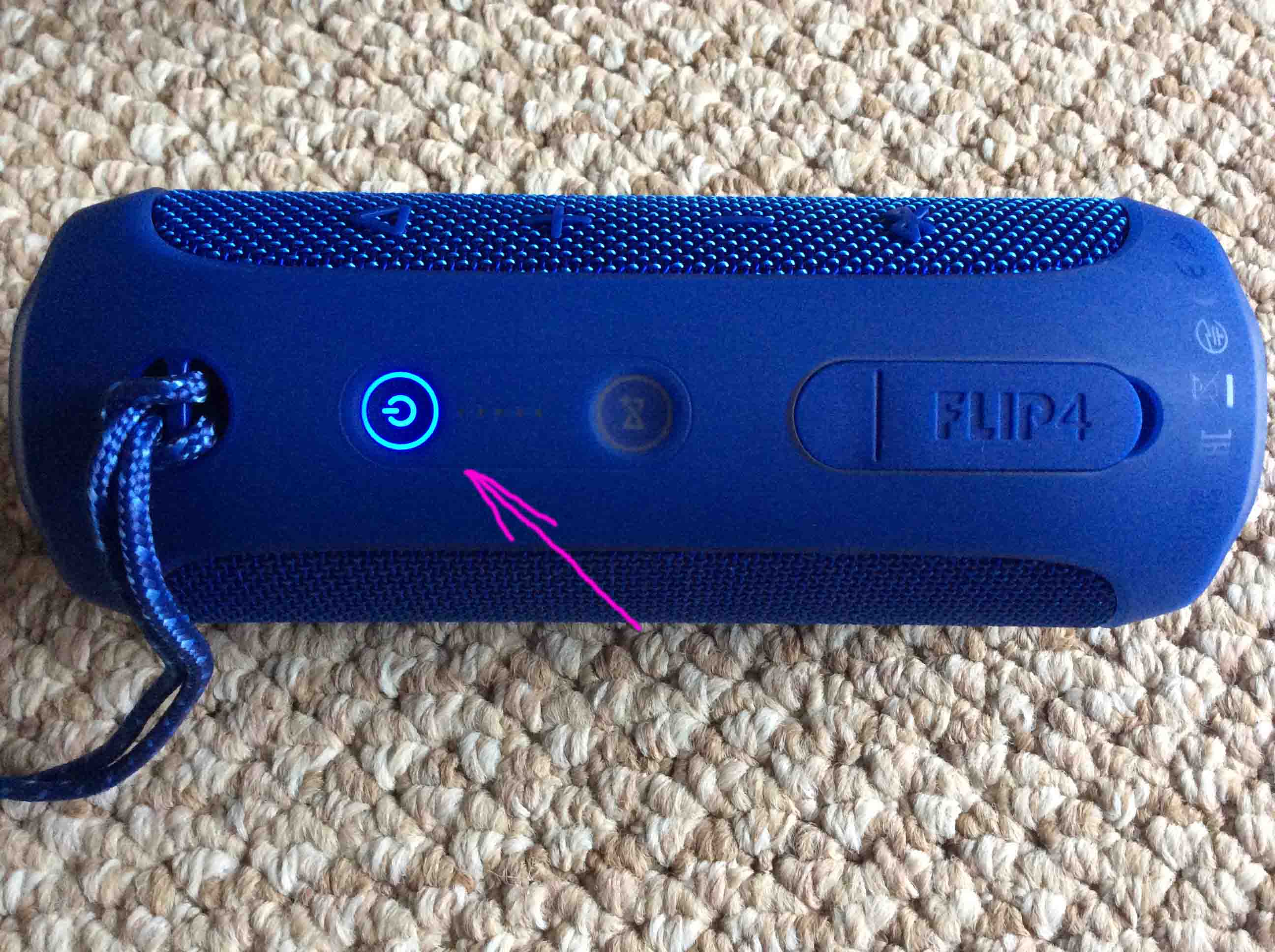
The unit in Bluetooth discovery mode. Showing the -Power- button, flashing blue.
The Connect Button
The JBL Flip 4 portable speaker -Connect Plus- button.