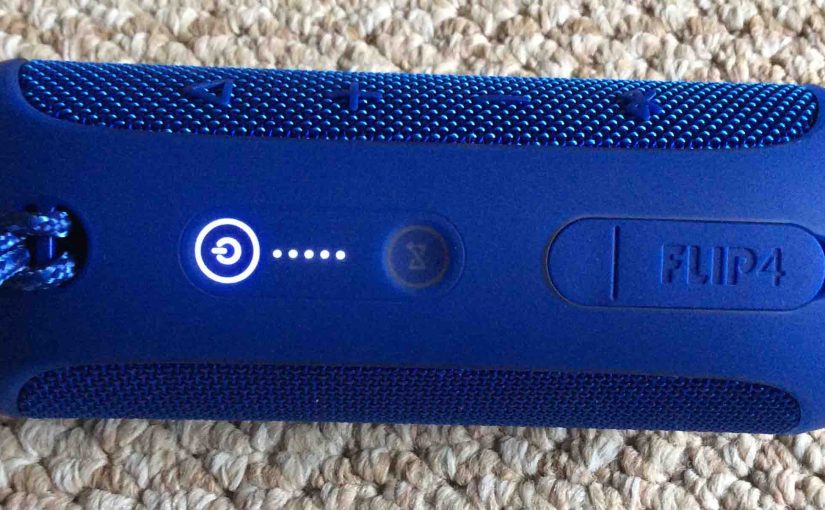
These JBL Flip 4 reset instructions show you how to factory reset your JBL Flip 4 Bluetooth speaker to its default settings. Resetting restores this speaker to factory default state. Factory resetting erases any earlier paired Bluetooth devices from its memory. Clearing these stops the Flip 4 from pairing to any nearby Bluetooth devices after the reset. Also, you might reset your JBL Bluetooth speaker to get it ready for sale or regifting, or to stop it from pairing with devices you no longer wish it to pair with.
JBL Flip 4 Reset Instructions
1. Turn on the JBL Flip 4
Press and hold the power button until it lights up.
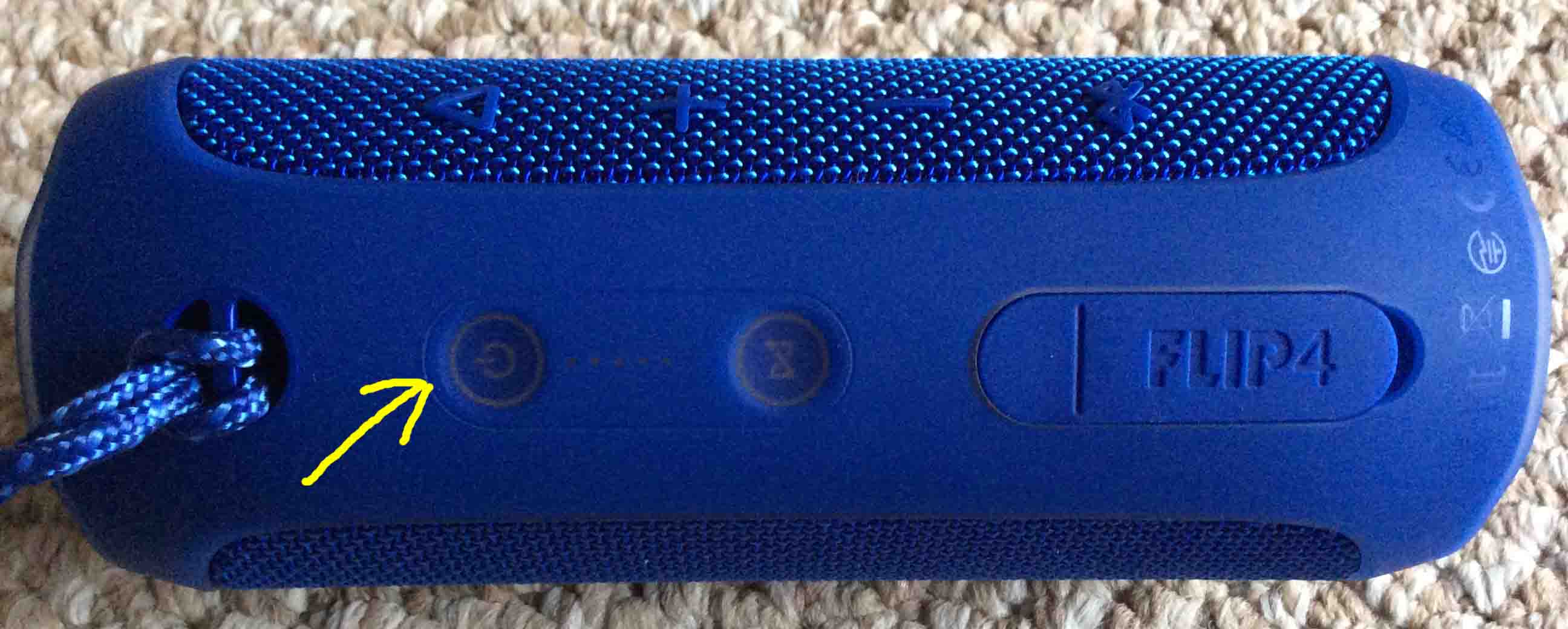
Find the power button, as shown in the last picture above.
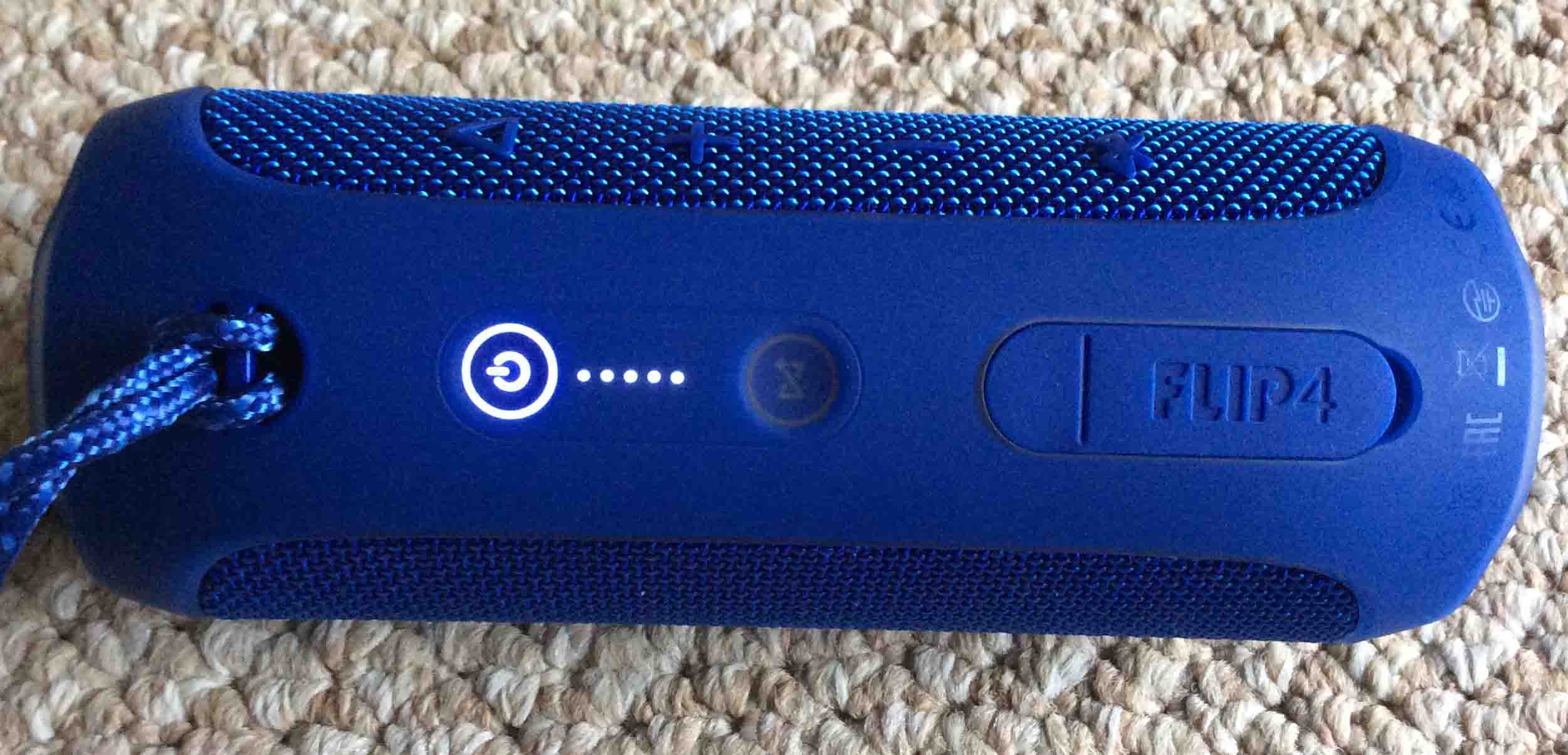
Then, the Power button lights up along with the battery power scale, as shown next. In our case, since we’ve paired the speaker with Bluetooth devices before this, it does not enter Bluetooth discovery mode. We know that because the Power button is glows solid gray, rather than blinking blue.
2. Wait for the Power Up Sound
The speaker makes a rising electric guitar strum sound when it powers up. The JBL Flip 4 is ready for use after this sound finishes.
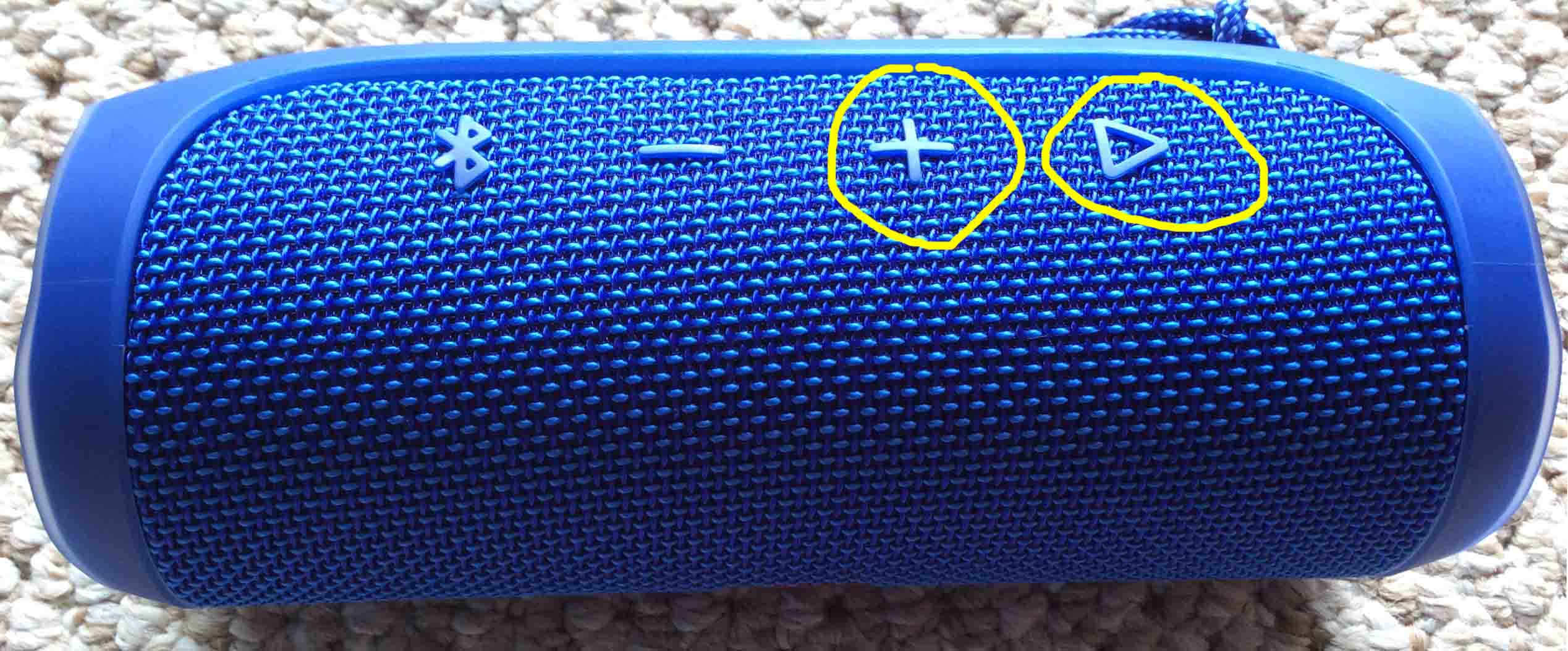
3. Press the Volume UP and Play-Pause Buttons Together to Continue with JBL Flip 4 Reset
See the next picture to find the Pause and UP Volume buttons.
The Flip 4 then enters factory reset, as shown in the next picture. Note that both the Bluetooth Off and Power buttons light up gray white for a couple seconds. Shown next.
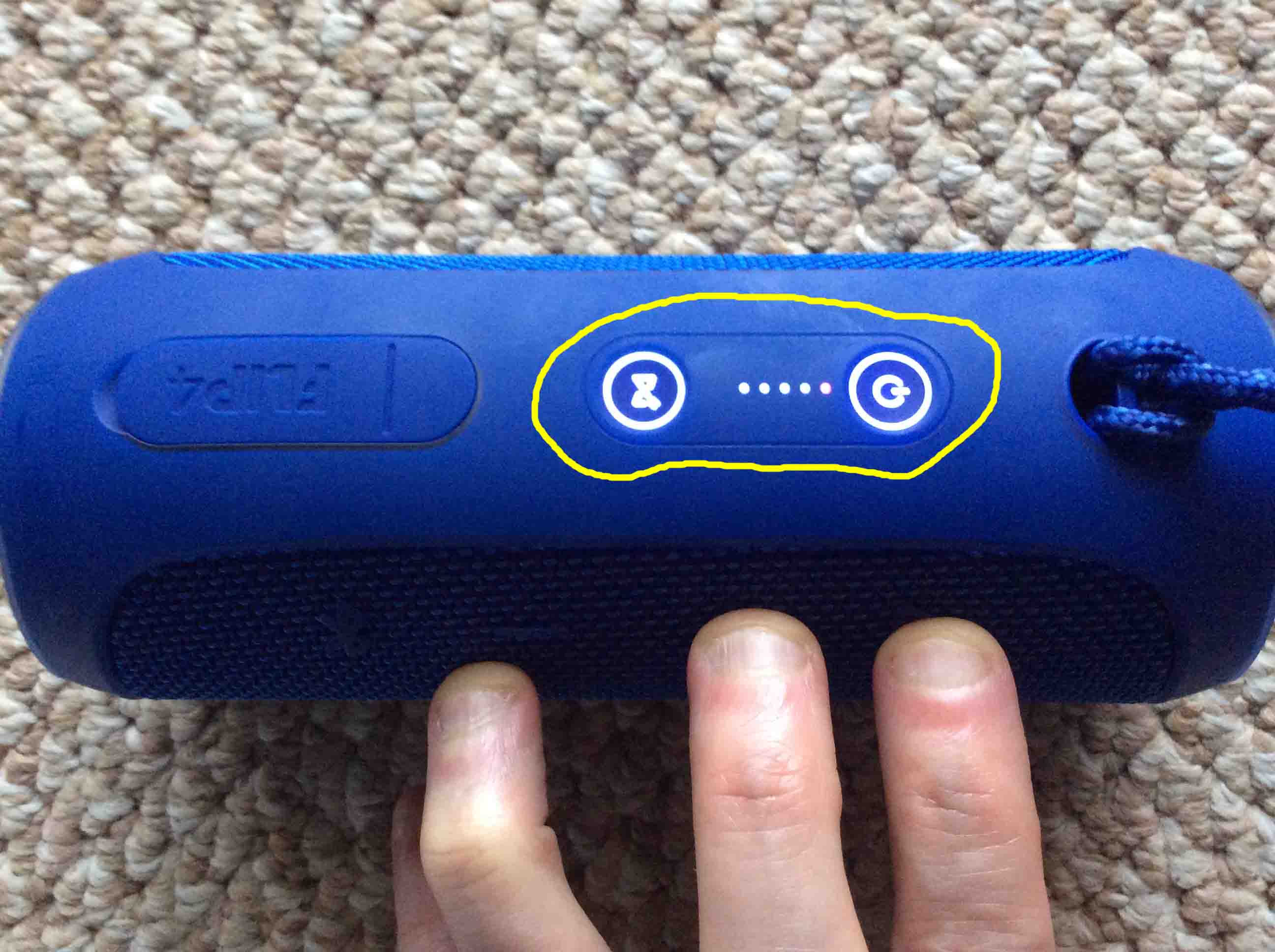
Then after a short pause, the JBL Flip 4 turns off. All the lights go off, and it makes the power-down guitar sound.
4. Check that your JBL Flip 4 Did Reset
Next, power on the Flip 4 again, as described in step 1 above.
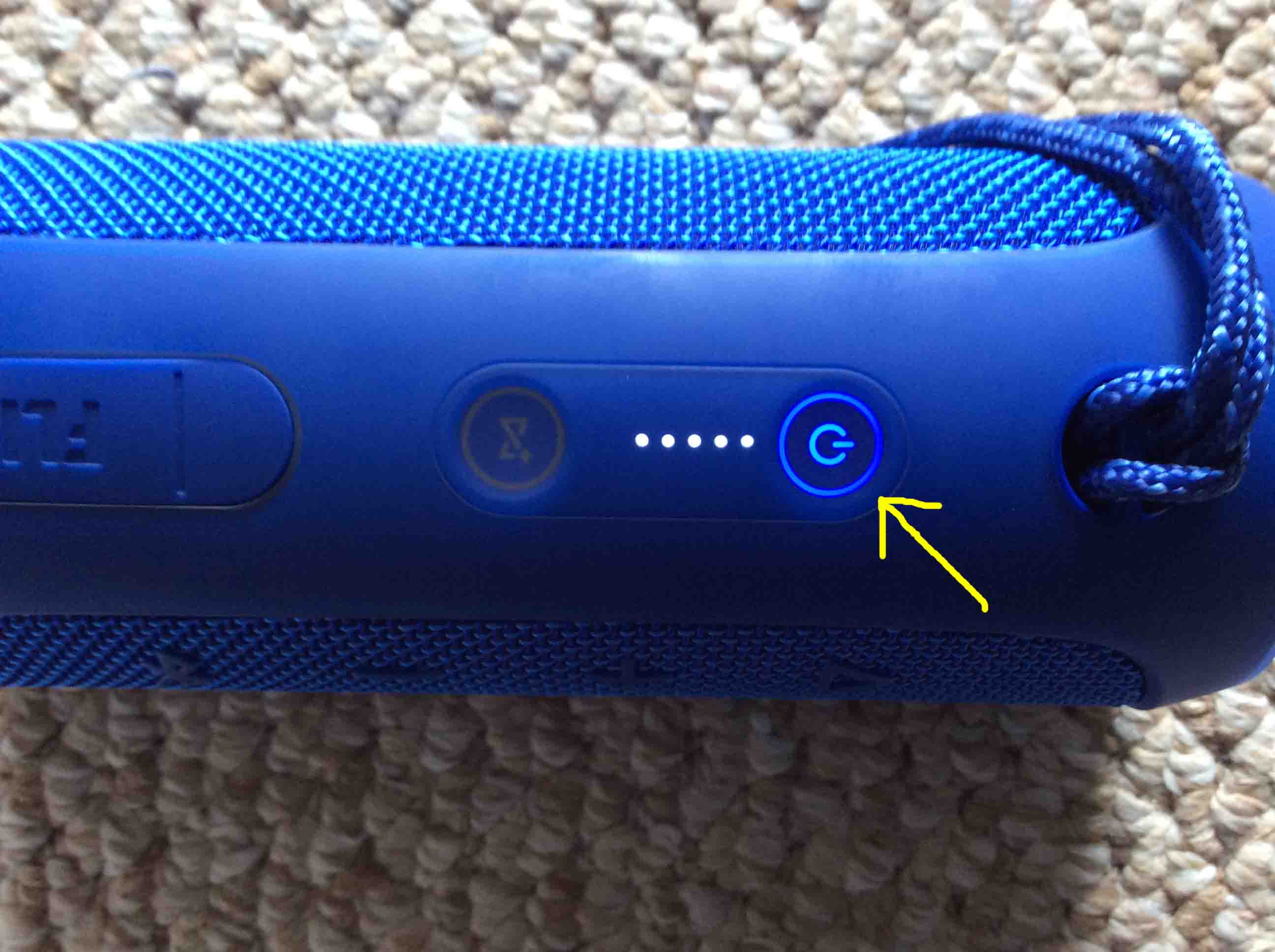
Now this time, after reset, our speaker comes up in Bluetooth discovery mode, as shown next. Note that the Power button blinks blue to denote this. When the Power button blinks blue or shows as solid white, the Flip 4 is not currently paired. We expect it not to pair to anything after a reset.
5. Done with JBL Flip 4 Reset !
The JBL Flip 4 reset is now finished. You may now pack it up for sale, or pair it again with your favorite Bluetooth devices. The speaker will no longer automatically connect with any previously paired Bluetooth device that is in range and in Bluetooth pairing more. To restore automatic Bluetooth pairing, manually pair the Flip 4 with a device. Then after that, any time that both speaker and that device have Bluetooth turned on, pairing with automatically take place once more.
Other Posts About the JBL Flip 4 BT Speaker
- Review of the JBL Flip 4 Portable Waterproof Speaker
- JBL Flip 4 Specs, Specifications for this Speaker
- Pairing Instructions for Flip 4 JBL Speaker
- JBL Flip 4 Low Frequency Mode, How to Turn On
- How to Pair JBL Flip 4 with iOS Devices
Related Posts
- JBL Go 2 Reset Instructions to Fix Pairing Problems
- Echo Sub Reset Instructions
- Reset HP DeskJet 3630 Printer Instructions
- JBL Xtreme Reset Instructions
- Resetting Google Home Mini Speaker Instructions
References for JBL Flip 4 Reset
- How to Factory Reset the JBL Flip 4 Bluetooth Speaker, on YouTube
- JBL Flip 4 Portable Bluetooth Speakers, on JBL.com
- My JBL Flip 4 doesn’t turn on and charge, on iFixIt.com
Revision History
- 2020-04-09: Added more tags.
- 2019-04-23: Cut out ad code, tuned the targeting, and added tags.
- 2018-05-14: First published.