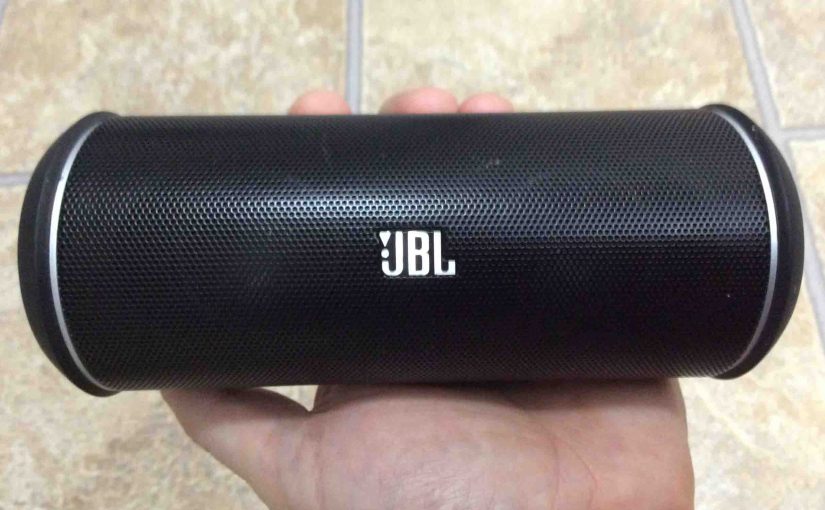
Picture of the JBL Flip 2 Bluetooth speaker, front side view, held in hand.

JBL Flip 2 Wireless Portable Bluetooth Speaker Picture Gallery

We picked up this JBL speaker for testing and review, and took some pictures of it for those posts.  So the result here is this JBL Flip 2 wireless portable Bluetooth speaker picture gallery.  Hopefully thus, these photos answer most questions about how to pair, unpair, connect, and recharge this speaker.  Enjoy.

JBL Flip 2 Wireless Portable Bluetooth Speaker Picture Gallery

JBL Flip 2 Wireless Speaker Top, Front, Back, and Side Views

To start, we have the Flip 2 speaker with its drivers facing the camera.
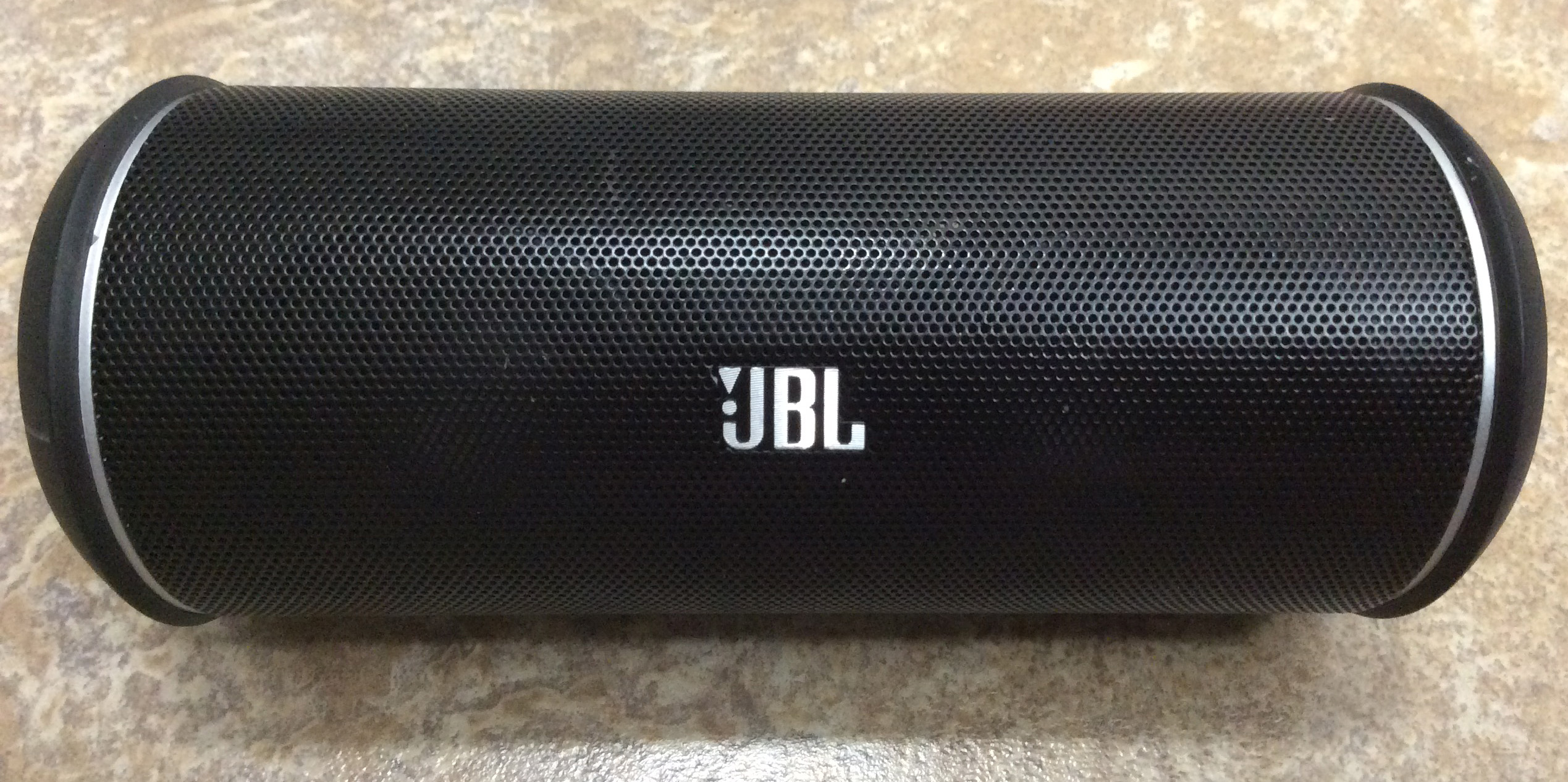
Picture of the JBL Flip 2 Wireless Portable Bluetooth Speaker front side view.
The JBL Flip 2 Wireless Portable Bluetooth Speaker front side view.

Secondly, is this mall speaker with big sound, held in hand.
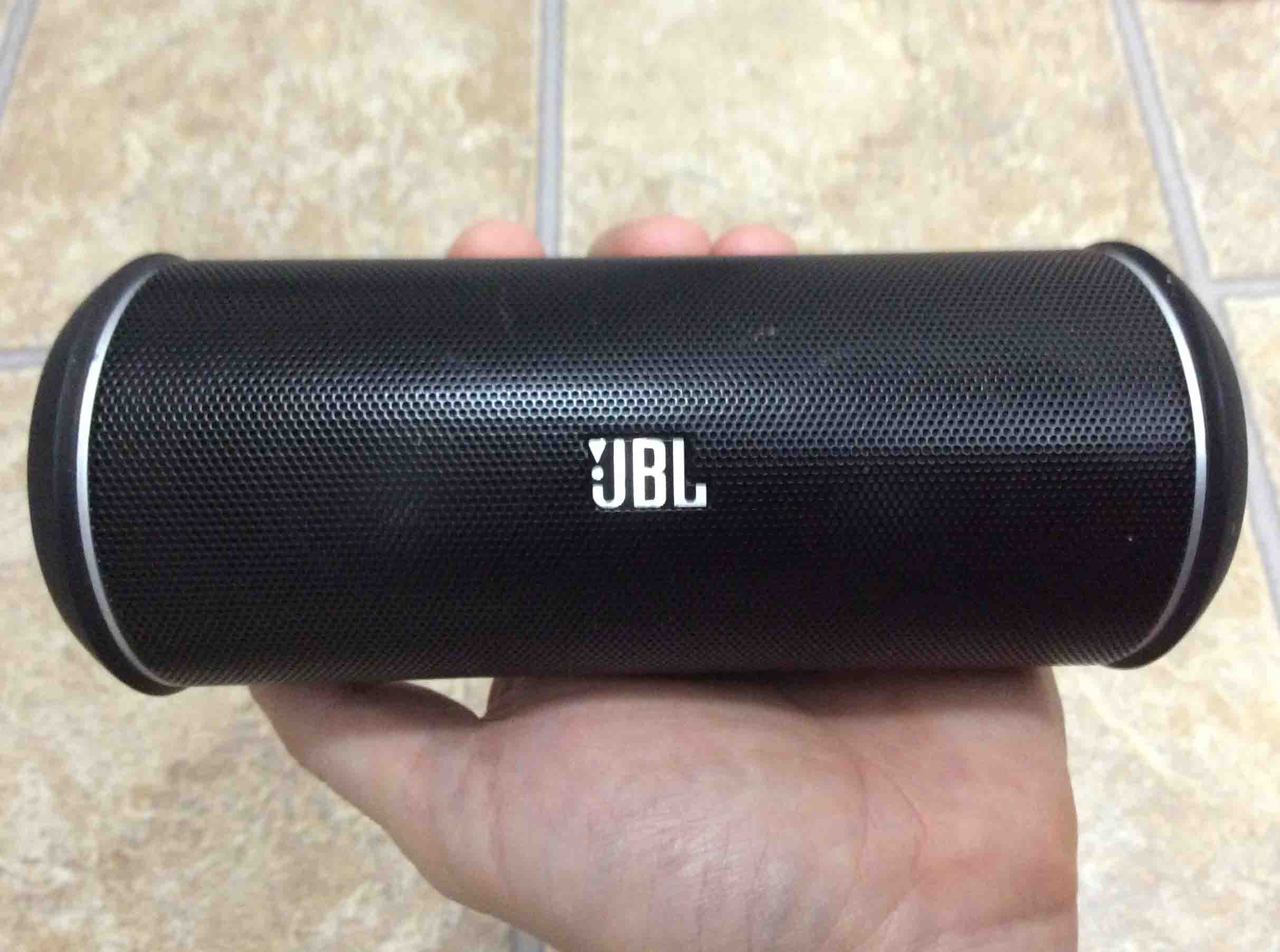
Picture of front, held in hand.
Front view, held in hand.

The information label strip, showing some certification logos and serial number, that we blanked out in pink.
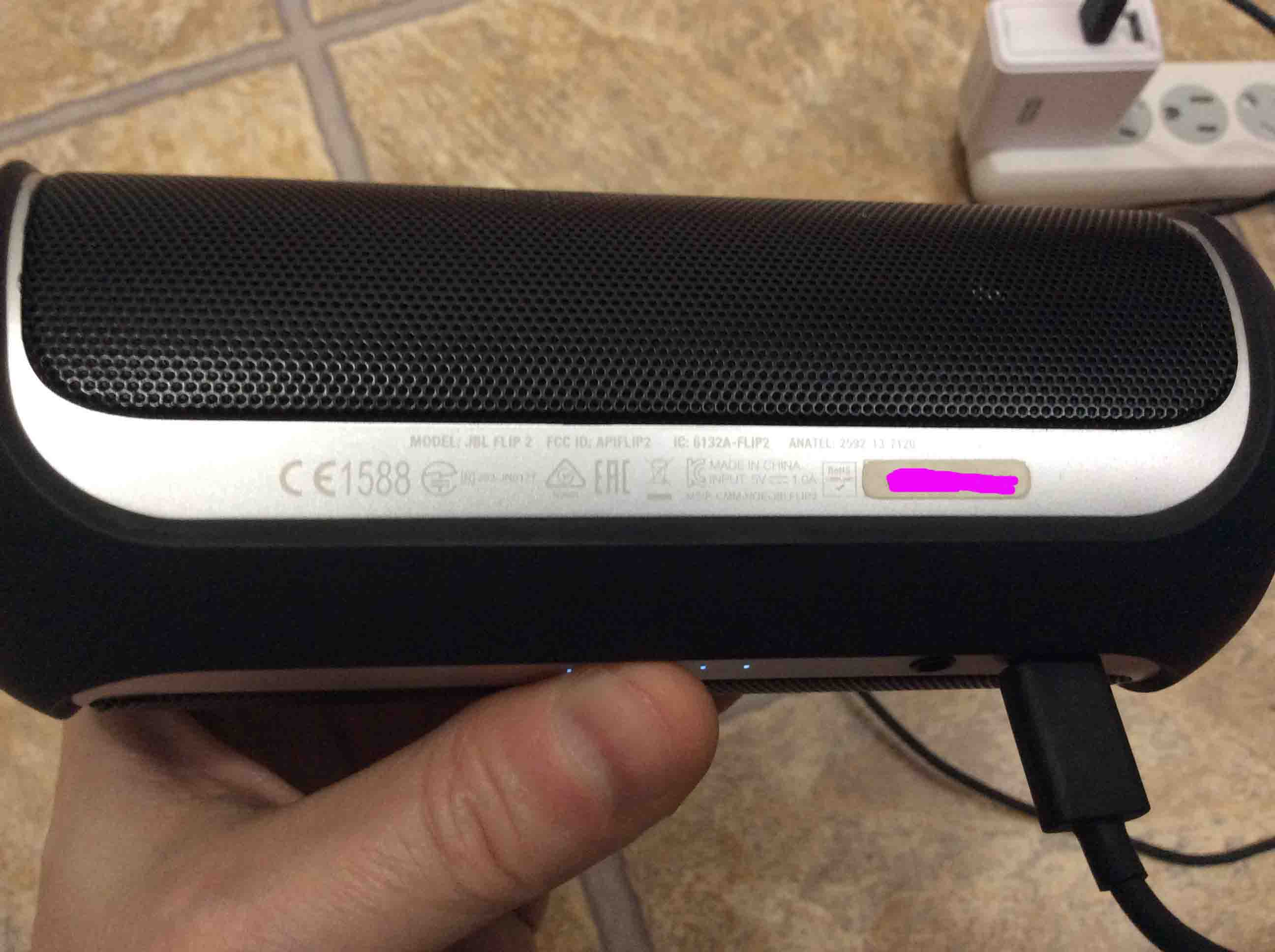
Picture of the label side.
The label side view.

Port side, showing AUX In and USB power port, along with the battery charge level gage.
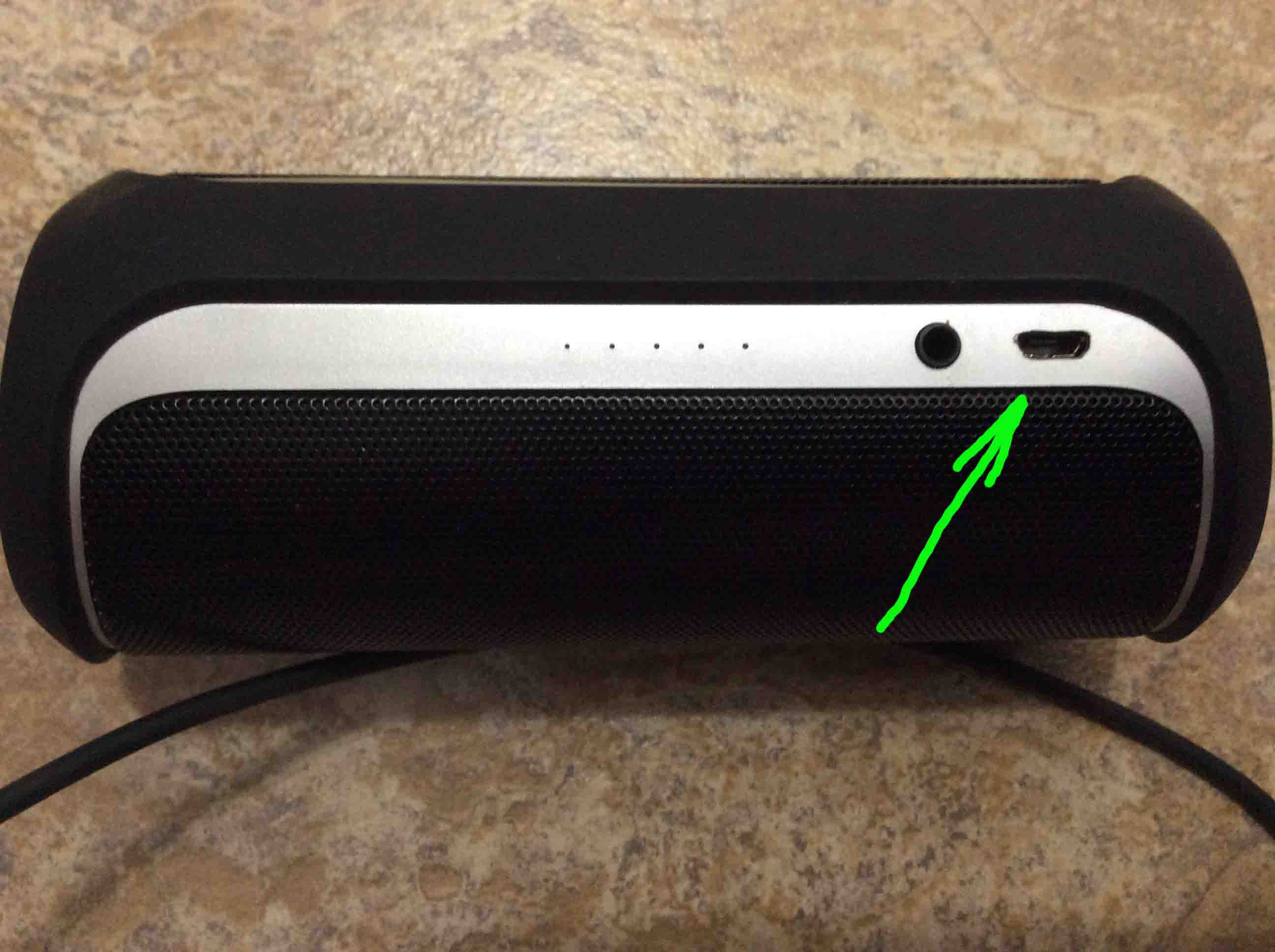
Picture of the USB charge port.
The USB charge port.

Flip 2 Speaker End Views

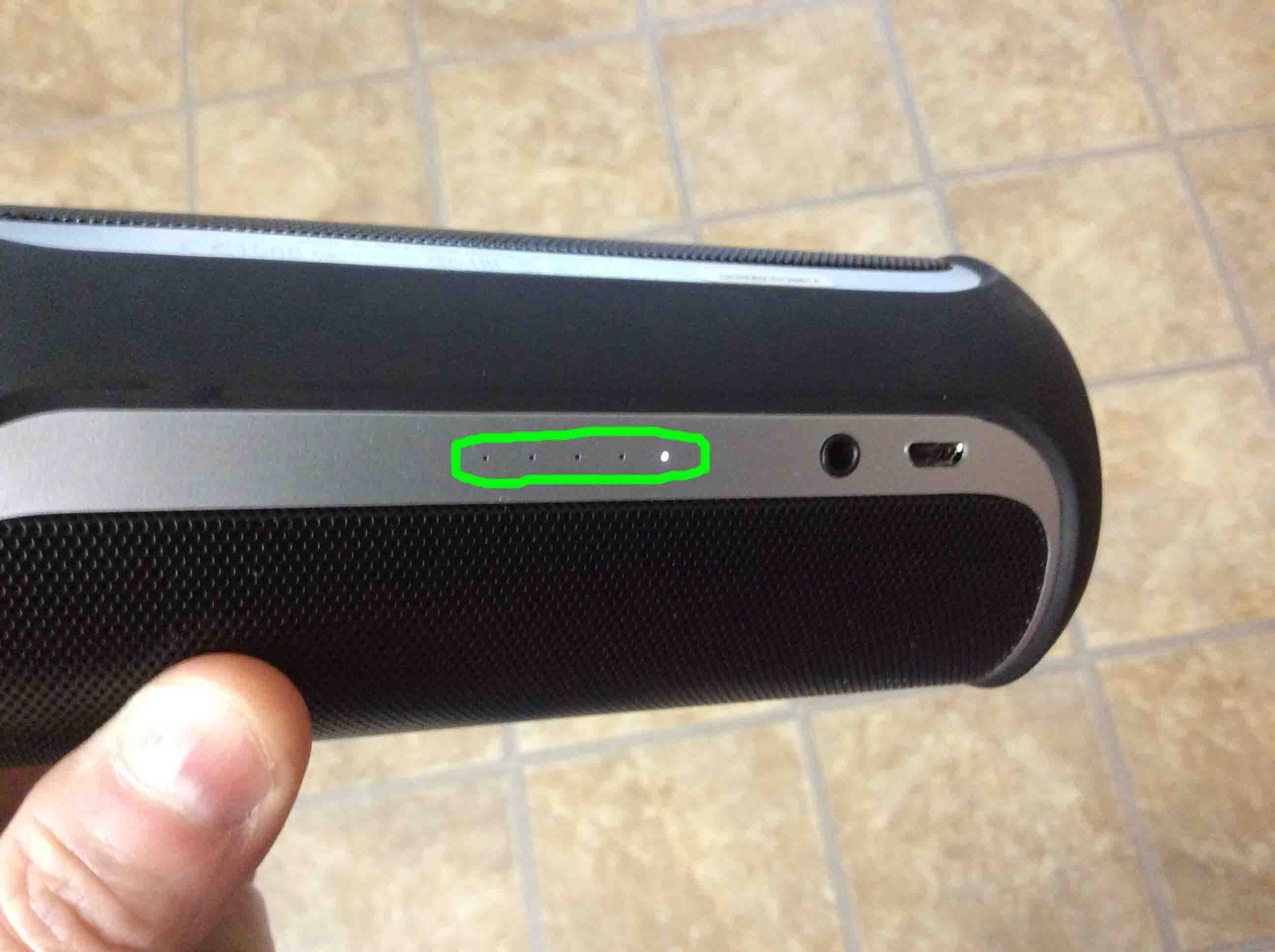
Then, we powered on the speaker, and the power button is aglow.  Plus, we paired it as well (the Bluetooth discovery mode button lights solid white.  No blinking).
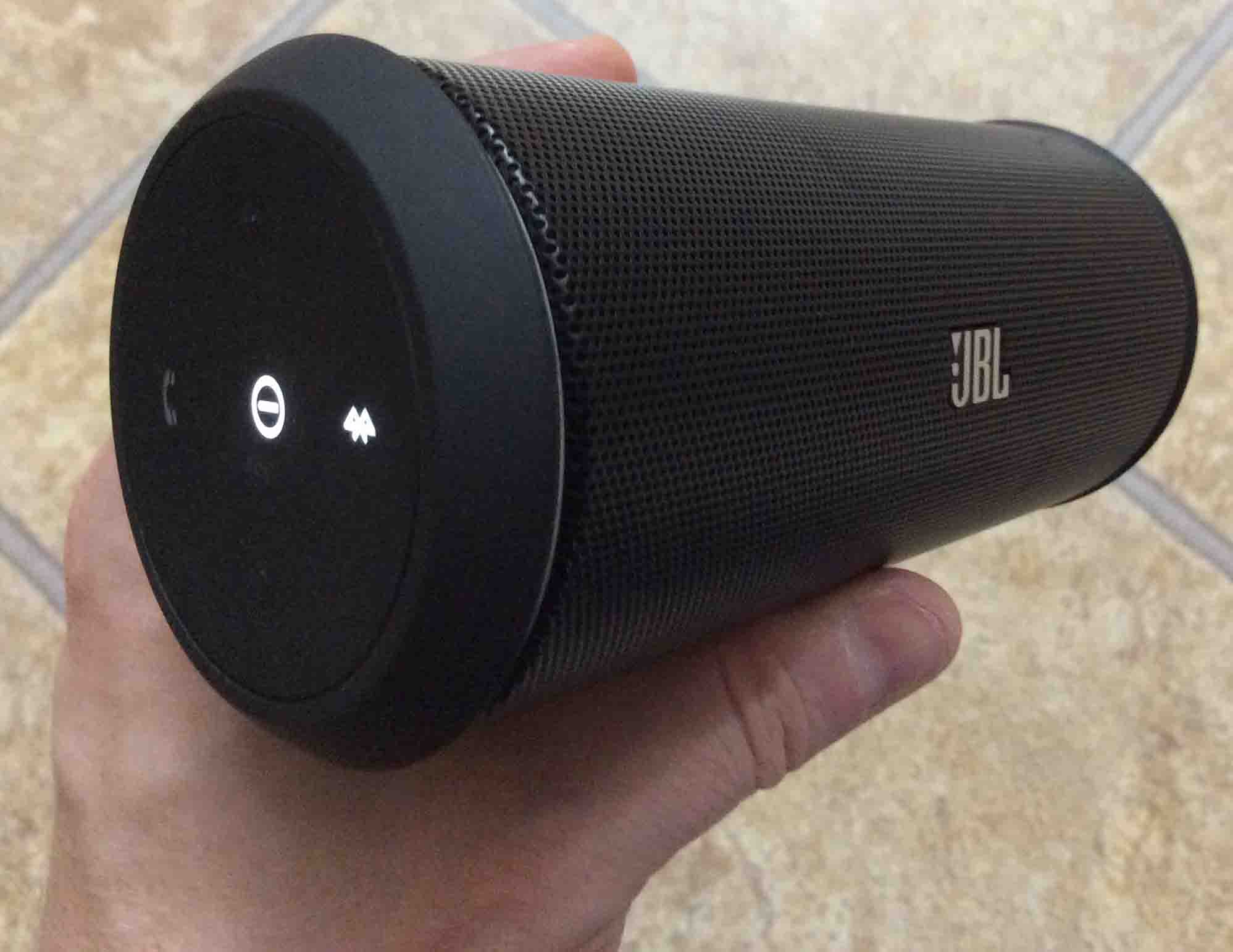
Picture of the JBL Flip 2 Wireless Portable Bluetooth Speaker button side view, held in hand. Powered ON and paired.
The JBL Flip 2 Wireless Portable Bluetooth Speaker button side view, held in hand. Powered ON and paired.

Next, we show the end of the speaker that has the NFC (near field communications) antenna.
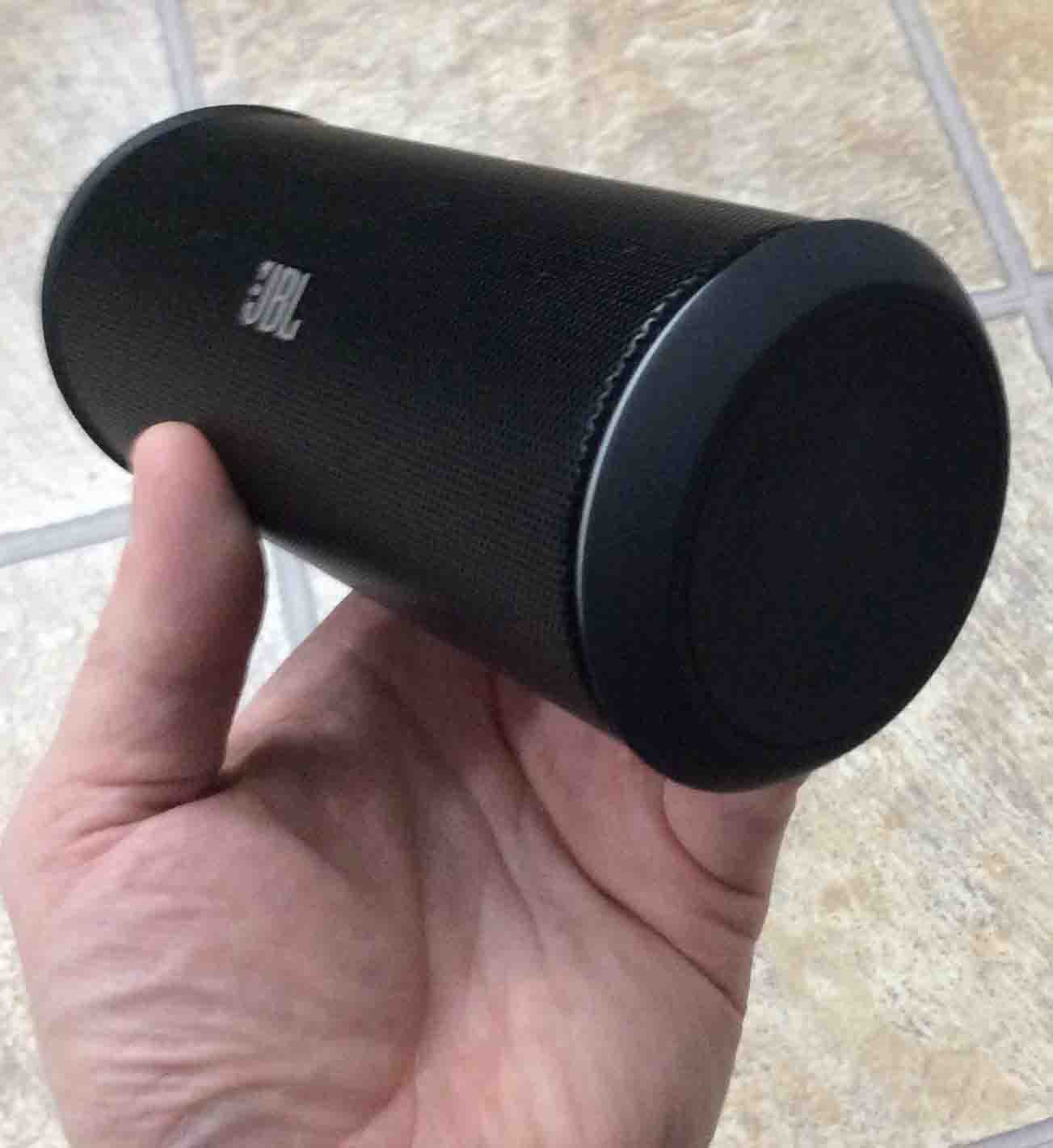
Picture of the NFC antenna end view.
The NFC antenna end view.

Additionally, here’s a closer view.  The antenna is immediately beneath the “nfc” logo, near the bottom of the next picture.
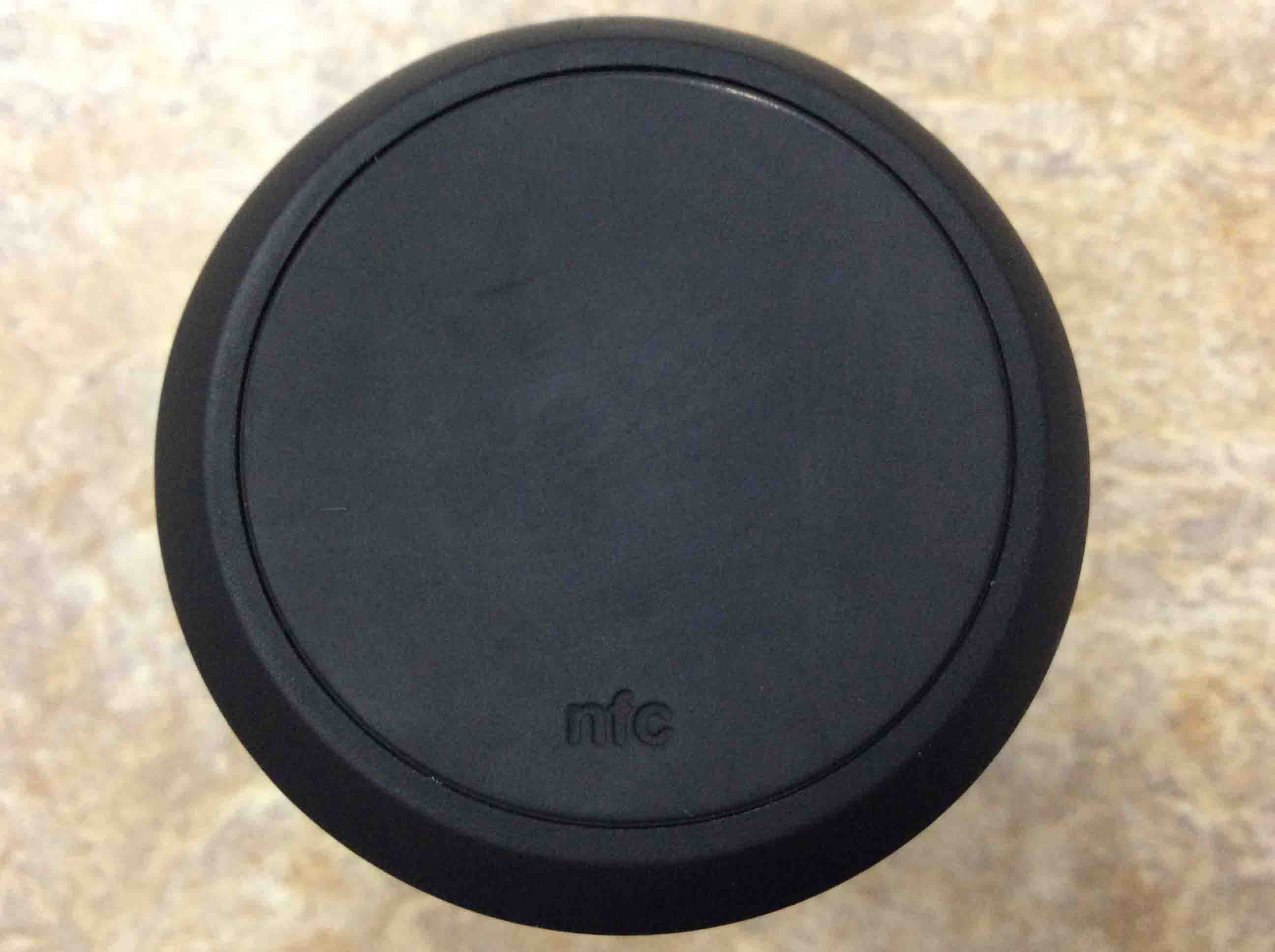
Picture of the NFC antenna end view, close up.
The NFC antenna end view, close up.

Flip 2 Speaker Control Panel Shots

Then, the next pic shows the speaker control panel.  The speaker here is powered on (power button glowing), but not paired (Bluetooth button is dark).
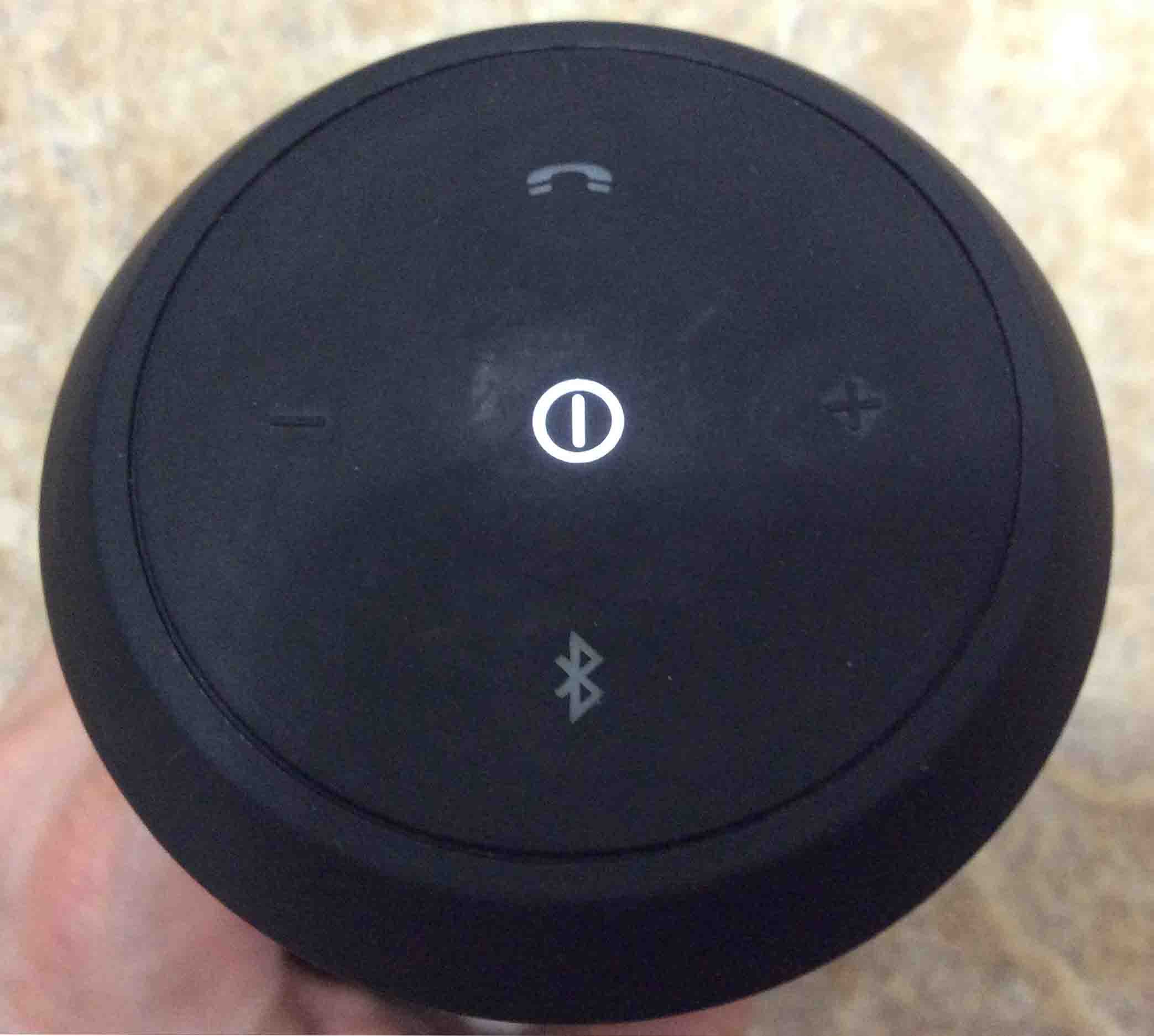
Picture of the control button side. The Flip is powered ON but not paired. The Bluetooth button is dark.
The control button side. The Flip is powered ON but not paired. The Bluetooth button is dark.

Furthermore, the speaker here is turned on but not paired.  Nor is it in Bluetooth discovery mode, as the Bluetooth button is totally dark.
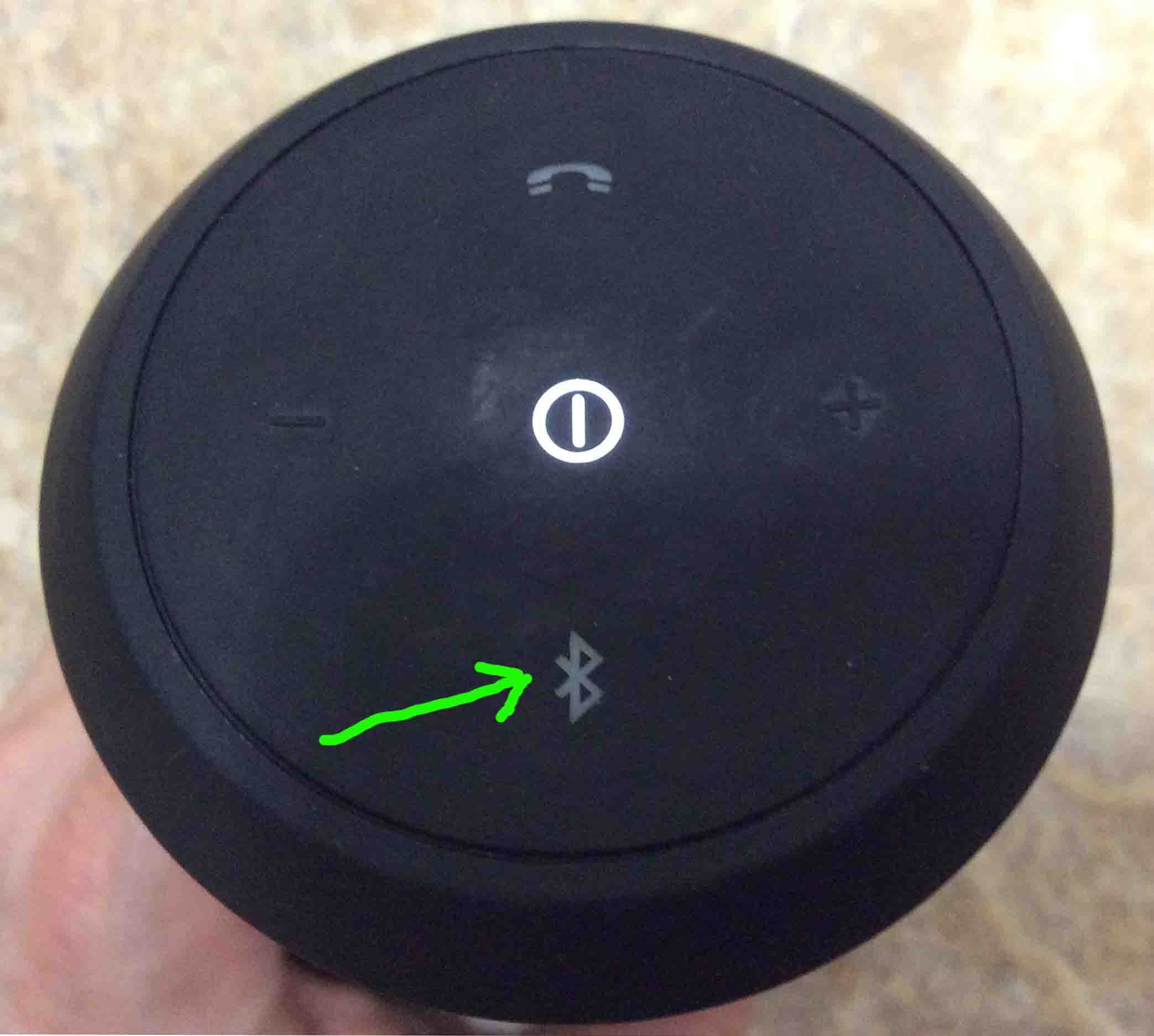
Picture of the -Bluetooth Discovery Mode- button.
The -Bluetooth Discovery Mode- button.

Next, we see how the buttons on the Flip 2 light up when power is on and the speaker is either paired or in Bluetooth discovery mode.
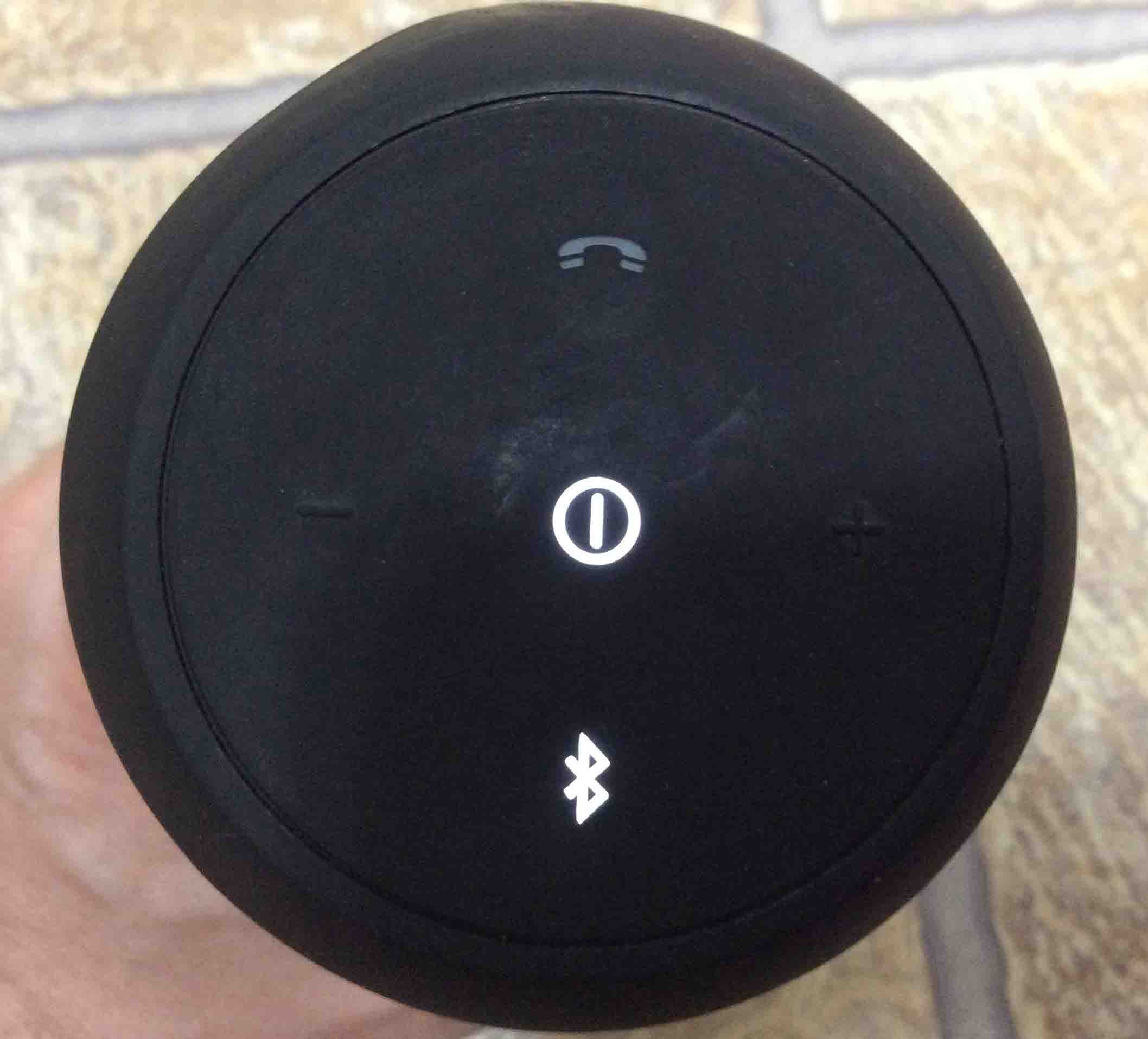
Picture of the JBL Flip 2 Wireless Portable Bluetooth Speaker control buttons side. The unit is powered ON and paired.
The JBL Flip 2 Wireless Portable Bluetooth Speaker control buttons side. The unit is powered ON and paired.

Next, we call out the Power and Vol Down buttons with the blue arrows.
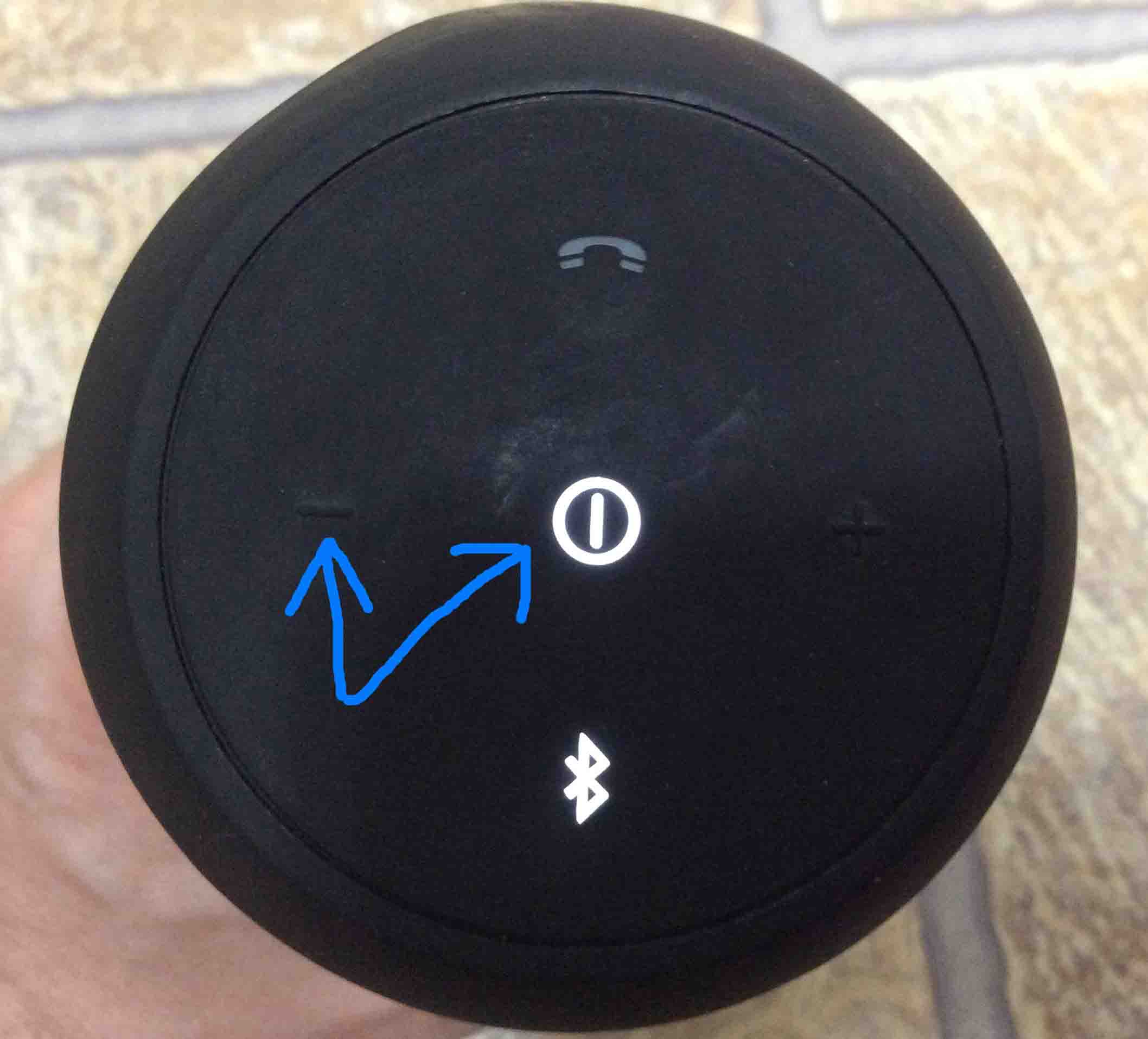
Picture of the -Volume Down- and -Power- buttons.
The -Volume Down- and -Power- buttons.

How the speaker button panel looks when the Flip 2 is totally powered down. Turned off.
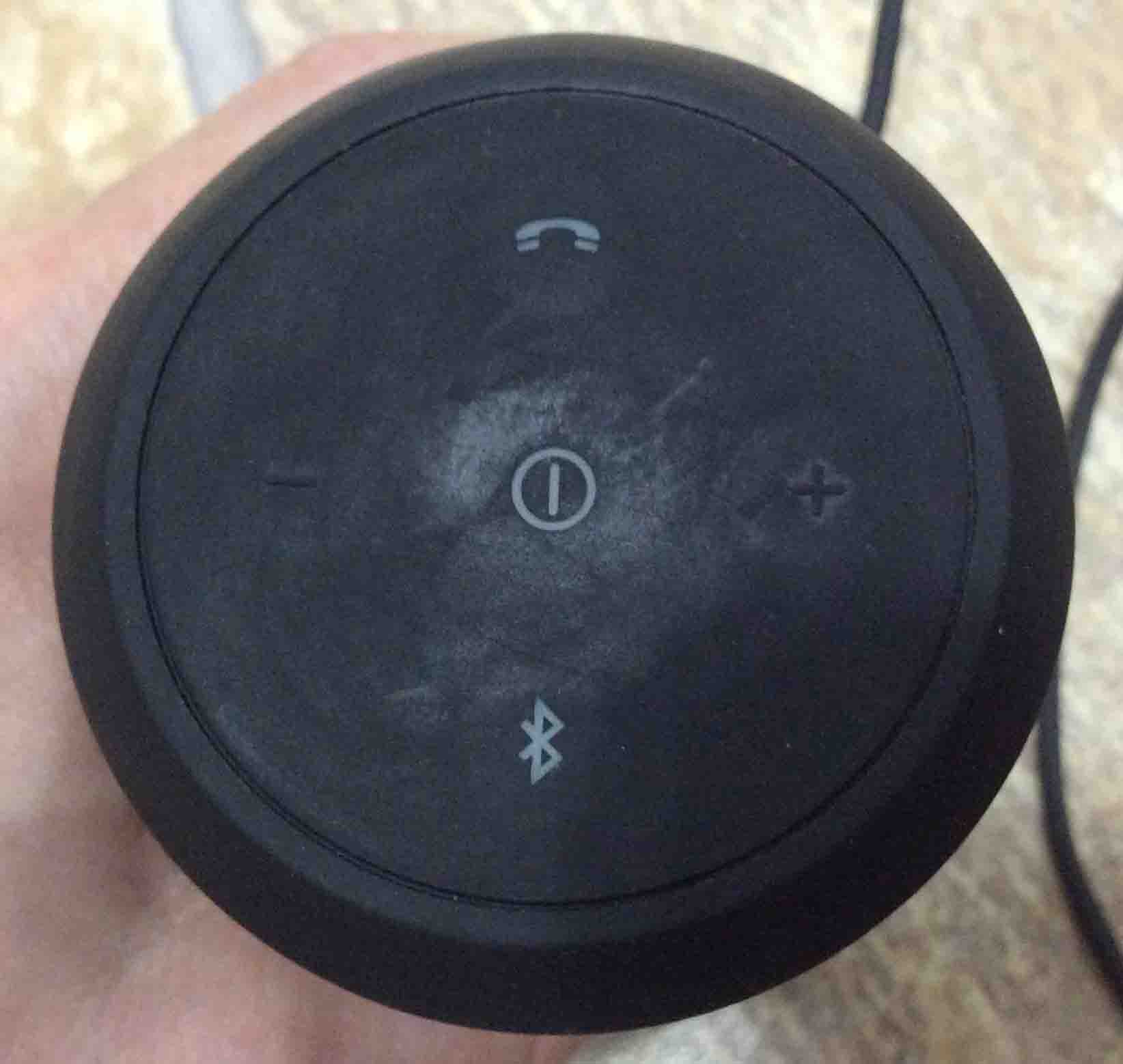
Picture of the dark control buttons end. Powered OFF.
The dark control buttons end. Powered OFF.

We point out the ON-OFF button in the next pic, with the blue arrow.
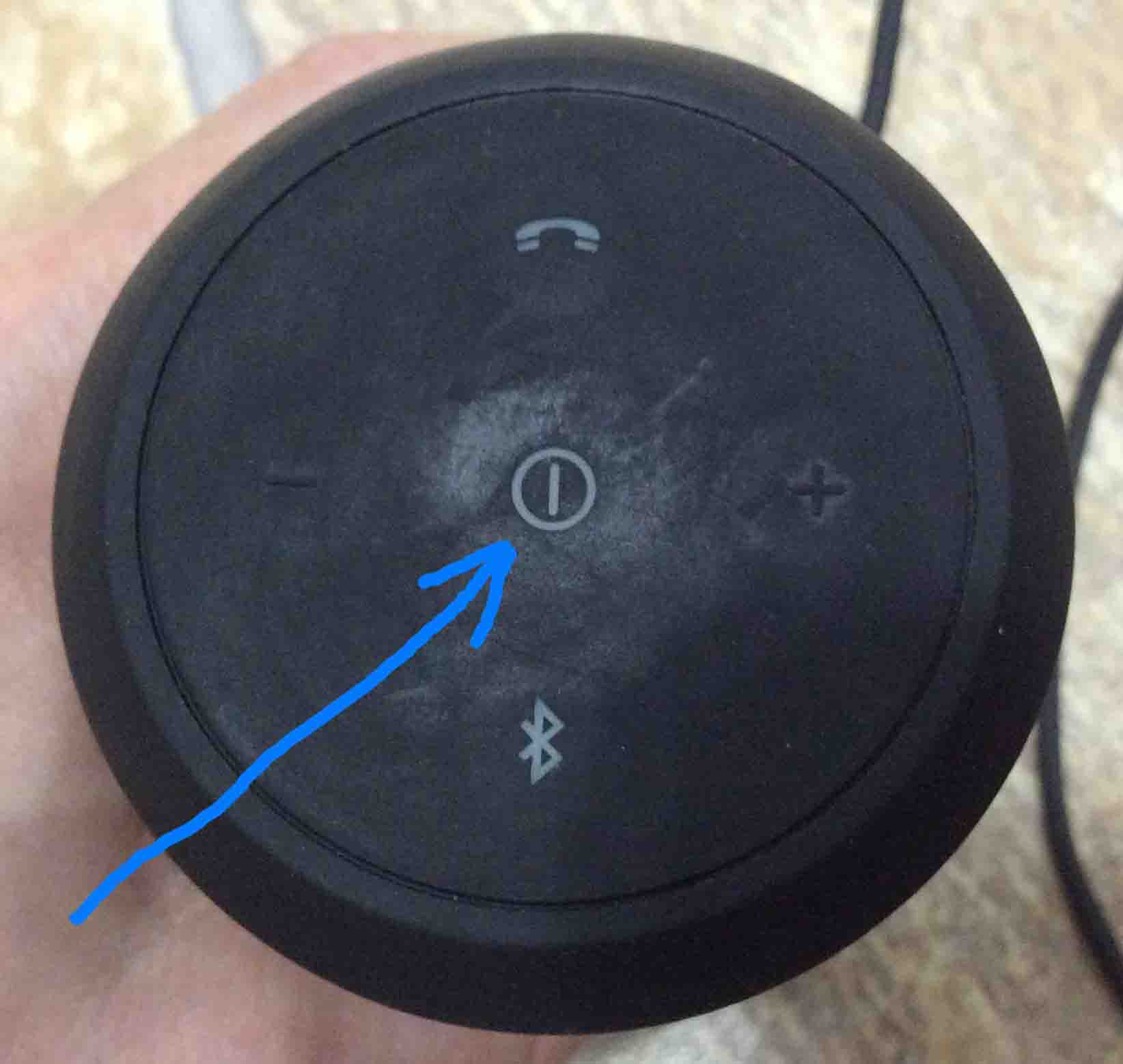
Picture of the dark -Power- button.
The dark -Power- button.

Battery Charge Level Gage

Picture of the JBL Flip 2 Wireless Portable Bluetooth Speaker battery status gauge. Showing the battery almost dead. Needs charging.
The JBL Flip 2 Wireless Portable Bluetooth Speaker battery status gauge. Showing the battery almost dead. Needs charging.

Now just before the battery goes dead completely, the battery status gage shows one lamp, flashing red, as shown next.
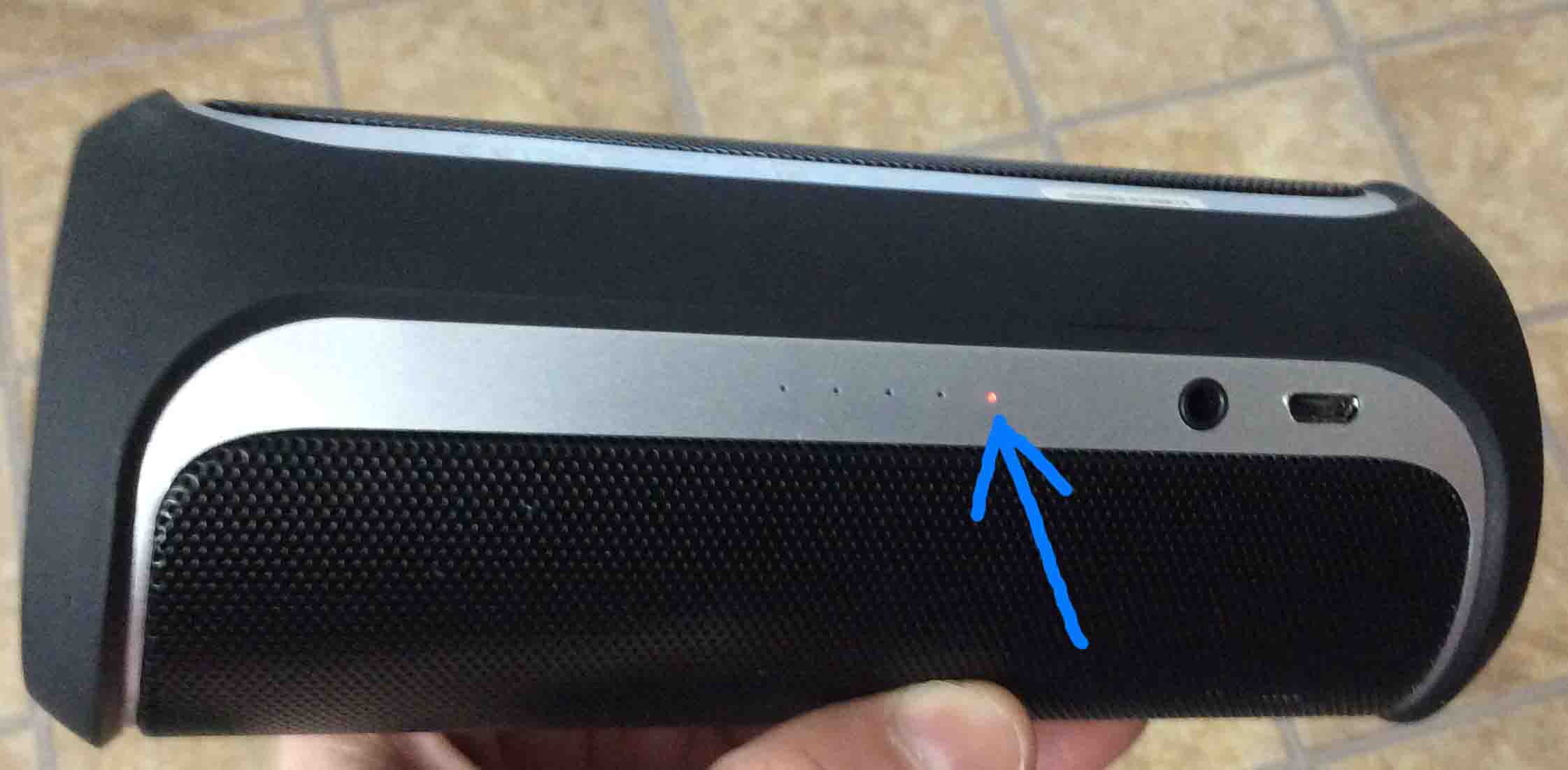
Picture of the battery critically low reading The last battery gauge light is glowing red.
The battery critically low reading The last battery gauge light is glowing red.

Furthermore, here is a shot of the battery recharging just beginning on this speaker.
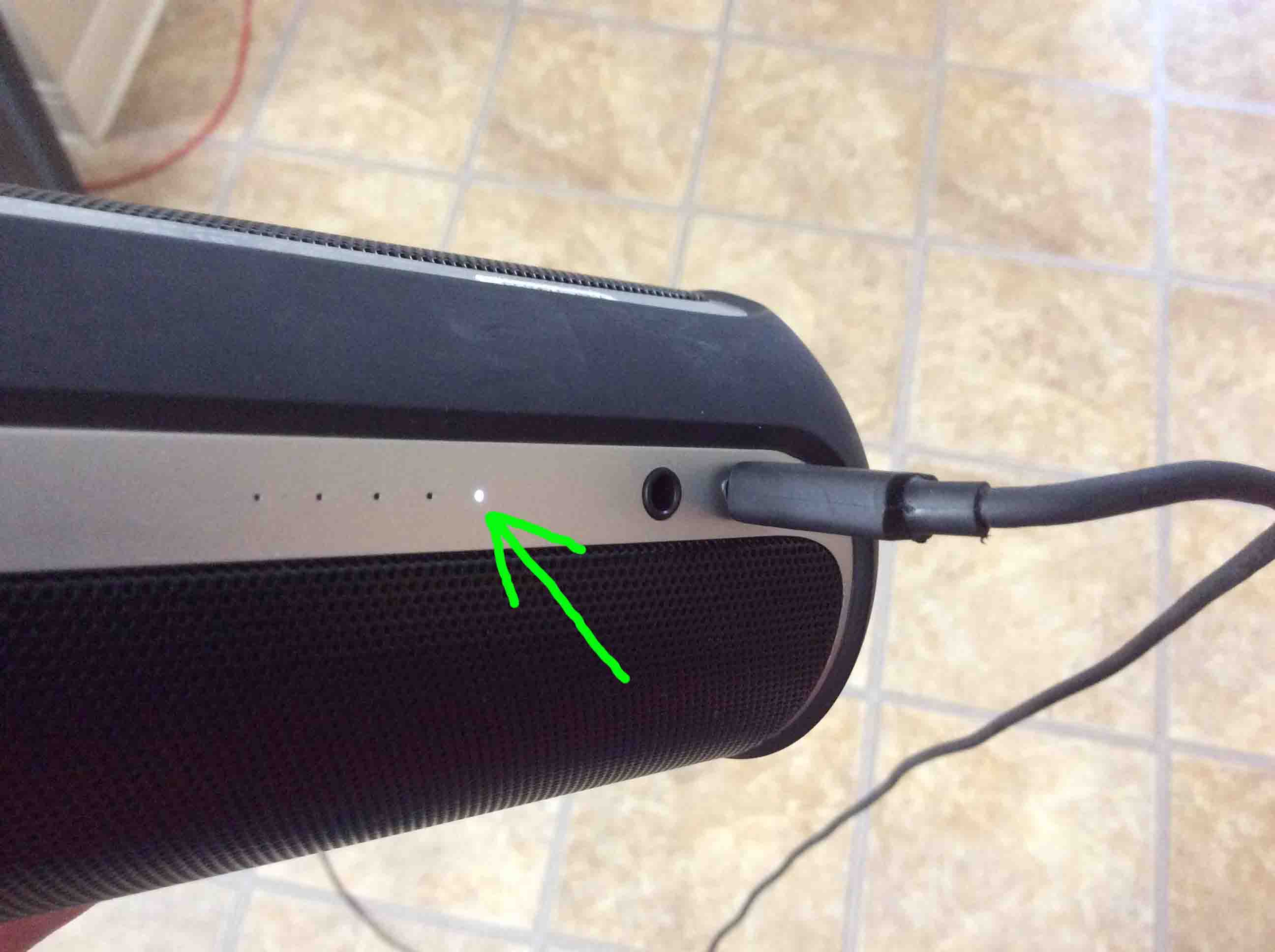
Picture of the battery status gauge, showing battery almost dead, but charging.
The battery status gauge, showing battery almost dead, but charging.

Moreover, we have the battery recharge status gage on the speaker, showing fully charged state.
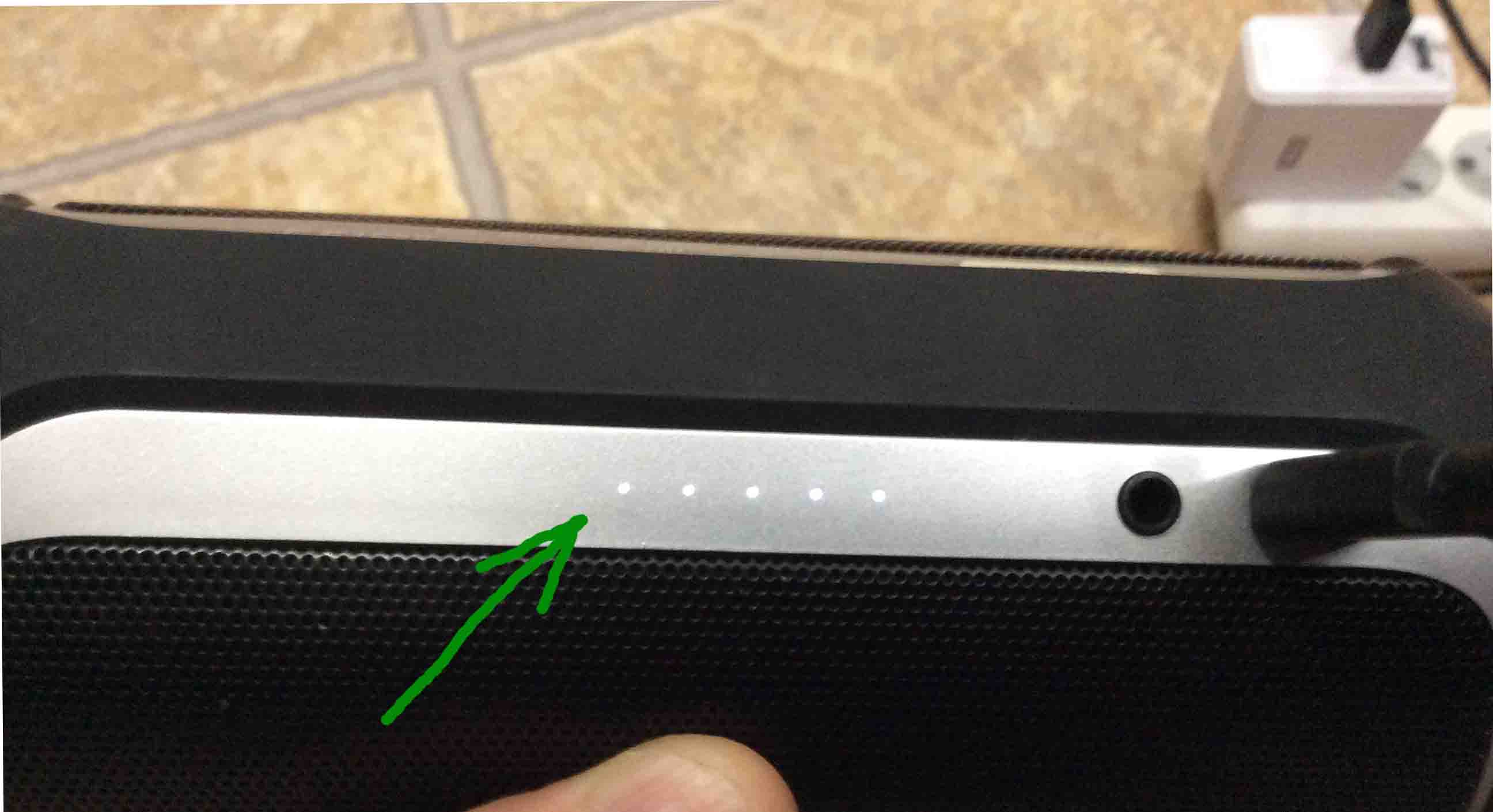
Picture of the battery status gauge at full charge, all lamps lit.
The battery status gauge at full charge, all lamps lit.

JBL Flip 2 Portable Speaker USB Cable and Charger

Furthermore, the Flip 2 with a black USB cable and the RavPower two-port USB charger adapter we show next.
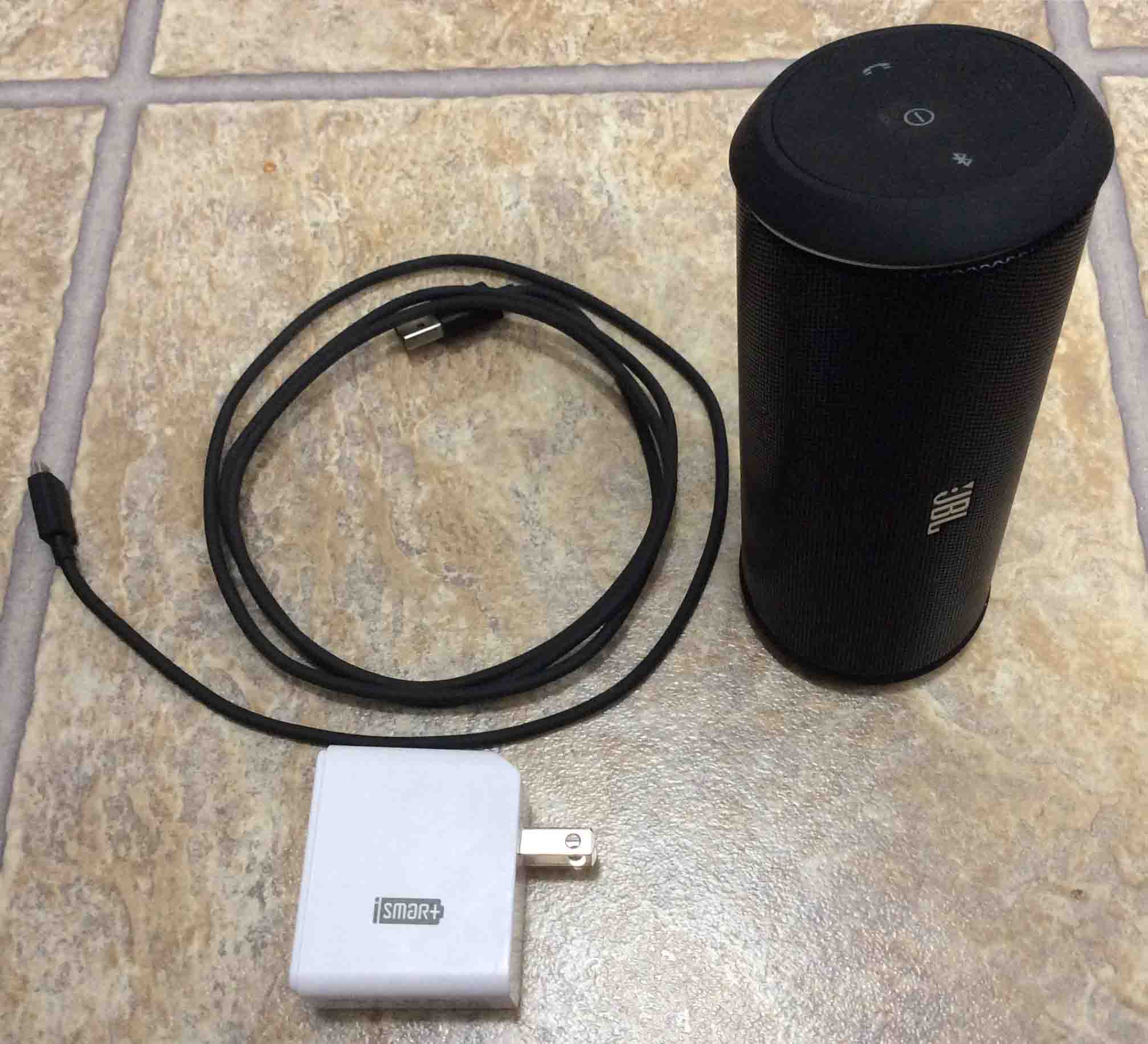
Picture of the JBL Flip 2 Wireless Portable Bluetooth Speaker along with a RavPower charger and USB power cable.
The JBL Flip 2 Wireless Portable Bluetooth Speaker along with a RavPower charger and USB power cable.

The RavPower charger, charging the Flip 2.  We plugged the  USB adapter into a power strop at the right in the next picture.
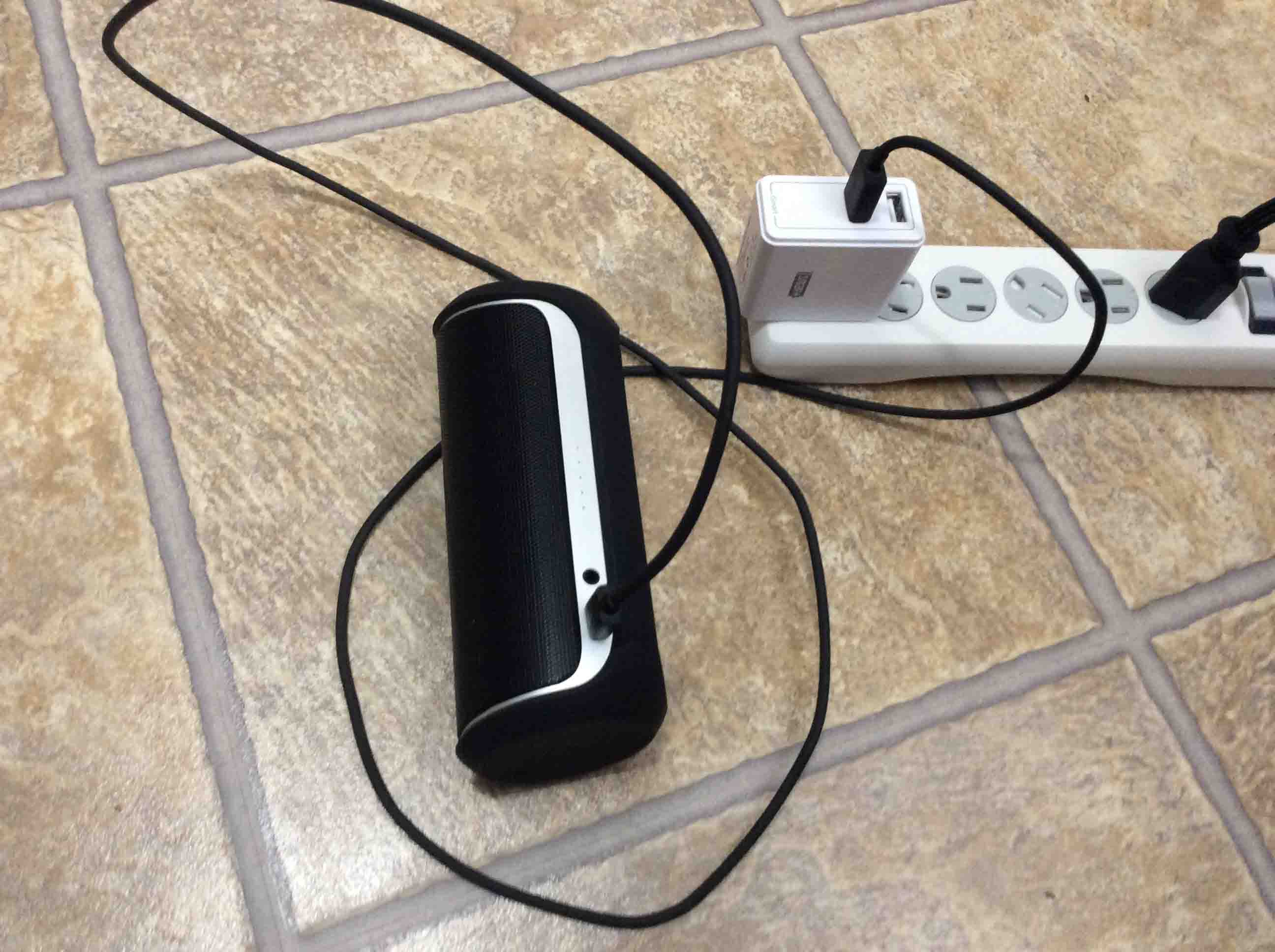
Picture of the unit connected to power, with battery charging in progress.
The unit connected to power, with battery charging in progress.

USB power cord plugged into the Flip 2, shown next.
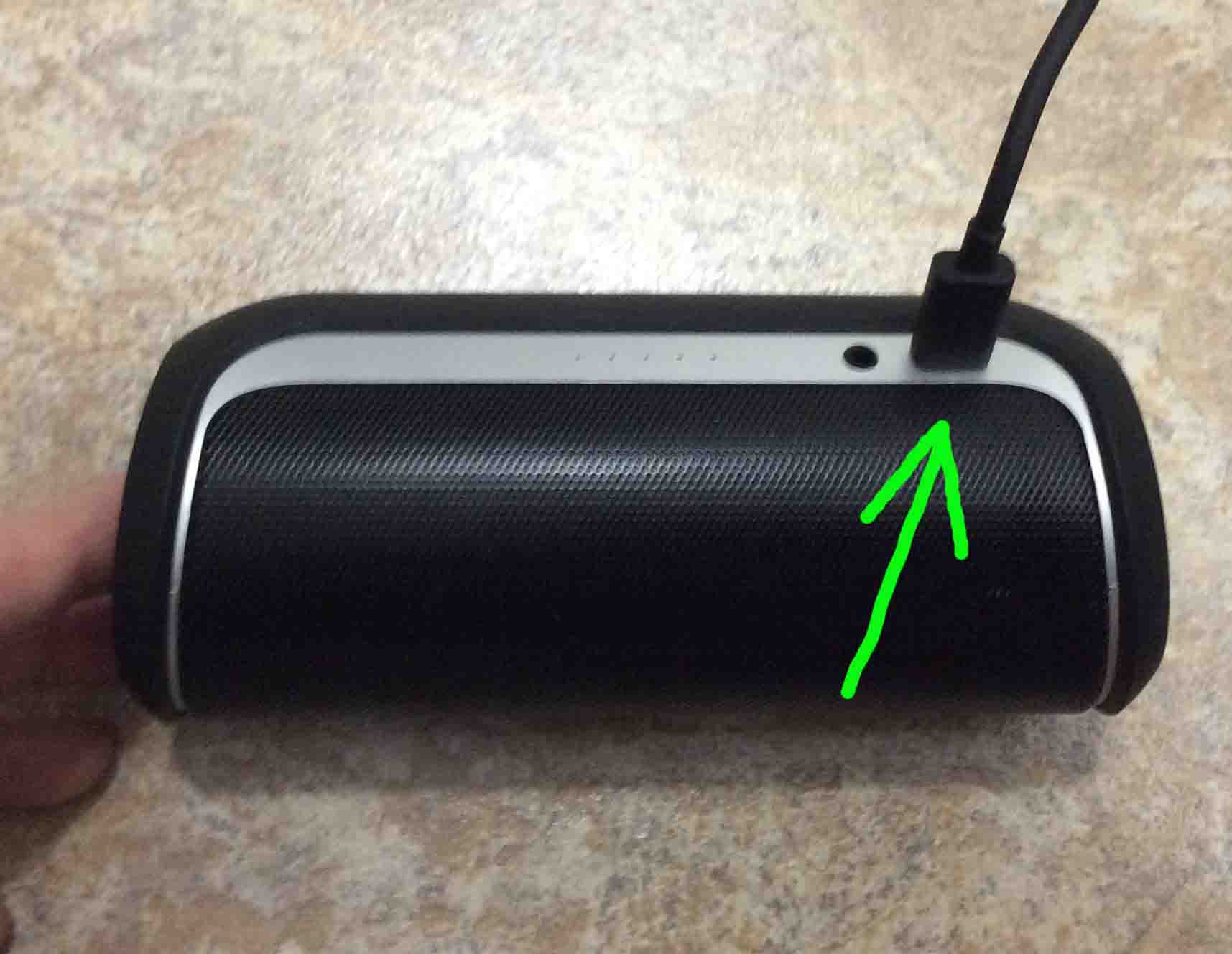
Picture of a USB charge cord plugged into the Flip.
A USB charge cord plugged into the Flip.

The JBL Flip 2 with Other Bluetooth Devices

Also, we have a couple shots here of the speaker with various source devices.
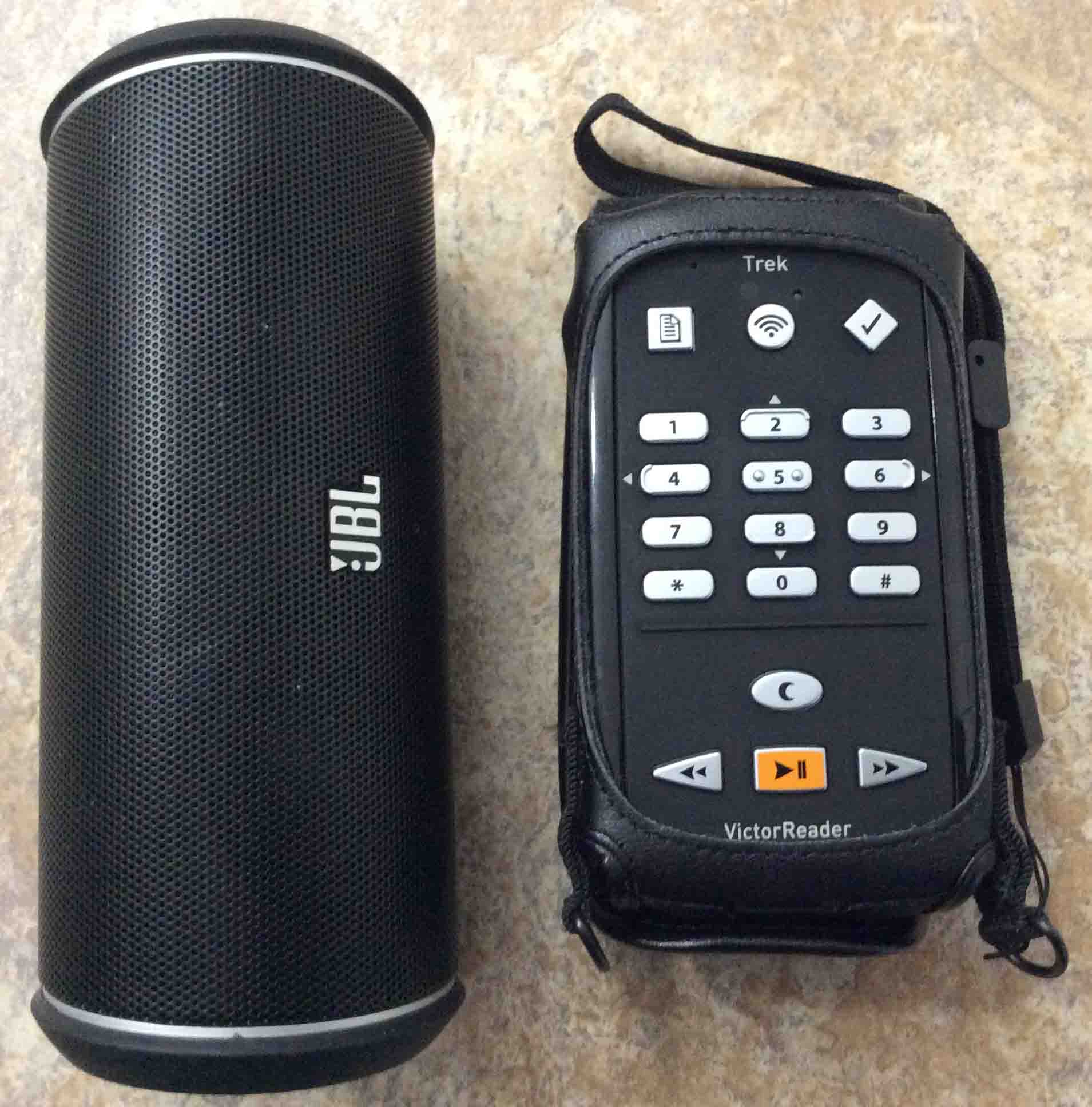
Picture of the JBL Flip 2 Wireless Portable Bluetooth Speaker alongside the Humanware Victor Reader Trek talking book player.
The JBL Flip 2 Wireless Portable Bluetooth Speaker alongside the Humanware Victor Reader Trek talking book player.


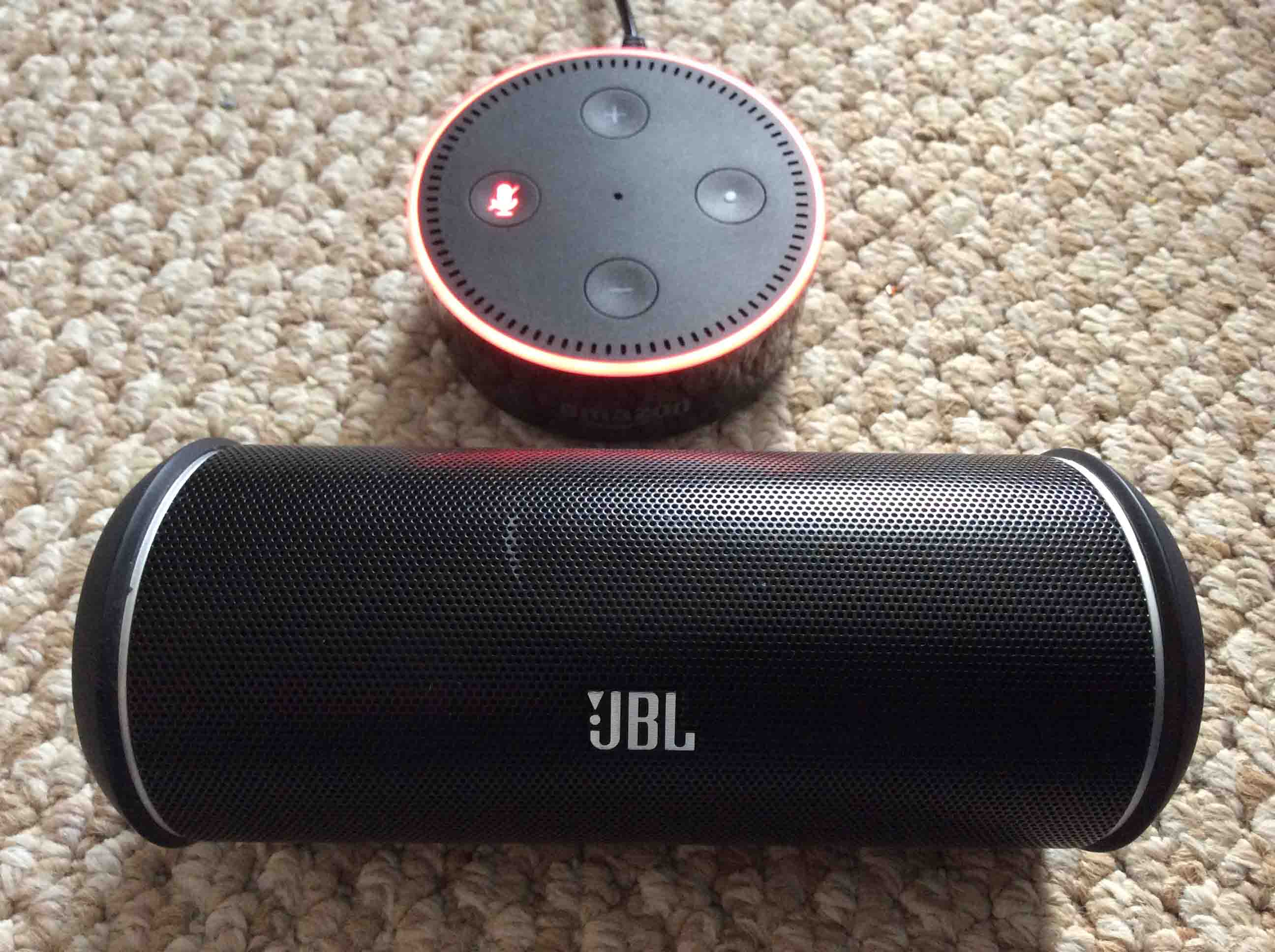
Picture of an Amazon Alexa Echo Dot smart speaker with the JBL Flip 2.
Amazon Alexa Echo Dot smart speaker with the JBL Flip 2.

Pairing Screenshots for the JBL Flip 2
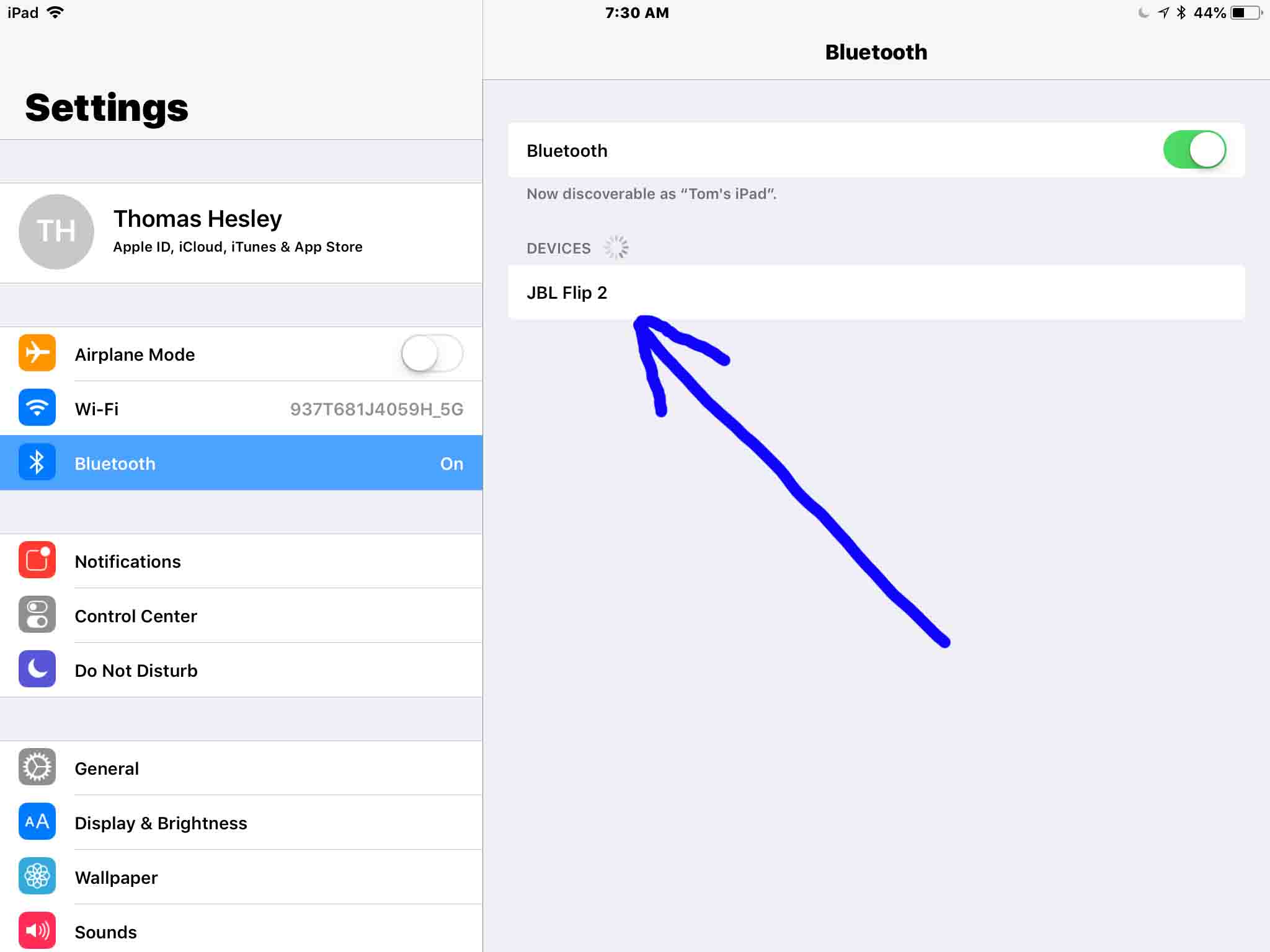
Screenshot of the iOS 11 Bluetooth Settings screen, showing the JBL Flip 2 Wireless Portable Bluetooth Speaker found, discovered.
iOS 11 Bluetooth Settings screen, showing the JBL Flip 2 Wireless Portable Bluetooth Speaker found, discovered.

At last, we show the Bluetooth screen on an iOS device, after successfully pairing with a JBL Flip 2 speaker.
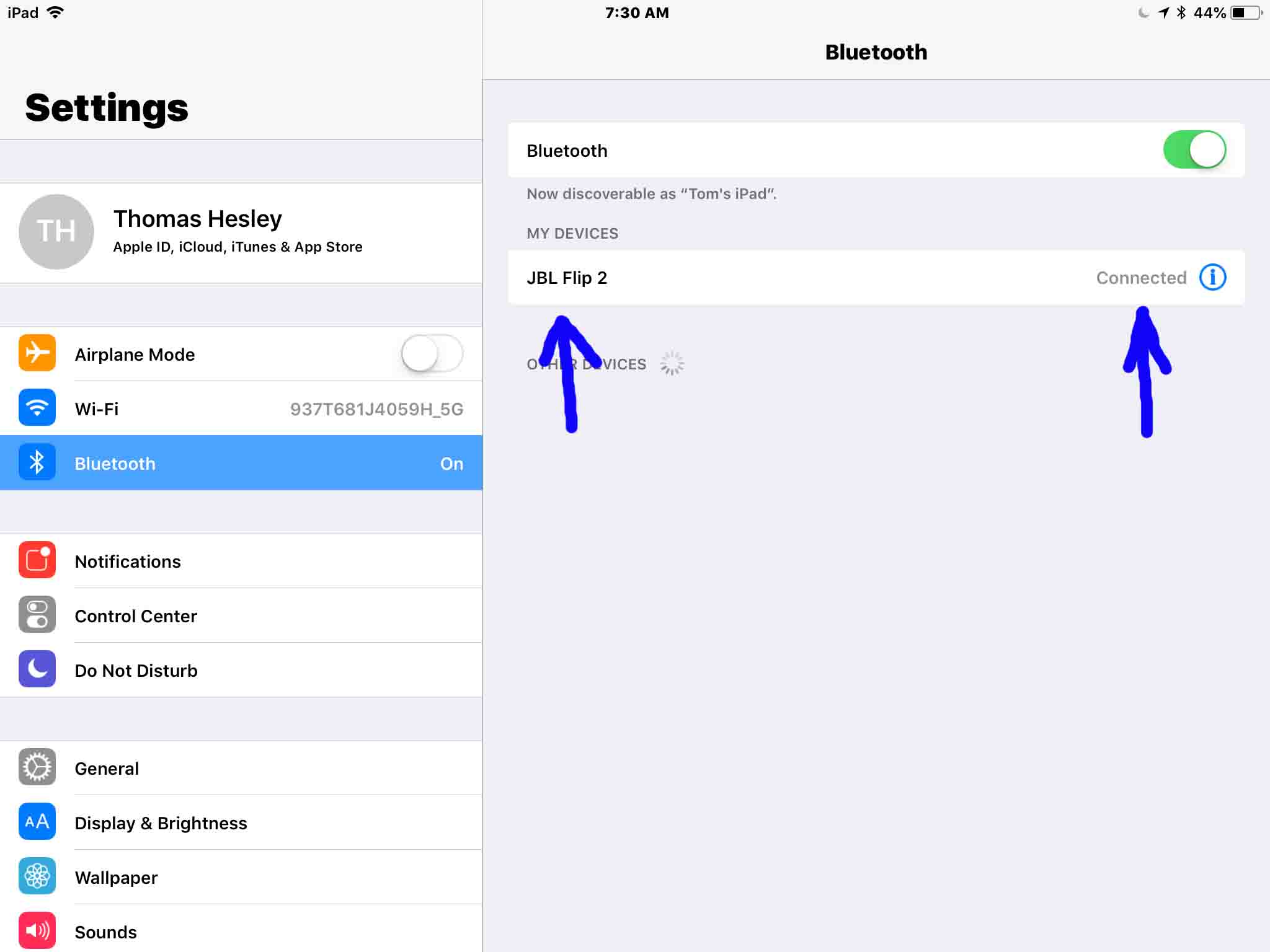
Screenshot of an iOS Bluetooth Settings screen, showing the JBL Flip 2 as Paired.
An iOS Bluetooth Settings screen, showing the JBL Flip 2 as Paired.


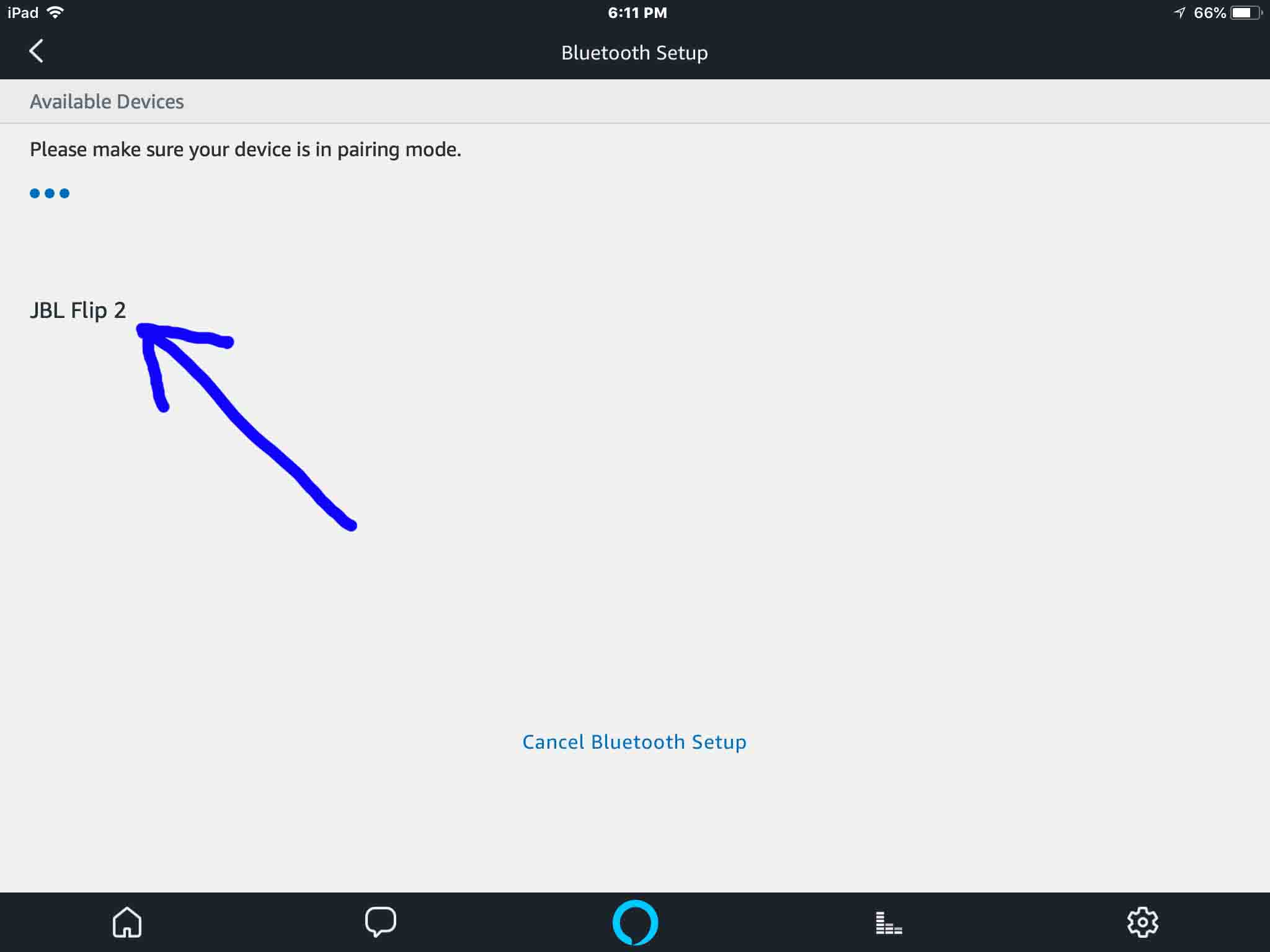
Picture of an Amazon Alexa app on iOS, showing its -Bluetooth Setup- screen, with the JBL Flip 2 Wireless Portable Bluetooth Speaker discovered.
Amazon Alexa app on iOS, showing its -Bluetooth Setup- screen, with the JBL Flip 2 Wireless Portable Bluetooth Speaker discovered.
Screenshot of the Amazon Alexa app on iOS, showing its -Bluetooth Setup- screen, with the JBL Flip 2 Wireless Portable Bluetooth Speaker discovered.
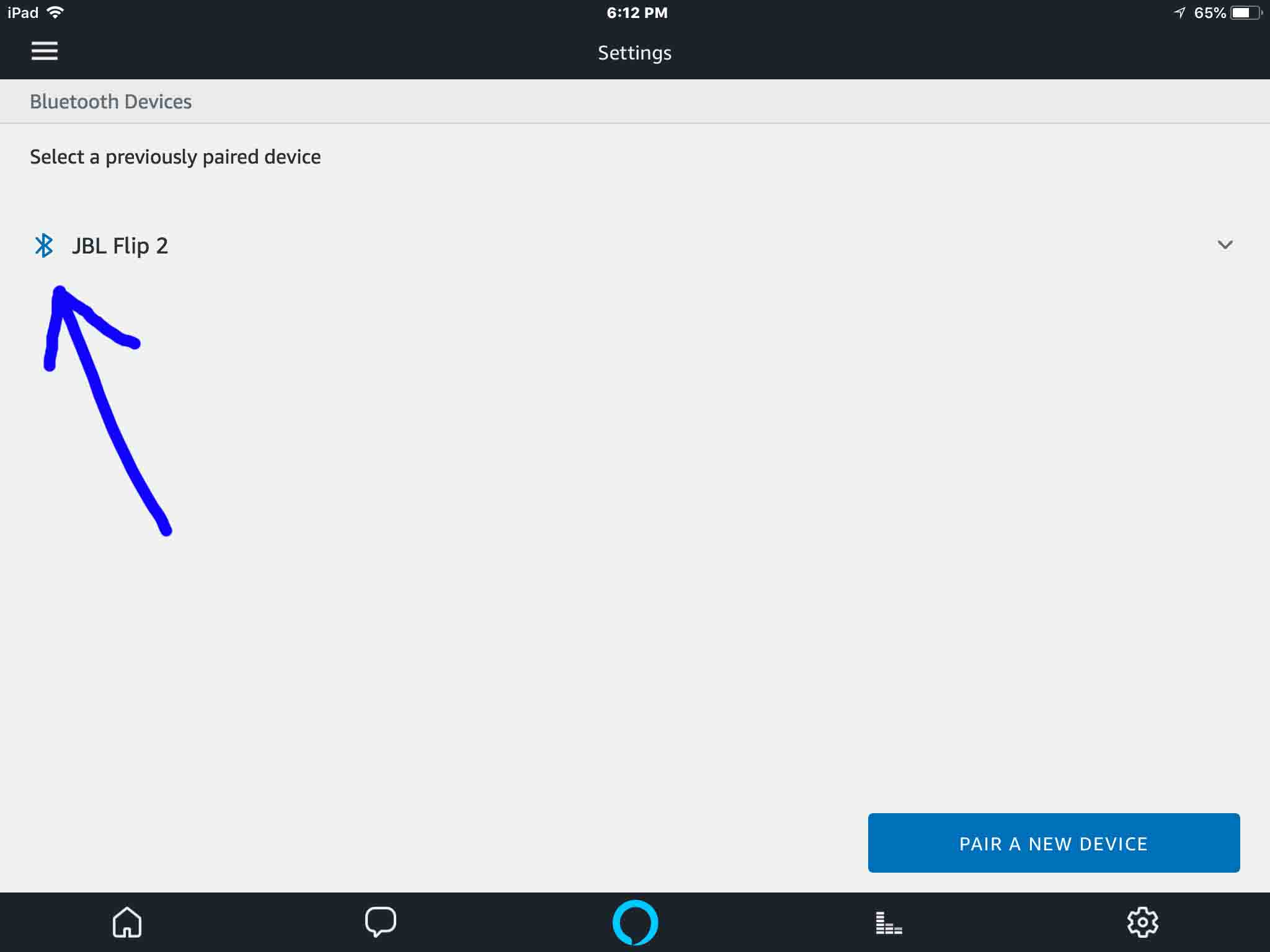
Amazon Alexa app on iOS, showing its -Bluetooth Devices- screen, with a JBL Flip 2 Wireless Portable Bluetooth Speaker paired and highlighted.

Other Posts About the JBL Flip 2 Wireless Portable Bluetooth Speaker

  1. JBL Flip 2 Battery Life, How Long the Battery Should Last

References

  1. JBL Flip 2 Wireless Portable Bluetooth Speaker Product Page, on JBL.com
  2. Where to Buy the JBL Flip 2 Wireless Portable Bluetooth Speaker