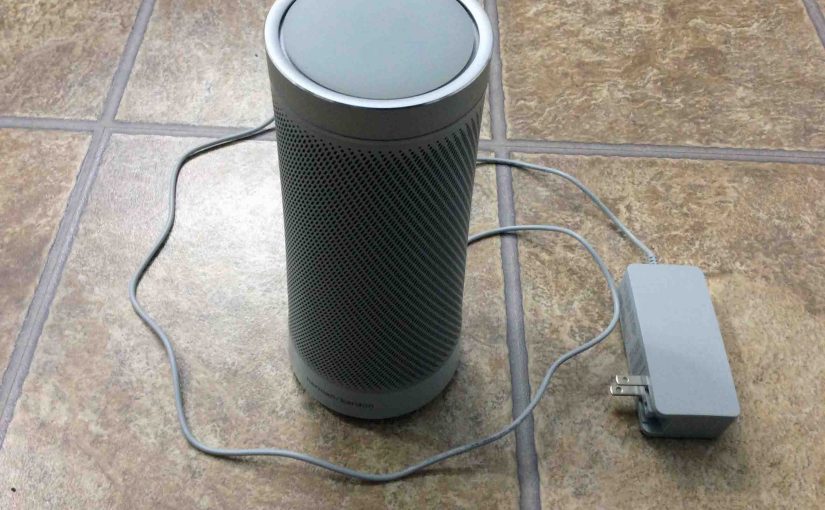
Unfortunately, there’s currently no way of just reconnecting WiFi on the Harman Kardon Invoke Microsoft Cortana smart speaker. Thus, to reconnect to Wi-Fi, but to a different wireless network, you must first completely reset the this speaker to factory default state. Then, run through the setup procedure again. E.g. This involves setting up a brand new smart speaker. Thus, we demonstrate these procedures as follows.
Reconnecting WiFi on Harman Kardon Invoke Speaker
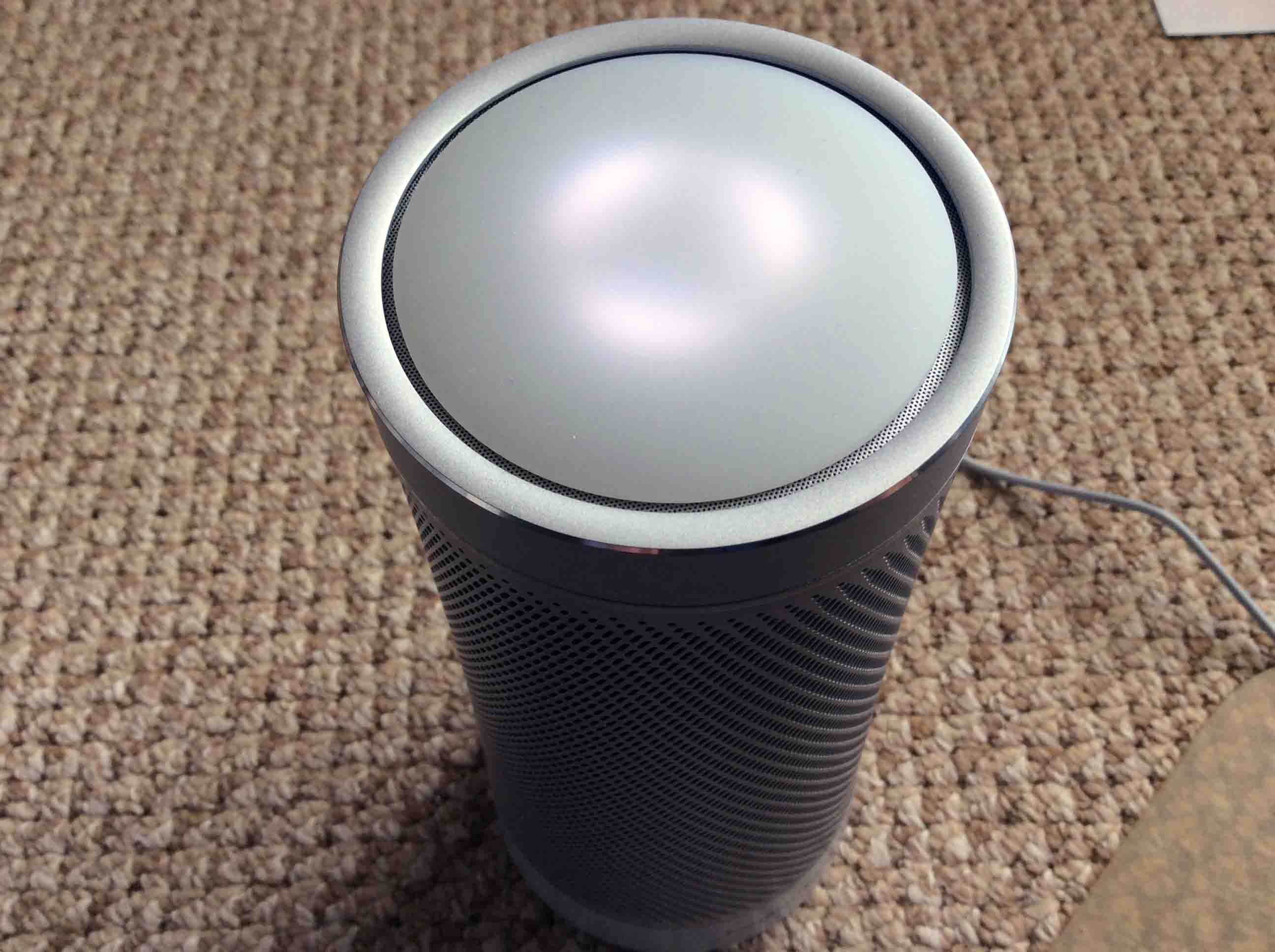
Check out our How to Reset the Harman Kardon Invoke Smart Speaker Back to Factory Default State post. Why? Because we explain there how to erase all current settings in the speaker, and restore them to factory default values.
Now again, a hard reset is necessary to program the Invoke to reconnect to Wi-Fi on a different wireless network.
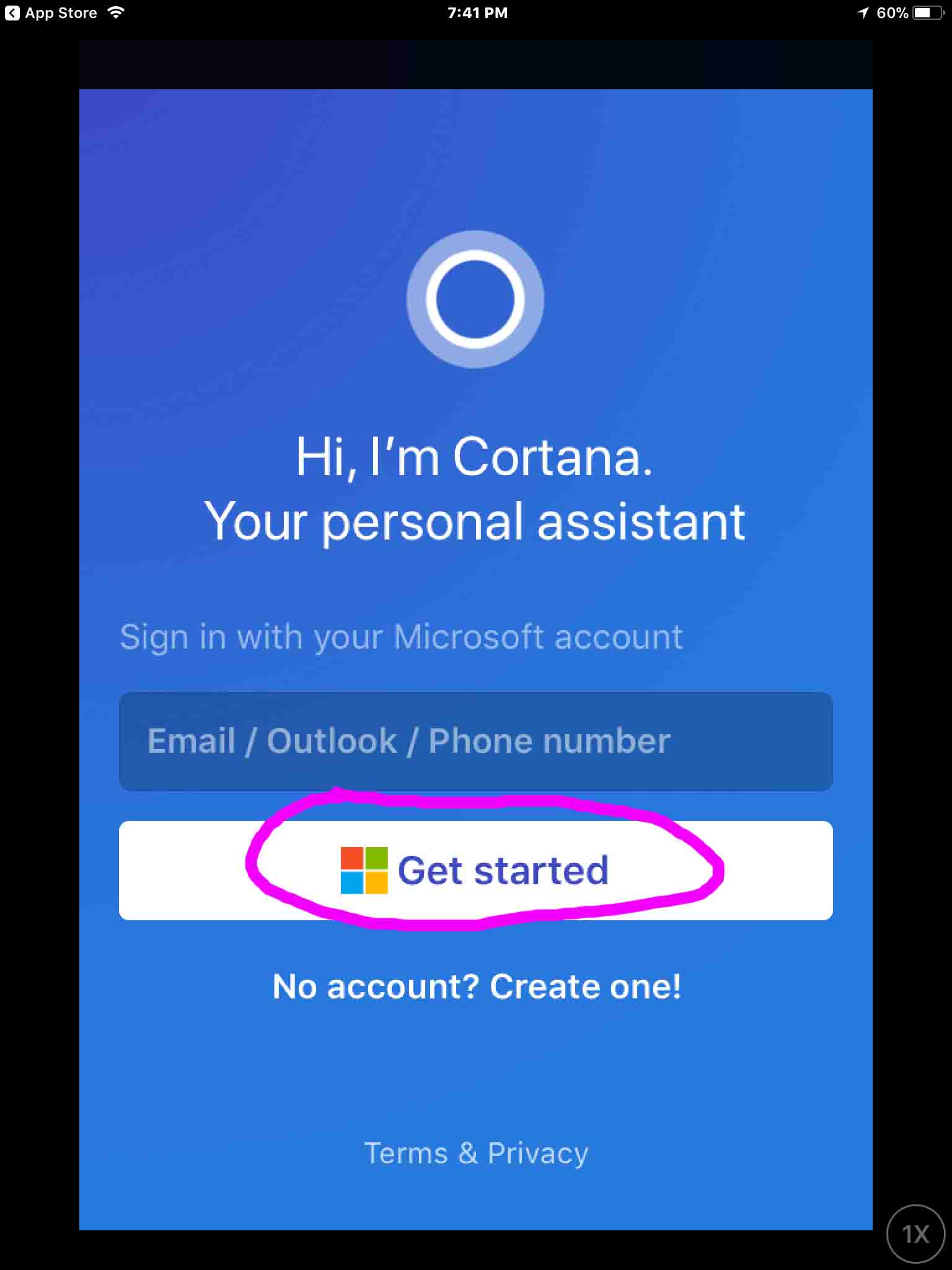
Furthermore, you might check out our How to Set Up New Harman Kardon Invoke Cortana Smart Speaker post. This details how to set up a brand new or freshly reset Invoke speaker. During setup, you will be able to establish a connection to a new Wi-Fi network on your Invoke.
Finally, we hope that Microsoft will add an Update Wi-Fi Network feature to the Cortana app. This would allow changing the wireless network without having to redo all the other Invoke settings for the speaker.
Qualifiers
-
- Information in this post pertains to version 2.6.4 of the iOS version of the Cortana app.
Other Posts About the Harman Kardon Invoke Speaker
-
- How to Adjust Volume on Microsoft Invoke Voice Activated Speaker
- Installation and Set Up of the Cortana App for Microsoft Invoke Smart Speaker
- How to Pair Harman Kardon Microsoft Invoke Cortana Speaker as a Bluetooth Speaker
- Rebooting the Harman Kardon Invoke Cortana Smart Speaker
- How to Reboot the Microsoft Invoke Smart Speaker
Related Posts to Reconnecting WiFi on Harman Kardon Invoke Speaker
References for Reconnecting WiFi on Harman Kardon Invoke
Revision History
-
- 2019-04-17: Updated key phrase targeting, removed ad code, and added tags.
- 2017-03-01: Revised post title and the tags list.
- 2017-12-09: Originally published.