This post demonstrates pairing a JBL Clip 3 Bluetooth speaker with iOS devices, including the iPhone, iPod Touch, and the iPad line of Apple phones, media players, and tablets.
Pairing JBL Clip 3 with iOS: Step by Step
First, with your JBL Clip 3 powered off (power button is dark), run through this routine to pair it to your iPad, iPhone, or iPod Touch iOS mobile device. So here, we’re using an iPad Air tablet for this demo.
1. Go to the Home Screen on your iOS Device
Press the Home button to reveal the mobile iOS device’s Home screen.
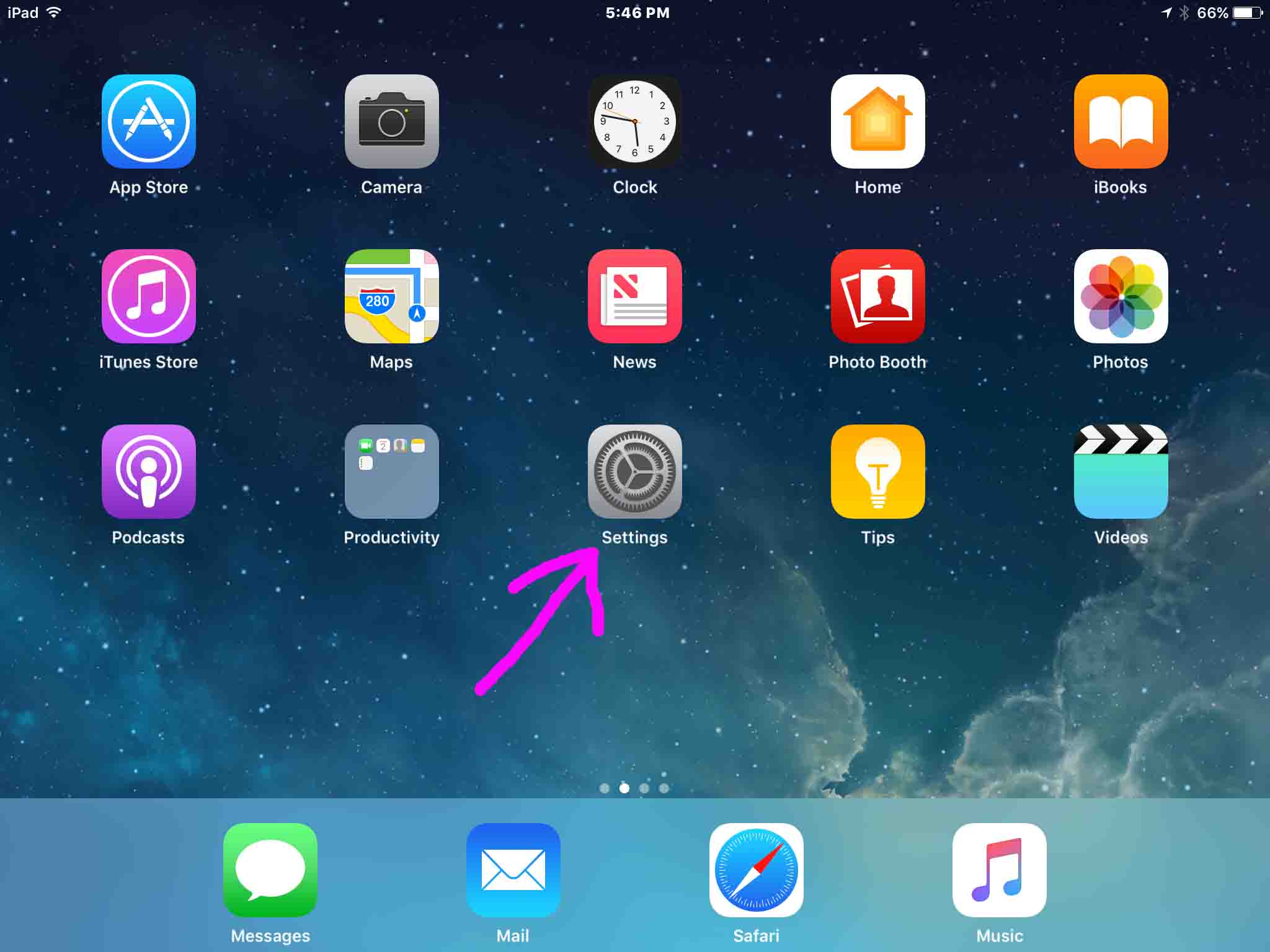
2. Find the Settings App
We found ours on the second page of the iOS home screen on our iPad Air running iOS 11.3.1, as shown next.
3. Bring up the Settings App
Next, tap the Settings app icon.
The iOS device then displays the first page of its settings, as shown in the next step.
4. Go to Bluetooth Settings
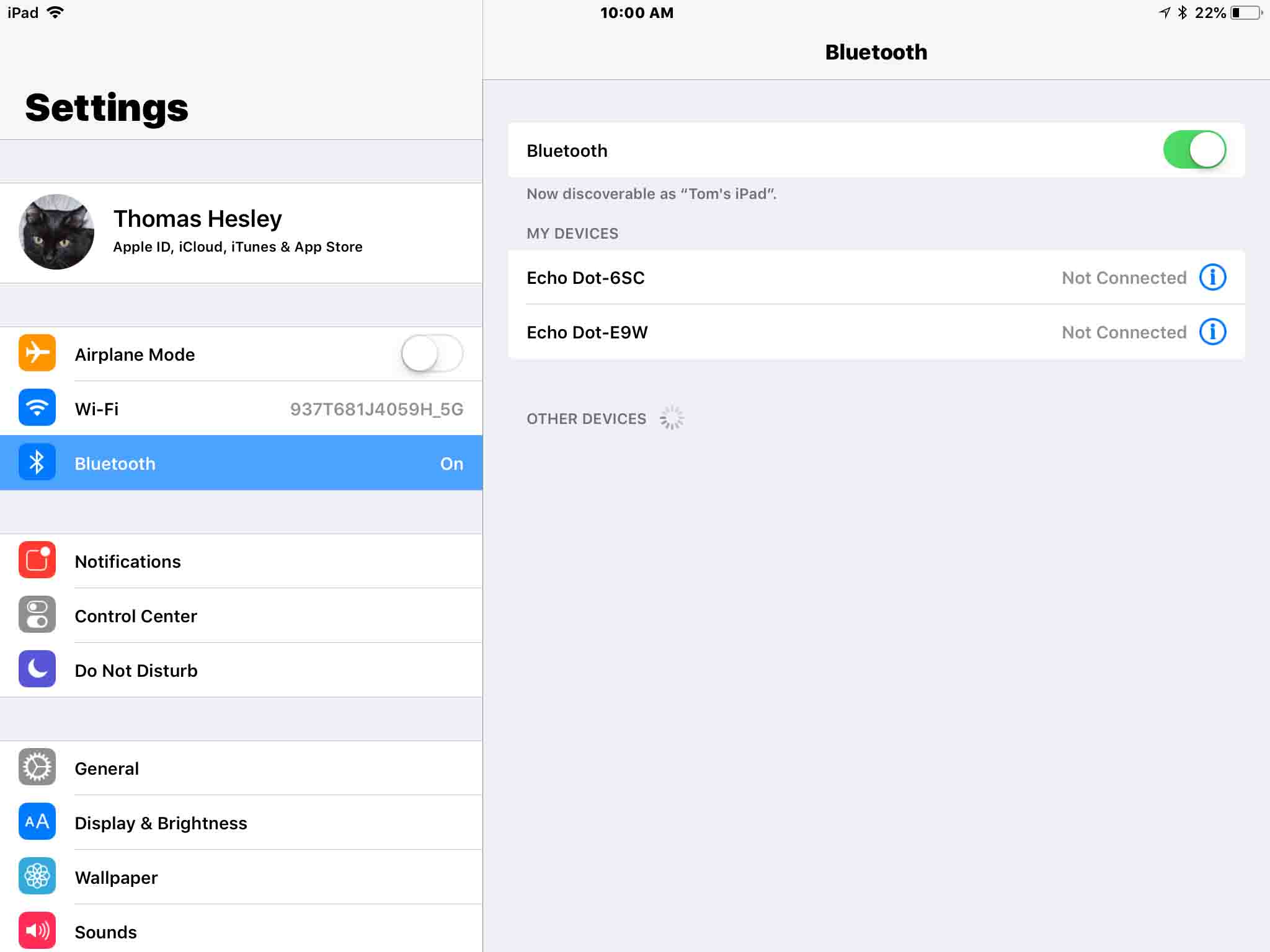
Our Bluetooth settings screen displays as follows. Note that our Bluetooth is enabled here.
But since JBL Clip 3 speaker is currently powered OFF (is not in Bluetooth discovery mode), it does not show up in the Bluetooth devices list. Also, we don’t see it since we’ve never paired our Clip 3 with the iPad Air before. See this as shown in this list of previously paired Bluetooth devices, shown next.
5. Turn On your JBL Clip 3
Then turn on the Clip 3 by quickly pressing its Power button. See this, pointed at by the green arrow, in the next picture.
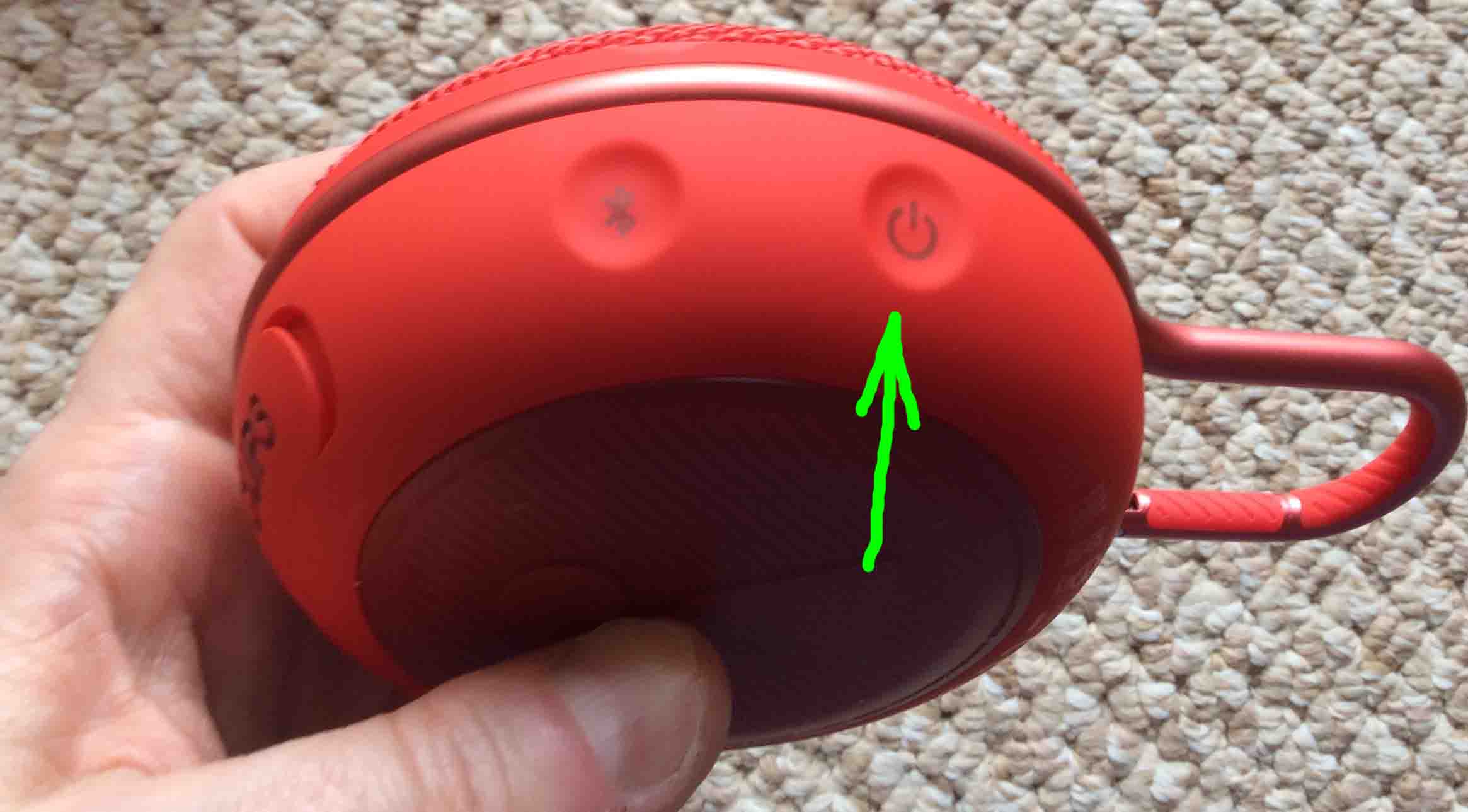
After that, the speaker powers up, and its status lamp slowly blinks white. This means that it’s ready to receive a Bluetooth connection request.
But since our iPad does not know about this speaker, the Clip 3 will not pair with it automatically.

6. Put your JBL Clip 3 into Bluetooth Discovery Mode
Now, to see your JBL Clip 3 on your iOS device, place the speaker into Bluetooth discovery mode. So to do that, press and release the Bluetooth button. Find this button as shown in the next picture, pointed at by the green arrow.
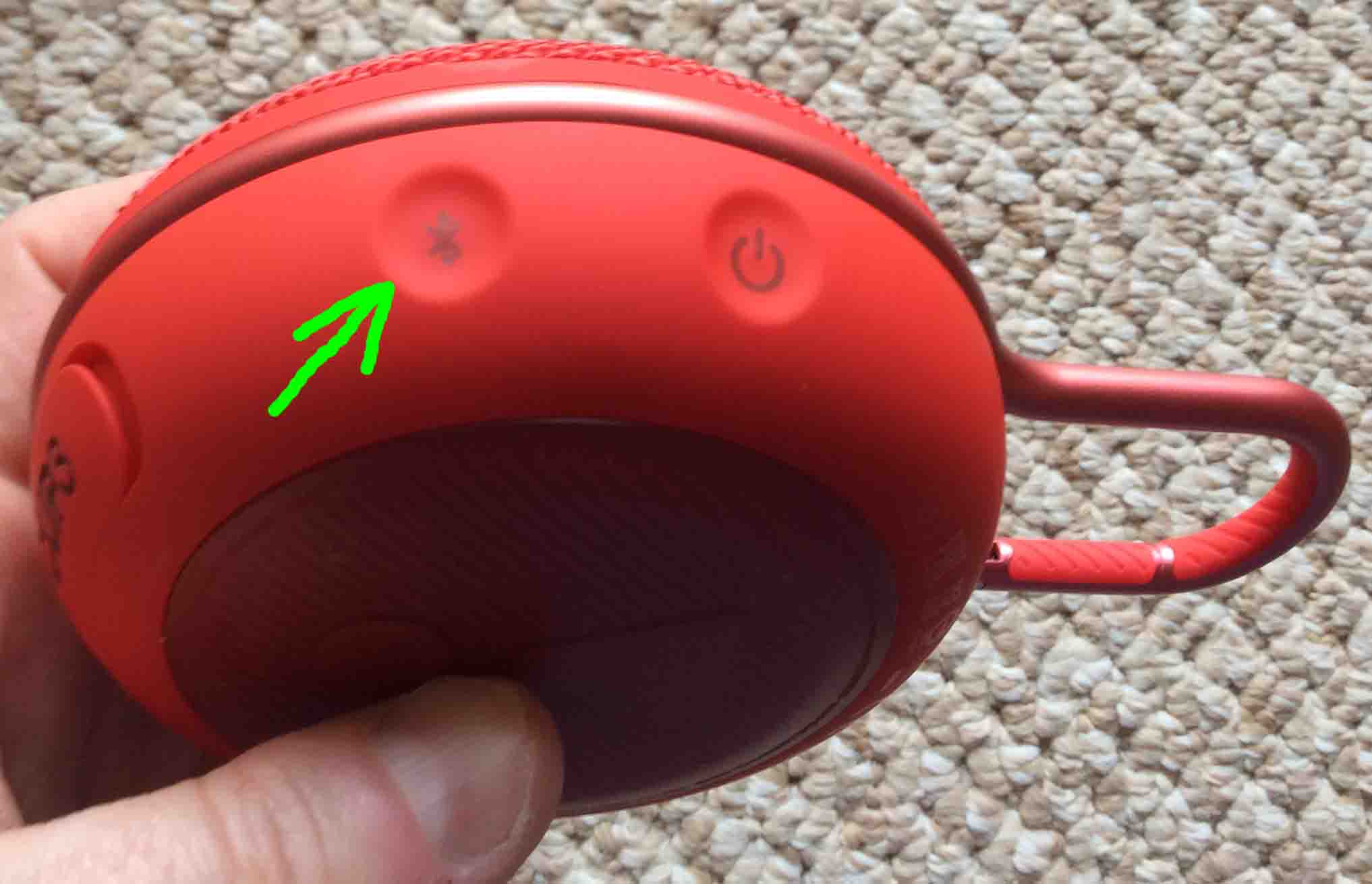
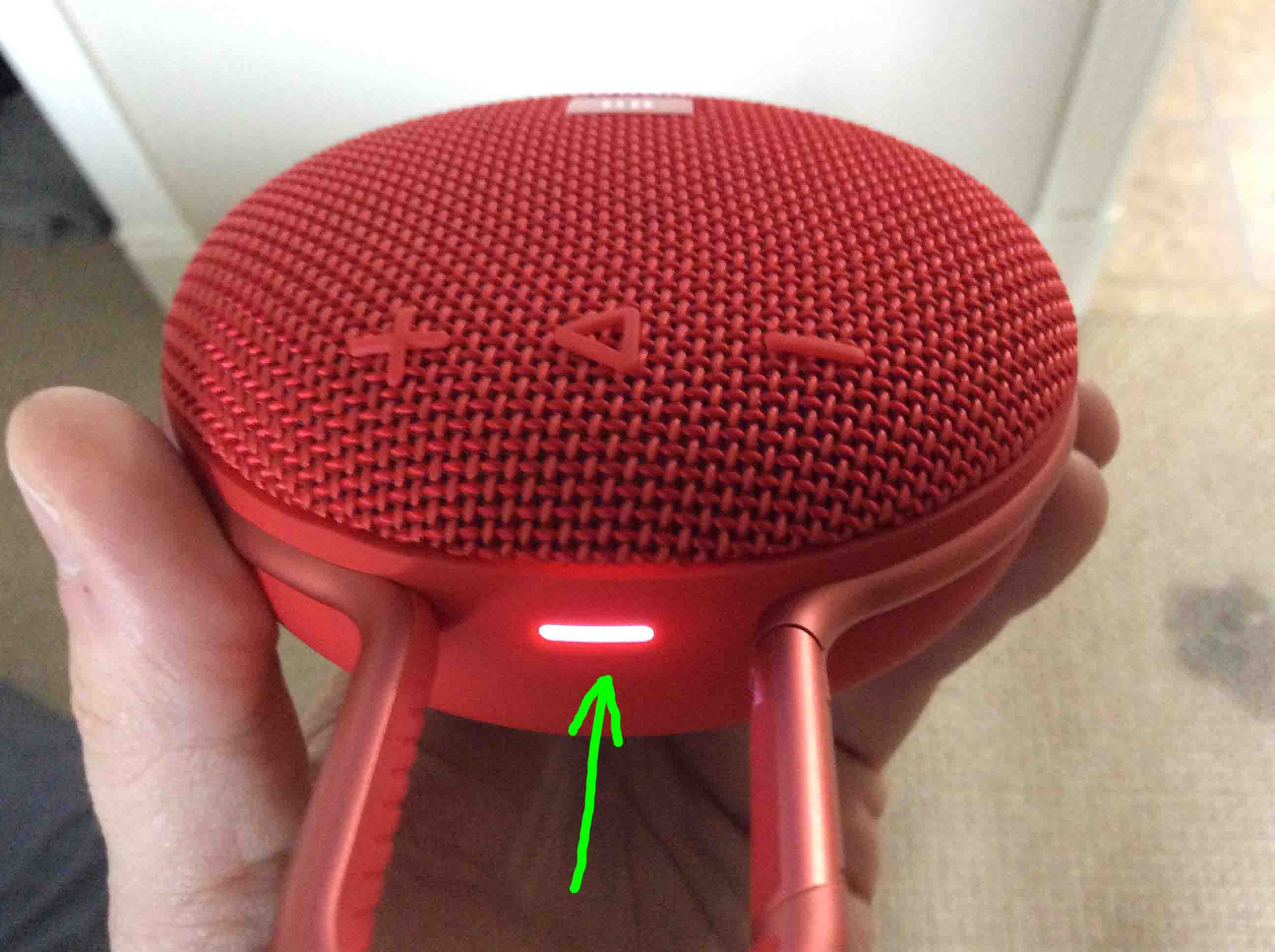
When you press the Bluetooth Discovery Mode button, the Clip 3 makes a repeating single pluck guitar note sound several times. Also, the status lamp changes from a slow flashing white fast flashing white. See this next, as pointed at by the green arrow.
7. Find your JBL Clip 3 on your iOS Device
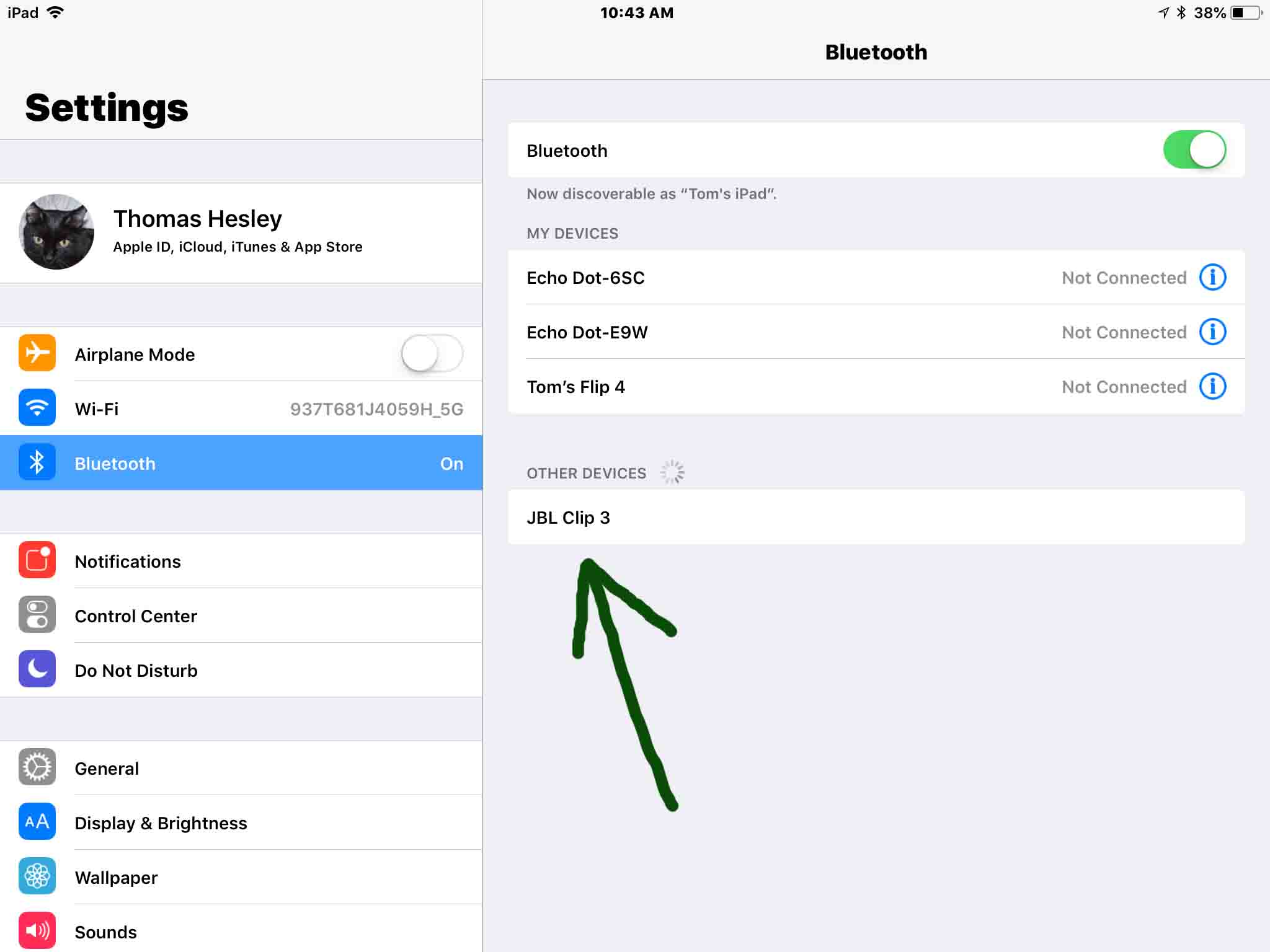
See the screen shot next. We found our Clip 3, as pointed at by the green arrow.
8. Pair with your JBL Clip 3
Next, tap the listed speaker in the Other Devices section of the Bluetooth devices list.
Your iOS device then pairs with the Clip 3.
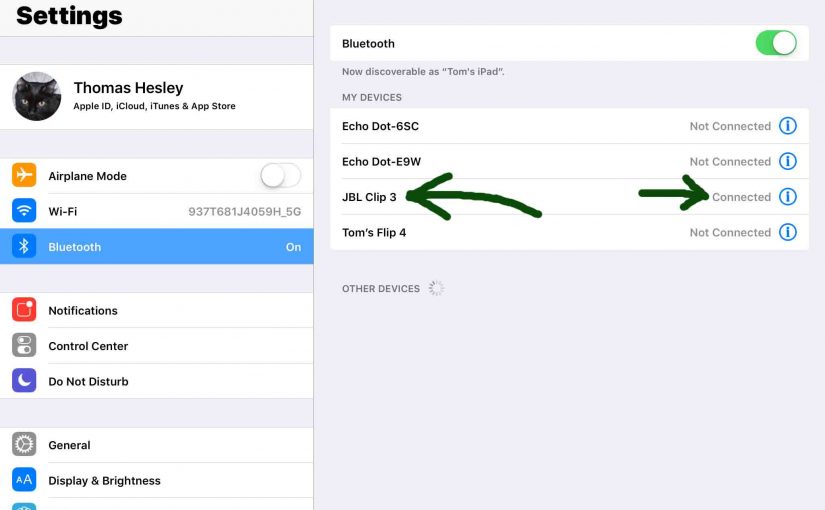
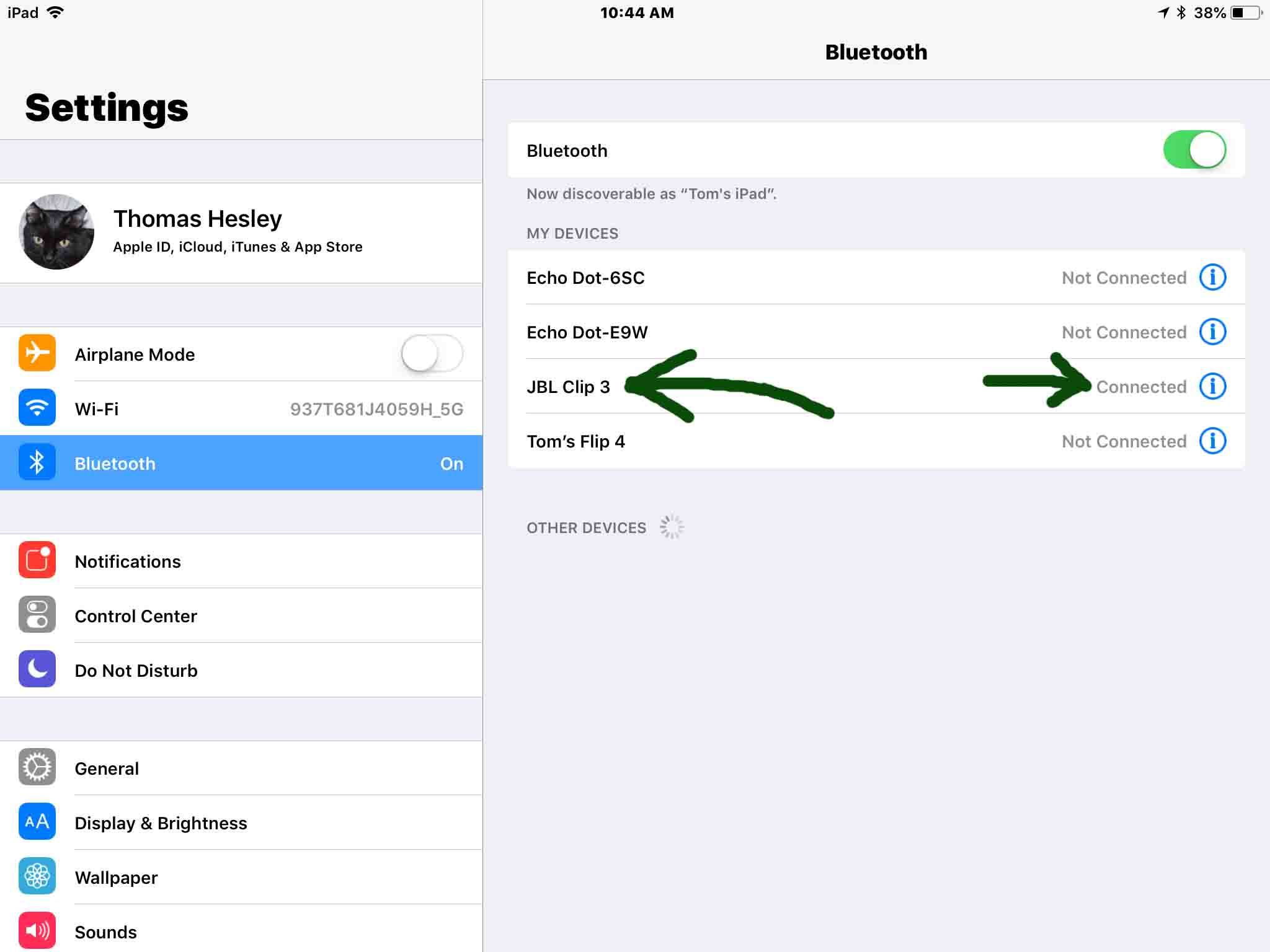
Now the iOS device’s Bluetooth Settings screen then changes to look something like the following. Note the now-connected JBL Flip 3 entry, as pointed at by the green arrows in the next screenshot.
9. Done with Pairing JBL Clip 3 with iOS !
Finally, we have now successfully paired our JBL Clip 3 Waterproof Bluetooth speaker with our iPad Air iOS device. Thus you may now play your audio files or streams on this iOS device, and they’ll play on the JBL Clip 3. Enjoy.
Other Posts About the JBL Clip 3
References for Pairing JBL Clip 3 with iOS
Revision History
-
- 2020-04-20: Added more tags.
- 2019-04-22: Added tags. Shortened post URL. Removed ad code.
- 2018-06-05: First published.