You may decide to sell or give your Harman Kardon Invoke smart speaker to another person. Or, you wish to link it to a different Microsoft account. But then again, maybe you want to join it to a different WiFi network. So, to unlink this device from its current account and network, and to restore the speaker to factory default (fresh out of the box) state, run through the following Reset Harman Kardon Invoke routine.
Note that if you’re just trying to fix Invoke problems, a factory default reset may be too drastic. So before resetting, try this.
- Power off the unit for fifteen seconds. Do this by pulling out its power cable either from the wall outlet, or from the unit itself.
- Next, wait for ten seconds.
- Then power it back up.
This often restores proper working. But if not, read on for the proper hard reset procedure.
Once reset, you’ll no longer have control of the Invoke from the Microsoft account where you controlled it from before. That’s true, unless you run through the setup procedure again, and relink it to that account via the Cortana app.
Now, to the reset procedure.
How to Reset Harman Kardon Invoke Voice Activated Speaker
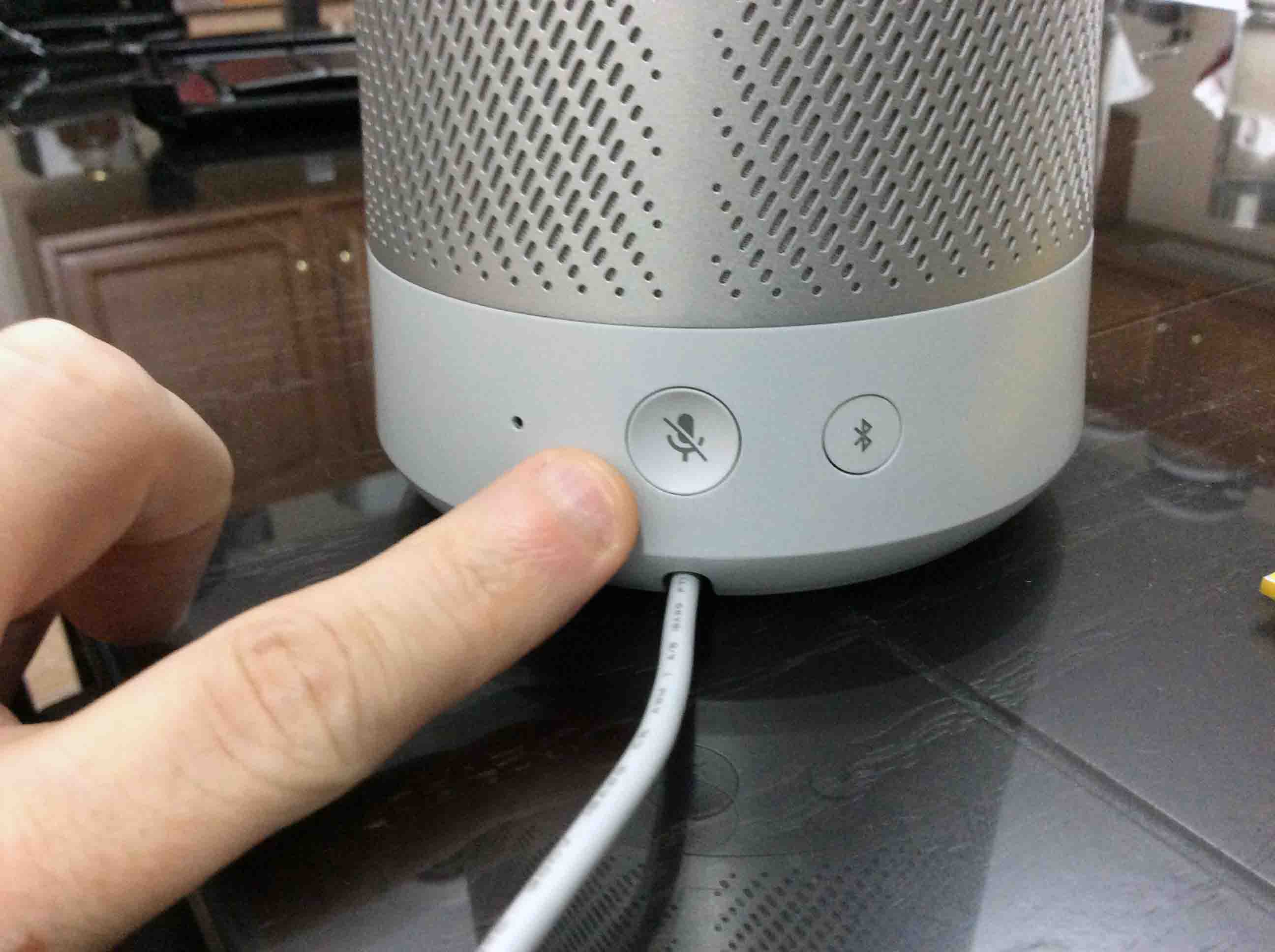
1. Attach Power Cable
Connect the Invoke to its power adapter. To do that, find the DC power input port on the underside of the Invoke speaker. Then, plug the other end of that cord into a working AC outlet. Finally, wait for the speaker to finish booting before proceeding.
2. Press and Hold the Mic Mute Button Until Cortana Says, “Ready for setup.”
This usually takes her five seconds or so to reset and speak this message.
After she says that she’s ready for setup, factory default reset is done. In this state, the lights in the touch pad on the top of the Invoke display a white, back-and-forth rotating pattern, as shown next.
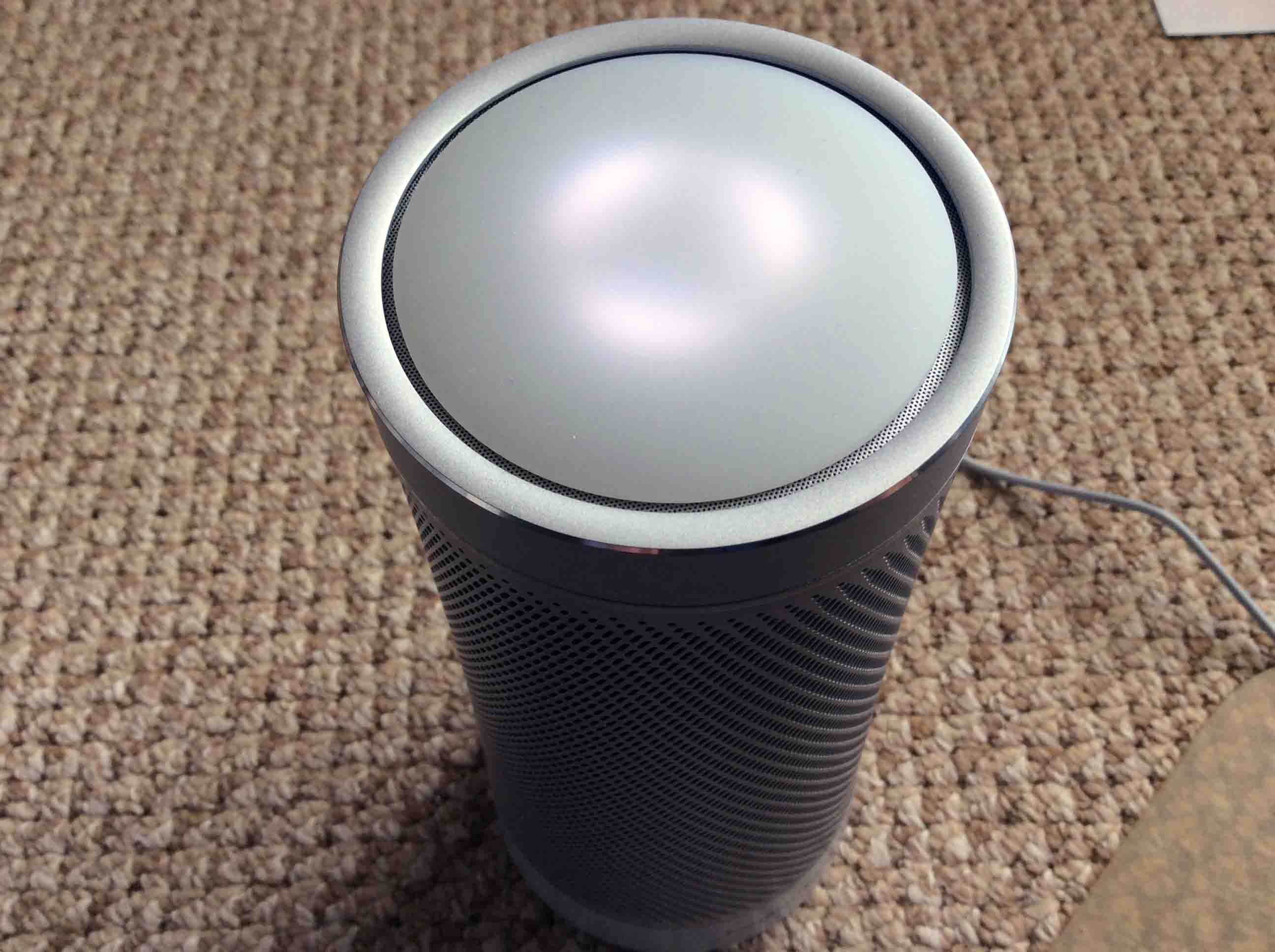
Now you only have several minutes to complete setup after a reset, before Invoke times out. When timeout occurs, the rotating white light pattern shown above turns into the red-light pattern shown in the next picture. Now should timeout happen, you may either press and hold the Mic Mute button again until the lights turn white once more, and she says that she’s once again ready for setup. Or, you can unplug the unit for five seconds and then reconnect it to AC power. Either technique again places the Invoke speaker into ready-for-setup mode.
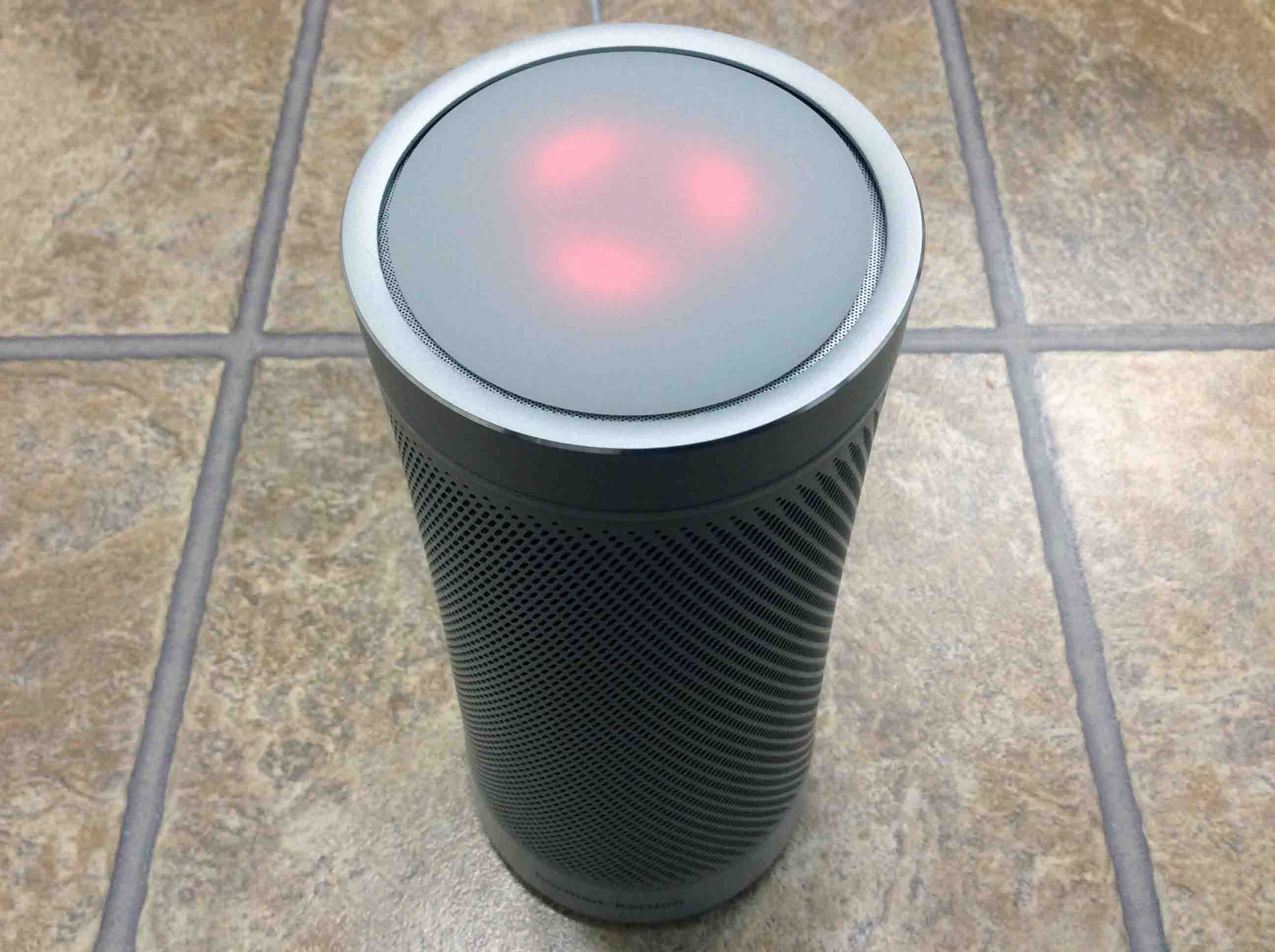
3. What Happens after Reset?
Your Harman Kardon smart speaker is now reset back to its factory default settings, and has entered setup mode.
4. Pack it Up or Set it Up
Feel free now to give your Invoke to another without fear that they’ll have access to the settings on your Microsoft account. Or, set it up again on your own account. Once the light blips on the top of the speaker turn white and start their back-and-forth spinning, the unit stays in setup mode until someone runs through the setup routine.
Note that the Invoke will not work until properly set up and linked to a Microsoft account.
Other Posts About the Harman Kardon Invoke Smart Speaker
- Adjusting Volume on Microsoft Invoke Voice Activated Speaker
- How to Change Wi-Fi Network on Harman Kardon Invoke Microsoft Cortana Smart Speaker
- Pairing Harman Kardon Microsoft Invoke Cortana Speaker as a Bluetooth Speaker
- How to Reboot the Harman Kardon Invoke Cortana Smart Speaker
- Set Up New Harman Kardon Invoke Cortana Smart Speaker Instructions
Related Posts to Reset Harman Kardon Invoke Smart Speaker Instructions
- Echo Sub Reset Instructions
- Reset HP DeskJet 3630 Printer Instructions
- JBL Xtreme Reset Instructions
- Resetting Google Home Mini Speaker Instructions
- Amazon Dot 2 Reset Instructions
References
- Invoke Speaker Description Page, from Harman Kardon
- Microsoft Cortana Invoke Smart Speaker at Best Buy
Revision History
- 2019-04-25: Added tags.
- 2017-12-07: Originally published.