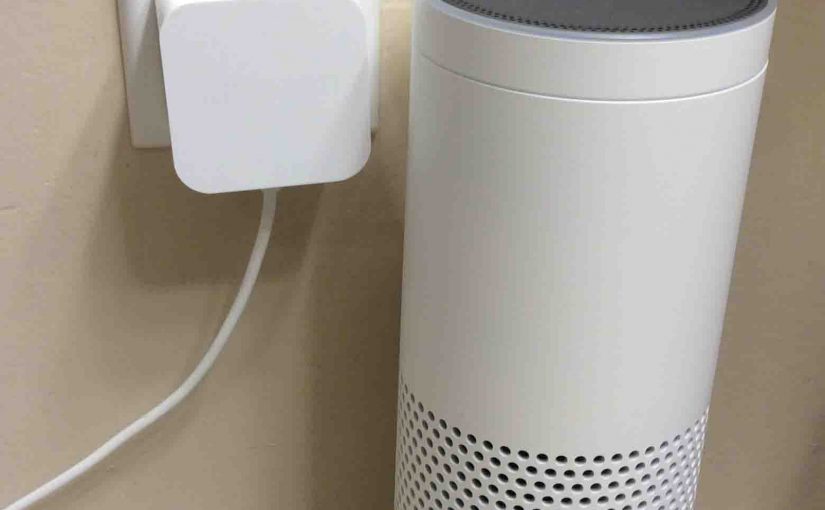
Some problems you can fix with just booting the speaker. But when you must reset, come here to see how to reset the Alexa Echo speaker.
But If you just want to fix strange errors on the speaker though, a reset may be too drastic. Why? Because a full factory reset means that you’ll have to…
- Completely set up your Alexa to connect to your Wi-Fi network.
- Put in the Amazon account info you want.
- What groups you want the speaker to belong to.
- Several other settings too.
So, before resetting Alexa, try powering off the unit for fifteen seconds. Unplug its USB power cable either from the wall outlet, or from the unit itself.
Then wait for ten to fifteen seconds, and then connect it back up. This often restores proper function. But if not, read on for the proper hard reset procedure that restores the Echo to factory settings.
You may decide to sell or give your Alexa Echo speaker to another person. Or you wish to link it to a new Amazon account. Then again, maybe you just want to connect it to a new Wi-Fi network. Run this routine to…
- Unlink this device from its current Alexa account.
- Assure that it forgets the WiFi connection info stored inside.
- Restore the Alexa Echo to factory default (fresh out of the box) values).
Once reset, you lose control of the speaker from the account where you controlled it from before. To get that control back, you must run through setup again.
How to Reset Alexa Echo Speaker
1. Attach Power Cable
Connect the Alexa Echo to its AC adapter.
Wait for speaker to power up. It finishes when the the light ring either goes off or turns purple. Purple means that it did not connect to a Wi-Fi network.
2. Press the Reset Button
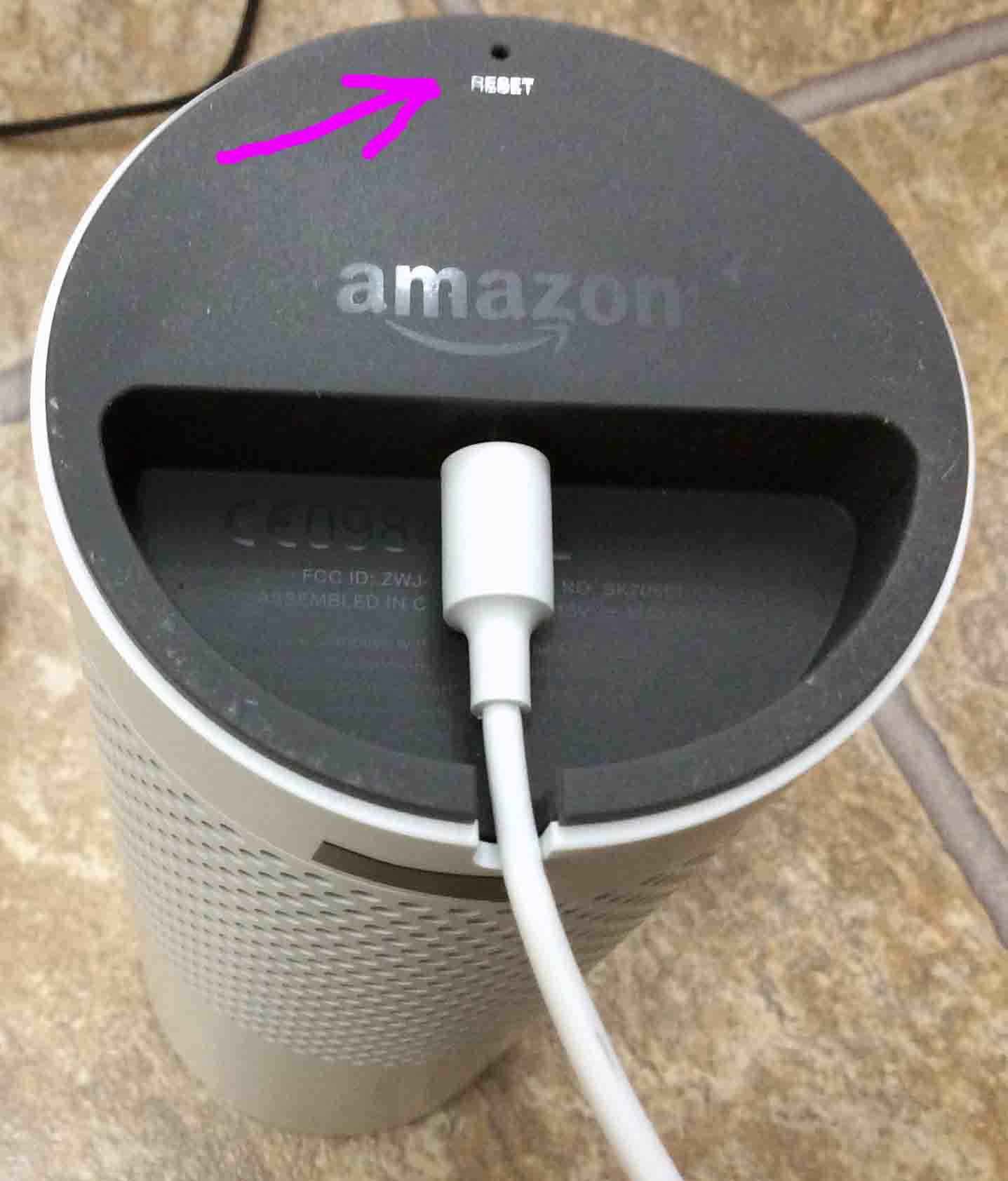
Find the reset button on the bottom (underside) of the speaker, as shown above.
Use a pen or straightened safety pin to press and hold the reset button. Keep it pressed for five to ten seconds.
3. Release the Reset Button to Continue with How to Reset Alexa Echo Speaker
Once the ring flashes, the reset operation is now in progress. So you need no longer hold in the button. So go ahead and release it.
4. Wait for Reset to End
After a few seconds pause, the light ring goes all dark for a few more seconds. Then, it turns orange.
5. Done with How to Reset Alexa Echo Speaker !
You have now restored your Alexa Echo speaker to factory default settings. Plus, it’s now in setup mode.
What Happens After Reset
Pack it Up or Set it Up
Feel free now to give your speaker to someone else. Do not fear that they’ll access your Alexa settings on your Amazon account through it. They won’t.
Or, you can set it up again on your existing account.
Once in setup mode, the unit stays that way until someone runs through setup again. The speaker will not work again until set up and linked to an Amazon account.
Other Posts About Alexa Echo Smart Speakers
- How to Force a Firmware Update on the Amazon Echo Alexa Smart Speakers
- How to Reboot Amazon Echo Speaker
- Original Amazon Echo Smart Speaker Picture Gallery
Related Posts to How to Reset Alexa Echo Speaker
- How to Reset Google Home Mini Speaker
- Resetting JBL Speaker Flip 5, Reset Bluetooth
- How to Reset Echo Alexa Smart Speakers
- Reset Google Home Speakers, How To
- How to Reset JBL Flip 4 Bluetooth Speaker
References for How to Reset Alexa Echo Speaker
Revision History
- 2020-03-21: Added more tags.
- 2019-03-31: First posted.