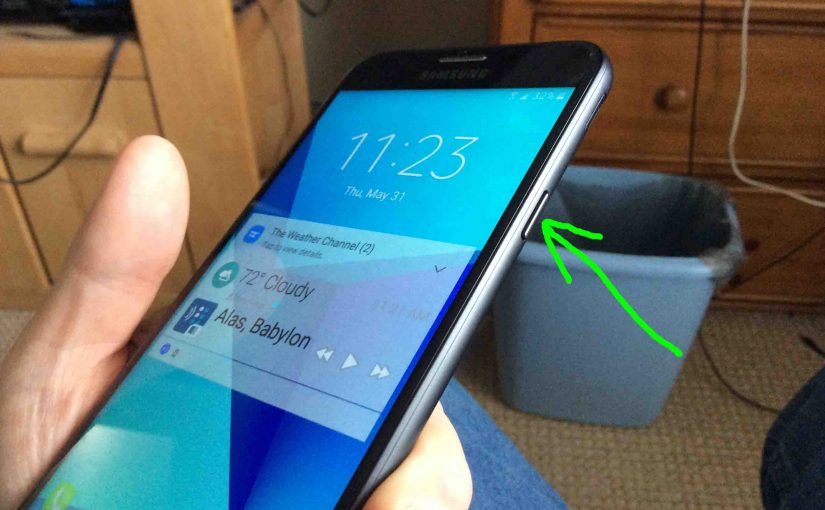
In this piece, we detail our Samsung J7 force restart instructions for the Galaxy J7 Sky Pro cell phone. You would force restart to correct faulty symptoms or to answer the weekly prompts to restart it to preserve solid operation. The Sky Pro features no physical Restart button. So restarting this device is a little more involved than just tapping a button. But not much more so. It’s easy actually, and here’s how we reboot this mobile phone.
Samsung J7 Force Restart Instructions
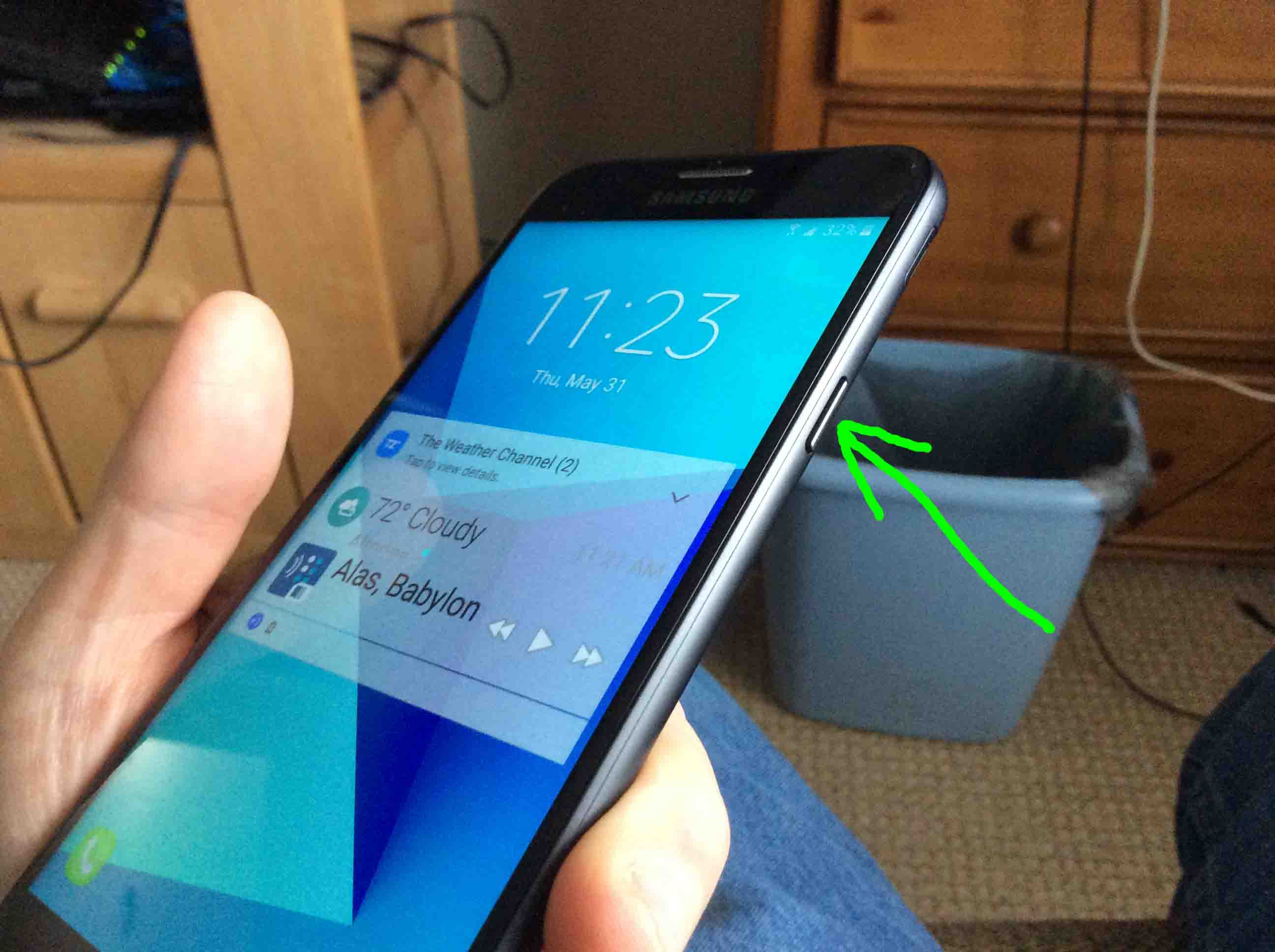
1. Find the Sky Pro’s Power / Wake Button
Locate the Power / Wake button on the J7, as highlighted by the green arrow in the next picture. It’s on this Galaxy’s top right edge.
2. Press and Hold Power / Wake Button Until the Power Options Screen Appears
This Power Options screen comes up as shown next.
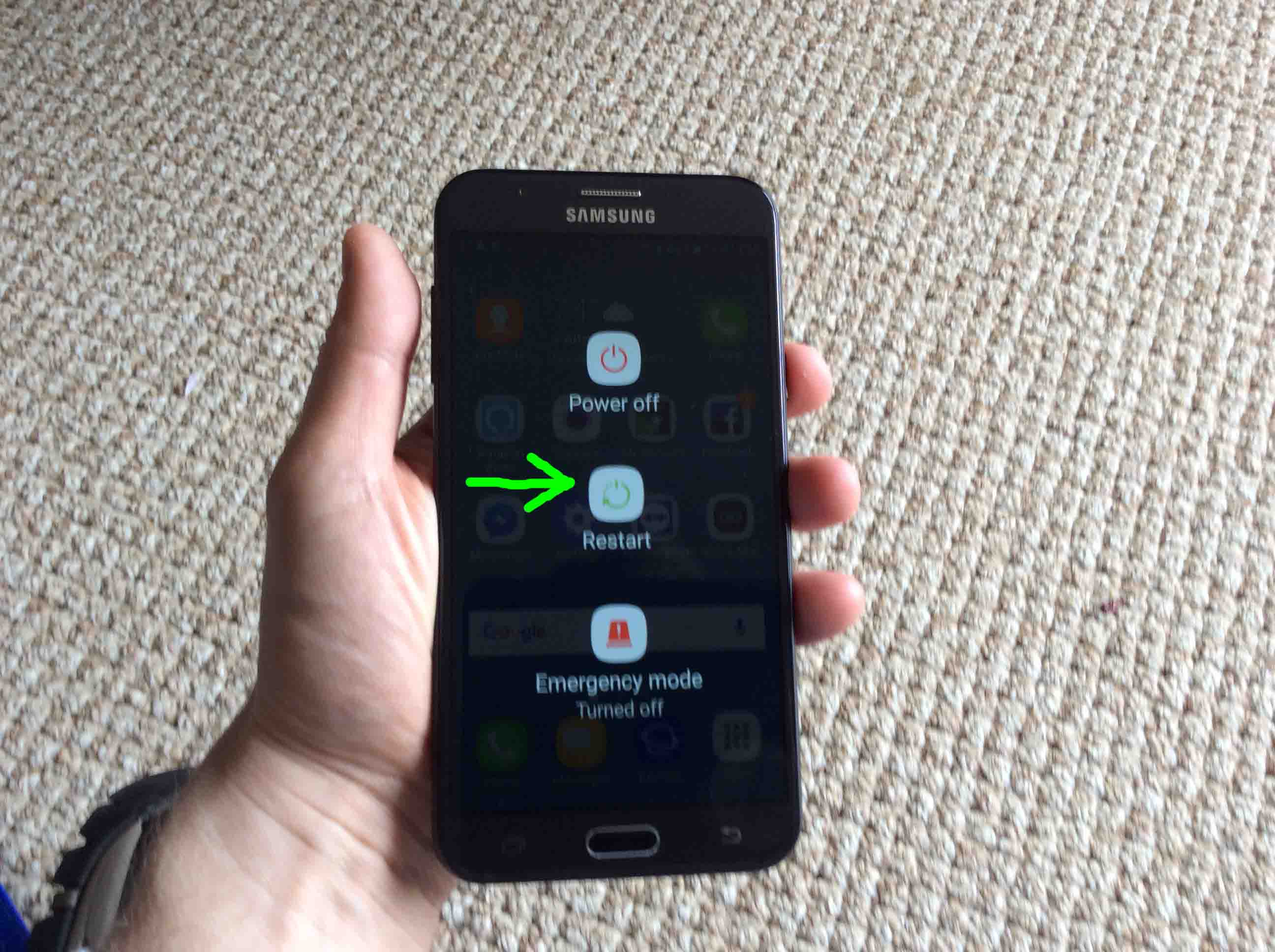
3. Touch the Onscreen Restart Button
Next, tap the Restart button on the screen, shown in the last picture.
Then, the Restart Confirmation screen comes up, as shown next.
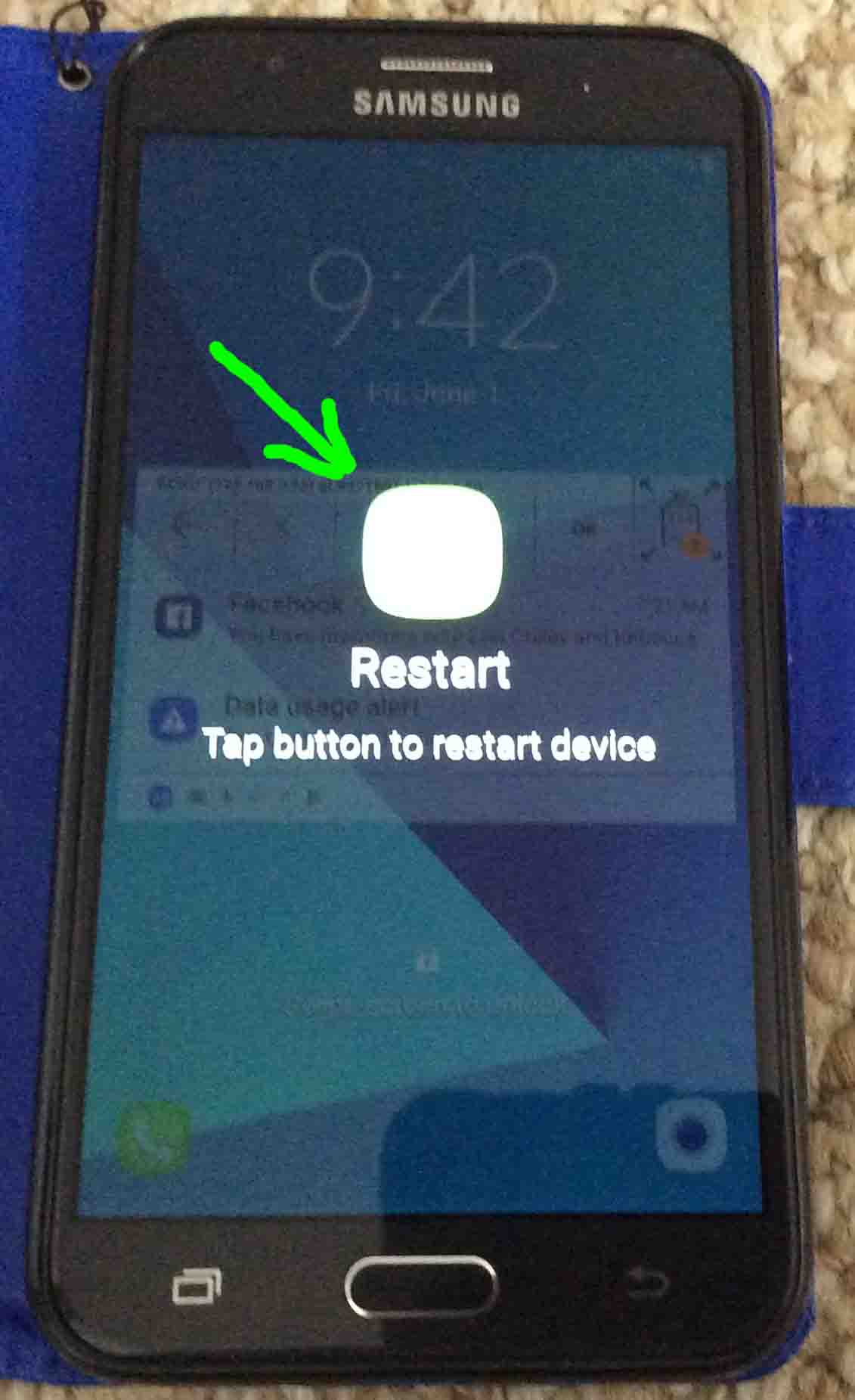
4. Again, Tap the Onscreen Restart Button to Continue with Samsung J7 Force Restart
Finally, tap the large, green Restart button on the screen, as pointed at by the green arrow in the last picture.
The phone then begins restarting, as shown next. First, it appears to power down. But when the screen finally goes dark, the phone turns itself back on again.

After several seconds, the J7 completely shuts down. It’s screen then goes totally dark, as shown next.
Then, the phone begins a new start-up, as shown next.
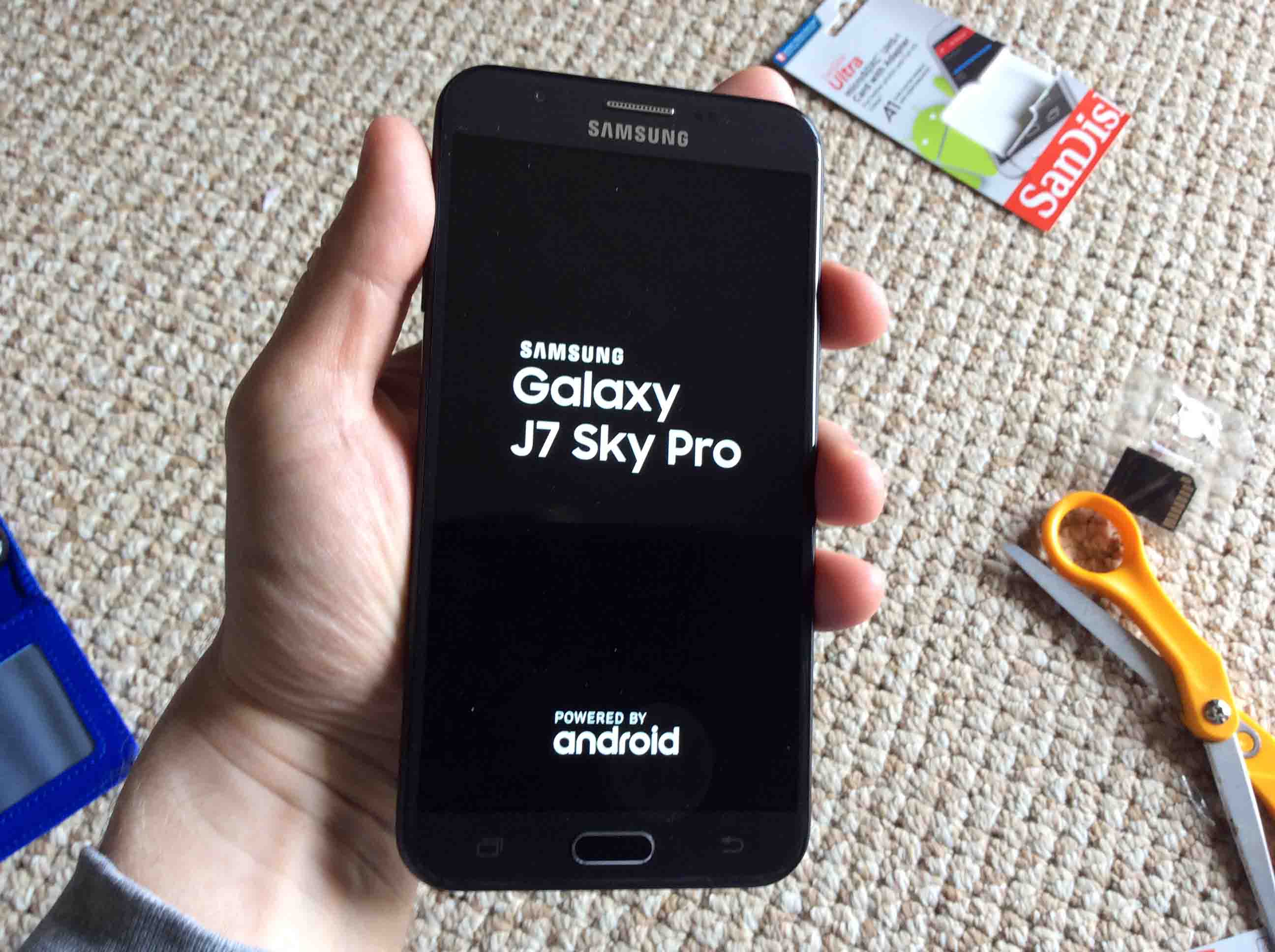
Then, the Galaxy J7 displays the Samsung logo screen as its firmware is loaded. Shown next.
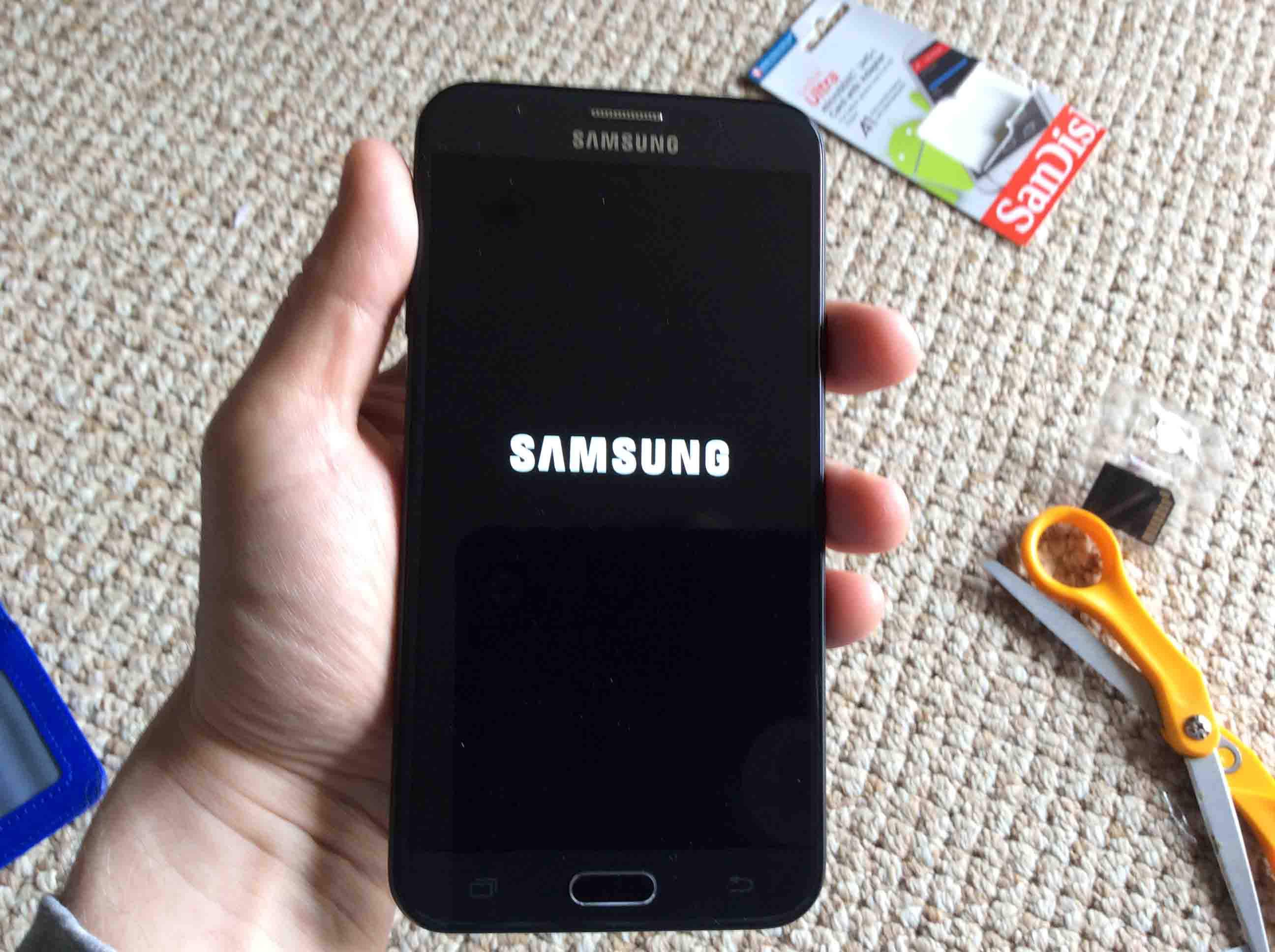
Then, the blue TracFone logo screen appears while the software related to the TracFone service loads.
Finally, the J7’s lock screen appears, as captured in the next screenshot.
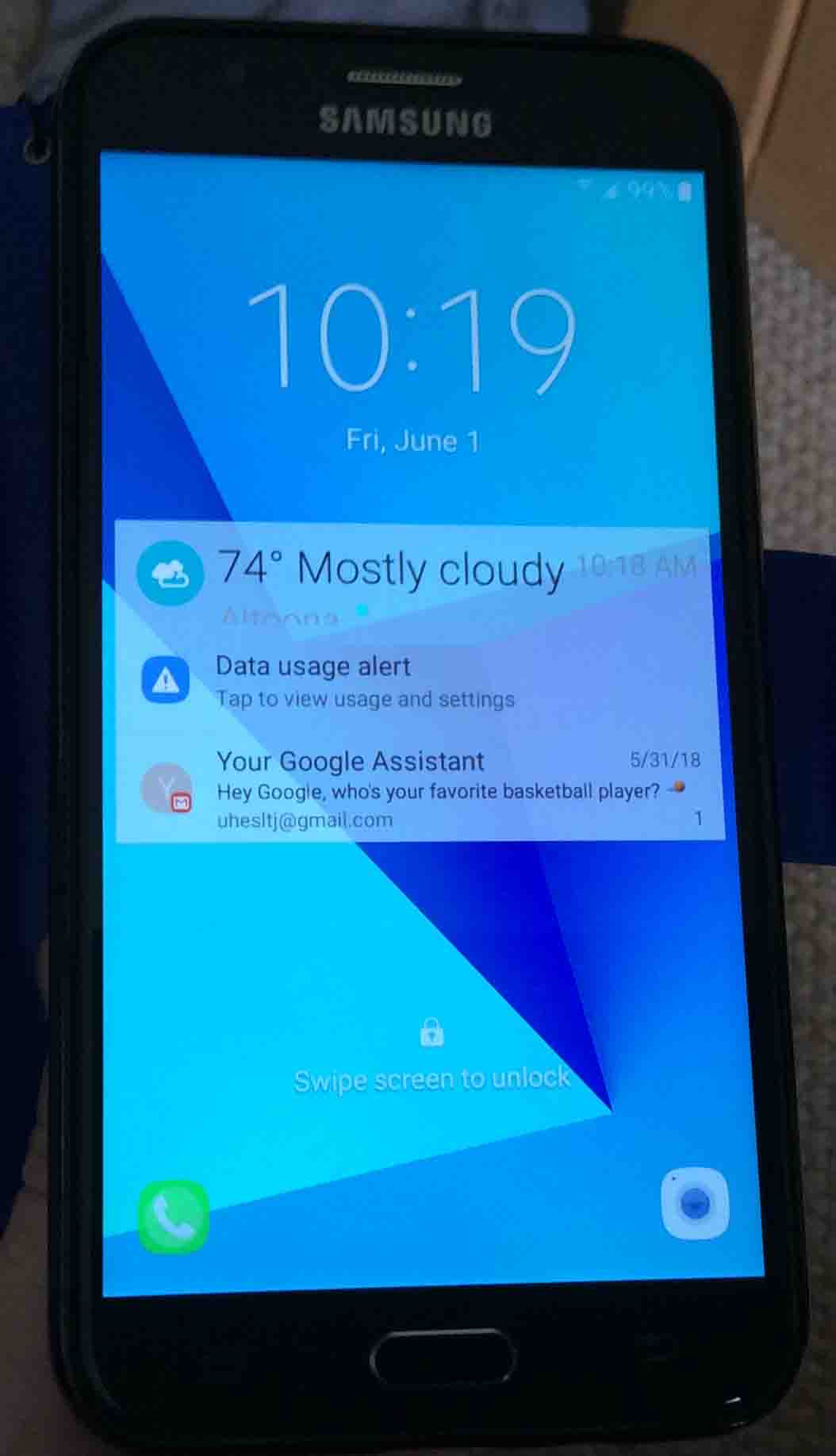
5. Done with Samsung J7 Force Restart Instructions !
If your J7 phone’s lock or home screen appeared, as ours did in the last picture, then you successfully restarted your Samsung Galaxy J7 Sky Pro TracFone.
Related Posts
Other Posts About the Samsung J7 Phone
References for Samsung J7 Force Restart
Revision History
-
- 2019-04-09: Added tags.
- 2019-01-01: First published.