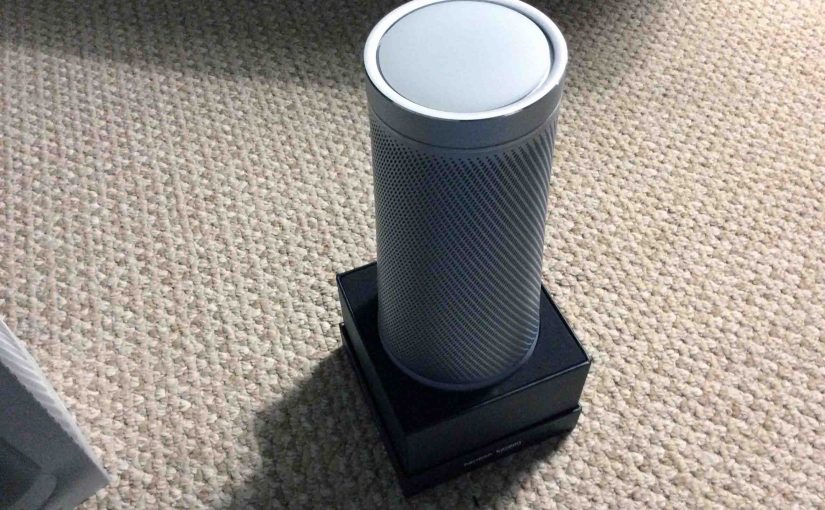
You may wish to reboot your Harman Kardon Cortana Invoke smart speaker if it acts strange. If it stops answering voice requests, then reboot first. If it emits strange sounds, breaks up, chirps or squeaks, or shows any unusual symptom, then again, reboot it. Always try a speaker reboot first (described below). Rebooting often corrects problems. It further avoids of hard resetting your Harman Kardon.
Neither the speaker itself, nor the Cortana app that controls it, currently has a specific button or link for restarting this device. Therefore, reboot this speaker by unplugging it from power. Then wait a short time. And finally, reconnect it, as follows.
How to Reboot the Harman Kardon Invoke Cortana Smart Speaker
1. First, Simply Disconnect it from AC Power
Do this by unplugging the wall adapter from the AC outlet.
2. Then Wait Ten Seconds to Continue with Reboot Harman Kardon Speaker Instructions
Wait with the speaker completely shut down.
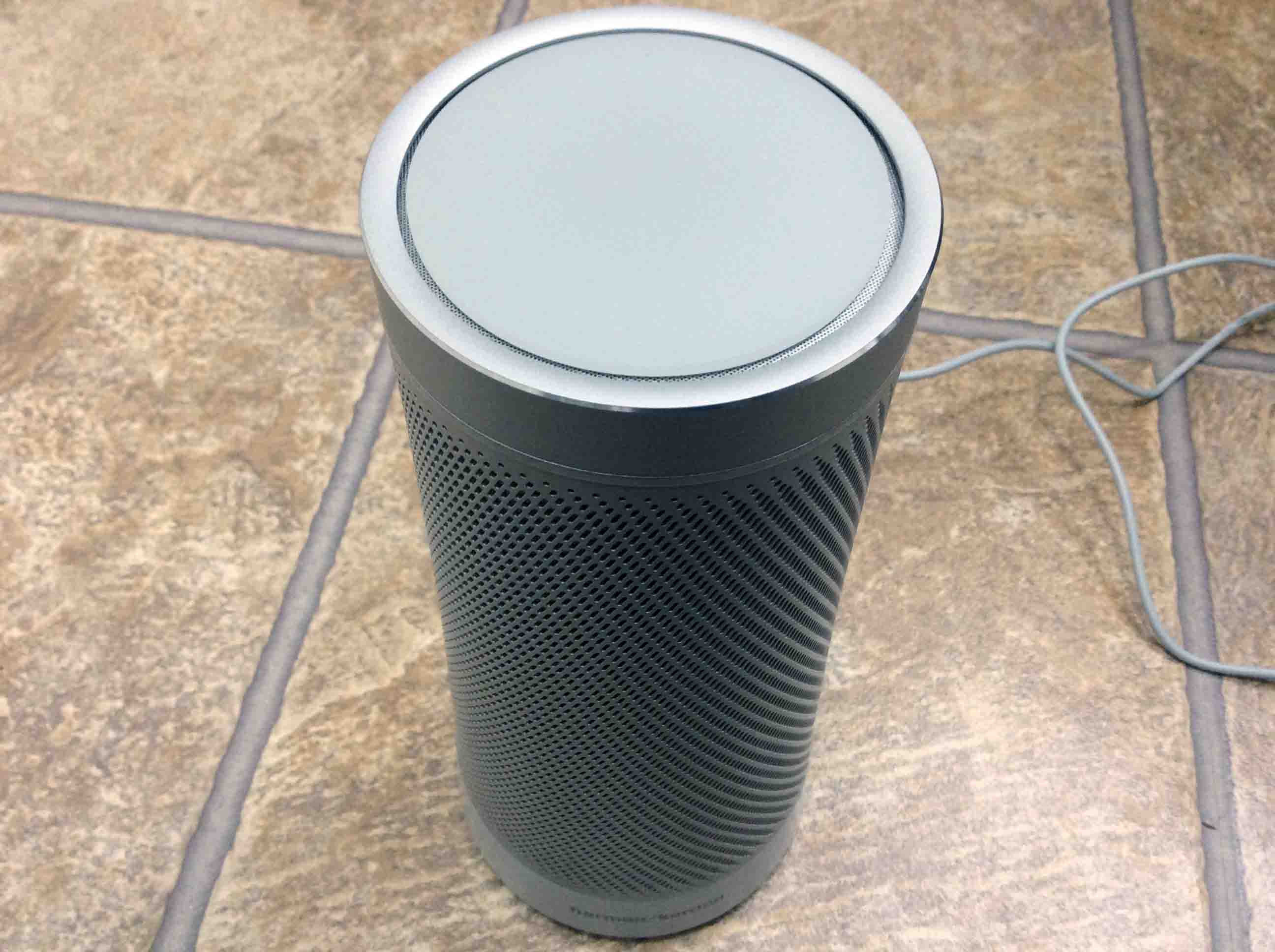
3. Finally, Plug it Back Into AC Power
The speaker then cold-boots, clearing out any errant program entries and behaviors in its memory. A single blip of light circles around the touch pad area during restart, as shown in the next picture. This can turn off and then reappear a couple times during reboot.
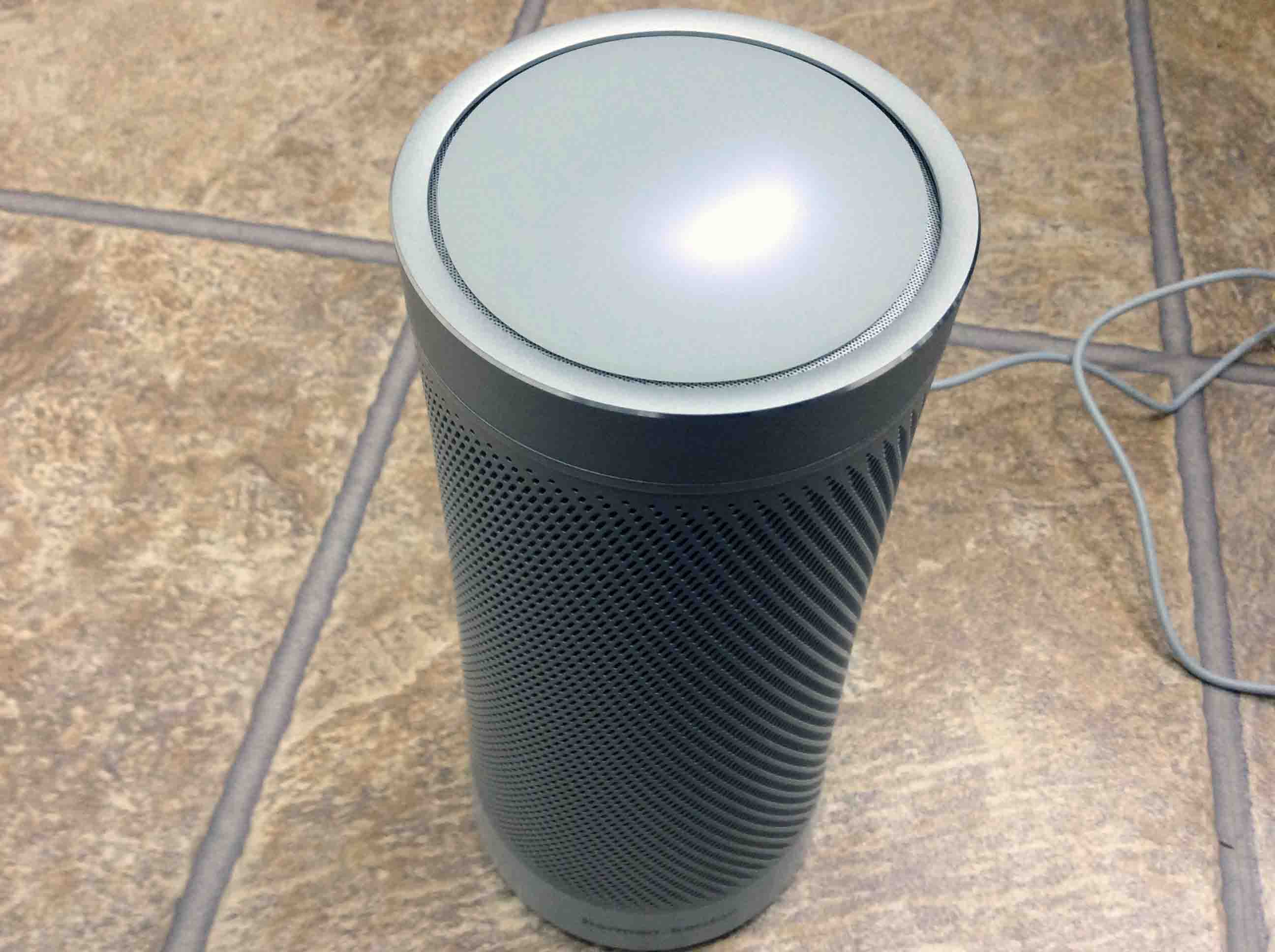
The speaker has finished rebooting when all light on the touch pad goes out.
Restarting the speaker in this way usually returns the unit to correct operation. We hope that as new firmware updates come out, any need to reboot it will fade.
Related Posts to Reboot Harman Kardon Speaker Instructions
- Reboot Google Home Mini, How to Instructions
- How to Fix Ethernet Connection Not Working Problem on Laptop, Reboot It
- Reboot Google Home Speaker Instructions
- How to Change Wi-Fi Network on Harman Kardon Speaker
- Reboot Echo Dot 2 Alexa Speaker Instructions
- Where is Reset Button on Harman Kardon Speaker
- Reboot Chromecast Audio Instructions, How To
- How to Reboot Samsung Galaxy J7 Sky Pro Phone
- Pairing Harman Kardon Speaker as a Bluetooth Speaker
- How to Set Up New Harman Kardon Speaker
Suggested Reading
- Unpacking Echo Dot 2nd Gen Speaker
- How to Pair UE Wonderboom with Alexa Echo Speakers
- Use Echo Dot as Bluetooth Speaker, How To
- JBL Flip 3 Review of this Portable Bluetooth Speaker
- How to Charge JBL Go Bluetooth Speaker
- Setting Windows 10 Voice, Text to Speech
- Factory Reset UE Wonderboom Speaker, How To
- How to Reset Echo Alexa Smart Speakers
- JBL Flip 2 Review and Features of this Bluetooth Speaker
- Use Google Home as Bluetooth Speaker, How To
- Reset Wonderboom Bluetooth Speaker Instructions
References for Reboot Harman Kardon Speaker Instructions
- Harman Kardon Invoke Official Web Site
- Chime in: What’s your experience so far with Harman Kardon’s Invoke speaker? from Windows Central
Revision History
- 2019-03-11: Added key phrase targeting and more tags.
- 2017-12-05: Originally published.