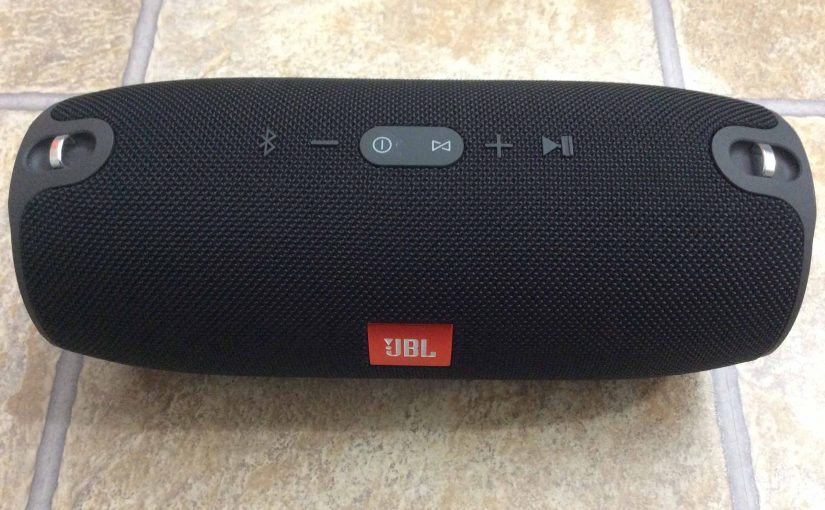
To pair the Xtreme JBL speaker with a Bluetooth source device for the first time, or to refresh the connection information stored on that device, you must know how to launch pairing mode on the speaker. In this mode, the JBL Xtreme telegraphs its Bluetooth name and current linkage info on the BT airwaves. So in this post, we show you how to put the JBL Xtreme 1 speaker into Bluetooth pairing mode, so you can then join it to phones, tablets, computers, and smart speakers.
How to Put JBL Xtreme Power Bank Speaker into Pairing Mode
1. Turn On the Xtreme
Turn on the speaker by pressing and releasing its Power button once.
See this button, pointed at by the bright green arrow, in the next picture.

The speaker then comes on, as pictured next. The Power button lights up white to signal that power is ON.

2. Press the Pairing / Discovery Mode Button and Release when the Power Button Starts Flashing
Now, to be able to discover your speaker on your source Bluetooth device, place it into pairing mode. For that, press and release the the Pairing button, as pointed out in the next picture.
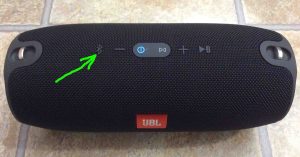
When you press this Pairing button, the speaker makes a plucking guitar pairing sound. Plus, the Power button lamp begins fast-flashing blue. See this in the last picture, just to the right of the Pairing and Volume Down buttons.
3. Done with How to Put JBL Xtreme Speaker into Pairing Mode
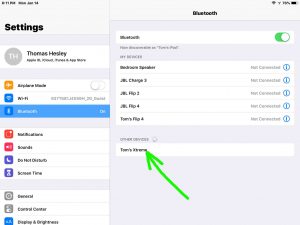
While the Power button is flashing blue, you should be able to find your Xtreme on any phone, computer, tablet, or smart speaker, that is within several feet of it, as seen next. Our speaker here is named “Tom’s Xtreme”, although if you haven’t renamed yours, it will show up as “JBL Xtreme”.
Other Posts About the JBL Xtreme Bluetooth Speaker
Related Posts to How to Put JBL Xtreme Speaker In Pairing Mode
References for How to Put JBL Xtreme into Pairing Mode
Revision History
-
- 2020-08-15: First published.